

Introduction
In this article we are going to learn how to upload a video in a project folder and save its path in a SQL server database table. We will bind that table to gridview and play audio using html5 video element.
Step 1
Create database in the SQL server of your choice.
- CREATE TABLE [dbo].[Videos](
- [ID] [int] IDENTITY(1,1) NOT NULL,
- [Name] [nvarchar](50) NULL,
- [Video_Path] [nvarchar](max) NULL,
- CONSTRAINT [PK_Videos] PRIMARY KEY CLUSTERED
- (
- [ID] ASC
- )WITH (PAD_INDEX = OFF, STATISTICS_NORECOMPUTE = OFF, IGNORE_DUP_KEY = OFF, ALLOW_ROW_LOCKS = ON, ALLOW_PAGE_LOCKS = ON) ON [PRIMARY]
- ) ON [PRIMARY] TEXTIMAGE_ON [PRIMARY]
- GO
- CREATE procedure [dbo].[spInsertVideo]
- (
- @Name nvarchar(50),
- @Video_Path nvarchar(50)
- )
- as
- begin
- insert into Videos(Name,Video_Path)
- values(@Name,@Video_Path)
- end
Step 2
Create an empty project in Visual Studio. Double click on webconfig file and add connect.
- <connectionStrings>
- <add name="DBCS" connectionString="data source=FARHAN\SQLEXPRESS; database=simpleDB; integrated security=true;"/>
- </connectionStrings>
Add the below line of code to allow up to 50MB file upload.
- <httpRuntime executionTimeout="3600" maxRequestLength="51200" enable="true"/>
- <system.webServer>
- <security>
- <requestFiltering>
- <requestLimits maxAllowedContentLength="104857600" />
- </requestFiltering>
- </security>
- </system.webServer>
Step 3
Add web form by right clicking on project, adding new item, choosing web form and giving it a name. Add script and style cdn link in web from the head section.
- <link rel="stylesheet" href="https://cdnjs.cloudflare.com/ajax/libs/font-awesome/4.7.0/css/font-awesome.min.css">
- <link rel="stylesheet" href="https://maxcdn.bootstrapcdn.com/bootstrap/4.0.0/css/bootstrap.min.css">
- <script src="https://ajax.googleapis.com/ajax/libs/jquery/3.3.1/jquery.min.js"></script>
- <script src="https://maxcdn.bootstrapcdn.com/bootstrap/4.0.0/js/bootstrap.min.js"></script>
- <link rel="stylesheet" href="https://cdn.datatables.net/1.10.16/css/dataTables.bootstrap4.min.css" />
- <script src="https://cdn.datatables.net/1.10.16/js/jquery.dataTables.min.js" type="text/javascript"></script>
- <script src="https://cdn.datatables.net/1.10.16/js/dataTables.bootstrap4.min.js" type="text/javascript"></script>
Write script to apply Jquery data table with Gridview:
- <script type="text/javascript">
- $(document).ready(function () {
- $("#GridView1").prepend($("<thead></thead>").append($(this).find("tr:first"))).dataTable();
- });
- </script>
Step 4
Design HTML web form, drag and drop file upload control, button control, and grid view control, and use Bootstrap 4 class.
- <body>
- <form id="form1" runat="server">
- <div class="container py-3">
- <h2 class="text-center text-uppercase">How to upload video in database and play using asp.net</h2>
- <div class="row">
- <div class="form-group">
- <label>Choose Video:</label>
- <div class="input-group">
- <div class="custom-file">
- <asp:FileUpload ID="FileUpload1" CssClass="custom-file-input" runat="server" />
- <label class="custom-file-label"></label>
- </div>
- <div class="input-group-append">
- <asp:Button ID="btnUpload" CssClass="btn btn-outline-secondary" runat="server" Text="Upload" OnClick="btnUpload_Click" />
- </div>
- </div>
- </div>
- </div>
- <asp:Label ID="lblMessage" runat="server"></asp:Label>
- <asp:GridView ID="GridView1" ShowHeaderWhenEmpty="true" HeaderStyle-CssClass="bg-primary text-white" runat="server" AutoGenerateColumns="false" CssClass="table table-bordered">
- <EmptyDataTemplate>
- <div class="text-center">No Data Found <strong>Upload New Video</strong></div>
- </EmptyDataTemplate>
- <Columns>
- <asp:BoundField HeaderText="ID" DataField="ID" />
- <asp:BoundField HeaderText="Name" DataField="Name" />
- <asp:TemplateField HeaderText="Videos">
- <ItemTemplate>
- <video width="130" height="130" controls>
- <source src='<%#Eval("Video_Path")%>' type="video/mp4">
- </video>
- </ItemTemplate>
- </asp:TemplateField>
- </Columns>
- </asp:GridView>
- </div>
- </form>
- </body>
- <script type="text/javascript">
- $(document).ready(function () {
- $("#GridView1").prepend($("<thead></thead>").append($(this).find("tr:first"))).dataTable();
- });
- </script>
Step 5
Double click on upload button and write the following code:
- using System;
- using System.IO;
- using System.Data;
- using System.Data.SqlClient;
- using System.Configuration;
- namespace UploadVideo_Demo
- {
- public partial class UploadVideo : System.Web.UI.Page
- {
- protected void Page_Load(object sender, EventArgs e)
- {
- if (!IsPostBack)
- {
- BindGrid();
- }
- }
- private void BindGrid()
- {
- string CS = ConfigurationManager.ConnectionStrings["DBCS"].ConnectionString;
- using (SqlConnection con = new SqlConnection(CS))
- {
- SqlCommand cmd = new SqlCommand("spGetAllVideos", con);
- cmd.CommandType = CommandType.StoredProcedure;
- con.Open();
- GridView1.DataSource = cmd.ExecuteReader();
- GridView1.DataBind();
- }
- }
- protected void btnUpload_Click(object sender, EventArgs e)
- {
- if (FileUpload1.PostedFile!=null)
- {
- try
- {
- string FileName = Path.GetFileName(FileUpload1.PostedFile.FileName);
- FileUpload1.PostedFile.SaveAs(Server.MapPath("UploadVideos/" + FileName));
- string CS = ConfigurationManager.ConnectionStrings["DBCS"].ConnectionString;
- using (SqlConnection con = new SqlConnection(CS))
- {
- SqlCommand cmd = new SqlCommand("spInsertVideo", con);
- cmd.CommandType = CommandType.StoredProcedure;
- con.Open();
- cmd.Parameters.AddWithValue("@Name",FileName);
- cmd.Parameters.AddWithValue("@Video_Path", "UploadVideos/" + FileName);
- cmd.ExecuteNonQuery();
- BindGrid();
- lblMessage.Text = "Your file uploaded successfully";
- lblMessage.ForeColor = System.Drawing.Color.Green;
- }
- }
- catch (Exception)
- {
- lblMessage.Text = "Your file not uploaded";
- lblMessage.ForeColor = System.Drawing.Color.Red;
- }
- }
- }
- }
- }
Step 6
Run project ctr+F5
Final output
Screenshot 1
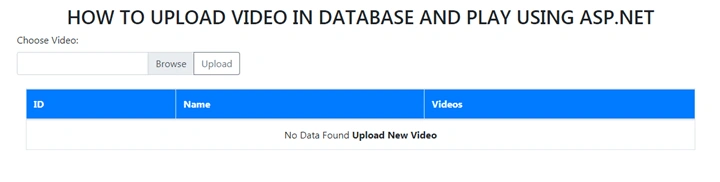 Screenshot 2
 Screenshot 3

Shreya KulkarniPosted May 1, 2021, 4:53 PM
Error 9 The name 'BundleConfig' does not exist in the current context Error 7 The name 'FilterConfig' does not exist in the current context Error 8 The name 'RouteConfig' does not exist in the current context I' m getting this error in Global.asax.cs file. Please suggest me the solution for this..?
amir ansariPosted Sep 21, 2020, 7:42 AM
SqlCommand cmd = new SqlCommand("spGetAllVideos", con); going to error . Error is Could not find stored procedure 'spGetAllVideos'. how to solve this problem. please solve that problem.
amir ansariPosted Sep 21, 2020, 7:35 AM
Missing stored procedure : spGetAllVideos
Natasha SinghPosted Sep 2, 2019, 8:08 AM
Missing stored procedure : spGetAllVideos
Anurag DixitPosted Aug 20, 2018, 9:52 AM
Audio Not Playing.
Bhavesh JadavPosted Apr 26, 2018, 8:38 AM
Very nice...............
umaPosted Apr 26, 2018, 6:56 AM
Thanks Your code is working
Hiten PandyaPosted Apr 9, 2018, 10:29 AM
Good Article sir..
Tridip BhattacharjeePosted Apr 9, 2018, 6:03 AM
What is the meaning of this line $("#GridView1").prepend($("<thead></thead>").append($(this).find("tr:first"))).dataTable(); ?
Bhavesh JadavPosted Apr 9, 2018, 3:29 AM
A very good concept, thanks to share.