
Introduction
Tool tips are used to help the users to learn the purpose of Controls in many Windows-based programs. Tooltips are nothing but small rectangles that appear when the user hovers the mouse pointer over the Control. The rectangle contains a short piece of text describing the control. Once displayed, the tips disappear when the user moves the mouse pointer away from the linked control or clicks a mouse button, or after a short delay.
Background
Here, I have used the ToolTip property of the Framework Element Class. Setting the value of this property to a String defines the text of the tool tip that is displayed when the mouse moves over the control. You can also set the ToolTip property to any WPF control for richer user interfaces.
Solution
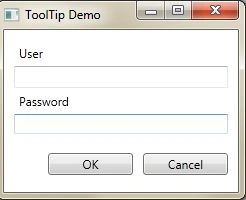
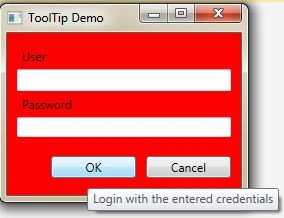
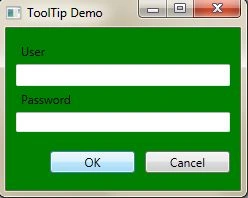
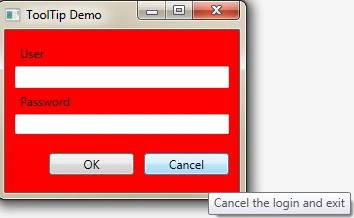
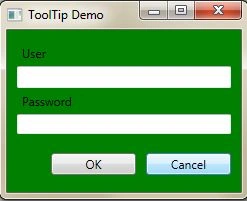
I have defined two tool tips for the two Button controls. Each uses plain text. On running the program and hovering the mouse pointer over the buttons, you will see the result. The ToolTip control is used as the value for the Framework Element's ToolTip property. It cannot be used as a standalone control. In essence, it adds a wrapper to the content of the ToolTip property, providing additional features. ToolTip inherits functionality from the Content Control class. This means that it can contain text, other values or WPF controls.
Procedure
We have used Button.ToolTip tags within which ToolTip values are held. Run the program and hover the mouse pointer over the Buttons. Try moving the mouse pointer over one of the buttons and leaving it stationary for a few seconds to see that the tool tip is hidden automatically.
Step 1
<Window x:Class="ToolTipDemo.MainWindow"
xmlns="http://schemas.microsoft.com/winfx/2006/xaml/presentation"
xmlns:x="http://schemas.microsoft.com/winfx/2006/xaml"
Title="ToolTip Demo"
Height="200"
Width="250">
<StackPanel Margin="10">
<Label Content="User" />
<TextBox/>
<Label Content="Password"/>
<PasswordBox/>
<StackPanel Orientation="Horizontal" HorizontalAlignment="Right" Height="60">
<Button Name="OKButton"
Content="OK"
Width="85"
VerticalAlignment="Center"
Margin="0 0 10 0">
<Button.ToolTip>
<ToolTip Placement="Mouse"
Opened="ToolTip_Opened"
Closed="ToolTip_Closed">Login with the entered credentials</ToolTip>
</Button.ToolTip>
</Button>
SubashPosted Sep 9, 2016, 12:54 AM
Nice one