

Introduction
When building Power Automate flows, you may need to process multiple records, documents, invoices, or requests. If every item is processed one by one, the flow can take a long time to complete.
Concurrency Control helps improve performance by allowing multiple flow runs or loop iterations to execute at the same time.
In this article, we will understand what concurrency is, where to enable it, and when it should or should not be used.
What Is Concurrency in Power Automate?
Concurrency means executing multiple operations simultaneously.
For example, imagine your flow needs to process 100 SharePoint items.
Without concurrency:
Item 1 → Process
Item 2 → Process
Item 3 → Process
Item 4 → Process
...
The flow processes each item one after another.
With concurrency enabled:
Item 1 ─┐
Item 2 ─┤
Item 3 ─┼── Process at the same time
Item 4 ─┤
Item 5 ─┘
This can reduce the overall execution time when the items are independent of each other.
Where Can You Use Concurrency?
In Power Automate, concurrency is commonly used in two places:
Trigger Concurrency
Apply to each Concurrency
Each one serves a different purpose.
1. Trigger Concurrency
Trigger concurrency controls how many instances of the same flow can run at the same time.
For example, consider a flow triggered when a SharePoint item is created.
When an item is created
        ↓
Get Item Details
        ↓
Process Request
        ↓
Send Notification
If multiple SharePoint items are created around the same time, multiple flow runs may need to be processed.
To configure concurrency:
Open the flow.
Select the trigger.
Click Settings.
Enable Concurrency Control.
Set the required degree of parallelism.
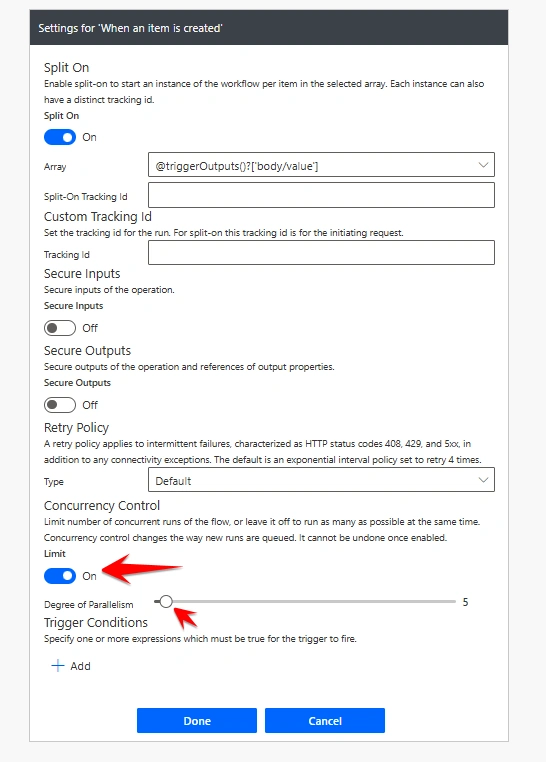
For example:
Concurrency Control: On
Degree of Parallelism: 5
This allows up to 5 flow runs to execute simultaneously.
If you set the value to:
1only one flow run will be processed at a time.
This is useful when the order of processing is important.
2. Concurrency in Apply to Each
The most common use of concurrency is inside an Apply to each loop.
For example:
Get SharePoint Items
        ↓
Apply to each
        ↓
Process Each Invoice
Suppose the flow receives 50 invoices.
Without parallel processing, the flow may process the invoices sequentially:
Invoice 1
   ↓
Invoice 2
   ↓
Invoice 3
   ↓
Invoice 4
If each invoice takes several seconds to process, the total flow duration can become significant.
You can enable concurrency on the Apply to each action.
Steps
Select the Apply to each action.
Click the Settings option.
Turn on Concurrency Control.
Enter the desired Degree of Parallelism.
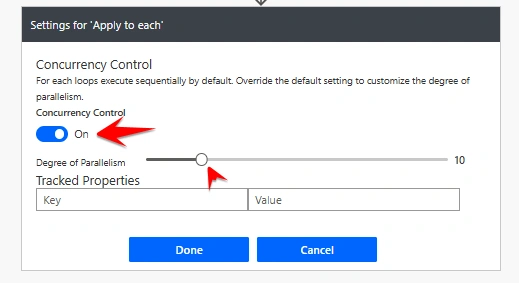
For example:
Concurrency Control: On
Degree of Parallelism: 10
Now, up to 10 loop iterations can run at the same time.
Invoice 1  ─┐
Invoice 2  ─┤
Invoice 3  ─┤
Invoice 4  ─┼── Processing simultaneously
Invoice 5  ─┤
Invoice 6  ─┤
...         │
Invoice 10 ─┘
After one iteration finishes, the next waiting item can start processing.
Example: Processing SharePoint Items
Let's say you have a SharePoint list containing pending invoices.
Your flow looks like this:
Recurrence
    ↓
Get Pending Invoices
    ↓
Apply to each
    ↓
Get Invoice Details
    ↓
Process Invoice
    ↓
Update Invoice Status
Assume you have:
100 invoices
Each invoice takes approximately 5 seconds to process
If processed sequentially:
100 × 5 seconds = 500 secondsThat is approximately:
8 minutesIf you enable concurrency with a value of 10, multiple invoices can be processed at the same time.
The actual performance improvement depends on the connector, API limits, processing time, and other actions in the flow, but concurrency can significantly reduce the total execution time.
When Should You Use Concurrency?
Concurrency works best when every item can be processed independently.
For example:
Vendor A → Process Quotation
Vendor B → Process Quotation
Vendor C → Process Quotation
Vendor D → Process Quotation
Each vendor quotation is independent.
In this situation, concurrency can be useful.
Good use cases
Processing multiple SharePoint items
Processing independent invoices
Processing vendor quotations
Reading multiple documents
AI document extraction
Sending notifications
Processing independent approval requests
Updating different records
For your RFP evaluation solution, concurrency can be useful when processing multiple vendor quotation documents.
For example:
Get Vendor Quotations
        ↓
Apply to each
        ↓
Extract Document Content
        ↓
Send Content for AI Processing
        ↓
Save Extracted Data
If each vendor document is independent, you can process multiple vendors simultaneously.
A reasonable starting point could be:
Concurrency: 3 to 5
When Should You Avoid Concurrency?
Concurrency can create problems when multiple processes update the same data.
For example:
Iteration 1 ──┐
Iteration 2 ──┼── Update Same Invoice
Iteration 3 ──┘
All iterations may read and update the same invoice at nearly the same time.
This can result in a race condition.
For example:
Current Approval Level = 1Two parallel processes read the same value.
Both processes calculate:
New Approval Level = 2Instead of moving through the approval process correctly, duplicate or incorrect updates may occur.
In this scenario, it is safer to use:
Concurrency = 1This ensures that processing happens one at a time.
Understanding Race Conditions
A race condition happens when multiple processes access or update the same resource at the same time.
For example:
Process A → Read Invoice Status = Pending

Process B → Read Invoice Status = Pending

Process A → Update Status = Approved

Process B → Update Status = Rejected
Because both processes started at almost the same time, the final result may depend on which update finishes last.
Concurrency can improve performance, but it also requires careful consideration of data dependencies.
Concurrency and SharePoint
When working with SharePoint, avoid setting a very high concurrency value immediately.
For example:
Concurrency = 50
This could generate many simultaneous requests.
Possible issues include:
SharePoint throttling
API request limits
HTTP 429 errors
Update conflicts
Flow failures
Unpredictable execution results
A better approach is to start with a smaller value.
For example:
Concurrency = 5Monitor the flow performance and increase the value if necessary.
Concurrency and Power Automate AI Processing
Concurrency can also be useful when processing documents with AI.
For example:
Get Vendor Documents
        ↓
Apply to each
        ↓
Read Document
        ↓
Extract Content
        ↓
AI Analysis
        ↓
Save Result
Instead of waiting for one document to finish before starting the next document, multiple independent documents can be processed simultaneously.
However, AI services and connectors may have their own limits. Therefore, using a very high concurrency value may not always improve performance.
A good approach is to start with:
Concurrency = 2 or 3
Then test the flow and increase the value if the environment and connected services can handle more requests.
Concurrency vs Parallel Branches
Concurrency and parallel branches are related, but they are not the same.
Concurrency
Concurrency controls how many flow runs or loop iterations execute at the same time.
Example:
Apply to each

Item 1 ─┐
Item 2 ─┼── Run simultaneously
Item 3 ─┘
Parallel Branches
Parallel branches allow different actions in the same flow to execute simultaneously.
Example:
                    ┌── Send Email
                    │
Trigger ────────────┼── Update SharePoint
                    │
                    └── Send Teams Notification
Use parallel branches when multiple actions are independent.
Use concurrency when processing multiple flow runs or multiple loop iterations.
Recommended Concurrency Settings
The following values can be used as a starting point.
| Scenario | Recommended Starting Value |
|---|---|
| Sequential approval process | 1 |
| Updating the same record | 1 |
| SharePoint item processing | 5 |
| Independent invoice processing | 5–10 |
| Document processing | 3–5 |
| AI document extraction | 2–5 |
| Independent vendor quotations | 3–10 |
| High-volume processing | Start low and test |
These values are starting points. The correct value depends on your flow design, connector limits, data volume, and whether the records are independent.
Best Practices
When using concurrency in Power Automate, follow these best practices:
Use concurrency only when items can be processed independently.
Start with a low concurrency value such as 3 or 5.
Test the flow with realistic data volumes.
Monitor flow run history for failures or throttling.
Use concurrency value 1 when processing order is important.
Avoid parallel updates to the same SharePoint item.
Consider connector and API limits.
Use error handling inside loops.
Increase concurrency gradually after testing.
Conclusion
Concurrency Control is a useful feature in Power Automate for improving the performance of flows that process multiple independent records.
For example, if your flow processes invoices, SharePoint items, vendor quotations, or documents, enabling concurrency can allow multiple items to be processed simultaneously and reduce the total execution time.
However, concurrency should be used carefully. If multiple flow runs or loop iterations update the same record, parallel processing can cause race conditions and unexpected results.
A simple rule is:
Independent records
        ↓
Use Concurrency

Same record or ordered process
        ↓
Use Concurrency = 1
By selecting the right concurrency level and testing your flow carefully, you can build faster and more reliable Power Automate solutions.
Join the conversation! Your thoughts help the community grow.