Introduction
Two Copilot features in Power Apps Studio can save a lot of time: Copilot for formulas and Proactive control rename. Both are in preview and are found under Settings → Updates → Preview. This article shows how to enable them and walks through a realistic example.
Note: Microsoft says preview features may change and shouldn’t be used in production apps. Try them in a development environment first.
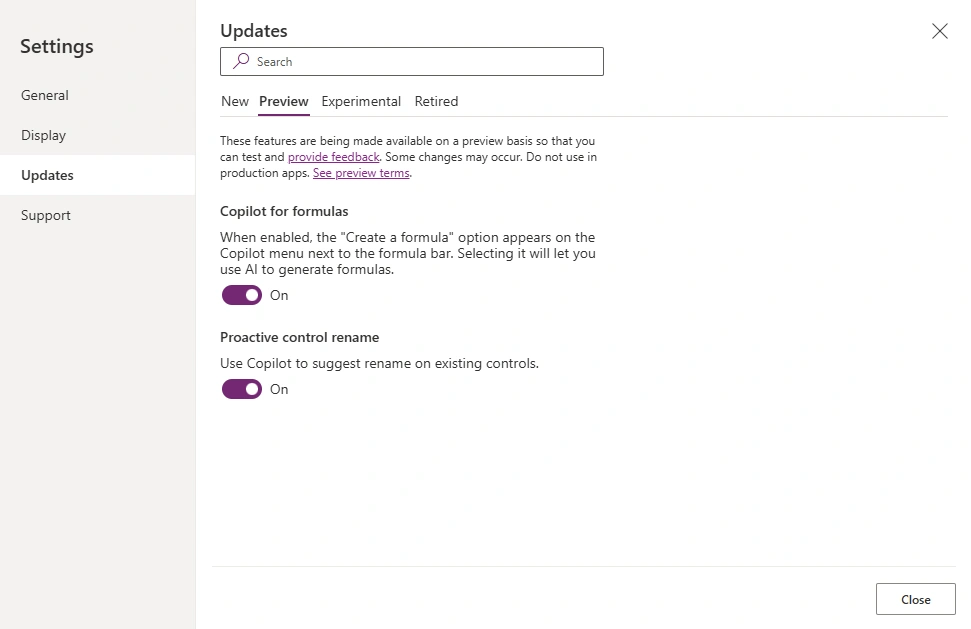
How to Enable Them
Open your app in Power Apps Studio.
Go to Settings → Updates → Preview.
Turn on Copilot for formulas.
Turn on Proactive control rename.
Close the settings window.
Two related toggles on the same page are Edit in Copilot Studio (connect the Copilot component to a custom copilot) and Keep recently visited screens in memory (faster navigation, at the cost of more memory). You don’t need either for this walkthrough.
What Each Feature Does
Copilot for formulas: a Create a formula option appears on the Copilot menu next to the formula bar. You describe what you want in plain English and Copilot generates the Power Fx formula.
Proactive control rename: Copilot suggests meaningful names for controls that still have default names like Button1 or Gallery1.
Real-World Example: A Vendor Selection Screen
Imagine you’re building a procurement app where users pick a vendor for an RFP. The screen has:
A text input for searching vendor names
A dropdown to filter by status (Approved, Pending, Blocked)
A gallery listing vendors from a Vendors table
A button to submit the selection
Step 1: The Default Names Problem
After adding the controls, your tree looks like this:
Default name | Purpose |
|---|
TextInput1
| Vendor search box |
Dropdown1
| Status filter |
Gallery1
| Vendor list |
Button1
| Submit selection |
With a dozen controls, formulas like Gallery1.Selected.VendorName become hard to read and maintain.
Step 2: Accept Rename Suggestions
With Proactive control rename on, Copilot suggests names. Review each one and accept it if it fits. A common convention uses a type prefix:
Before | After |
|---|
TextInput1
| txtVendorSearch
|
Dropdown1
| ddStatus
|
Gallery1
| galVendors
|
Button1
| btnSubmitSelection
|
If you rename controls before writing formulas, Copilot also has better context about what each control is for.
Example: RFP Evaluation Application
Suppose you are developing an RFP Evaluation application with a button to create a new RFP, a search box, and a gallery to display RFP records.
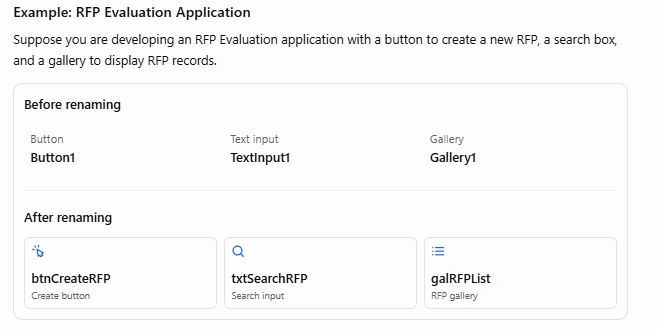
How to use Proactive Control Rename
Open your canvas app in Power Apps Studio.
Go to Settings → Updates → Preview.
Enable Proactive control rename, if available.
Select the relevant controls in the Tree view.
Review the suggested names using the available rename suggestion option.
Apply the appropriate names and test the app.
The exact options may vary depending on the Power Apps Studio version and feature availability.
Step 3: Generate the Gallery Formula with Copilot
Select galVendors, and in the formula bar open the Copilot menu and choose Create a formula for the Items property. Enter a prompt like:
Show vendors from the Vendors table where the vendor name starts with the text in the search box, and the status matches the dropdown. If either is empty, don’t filter on it.
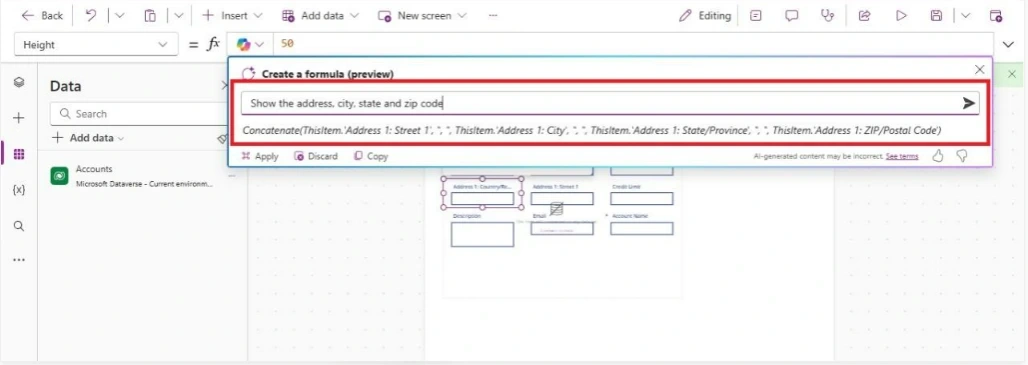

Copilot should produce something like this:
Filter( Vendors, (IsBlank(txtVendorSearch.Text) || StartsWith(VendorName, txtVendorSearch.Text)) && (IsBlank(ddStatus.Selected.Value) || Status = ddStatus.Selected.Value) )
The better your control names, the more accurate and readable the generated formula is.
Step 4: Generate the Button Action
Select btnSubmitSelection, open Create a formula for OnSelect, and prompt:
Save the selected vendor to the RFPs table with the current date, show a success notification, and go to the confirmation screen.
A typical result:
Patch(
RFPs,
Defaults(RFPs),
{
VendorName: galVendors.Selected.VendorName,
SelectedOn: Today()
}
);
Notify("Vendor selected successfully", NotificationType.Success);
Navigate(scrConfirmation, ScreenTransition.Fade)
Review What Copilot Writes
Copilot is a starting point, not a final answer. Check these things:
Column names: confirm they match your data source exactly.
Delegation warnings: functions like StartsWith are delegable for many sources, but others (such as Search or in on some connectors) may not be. Watch for the blue delegation warning, especially with large tables.
Error handling: wrap Patch in IfError for production use.
Screen names: make sure referenced screens exist.
An improved version of the button formula:
IfError(
Patch(RFPs, Defaults(RFPs), {VendorName: galVendors.Selected.VendorName, SelectedOn: Today()}),
Notify("Could not save selection. Please try again.", NotificationType.Error),
Notify("Vendor selected successfully", NotificationType.Success);
Navigate(scrConfirmation, ScreenTransition.Fade)
)
Best Practices
Rename first, then generate formulas. Clear names give better output.
Write specific prompts. Name the table, columns, and controls involved.
Iterate. If the result is off, refine the prompt rather than editing everything by hand.
Keep a naming convention (txt, dd, gal, btn, scr) across the team.
Test in a dev environment since these are preview features.
Conclusion
Proactive control rename keeps your app organized, and Copilot for formulas turns plain-English requirements into working Power Fx. Together they cut down the repetitive parts of building canvas apps. Just review the output and remember that preview features aren’t meant for production apps yet.


Join the conversation! Your thoughts help the community grow.