

Introduction
Microsoft Power Apps makes it easy to build apps with minimal code. With Copilot, you can generate formulas simply by describing what you want in plain language. Instead of manually writing complex Power Fx expressions, you provide a clear, discrete request—and Copilot suggests the appropriate formula.
This guide explains how to effectively use Copilot to create formulas from specific, well-defined requests.
Open Copilot in Power Apps
Open your app in Microsoft Power Apps Studio.
Select the control (e.g., Gallery, Label, Button).
Go to the formula bar.
Click the Copilot icon.
Type your request in natural language.
✅ Example Scenario
You have:
A SharePoint list called Employees
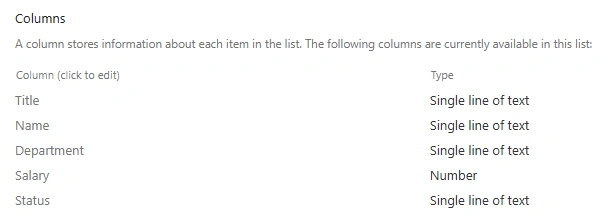
Columns:
Name , Department , Salary , Status
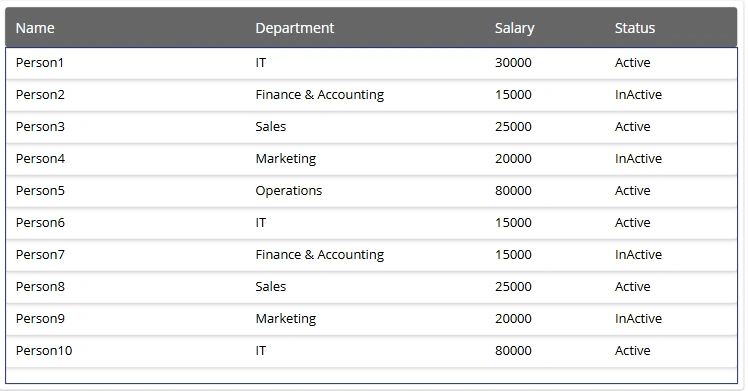
You want to:
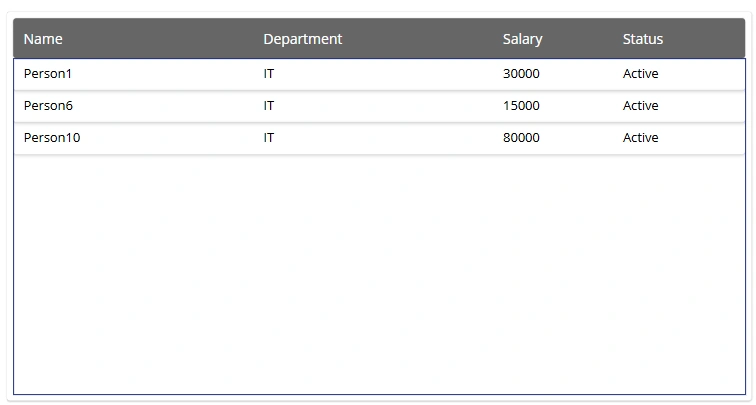
"Show only active employees from the IT department whose salary is greater than 5000."
Step : Use Copilot (Natural Language Request)
Inside Power Apps:
Select your Gallery (e.g.,
Gallery1)In the Items property
Click Copilot
Type:
Filter Employees to show only active employees from IT department where salary is greater than 5000



Copilot will generate something like:
Filter(
    Employees,
    Department = "IT" &&
    Status = "Active" &&
    Salary > 5000
)
You can then insert the formula directly.
🔹 Example 2: Conditional Color (UI Logic)
Scenario
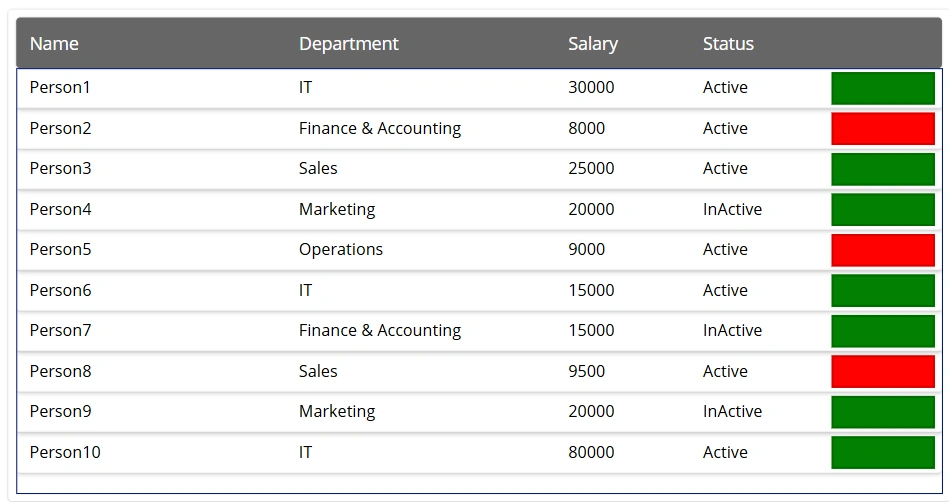
In a gallery, you want:
"If Salary is greater than 10000 show green otherwise Red"
Copilot Prompt (Fill property)
If Salary is greater than 10000 make the color green otherwise red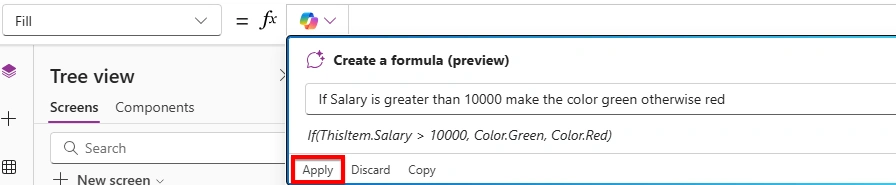
Generated Formula
If(
    ThisItem.Budget > 10000,
    Color.Green,
    Color.Red
)
🔹 Other Example 1: Button to Submit Form + Show Notification
Scenario
When clicking Submit:
Submit form
Show success message
Navigate to HomeScreen
Copilot Prompt (OnSelect property)
Submit the form, show a success notification, and navigate to HomeScreenGenerated Formula
SubmitForm(Form1);
Notify("Record submitted successfully", NotificationType.Success);
Navigate(HomeScreen)
🔹 Example 2: Create Record Only If Not Exists
Scenario
Prevent duplicate email in Users list.
Copilot Prompt
If email does not already exist in Users list then create new recordGenerated Formula
If(
    IsBlank(LookUp(Users, Email = TextInputEmail.Text)),
    Patch(
        Users,
        Defaults(Users),
        {
            Name: TextInputName.Text,
            Email: TextInputEmail.Text
        }
    ),
    Notify("Email already exists", NotificationType.Error)
)
🔹 Example 3: Role-Based Visibility (Real Business Case)
Scenario
Only show admin panel if logged-in user is Admin.
Copilot Prompt (Visible property)
Show this control only if logged in user's role is AdminGenerated Formula
LookUp(
    Users,
    Email = User().Email,
    Role
) = "Admin"
🔹 Example 4: Dashboard KPI Calculation
Scenario
Show total sales for current year.
Copilot Prompt (Label Text property)
Calculate total sales amount for current yearGenerated Formula
Sum(
    Filter(
        Sales,
        Year(SaleDate) = Year(Today())
    ),
    Amount
)
Conclusion
Copilot in Microsoft Power Apps allows you to convert a clear, plain-language request into a functional formula. You describe what you need, Copilot generates the Power Fx formula, and you can review and refine it as needed. This makes building logic faster, easier, and more accessible, even for beginners.
Join the conversation! Your thoughts help the community grow.