

Introduction
Creating business apps used to require hours of development time and technical expertise. Now, with Copilot in Microsoft Power Apps, you can build functional, data-driven apps in just minutes using natural language.
Powered by AI from Microsoft**, Copilot allows you to describe the app you want in plain English—such as “Create an IT Help Desk app where employees can submit support tickets”—and it will automatically generate a ready-to-use app structure, complete with tables, screens, and basic logic.
Whether you're a business user, IT professional, or entrepreneur, Copilot dramatically reduces the time and complexity involved in app creation. Instead of manually designing forms, connecting data sources, and configuring layouts, you simply:
Describe your app idea
Let Copilot generate the framework
Customize and refine as needed
Publish and share
This AI-assisted approach empowers anyone to rapidly prototype solutions, automate processes, and solve real business problems—without deep coding knowledge.
What You’ll Build
We’ll create a simple IT Help Desk Ticket App that allows users to:
Submit a ticket
Choose priority
Track ticket status
All using natural language.
✅ Step 1: Open Power Apps with Copilot
Sign in with your Microsoft account
Click “Create”
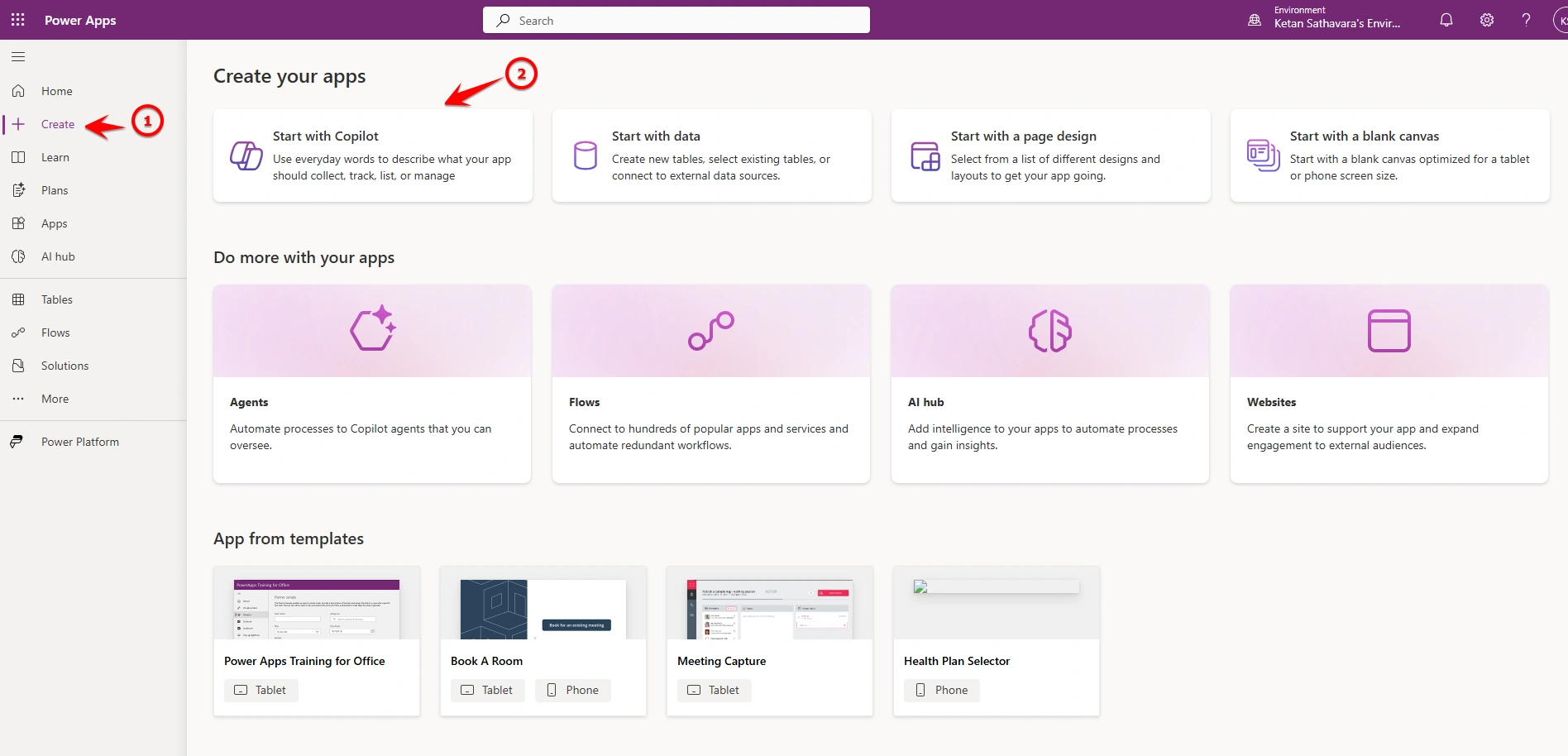
4.Choose “Start with Copilot” (or “Describe the app you want”)
Copilot will prompt you with:
“Describe the app you want to build…”
Step 2: Describe Your App (Natural Language Prompt)
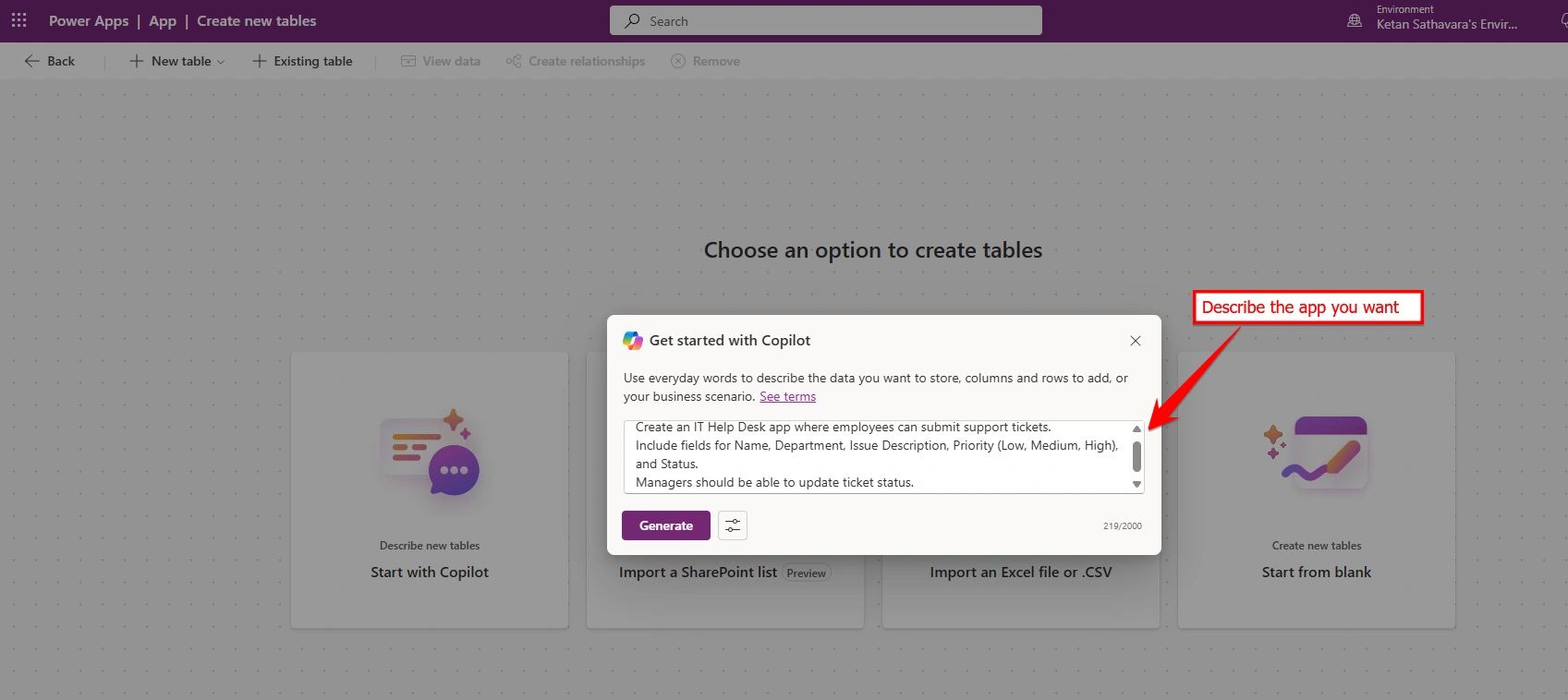
Type something like:
Create an IT Help Desk app where employees can submit support tickets.
Include fields for Name, Department, Issue Description, Priority (Low, Medium, High), and Status.
Managers should be able to update ticket status.
Click Generate.
Step 3: Let Copilot Build the Data Table
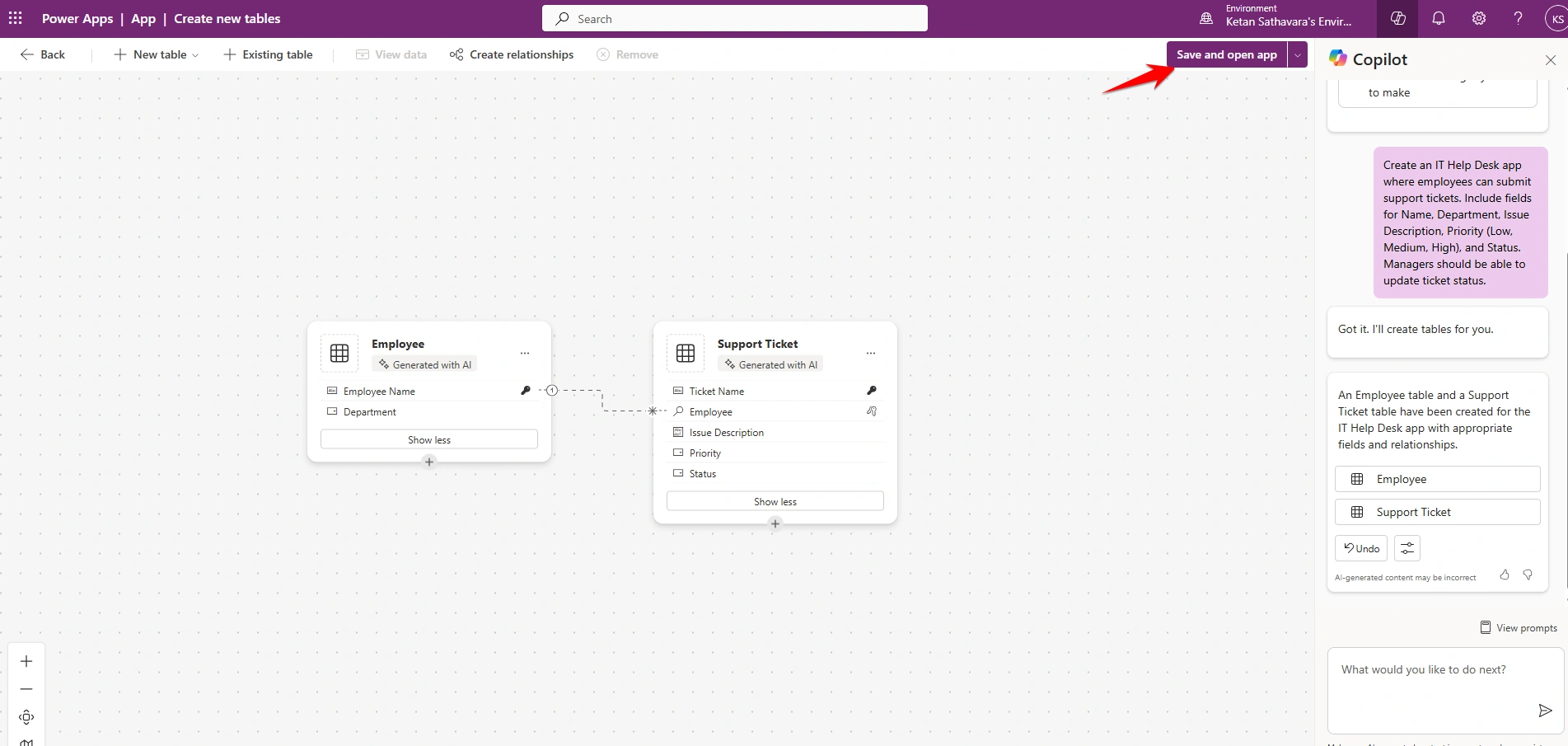
Copilot will:
Create a Dataverse table
Add suggested columns
Generate a basic app layout
You’ll see something like:
Table: IT Help Desk Tickets
Name (Text)
Department (Text)
Issue Description (Multiline Text)
Priority (Choice)
Status (Choice)
👉 Click Create.
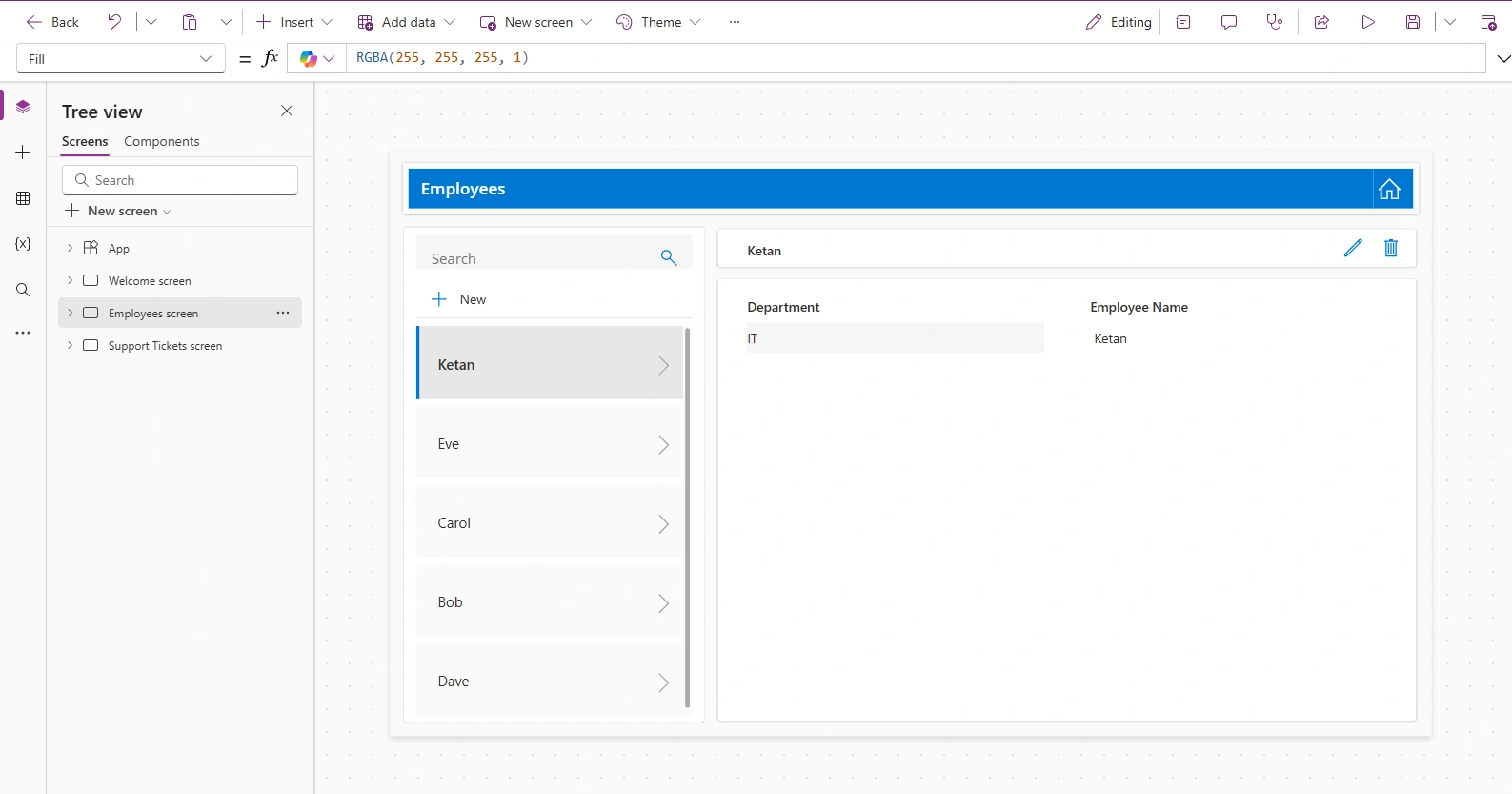
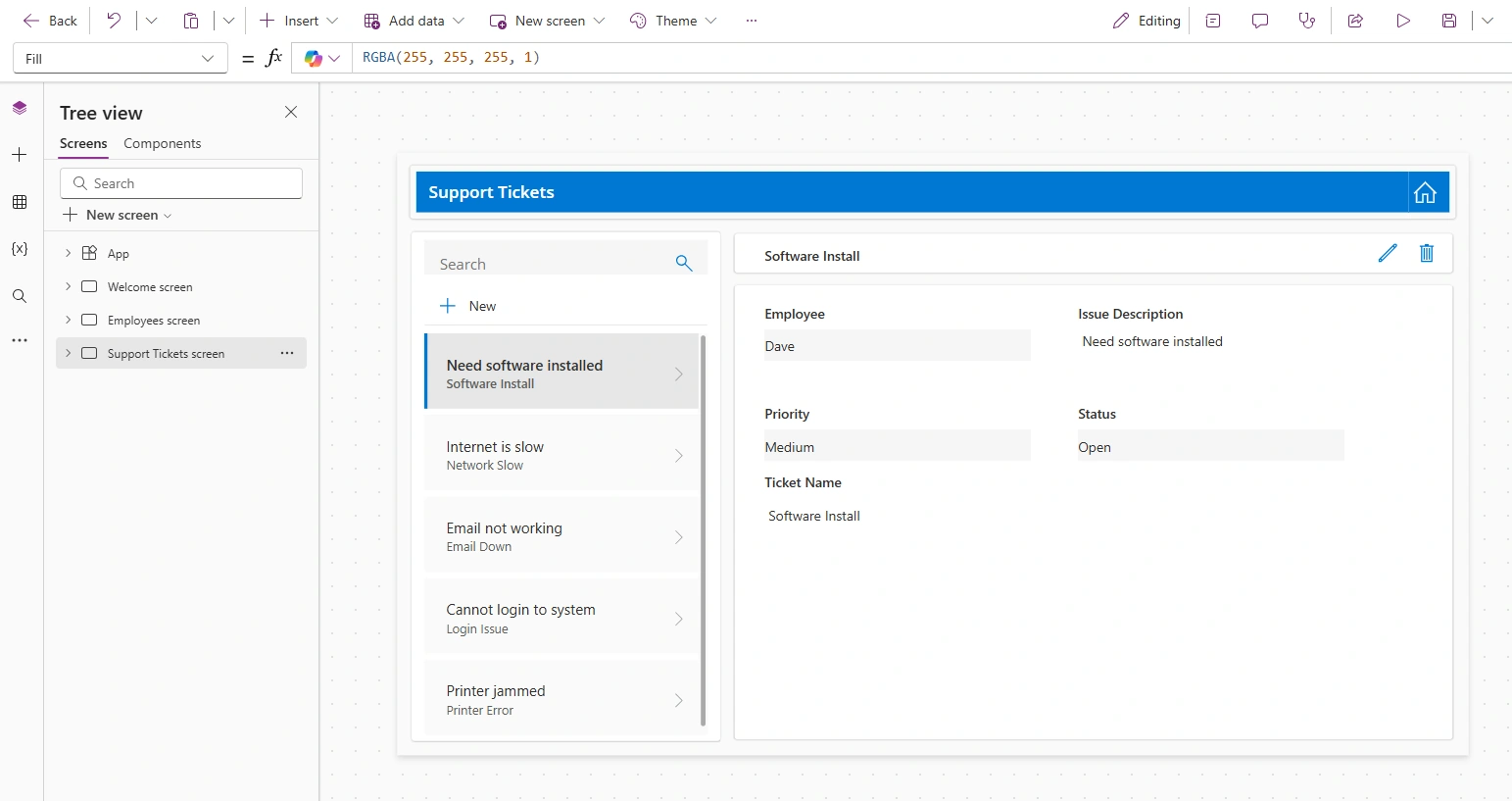
Step 4: App Auto-Generated
Within seconds, Copilot generates:
A Browse screen (list of tickets)
A Form screen (create/edit ticket)
Connected data source
Basic navigation
No manual table creation needed.
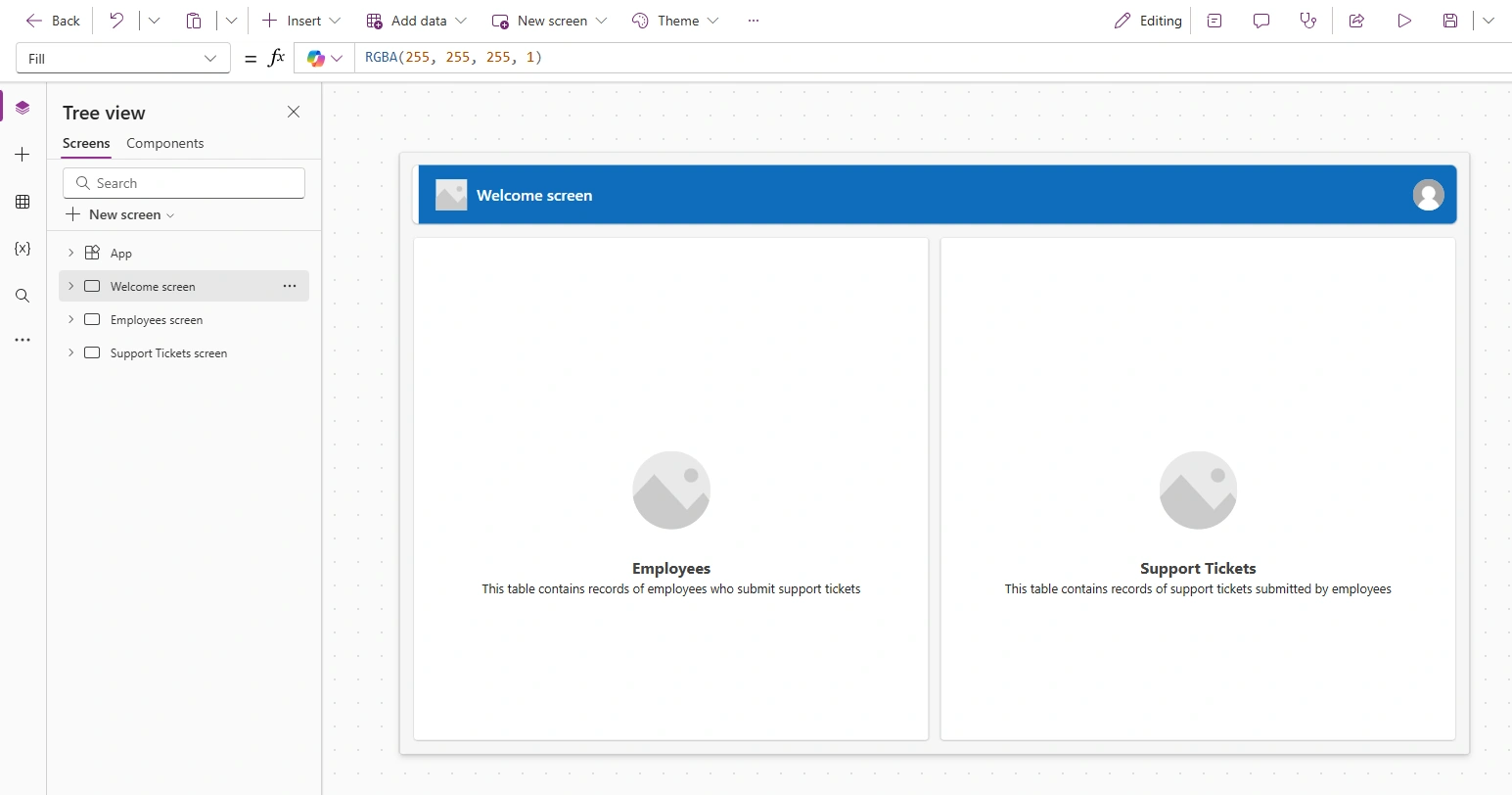
Step 5: Test the App
Click Play (▶)
Submit a test ticket
Edit status as manager
Confirm everything works
Step 6: Publish
Click File
Click Save
Click Publish
Share with users
Done. 🎉
Your working app is live in under 10 minutes.
💡 Pro Tips for Better Results
Be Specific
Instead of:
“Create a project app”
Use:
“Create a project tracking app with project name, owner, start date, end date, and status.”
What Copilot Is Really Doing
Behind the scenes:
Creating Dataverse tables
Writing Power Fx formulas
Generating UI screens
Connecting data sources
All from plain English.
2-Minute Summary Workflow
Open Microsoft Power Apps
Click Start with Copilot
Describe your app
Review data table
Generate
Test
Publish
That’s it.
Join the conversation! Your thoughts help the community grow.