Introduction
When working with tables, collections, or data sources in Microsoft Power Apps, you may sometimes need to remove unnecessary columns from the data you are displaying or processing.
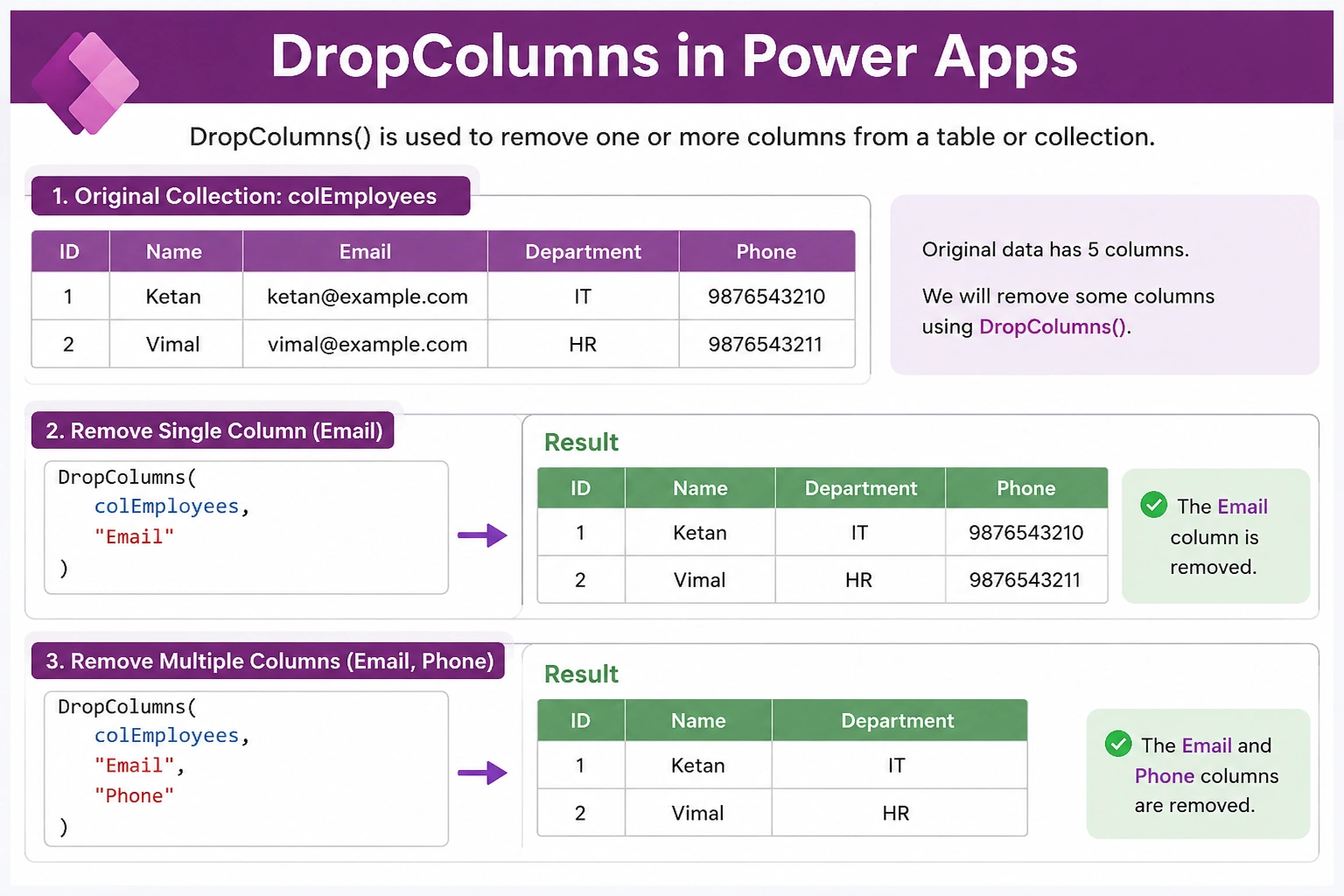
The DropColumns() function in Power Apps allows you to create a new table that excludes one or more specified columns. It is useful when you want to simplify your data, improve readability, or prepare data for further processing.
Important: DropColumns() does not delete the column from your original data source. It only removes the column from the resulting table returned by the formula.
Syntax
DropColumns(Table, ColumnName1, ColumnName2, ...)
Parameters
Table – The table, collection, or data source you want to work with.
ColumnName – The column or columns you want to remove from the resulting table.
Example 1: Remove a Single Column
Suppose you have a collection called colEmployees:
To remove the Email column:
DropColumns(
    colEmployees,
    Email
)
Result
| ID | Name | Department |
|---|
| 1 | Ketan | IT |
| 2 | Vimal | HR |
The Email column is excluded from the returned table.
Example 2: Remove Multiple Columns
You can remove multiple columns using the same DropColumns() function.
DropColumns(
    colEmployees,
    Email,
    Department
)
Result
Both Email and Department are removed from the result.
Example 3: Use DropColumns with Filter
You can combine DropColumns() with other Power Apps functions such as Filter().
DropColumns(
    Filter(
        colEmployees,
        Department = "IT"
    ),
    Email
)
This formula first filters the employees from the IT department and then removes the Email column from the result.
Example 4: Use DropColumns in a Gallery
If you want to display filtered data in a Gallery while excluding unnecessary columns, you can set the Gallery's Items property:
DropColumns(
    colEmployees,
    Email
)
The Gallery will receive a table without the Email column.
DropColumns vs ShowColumns
Power Apps provides both DropColumns() and ShowColumns() for shaping tables.
DropColumns
Use DropColumns() when you want to remove a few columns and keep the rest.
DropColumns(
    colEmployees,
    Email
)
ShowColumns
Use ShowColumns() when you want to keep only specific columns.
ShowColumns(
    colEmployees,
    ID,
    Name
)
Simple Difference
| Function | Purpose |
|---|
| DropColumns() | Removes specified columns |
| ShowColumns() | Keeps only specified columns |
Important Point
DropColumns() does not permanently delete a column from your SharePoint list, Dataverse table, SQL table, or other data source.
For example:
DropColumns(
    Employees,
    Email
)
This only changes the table returned by the formula. The Email column still exists in the original Employees data source.
Conclusion
The DropColumns() function is a useful Power Apps table-shaping function for removing unnecessary columns from a table or collection.
It is especially useful when:
You need to remove sensitive or unnecessary columns from a result.
You want to simplify data before displaying it.
You are combining it with Filter(), Sort(), or other table functions.
You want to keep most columns but exclude only a few.


Join the conversation! Your thoughts help the community grow.