

Introduction
In this article we are going to learn how we use radio button and dropdown select in ReactJS. Radio button is a element that allows the user to select only one option from multiple options.
You can check my previous articles on Reactjs from the below mentioned links.
Prerequisites
- We should have basic knowledge of React.js
- Visual Studio Code IDE
- Bootstrap
Create React.js Project
Lets create a new React.js project by using the following command.
- npx create-react-app formelement
- npm install --save bootstrap
- import 'bootstrap/dist/css/bootstrap.min.css';
Now, right click on "src" folder and add a new component named 'Form.js.
In reactjs component, to auto generate code, we need to install react Snippets in Visual Studio code. React Snippets are found in the Visual Studio Code Extension Marketplace. Download React snippets using the following link or go to VS Code Extension and search 'React Snippets'
Now open Form component and type 'rce' to create a class component class and press the tab key, it generates code for this component. Now create a constructor by using 'rconst' snippets and add two state variables.
- constructor(props) {
- super(props)
- this.state = {
- Technology: '',
- Gender: ''
- }
- }
Now add two event handlers, one for radio button click and another from dropdwon select event.
- Changetechnology = (e) => {
- this.setState({
- Technology: e.target.value
- })
- }
- Changegender = (e) => {
- this.setState({
- Gender: e.target.value
- })
- }
Add one more event handler for button click. When clicking on button this event is called.
- onsubmit = (e) => {
- e.preventDefault();
- alert(`${this.state.Technology},${this.state.Gender}`)
- }
Now in render method which returns a dropdown add two radio buttons.
- render() {
- return (
- <div>
- <div class="row" className="hdr">
- <div class="col-sm-12 btn btn-info">
- Radio button and Dropdowns in React
- </div>
- </div>
- <form onSubmit={this.onsubmit}>
- <div className="form-group dropdn">
- <select className="form-control" value={this.state.Technology} onChange={this.Changetechnology} >
- <option value="1">Angular</option>
- <option>React</option>
- <option>JavaSript</option>
- <option>Vue</option>
- </select>
- </div>
- <div>
- <input type="radio" value="Male" checked={this.state.Gender == "Male"} onChange={this.Changegender} />Male
- <input type="radio" value="Female" checked={this.state.Gender == "Female"} onChange={this.Changegender} />Female
- </div><br></br>
- <button type="submit" className="btn btn-info" >Click</button>
- </form>
- </div>
- )
- }
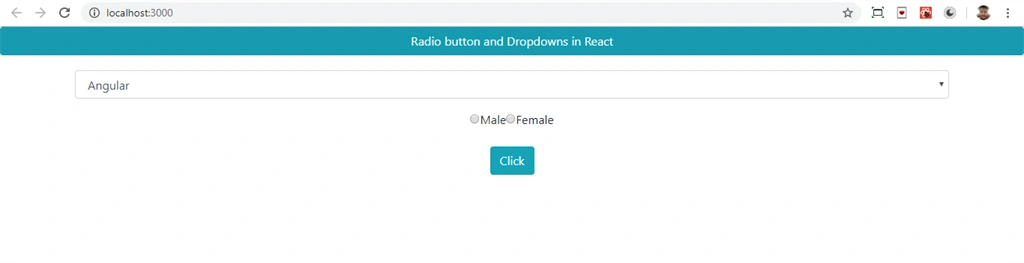
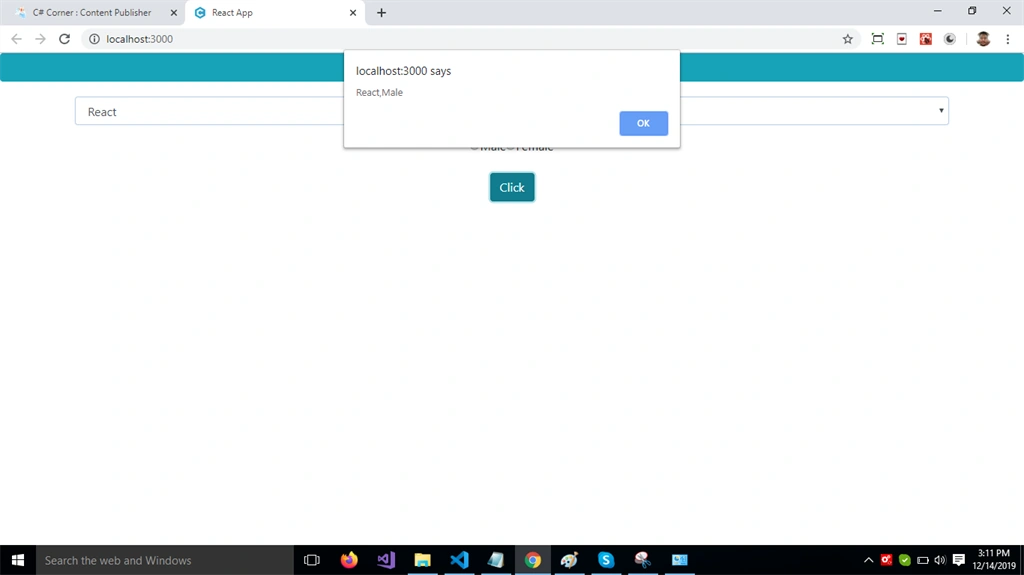
Onkar SharmaPosted Dec 18, 2019, 6:32 AM
Very helpful article...