

Introduction
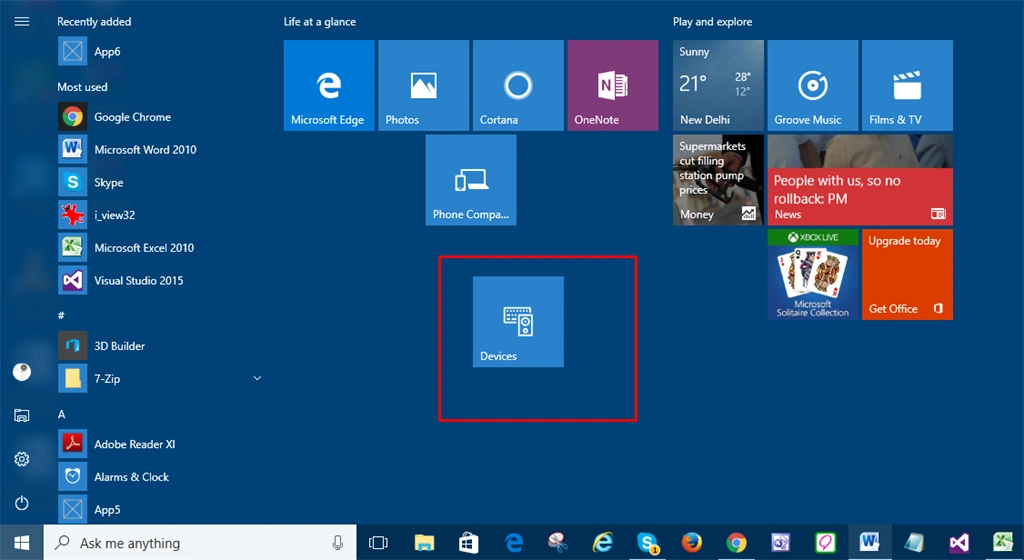
In Microsoft, Windows 10 uses a new setting app for the most of its configurations. The user can easily access settings for an app from the Start menu but we can also “pin” our favorite settings for an app for easy work. A “Pinned” app will directly appear in the Start menu.
Step 3
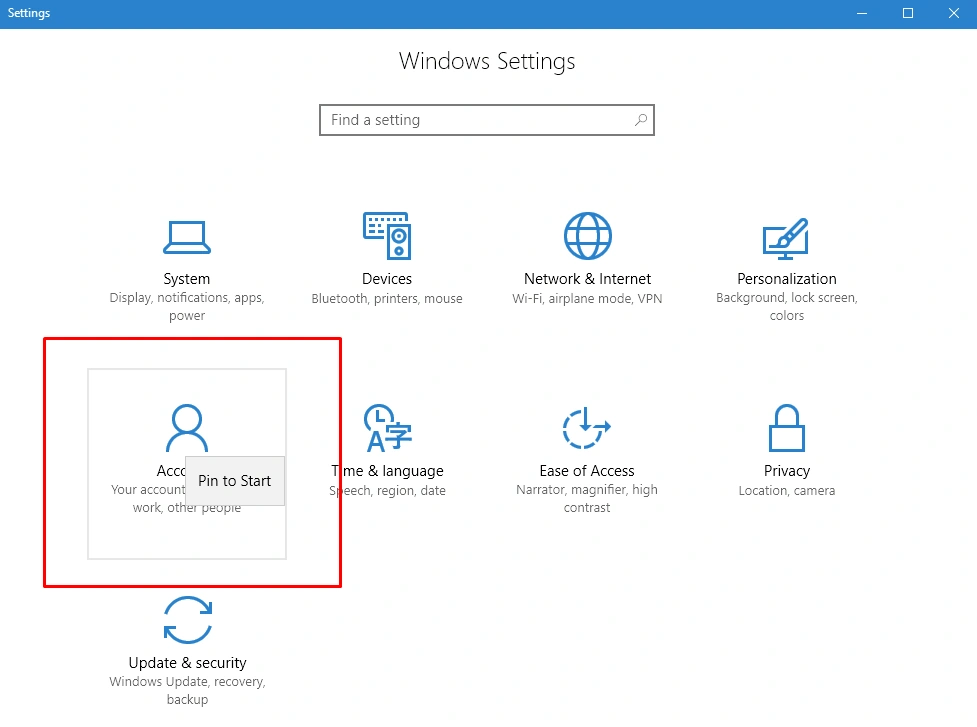
Left click on small Windows and select “Pin to Start”.
 Step 4
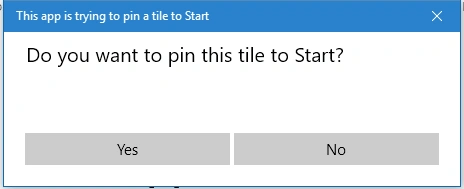
Click yes to complete the process. Now, you can see the Account setting on Start menu.
Step 4
Click yes to complete the process. Now, you can see the Account setting on Start menu.
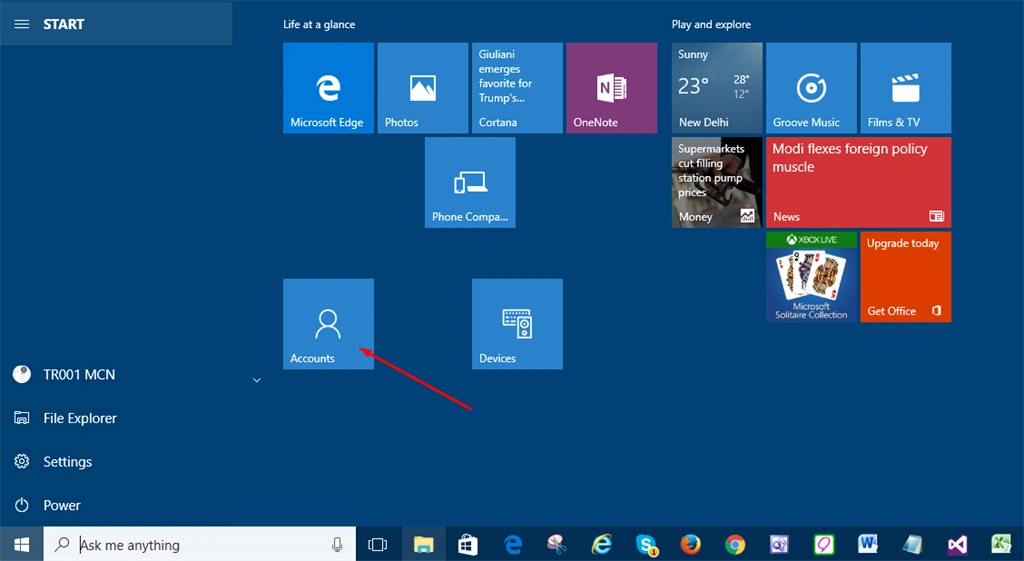
Step 1
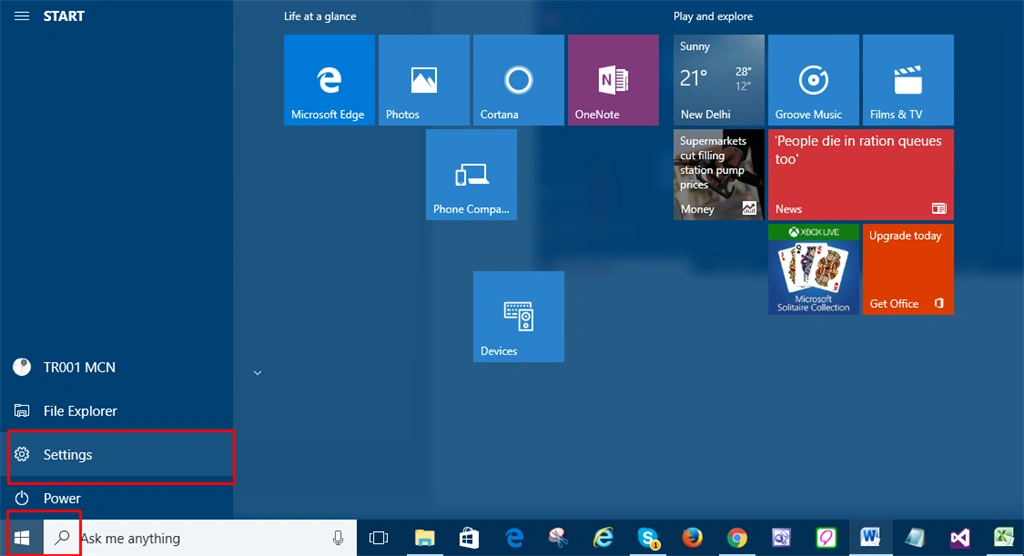
Select settings Windows from Start menu.
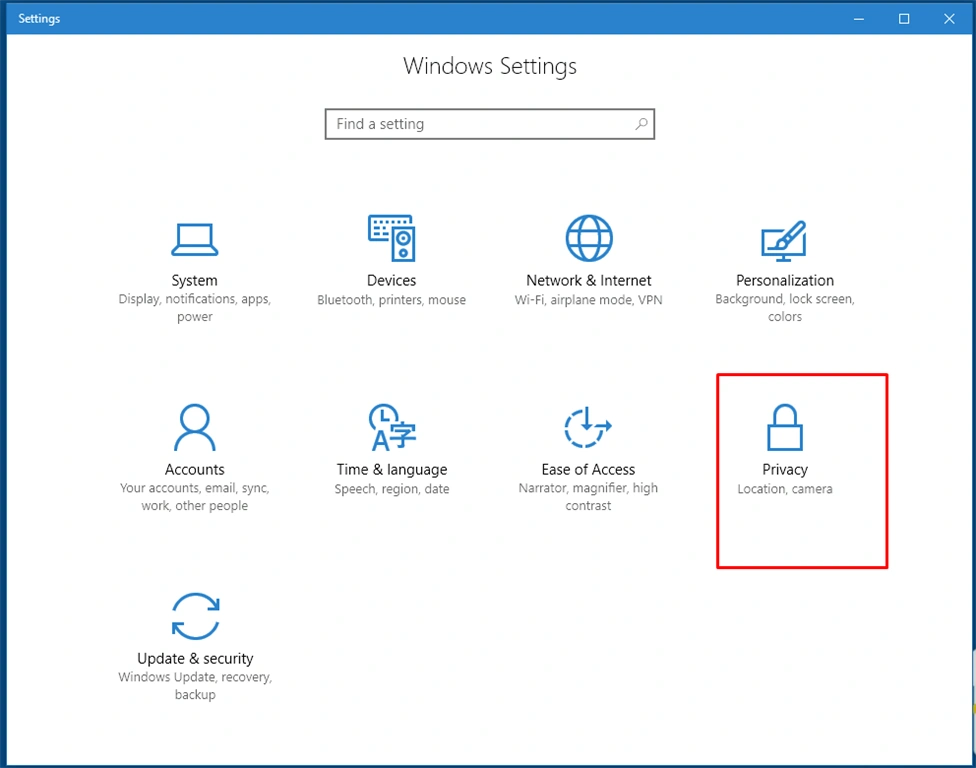
Step 3
On settings Window, right click on General.
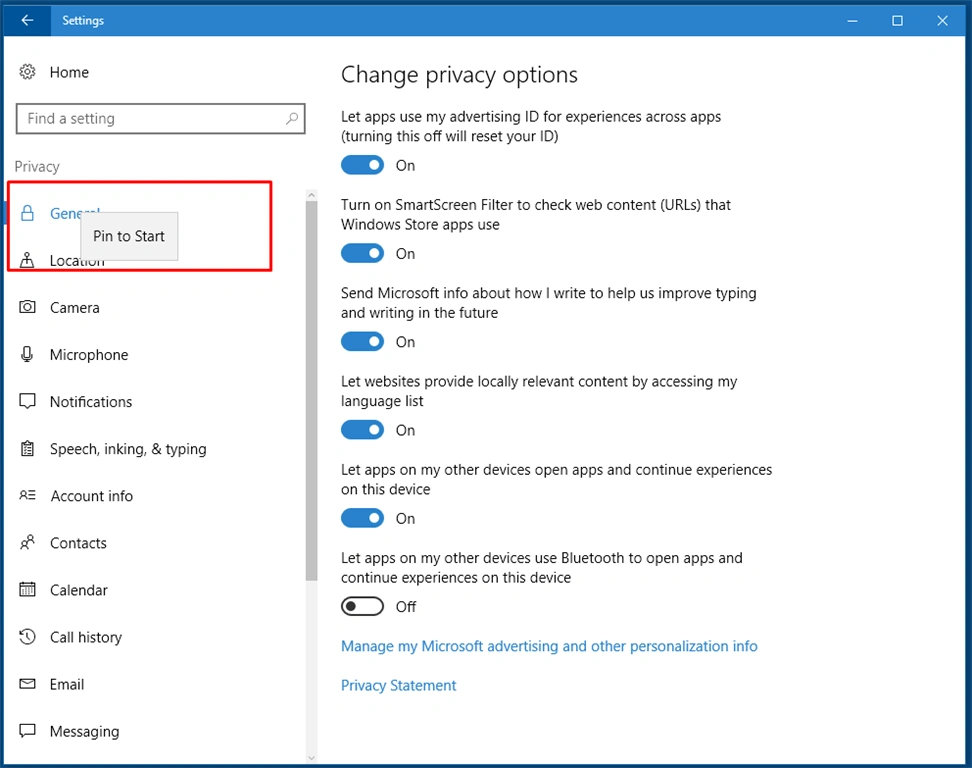
Step 4
From small Window, open Pin to start.
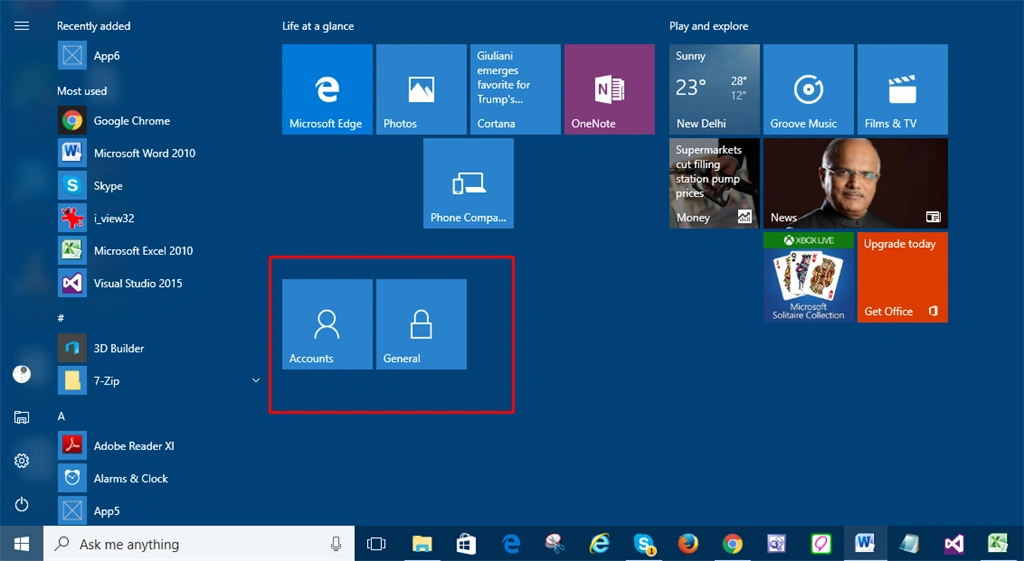
Step 5
General setting will be pinned now to Start menu.
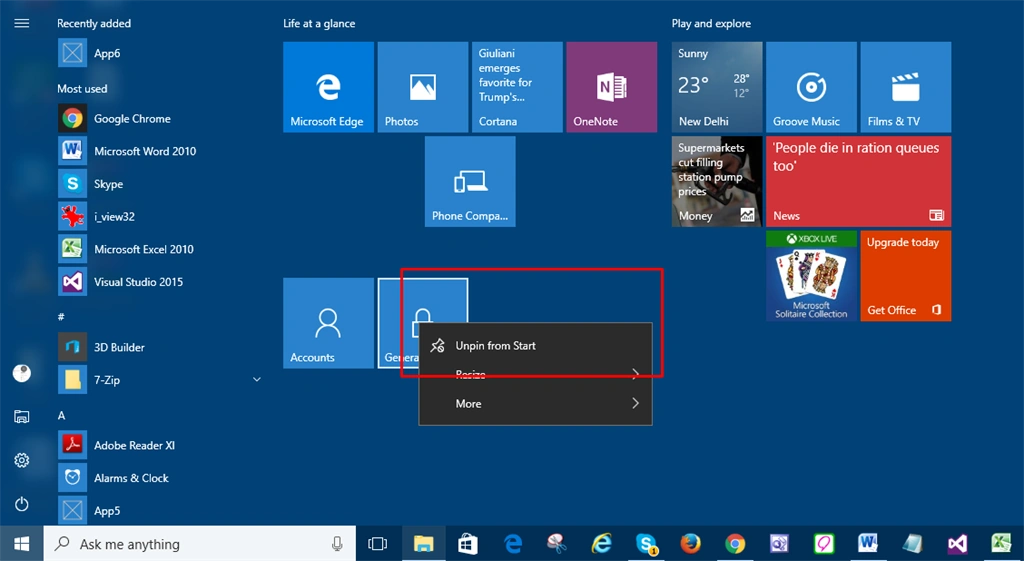
Unpin your favorite setting
We can remove any pin setting by right-clicking on it and selecting “Unpin from start” option.
Summary
Thus, you have learnws the steps to pin and unpin your favorites setting.
Join the conversation! Your thoughts help the community grow.