

Introduction
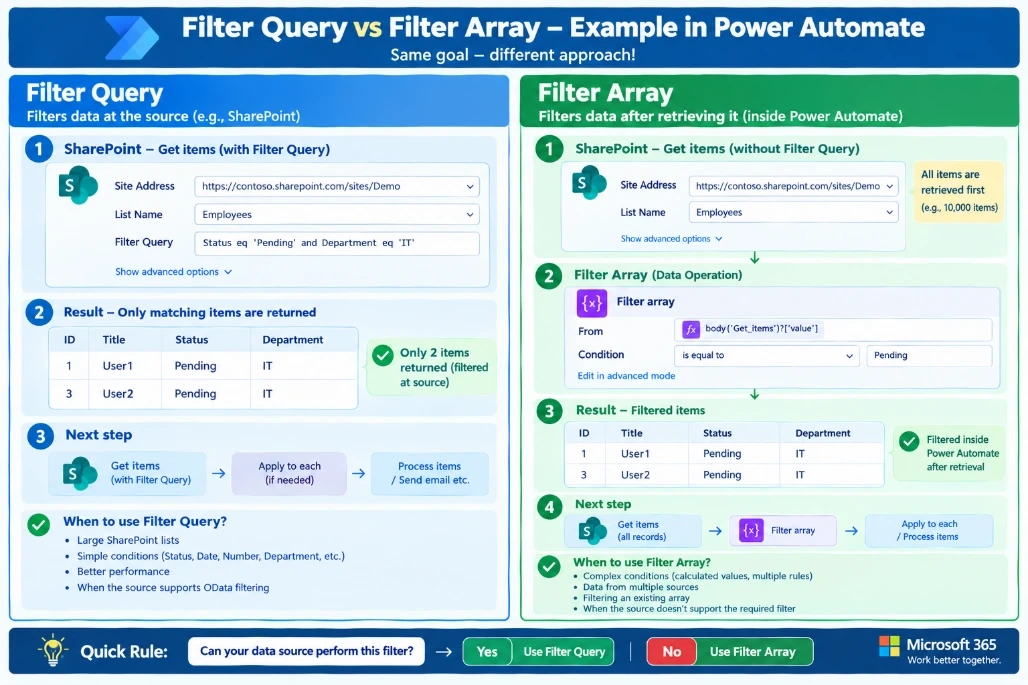
When building a Power Automate flow, filtering data is a common requirement. Two actions are often confused with each other:
Filter Query - filters data at the source
Filter Array - filters data after it has been retrieved
Both can produce the same final result, but they work at different stages of the flow. Choosing the right approach can significantly affect performance, scalability, and flow efficiency.
1. What is Filter Query?
Filter Query is an option available in actions such as SharePoint Get items. It uses an OData query to tell the data source which records you actually need.
For example, suppose a SharePoint list contains:
ID | Employee | Status | Department |
|---|---|---|---|
1 | User1 | Pending | IT |
2 | User2 | Approved | HR |
3 | User3 | Pending | IT |
4 | User4 | Rejected | Finance |
If you only need Pending IT items, you can use:
Status eq 'Pending' and Department eq 'IT'The SharePoint connector applies this condition while retrieving the data, so the flow receives only the matching records. Microsoft documents Filter Query as an OData filter for restricting entries returned by Get items.
Basic example
SharePoint – Get items
Site Address: Your SharePoint Site
List Name: Employees

Filter Query:
Status eq 'Pending' and Department eq 'IT'
Conceptually:
SharePoint List
       ↓
Filter Query
       ↓
Only matching records
       ↓
Power Automate
Why is this useful?
If your SharePoint list has 10,000 records but only 50 records match your condition, filtering at the source can prevent the flow from unnecessarily processing all those records.
Microsoft recommends limiting the data processed by cloud flows where possible.
2. What is Filter Array?
Filter Array is a Data Operation action in Power Automate.
Instead of asking SharePoint to filter the records, you first retrieve the data and then filter the resulting array inside the flow.
Example:
Get items
   ↓
Filter array
   ↓
Process filtered records
Microsoft describes Filter array as an action that reduces an array to the objects that match specified criteria.
Example
Suppose Get items returns:
[
  {
    "Employee": "User1",
    "Status": "Pending",
    "Department": "IT"
  },
  {
    "Employee": "User2",
    "Status": "Approved",
    "Department": "HR"
  },
  {
    "Employee": "User3",
    "Status": "Pending",
    "Department": "IT"
  }
]
You could add:
Data Operation → Filter array
From:
body('Get_items')?['value']Condition:
Status is equal to PendingOr use Advanced mode:
@equals(item()?['Status'], 'Pending')The result is a new array containing only matching objects.
3. Main Difference
The easiest way to remember the difference is:
Filter Query = Filter before data enters your flow.
Filter Array = Filter after data enters your flow.
Filter Query
SharePoint
   │
   │  Apply filter
   ↓
Filtered data
   │
   ↓
Power Automate
Filter Array
SharePoint
   │
   ↓
All retrieved data
   │
   ↓
Power Automate
   │
   ↓
Filter Array
   │
   ↓
Filtered data
4. When Should You Use Filter Query?
Use Filter Query when your data source supports the filtering requirement.
For example:
Status eq 'Pending'or:
Status eq 'Pending' and Department eq 'IT'or:
Amount gt 10000SharePoint supports operators such as eq, ne, gt, ge, lt, and le, along with functions such as startswith.
Best suited for
Large SharePoint lists
Simple filtering
Status filtering
Date filtering
Number filtering
Department/category filtering
Lookup-based filtering where supported
Performance-sensitive flows
For example:
Get items

Filter Query:
ApprovalStatus eq 'Pending'
is generally preferable to retrieving a large list and then filtering it inside the flow.
5. When Should You Use Filter Array?
Use Filter Array when the filtering logic cannot conveniently be performed by the source.
For example, you may need to filter based on:
Calculated values
Data already retrieved from multiple sources
Complex conditions
An existing array
Values created during the flow
Additional filtering after an initial source filter
Example:
Get items
     ↓
Filter Array
     ↓
Condition
     ↓
Send email
Suppose you retrieve invoices and then want:
Amount > 10000
AND
Status = Pending
You can perform this in Filter Array if the data is already available in the flow.
6. Real-World SharePoint Example
Imagine your InvoiceDetails list contains 20,000 invoices.
You need invoices where:
Status = Pending
Department = IT
Option A - Filter Query
Get items

Filter Query:
Status eq 'Pending' and Department eq 'IT'
Flow receives only the matching records.
20,000 SharePoint items
          ↓
     Filter Query
          ↓
     250 items
          ↓
    Process invoices
Option B - Filter Array
Get items
          ↓
20,000 items retrieved
          ↓
    Filter Array
          ↓
250 matching items
          ↓
Process invoices
For a large dataset, the first design avoids unnecessary data retrieval and processing.
7. Important Performance Consideration
This is one of the biggest reasons to understand the difference.
If your source can perform the filtering, filter as early as possible.
Microsoft's SharePoint guidance specifically documents server-side filtering through Filter Query and notes that it can restrict the entries returned by Get items.
So instead of:
Get 10,000 items
       ↓
Filter Array
       ↓
100 items
prefer:
Get items
Filter Query
       ↓
100 items
when the filtering condition is supported by SharePoint.
8. But Filter Array Is Not Bad
Filter Array is not a replacement that should never be used.
It has an important role.
For example:
Get Employees
      ↓
Get Departments
      ↓
Combine/process data
      ↓
Filter Array
      ↓
Continue
Here, the filtering may depend on information that exists only after the flow has retrieved or transformed the data.
That's where Filter Array becomes useful.
9. Simple Decision Rule
Use this question:
"Can my data source perform this filter?"
Yes → Use Filter Query
SharePoint
   ↓
Filter Query
   ↓
Required data
No → Use Filter Array
SharePoint
   ↓
Get data
   ↓
Filter Array
   ↓
Required data
10. Quick Comparison
Feature | Filter Query | Filter Array |
|---|---|---|
Filtering location | Data source | Inside Power Automate |
When filtering happens | Before/while retrieving data | After data is retrieved |
Works on | Source query | Array |
Performance with large data | Generally better when supported | Can process more data than necessary |
Complex logic | More limited by connector/OData support | More flexible |
Calculated values | Usually not suitable | Suitable |
Existing array | No | Yes |
SharePoint | Get items/Get files | Yes |
Best for | Source-level filtering | Post-retrieval filtering |
11. Common Mistake
A common design is:
Get items
     ↓
Apply to each
     ↓
Condition
     ↓
Process item
when the requirement is simply:
Status = PendingA better design can be:
Get items
Filter Query:
Status eq 'Pending'
     ↓
Apply to each
     ↓
Process item
This reduces the amount of unnecessary data entering subsequent flow actions.
12. One Important SharePoint Point
For SharePoint lists with more than 5,000 items, pagination and filtering configuration should be considered carefully. Microsoft notes a limitation involving filtered queries and the first 5,000 items and recommends enabling pagination when appropriate.
So for large SharePoint lists, don't simply assume:
Get items → Filter Arrayis the best architecture.
Consider:
Get items
   ↓
Filter Query
   ↓
Pagination if required
   ↓
Process results
Final Takeaway
Think of it like this:
Filter Query
🏭 "Give me only what I need."
The data source filters the records before they enter the flow.
Filter Array
📦 "Give me the data first; I'll decide what I need."
Power Automate filters the retrieved array.
For large SharePoint datasets and straightforward conditions, start with Filter Query. For complex, calculated, or post-retrieval filtering, use Filter Array
Join the conversation! Your thoughts help the community grow.