

Introduction
Before reading this article, please go through the article links given below.
- Quick Start on Microsoft PowerApps
- Build Asset Checkout App Using Microsoft PowerApps
- How To Build Blank Apps Using Microsoft PowerApps
- How To Add Excel Data Source In Microsoft PowerApps
- How To Use Sort And SortByColumn Functions In Microsoft PowerApps
In PowerApps, we can use the Filter, Search, and LookUp functions.
Filter Function
The Filter function finds the records in a table. It must satisfy a formula. We can use Filter to find a set of records with the conditions. If the condition becomes true, it displays the records; otherwise, it discards.
Syntax
Filter(Table, Formula1 [, Formula2, ...])
Explanation
- Filter: Keyword
- Table: Table Name
- Formula: We apply the formula (If you search more than one column)
Follow the below steps to work with Sort in PowerApps.
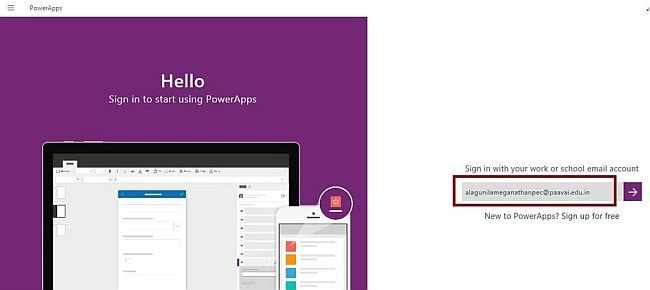
Step 1. Log in to the PowerApps.
After downloading the PowerApps from the Windows Store, we need a Microsoft-related organization’s Office 365 ID (MSDN, Microsoft, Skype, Office 365, etc.) to log in with it.
Step 2. Create a New App in PowerApp.
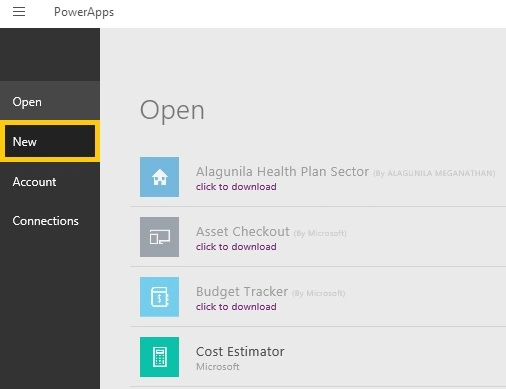
After login, we can see the Dashboard. There, click on the New button.
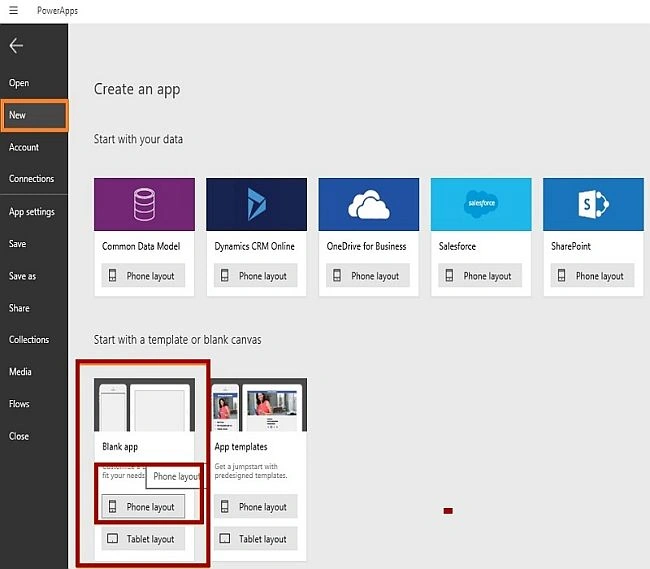
Step 3. Choose the Blank app.
Step 4. Designing the App.
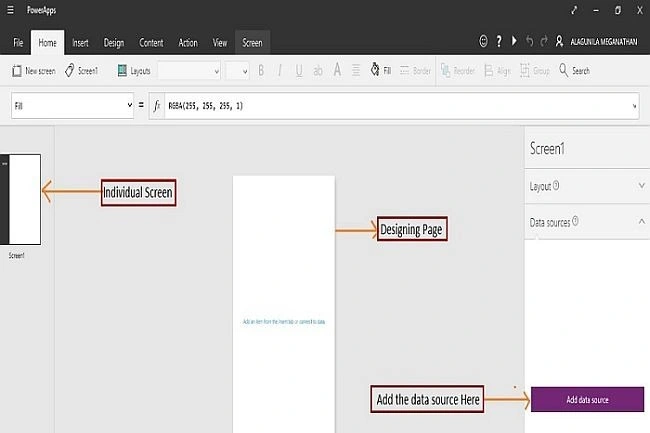
Now, let's start designing the app. On the left side, we can see the individual screens for adding our data. On the right side, we see the list of Layouts. On the top, there is a formula bar. There, we have the Properties of the screen that we select.
Step 5. Choose the Blank Layout.
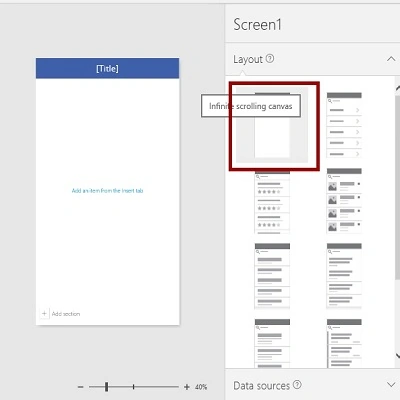
Step 6. Insert a Button from the Insert menu.

Step 7. Add the code.
Click on the Button and add the following code to the OnSelect Event.
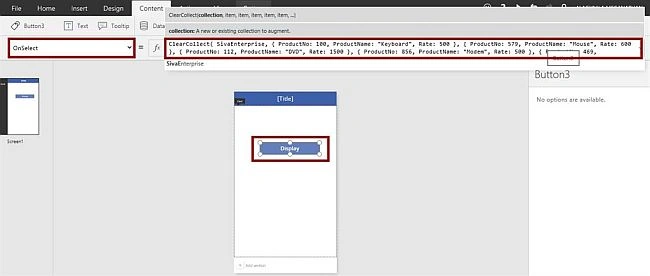
Coding
ClearCollect(SivaEnterprise,
    {
        ProductNo: 100,
        ProductName: "Keyboard",
        Rate: 500
    },
    {
        ProductNo: 579,
        ProductName: "Mouse",
        Rate: 600
    },
    {
        ProductNo: 112,
        ProductName: "DVD",
        Rate: 1500
    },
    {
        ProductNo: 856,
        ProductName: "Modem",
        Rate: 500
    },
    {
        ProductNo: 469,
        ProductName: "Processor",
        Rate: 5000
    }
)
Step 8. Run the app.
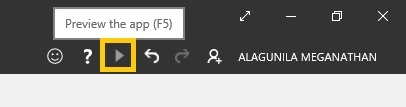
Step 9. Click on the "Display" button and close the Preview window.
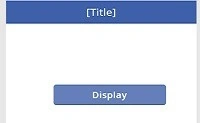
Step 10. To display the data.
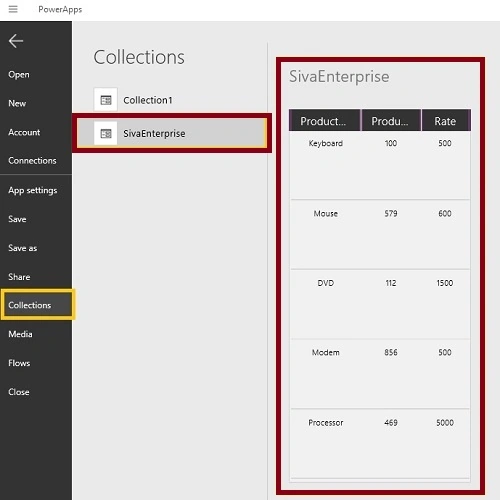
Now, go to the File menu and choose Collections.

It will display the content in the table format.
Examples of Filter Function
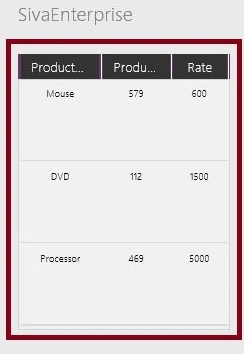
Example 1
ClearCollect(SivaEnterprise,
    Filter(SivaEnterprise, Rate > 500)
)
Explanation
It will sort the table where the values in the Rate column are greater than 500.
- ClearCollect: It deletes all the records from a collection and then adds a different set of records to the same collection.
- SivaEnterprise: It’s the table name.
- Filter: Keyword
- SivaEnterprise: Collection name.
- Rate: Column name to sort with the condition (greater than 500).
Output
Example 2
ClearCollect(
    SivaEnterprise,
    Filter(
        SivaEnterprise,
        "Mo" in Lower(ProductName)
    )
)
Explanation
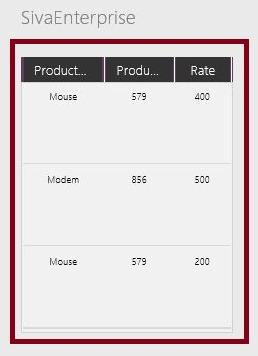
It will sort the ProductName by the record that starts from “Mo”.
Output
Search Function
The Search function finds records in a table. The string may occur anywhere within the column. Searching is case-insensitive and unlike Filter and LookUp, the Search function uses a single string to match instead of using a formula.
Syntax
Search(
    Table,
    SearchString,
    Column1 [, Column2, ... ]
)
Explanation
- Search: Keyword
- Table: Table Name
- SearchString: The string to search for
- Column(s): The names of columns within Table to search
Examples of Search Functions
Example 1
ClearCollect(
    SivaEnterprise,
    Search(SivaEnterprise, "DVD", "ProductName")
)
Explanation
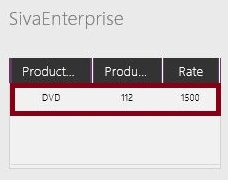
It will display the DVD.
- ClearCollect: It deletes all the records from a collection and then adds a different set of records to the same collection.
- SivaEnterprise: It’s the table name.
- Search: Keyword.
- SivaEnterprise: Collection name.
- DVD, ProductName: Field name and Column name to Search.
Output
Lookup Function
The LookUp function finds the first record in a table that satisfies a formula. Use LookUp to find a single record that matches one or more criteria.
Syntax
LookUp(Table, Formula [, ReductionFormula])
Explanation
- Lookup: Keyword
- Table: Table Name
- Formula: We apply the formula (If you search more than one column)
- ReductionFormula: Optional. This formula is evaluated over the record that was found, reducing the record to a single value.
Examples of LookUp Function
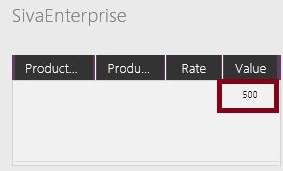
Example 1
ClearCollect(
    SivaEnterprise,
    LookUp(SivaEnterprise, ProductName = "Modem", Rate)
)
Explanation
It will display the Rate of the Modem.
- ClearCollect: It deletes all the records from a collection and then adds a different set of records to the same collection.
- SivaEnterprise: It’s the table name
- Lookup: Keyword
- SivaEnterprise: Collection name
- Modem, Rate: Rate of the Modem in the Rate Column
Output
Example 2
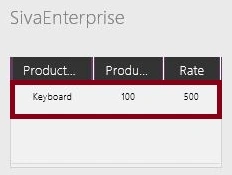
ClearCollect(SivaEnterprise,
    LookUp(SivaEnterprise, ProductName = "Keyboard")
)
Explanation
It will display the Keyboard records only.
Output
Conclusion
I hope you understood how to use the Filter, Search, and Lookup Functions in Microsoft PowerApps and how to run it.
Ibrahim GuzmánPosted Jul 2, 2020, 8:23 PM
Hi. I need to filter data with the Number field. I only need those that are less than 10. But Numer.Value <= 10 doesn't work. Can you help me? [email protected]
Agnaldo PereiraPosted Jun 8, 2020, 10:46 AM
When I have 2 columns and i have to return value between 2 columns. Ex: columm A( number 1) column B( number 10) column C ( House). I put 7 e return House. How would stay function?
Matt SimpsonPosted Jan 14, 2020, 2:10 AM
Nice but how do I pass the field value from the lookup e.g. rate ("500") to a variable?
Sean JamesPosted Aug 28, 2019, 3:41 AM
I cannot get LookUp to work! I must be missing a fundamental basic thing. So frustrated...
Madhanmohan DevarajanPosted Oct 25, 2016, 2:16 PM
Good to see that you are exploring new things in PowerApps.