

Introduction
In this article, we are going to explain how to use Flip 3D in Windows 8. Flip 3D is a very popular feature in Windows 7 and Windows Vista for switching among more than one application using the "Window key + Tab key". It is just like "Alt key + Tab key" switching among applications but in Flip 3D you can switch among applications in a 3D style.
In Windows 8 if you press the Windows Key + Tab key to switch applications in a 3D style then it will only work for Metro applications and it doesn't work for desktop applications. Because in Windows 8 the Flip 3D feature only works for Metro applications and it does not support Desktop applications. If you want to use this feature for Desktop applications then you have to use a third-party application such as "Switcher".
You can download this application form:
How to use Flip 3D in Windows 8?
Step 1
Download Switcher and install it.
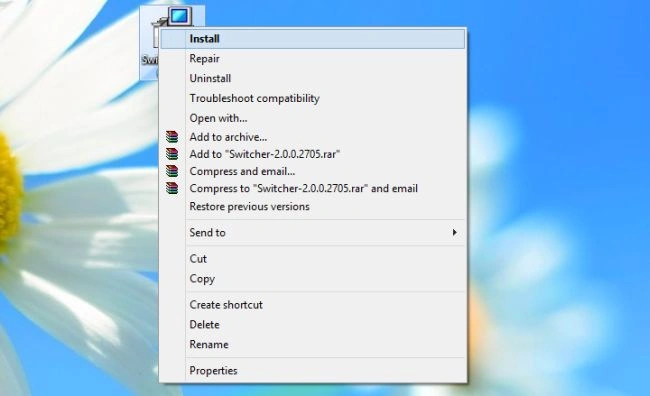
Step 2
In this step click on "Next".
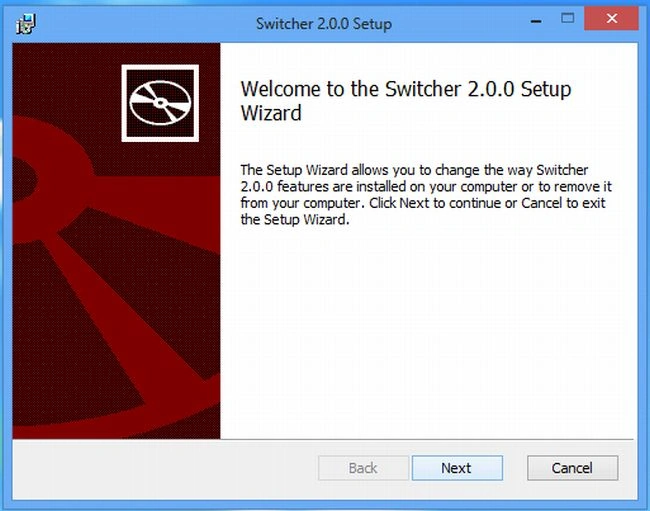
Step 3
In this step click on "Install" to install this application and wait a few seconds.
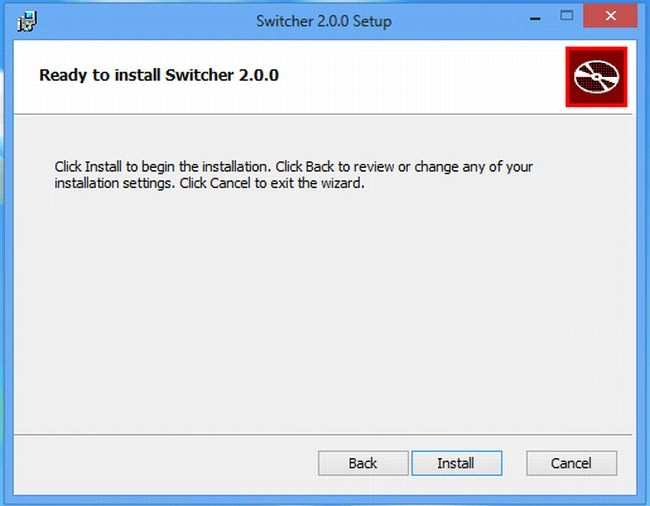
Step 4
After complete installation, launch a switcher from the Metro Start screen.
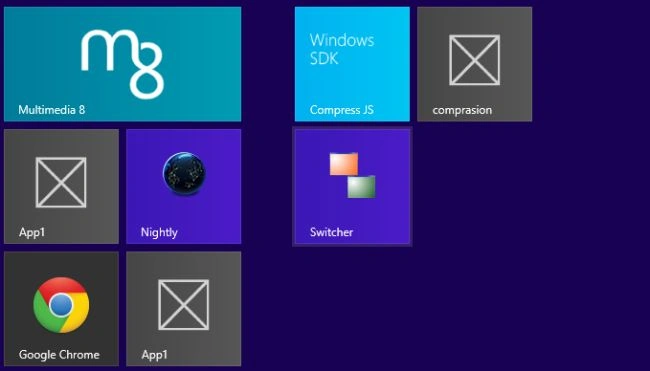
Step 5
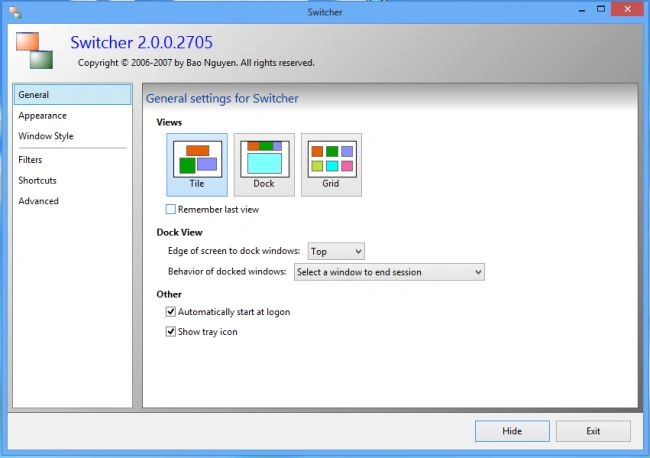
The Switcher window will be opened; select the view type according to your choice from the "General" tab.
Step 6
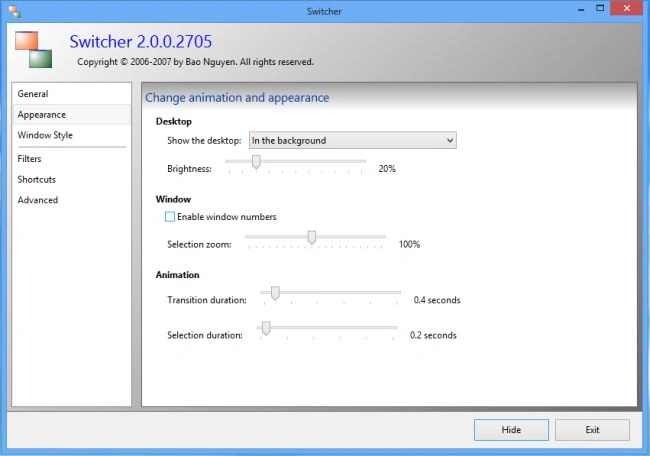
In this step go to the "Appearance" tab and uncheck "Enable window numbers".
Step 7
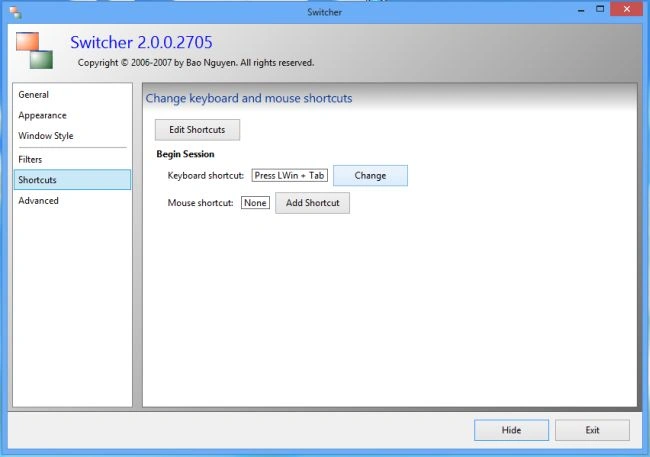
If you want to create your own shortcut then go to the "shortcut" tab and click the "change" button to create the shortcut.
Step 8
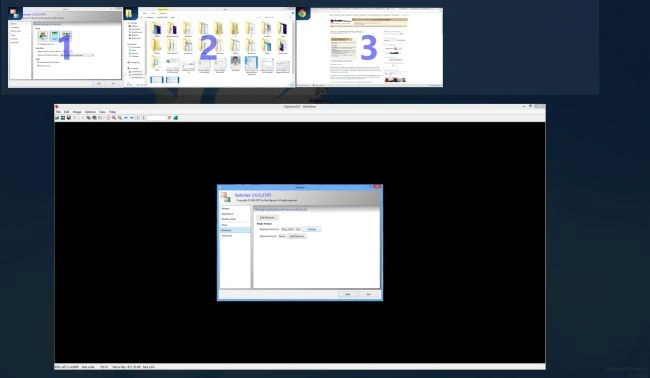
Now press the shortcut button you created.
Summary
In this article, we learned about How to Use Flip 3D in Windows 8.
Felicitas MewytonPosted Sep 3, 2016, 6:41 AM
I'm afraid you are an idiot. This is absolutely backwards and it's misinformed.