GitHub Copilot is a powerful AI tool that can help developers write code faster, more accurately, and more creatively. Here are some of the benefits of using GitHub Copilot in VS Code:
- Speed: Copilot can help you write code faster by suggesting completions, functions, and even entire blocks of code as you type. This can save you much time and effort, especially when working on repetitive tasks.
- Accuracy: Copilot is trained on a massive dataset of code, so it can generate accurate and idiomatic code. This can help you avoid errors and write code that is more maintainable.
- Creativity: Copilot can help you come up with new ideas for code by suggesting different ways to solve problems. This can help you be more creative and write more innovative code.
- Collaboration: Copilot can be used for pair programming, where you and a coworker work together to write code. Copilot can help you brainstorm ideas, generate code, and review each other's work.
- Learning: Copilot can be a great learning tool for developers. You can learn new coding techniques and best practices by seeing how Copilot generates code.
You can install and use Copilot in VS Code IDE. Here are the steps required to install and use GitHub Copilot in VS Code.
- Install GitHub Copilot Extensions
- Use GitHub Copilot Chat and help you write code
- Copy code in the editor
- Use Auto Suggestion
Step 1. Install Github Copilot Extensions
Open Extensions in VS Code and install two extensions – GitHub Copilot and Github Copilot Chat.
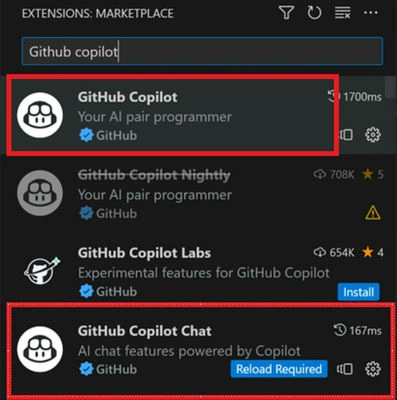
GitHub Copilot provides autocomplete-style suggestions from an AI pair programmer as you code. You can receive suggestions from GitHub Copilot either by starting to write the code you want to use or by writing a natural language comment describing what you want the code to do.
GitHub Copilot Chat is a companion extension to GitHub Copilot that houses preview Chat features.
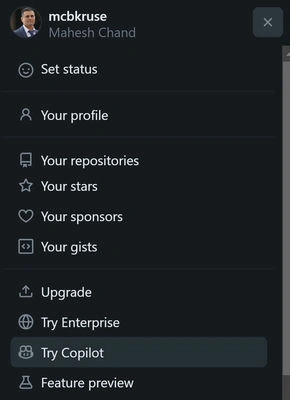
Note: You will be asked to log in to your GitHub account during installation. GitHub Copilot is a paid feature. If you do not have a paid version, you can try it, but eventually, you will need a paid account.
Once installed successfully, you will see the GitHub Copilot Chat icon in your left sidebar.
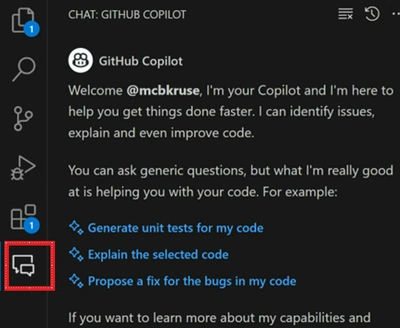
Step 2. Use GitHub Copilot Chat and Ask a Question
If you write any code or just place a cursor in your editor, GitHub Copilot will provide you with code suggestions.
Before that, let’s see how the Chat works.
You will see a Chat prompt at the bottom of the screen. You can ask any question here, and Copilot will write code for you.
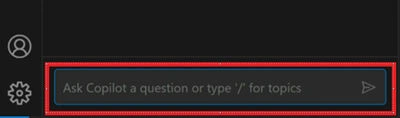
I type the question, “Can you create a Car class in C# with standard properties?” and hit ENTER.
Copilot replies the following:
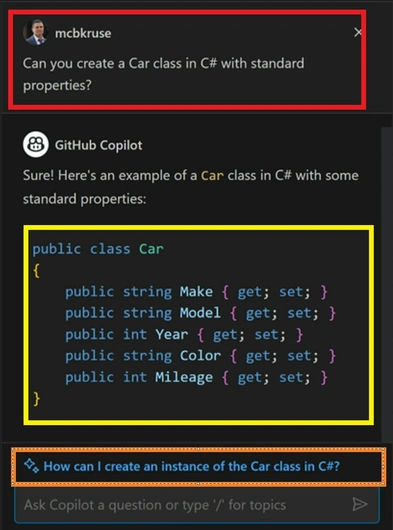
As you can see, it has written a Car class with few properties. Not only it wrote code for you, but it also suggested another question following this that you may be interested in now.
Step 3. Copy Code in Editor
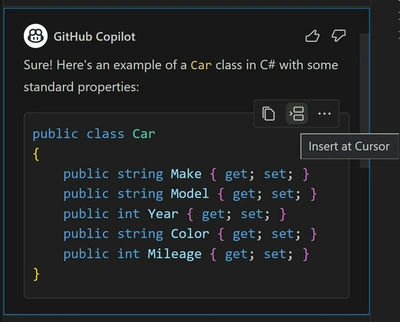
Now, if you hover over the Car class code, you will see two options – Copy and Insert at Cursor.
As you can see below, my cursor is at line 3.
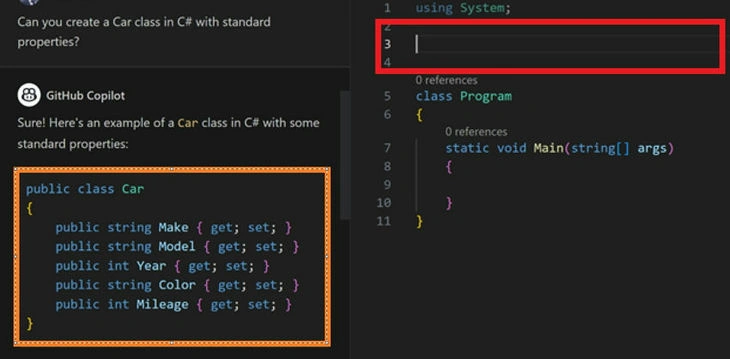
If you click on the “Insert at Cursor” option, you will see the code is copied in your class.
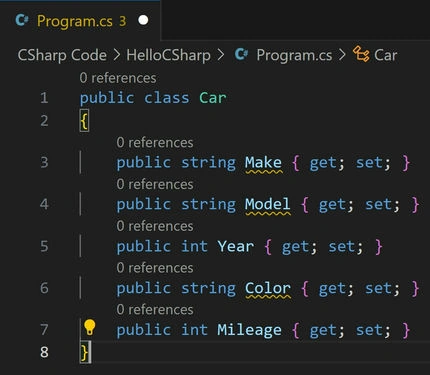
Step 4. Use Auto Suggestion
Now, if you click on your program, you will see the Copilot will suggest you code that you may want to write.
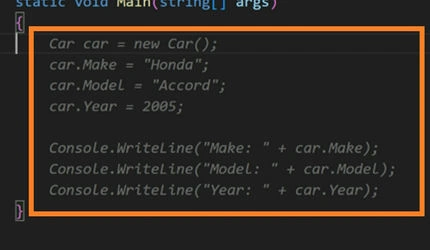
Using this process, you can write your code much faster.
Step 5. Continue Writing Code
Now, if you remember, Copilot suggested the next question.

If you click on that question, Copilot will write the next code snippet. As you can see from the below screen, not only Copilot wrote code for you, but it also explained how this code works.
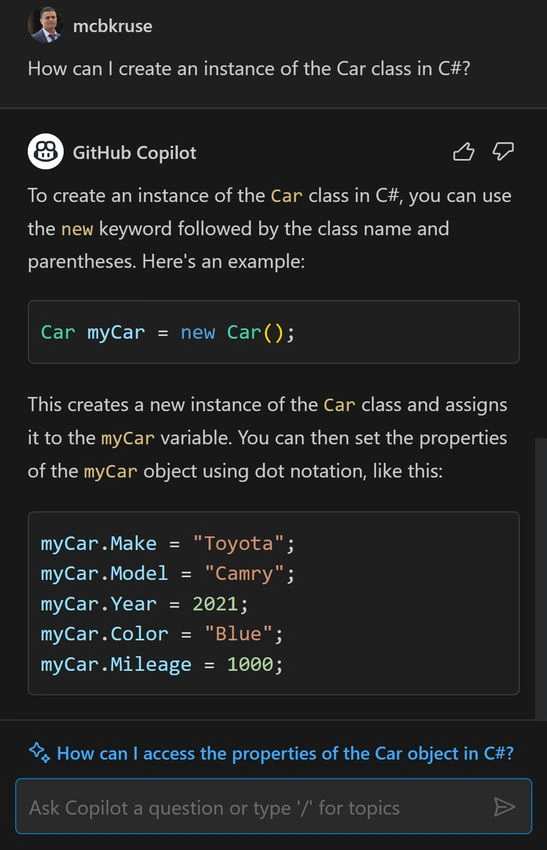
As you can see, GitHub Copilot can be useful for you to write code faster and to help you write code you may not know.
Here are some additional benefits of using GitHub Copilot in VS Code:
- It can help you with repetitive tasks. Copilot can generate boilerplate code, fill out forms, and even write unit tests for you. This can free up your time so you can focus on more creative and challenging tasks.
- It can help you with debugging. Copilot can suggest possible solutions to errors and even help you refactor your code to make it more readable and maintainable.
- It can help you learn new programming languages. Copilot can generate code in a variety of programming languages, so you can use it to learn new languages or brush up on your skills in existing languages.
If you're a developer, I encourage you to try GitHub Copilot. It's a powerful tool that can help you improve your productivity, accuracy, and creativity.
I will write a complete program using GitHub Copilot in my next article.


Raj KumarPosted Feb 23, 2024, 2:53 PM
Few other cool things also included in GitHub Copilot like auto git commit description suggestion and workspace and terminal options.