

Introduction
As your SharePoint lists grow larger, you may notice slower loading times, delayed filtering, and performance issues. This is especially common when lists contain thousands of items. One of the simplest and most effective ways to improve list performance is by using Indexed Columns.
Indexed columns help SharePoint locate data faster, making filtering, sorting, and searching much more efficient. In this article, you'll learn what indexed columns are, why they matter, how to create them, and best practices for using them.
What Is an Indexed Column?
An Indexed Column is a SharePoint column that has a database index created for it. Instead of scanning every item in a list to find matching records, SharePoint uses the index to quickly locate the required data.
Think of it like the index in a book. Instead of reading every page to find a topic, you simply look it up in the index and jump directly to the correct page.
Without an Index
SharePoint scans every list item.
Queries take longer as the list grows.
Higher chance of reaching the List View Threshold.
With an Index
SharePoint quickly finds matching records.
Faster filtering and sorting.
Improved overall list performance.
Why Use Indexed Columns?
Indexed columns provide several performance benefits.
Faster Filtering
When users filter a list using an indexed column, SharePoint retrieves results much faster.
Example
Instead of scanning 100,000 items to find all invoices with Status = Approved, SharePoint searches the index and returns only matching records.
Improved Sorting
Sorting large lists by an indexed column is significantly faster than sorting by a non-indexed column.
Example:
Sort a document library by:
Created Date
Modified Date
Department
If these columns are indexed, the sorting operation is much quicker.
Better Performance for Large Lists
Lists with more than 5,000 items often encounter the List View Threshold.
Using indexed columns allows SharePoint to retrieve only the matching records instead of processing the entire list.
Faster Views
Views that filter using indexed columns load much faster.
Example View:
Department = IT
Status = Active
If both columns are indexed, SharePoint retrieves only the required records.
Understanding the List View Threshold
SharePoint Online has a List View Threshold of 5,000 items.
This doesn't mean you cannot store more than 5,000 items. Lists can contain millions of items, but queries must be optimized.
Without indexed columns:
Slow loading
Query failures
Threshold errors
With indexed columns:
Efficient queries
Faster loading
Better user experience
Example Scenario
Imagine an Employee List containing 150,000 records.
| Employee ID | Employee Name | Department | Status | Location |
|---|---|---|---|---|
| 1001 | Ketan | HR | Active | London |
| 1002 | Vimal | IT | Active | New York |
| 1003 | Dhaval | Finance | Inactive | Chicago |
Users frequently filter by:
Department
Status
Location
Without indexes:
Every filter scans all 150,000 items.
With indexes:
SharePoint instantly finds matching employees.
Which Columns Should Be Indexed?
Index columns that are frequently used for:
Filtering
Sorting
Searching
Lookup relationships
Power Apps filters
Power Automate queries
Good candidates include:
Status
Department
Country
Employee ID
Invoice Number
Created Date
Modified Date
Customer Name
Avoid indexing columns that are rarely used.
How to Create an Indexed Column
Step 1
Open your SharePoint list.
Step 2
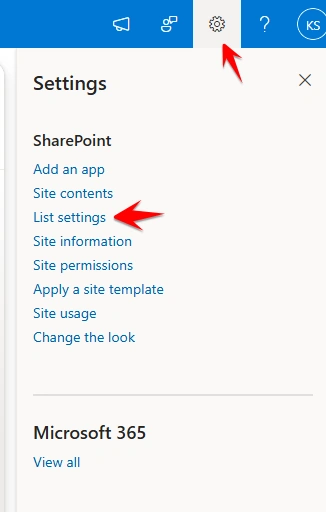
Select Settings (⚙️) → List Settings.
Step 3
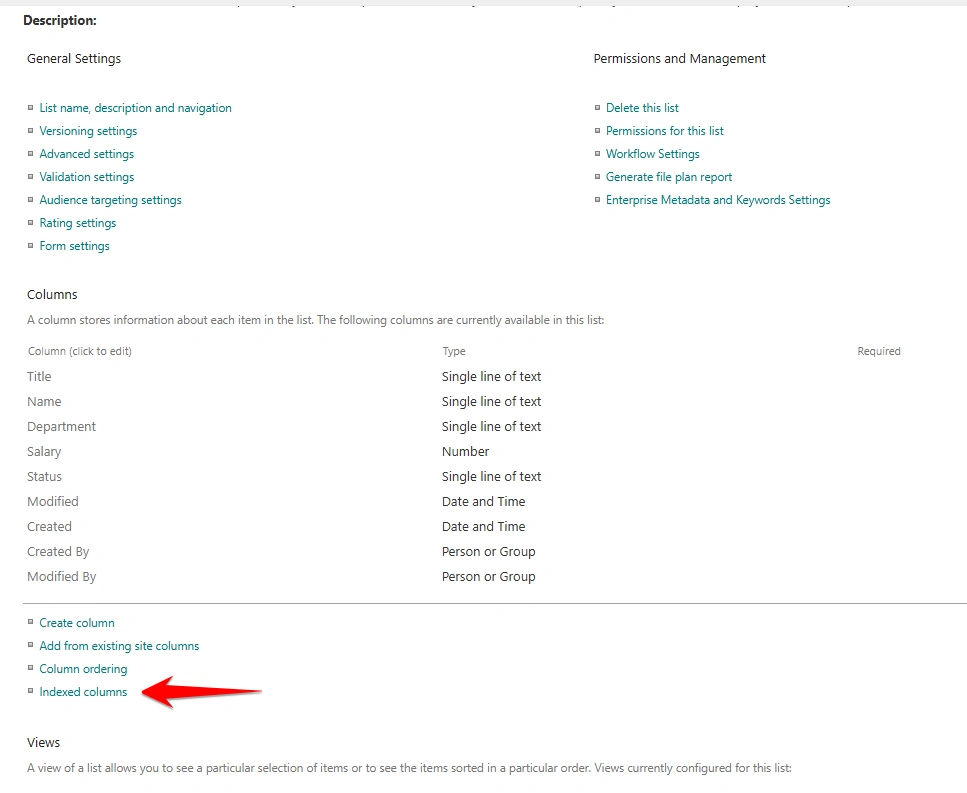
Under Columns, click Indexed Columns.
Step 4
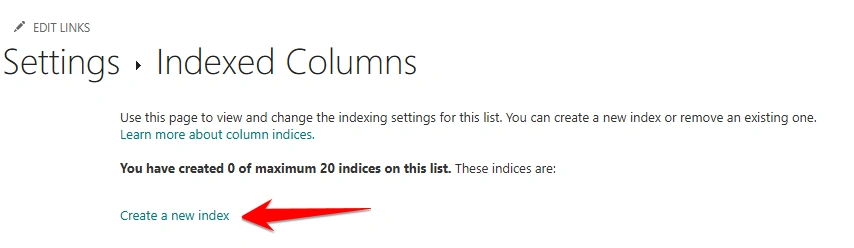
Select Create a new index.
Step 5
Choose the column you want to index.
Example:
DepartmentStep 6
Click Create.
Your column is now indexed.
Creating a Composite Index
A Composite Index combines two columns to improve filtering when both are used together.
Example:
First Column:
DepartmentSecond Column:
StatusNow SharePoint can efficiently process filters like:
Department = IT
AND
Status = Active
Composite indexes are useful for views and queries that frequently use two columns together.
Example Before and After Indexing
Before
Filter:
Status = ApprovedSharePoint scans:
100,000 itemsResult:
SlowAfter
Filter:
Status = ApprovedSharePoint checks the index.
Result:
FastIndexed Columns in Power Apps
Power Apps often retrieves SharePoint data using the Filter() function.
Example:
Filter(
    Employees,
    Department = "IT"
)
If Department is indexed, the query performs much better, especially with large SharePoint lists.
Indexed Columns in Power Automate
Many SharePoint actions support Filter Query.
Example:
Status eq 'Pending'If Status is indexed:
Faster queries
Less data processed
Better flow performance
This is especially useful when using the Get items action on large lists.
Best Practices
Index columns used frequently for filtering and sorting.
Create indexes before lists become very large.
Use indexed columns in SharePoint views.
Use indexed columns in Power Apps
Filter()functions.Use indexed columns in Power Automate Filter Query expressions.
Remove indexes that are no longer needed.
Use composite indexes for common two-column filters.
Common Mistakes
Indexing Every Column
Creating indexes on every column increases maintenance overhead and usually provides little benefit.
Filtering on Non-Indexed Columns
Large lists filtered on non-indexed columns can trigger threshold issues.
Using Too Many Lookup Columns
Lookup columns can impact performance. Index lookup columns if they are frequently used in filters.
Ignoring Views
Even if a column is indexed, poorly designed views that retrieve too many items may still load slowly.
Real-World Example
An organization stores 250,000 invoices in a SharePoint list.
Users frequently search by:
Invoice Number
Vendor
Status
Invoice Date
After indexing these columns:
Invoice searches became much faster.
SharePoint views loaded quickly.
Power Apps responded more efficiently.
Power Automate Get items actions completed faster.
Advantages of Indexed Columns
Improves list performance
Speeds up filtering
Speeds up sorting
Reduces list threshold issues
Improves SharePoint views
Enhances Power Apps performance
Improves Power Automate efficiency
Better user experience for large lists
Limitations
Not every query automatically benefits from indexing.
Composite indexes support only two columns.
Indexes require maintenance when list structures change.
Very complex queries may still experience performance issues if they cannot take advantage of the available indexes.
Conclusion
Indexed columns are one of the most effective ways to optimize SharePoint list performance. By creating indexes on columns that users frequently filter, sort, or query, SharePoint can retrieve data much more efficiently—especially in large lists with thousands of items.
Whether you're building SharePoint solutions, Power Apps, or Power Automate flows, using indexed columns strategically can reduce query times, avoid list view threshold issues, and provide a smoother experience for users. Proper planning and following best practices will help ensure your SharePoint lists remain fast, scalable, and easy to manage.
Join the conversation! Your thoughts help the community grow.