

Introduction
In Power Automate flows, we use the Approval action to send approval requests through email or Microsoft Teams. Sometimes the approval email looks plain and unorganized. To make the message clear and well formatted, we can use Markdown language. It helps us add headings, Paragraphs , bold text, bullet points, links, and better structure without using HTML.
Why We Use Markdown
It makes the approval email easier to understand. It improves readability and helps approvers to see important details.
Using Markdown, we can do following:
Highlight important information
Add tables, lists, and headings
Add clickable links, etc.
Prerequisites
Basic knowledge of creating flows.
Basic knowledge of Approval action that is used in your flow.
Now we will see each and every Markdown formatting option with input and output examples. This will help you understand how it looks when used inside the an Approval action.
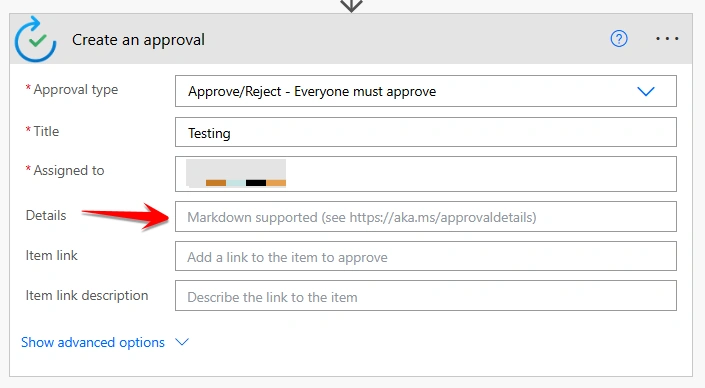
As per the below image, you can format Markdown language inside the Details field of the Approval action.
1. Markdown for Headers
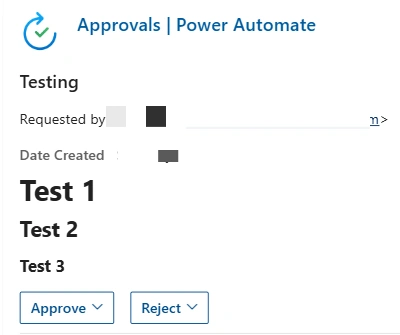
We use the # symbol to create headings.
| Symbol | Meaning |
|---|---|
| # | Heading 1 |
| ## | Heading 2 |
| ### | Heading 3 |
Example
    # Test 1
## Test 2
### Test 3
Result
2. Markdown for Paragraphs and Line Breaks
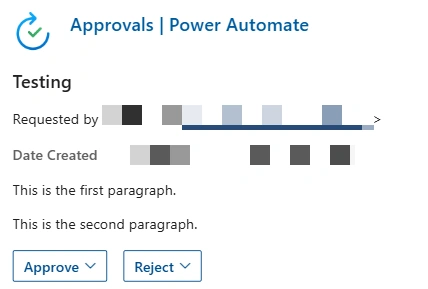
We can write normal text for paragraphs and to add a line break, we use double space + Enter.
Example
    This is the first paragraph.

This is the second paragraph.
Result
3. Markdown for Ordered or numbered lists
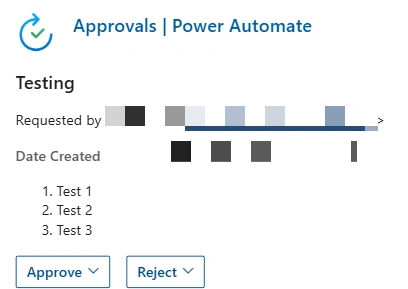
These are used when we want to show steps in a specific sequence. So even if you write all items starting with 1. , the result will show like 1,2,3 in order.
Example
    1. Test 1
1. Test 2
1. Test 3
Result
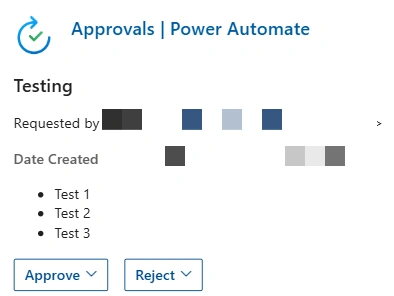
4. Markdown for Bullet Lists
These are used when items do not need to be any specific order. Markdown will automatically display each item with a bullet symbol.
Example
    - Test 1
- Test 2
- Test 3
Result
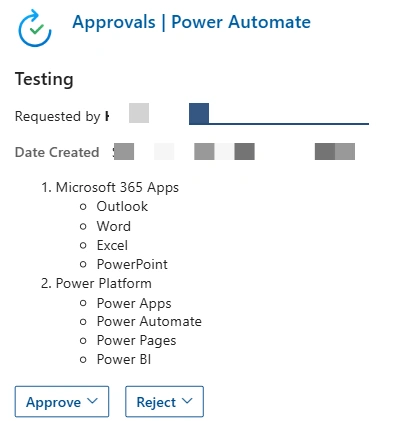
5. Markdown for Nested Lists
These are useful when we want to show a main category with related sub-items. And The main category will automatically format into numbered order, and the sub-items will automatically convert into bullet points
Example
    1. Microsoft 365 Apps
   - Outlook
   - Word
   - Excel
   - PowerPoint
1. Power Platform
   - Power Apps
   - Power Automate
   - Power Pages
   - Power BI
Result
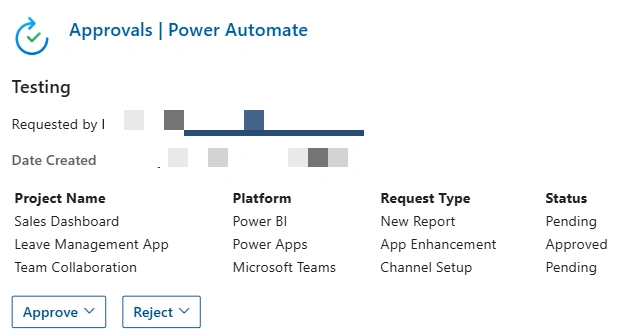
6. Markdown for Tables
These are used to display data in a row-and-column structure, which is easy to compare and read information in approval emails.
Example
    | Project Name     | Platform        | Request Type          | Status   |
|-----------------|----------------|---------------------|----------|
| Sales Dashboard  | Power BI       | New Report          | Pending  |
| Leave Management App| Power Apps     | App Enhancement     | Approved |
| Team Collaboration| Microsoft Teams | Channel Setup       | Pending  |
Result
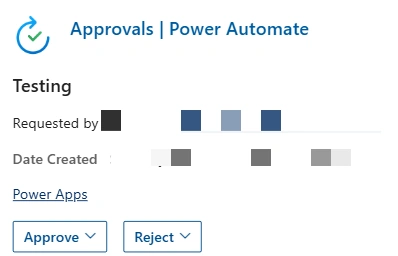
7. Markdown for Links
These are used to provide clickable URLs in approval emails, and it is making easy for approvers to open any resources directly. Use HTTPS links, which are rendered as clickable links in all email. Non-HTTPS links (like HTTP, FTP, or mail) may appear as plain text and not clickable.
Syntax
[Link Text](Link URL)
Example
[Power Apps](https://make.powerapps.com)
Result
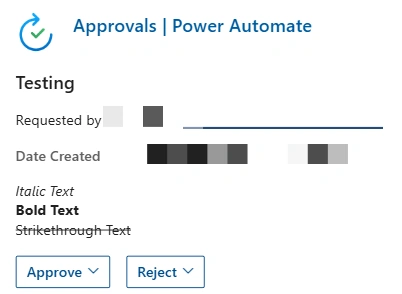
8. Markdown for Emphasis (Bold / Italic / Strikethrough)
These are used to highlight important text, instructions, or notes in approval emails. You can make text bold, italic, or show it as strikethrough for clearly meaning .
How to apply emphasis:
Italics: use
*or_->*text*or_text_Bold:
use ** -> **text**Strikethrough: use
~~->~~text~~
Example
    *Italic Text*
**Bold Text**
~~Strikethrough Text~~
Result
Conclusion
In this article, we explored all Markdown formatting options available in Power Automate approval emails. We covered headings, paragraphs, lists, tables, links, emphasis (bold, italics, strikethrough). Using these techniques, you can create approval messages that are clear, organized, and professional, making it easier for approvers to read.
Join the conversation! Your thoughts help the community grow.