

Before reading this article, please go through the article, given below-
Reading this article, you can learn, how to use Media Element Control with Media Transport Control to open a Media File in Universal Windows Apps development with XAML and Visual C#.
The following important tools are required for developing UWP-
- Windows 10 (Recommended)
- Visual Studio 2015 Community Edition (It is a free software available online)
Now, we can discuss step by step App development.
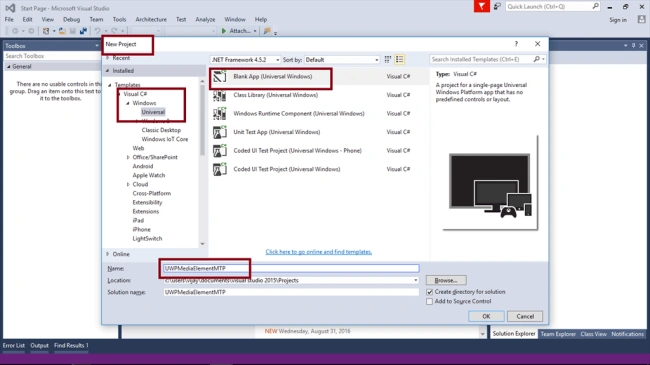
Step 1: Open Visual Studio 2015 -> Start -> New Project-> Select Universal (under Visual C#->Windows)-> Blank App -> Give the suitable name for your App (UWPMediaElementMTP) ->OK.
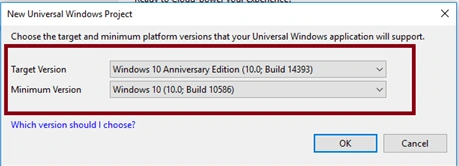
Step 2: Choose Target and minimum platform version for your Windows Universal Application. After the project, create App.xaml and MainPage.xaml.
Step 3: Open (double Click) the file MainPage.xaml in the Solution Explorer and click on the Toolbox tab on the left to open the list of Common XAML controls. Expand Common XAML Controls and drag the MediaElement Control to the middle of the design canvas and Change the name property.
Enable the checkbox AreTransportControlsEnabled property.
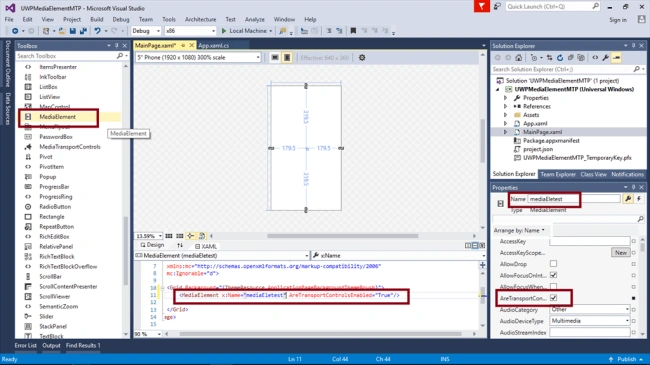
Note: Automatically, the code, given below, will be generated in XAML code view, while we are done in the design view-
- <Page x:Class="UWPMediaElementMTP.MainPage" xmlns="http://schemas.microsoft.com/winfx/2006/xaml/presentation" xmlns:x="http://schemas.microsoft.com/winfx/2006/xaml" xmlns:local="using:UWPMediaElementMTP" xmlns:d="http://schemas.microsoft.com/expression/blend/2008" xmlns:mc="http://schemas.openxmlformats.org/markup-compatibility/2006" mc:Ignorable="d">
- <Grid Background="{ThemeResource ApplicationPageBackgroundThemeBrush}">
- <MediaElement x:Name="mediaEletest" AreTransportControlsEnabled="True" /> </Grid>
- </Page>
Ilker MersinliogluPosted Mar 21, 2017, 9:12 AM
I have found this site for more information, as i see its very complicated in windows phone 8.1 to work with files. https://msdn.microsoft.com/en-us/library/windows/apps/xaml/dn614994.aspx
Ilker MersinliogluPosted Mar 20, 2017, 8:25 AM
Hello, thanks for this example. Its very good and simple. Though i have a question. Which changes do i need in the code for windows phone 8.1? I have problem with: SetPlaybackSource, MediaContent.PickSingleFileAsync()