

Microsoft Teams channel as a ChatGPT using Power Automate
As an AI language model, ChatGPT can be integrated into Microsoft Teams as a bot, which can then be used in channels to facilitate communication and assist users.
To use the Microsoft Teams channel as a ChatGPT using Power Automate when a new channel message is added, you can follow the steps below,
- Create a new Power Automate flow- In Power Automate, create a new flow and select the "When a new channel message is added (V3)" trigger.
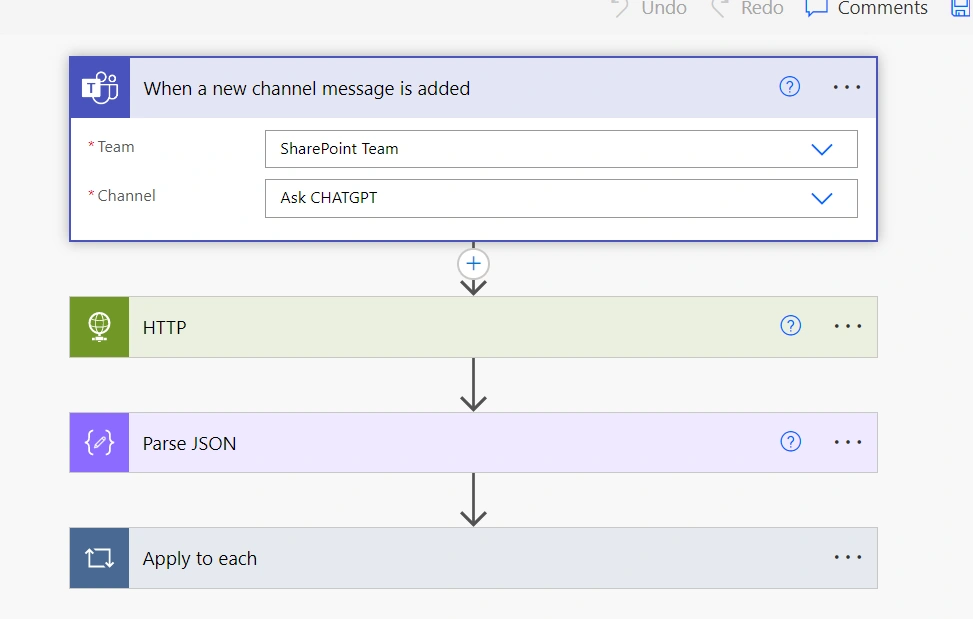
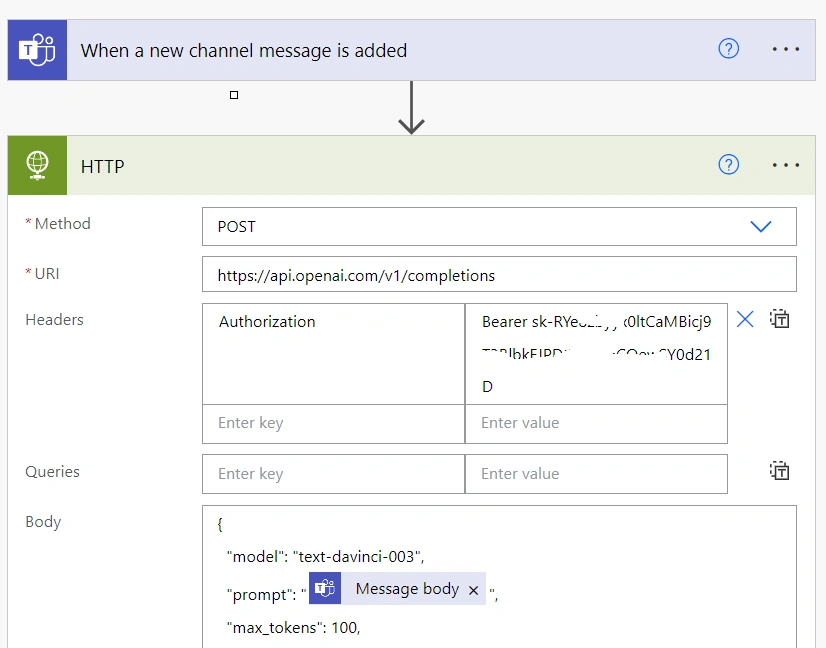
- Add the "HTTP" action: In the Power Automate flow, configure a new "HTTP" action to send a POST request to your ChatGPT API endpoint. You must provide the message text from the Teams channel as a parameter in the request body.
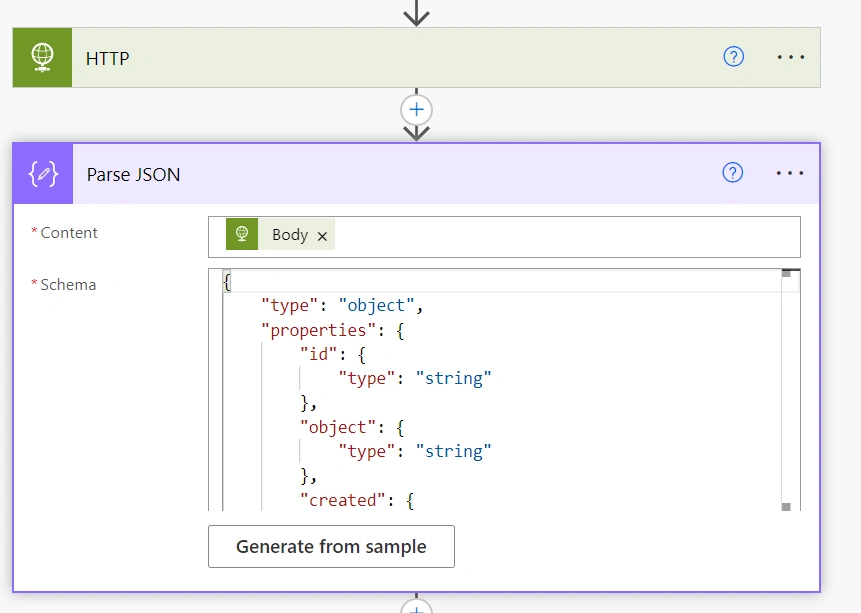
- Next, add the PARSE JSON to convert the result to JSON format like below.
- Add the "Microsoft Teams - Post a message (V3)" action: Once you receive the response from the ChatGPT API, you can use the "Microsoft Teams - Post a message (V3)" action to send the response message back to the Teams channel.
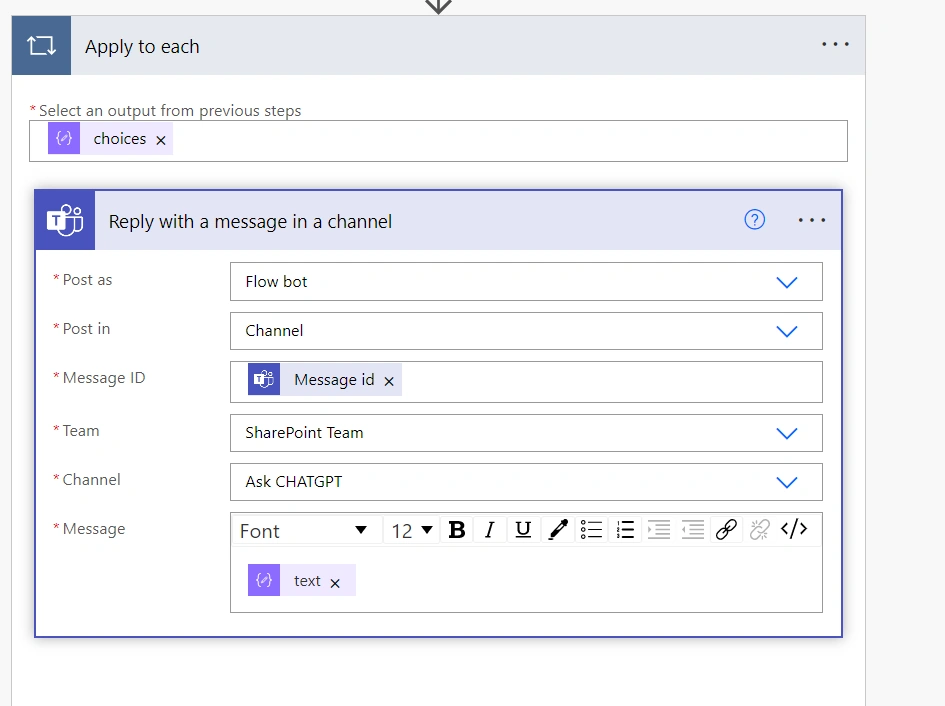
- Configure the Teams message: In the "Microsoft Teams - Post a message (V3)" action, configure the message that will be posted back to the Teams channel. You can use the response message from the ChatGPT API as the message text.
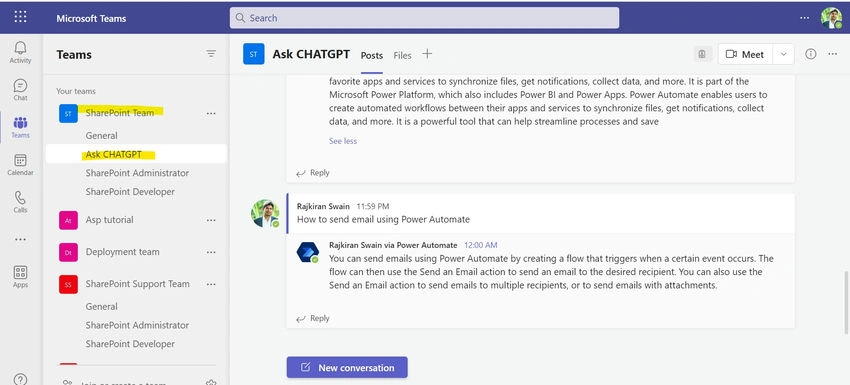
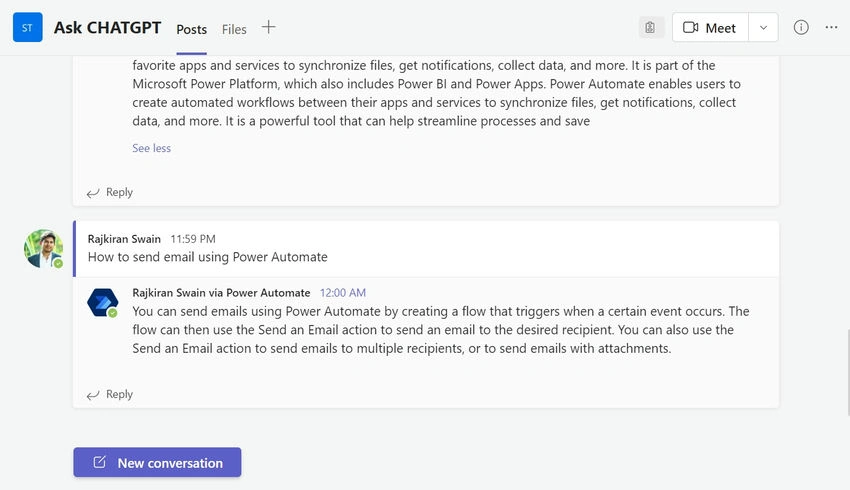
- Save and test the flow: Save the Power Automate flow and test it by adding a new message to the Teams channel.
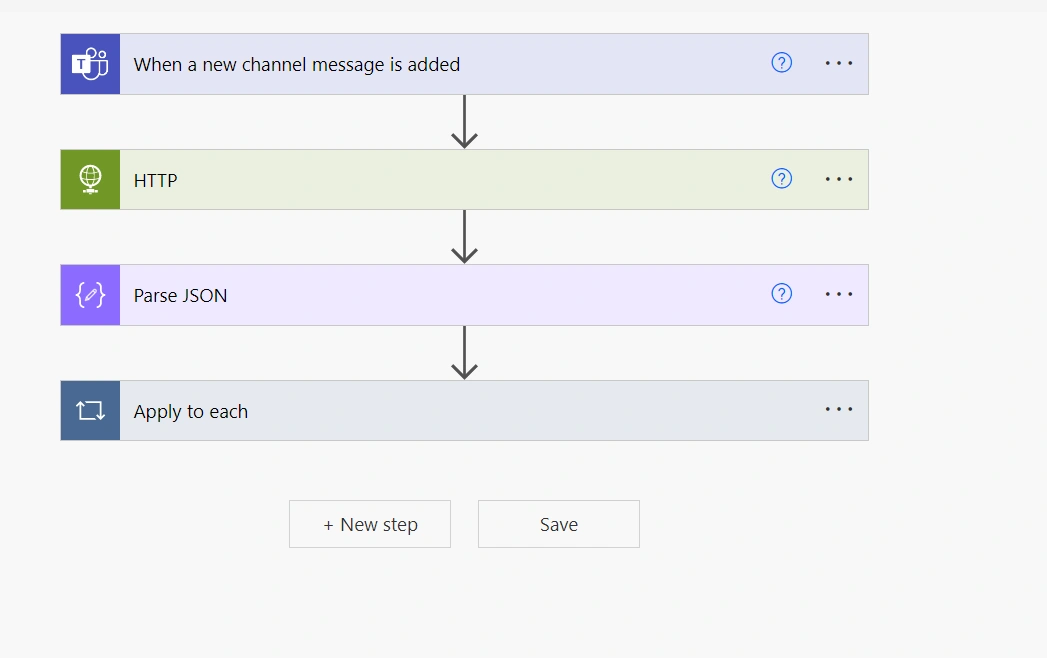
Following these steps, you can use Power Automate to integrate ChatGPT with Microsoft Teams and create a conversational experience for your users when a new channel message is added.
Create an API key in OpenAI.com
-
Sign up for an account on OpenAI.com: If you don't already, go to https://beta.openai.com/signup/ and sign up for a new account.
-
Go to your dashboard: After signing up and logging in, click on your name in the top right corner and select "Dashboard" from the dropdown menu.
-
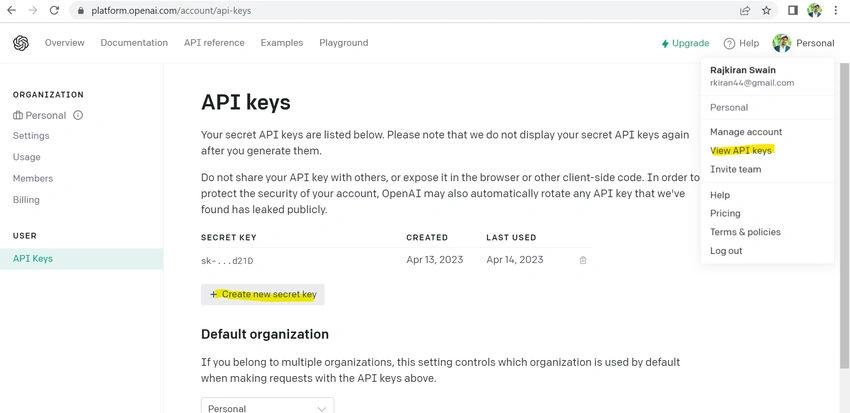
Create a new API key: In your dashboard, click on the "API Keys" tab in the left-hand menu, then click the "New API Key" button.
-
Enter a name for your API key: In the "Create API Key" dialog box, enter a name for your API key in the "Name" field.
-
Select the permissions for your API key: In the same dialog box, select the permissions you want your API key to have. For example, you may want to allow the API key to access the GPT-3 language model but not others.
-
Create your API key: Click the "Create" button to create your API key.
-
Copy your API key: After creating your API key, copy it to your clipboard by clicking on the "Copy" button next to it.
Deepak RawatPosted Apr 14, 2023, 12:32 PM
Like the way you have elaborate