Introduction
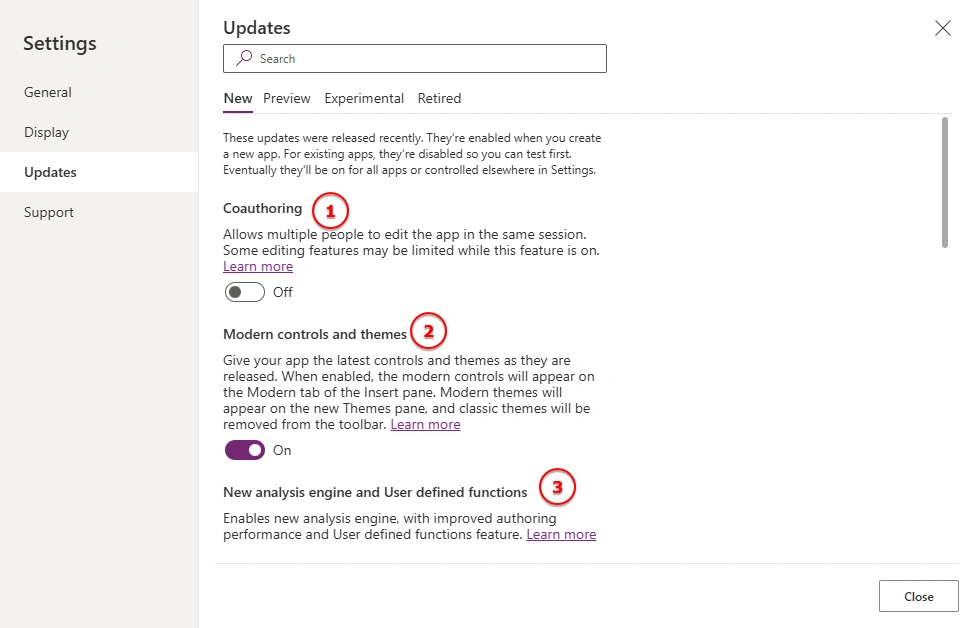
Microsoft Power Apps provides several new features to improve Canvas app development, performance, and user experience. These features are available under Settings > Updates > New in Power Apps Studio, although the available options may vary by environment and app.
Some features help developers build reusable formulas, while others improve app design, offline capabilities, data retrieval, and collaboration.
In this article, we will explore 10 important features with practical examples from business applications.
Power Apps Settings > Updates > New: Features
1. Coauthoring
What is it?
Coauthoring allows multiple developers to collaborate on the same Canvas app simultaneously.
Example: In an Invoice Approval app, one developer works on the invoice screen while another works on the reporting screen. Both can collaborate without repeatedly exchanging separate app files.
Benefits: Improves teamwork, reduces manual version sharing, and speeds up development.
Note: Coordinate changes to avoid conflicts when multiple developers edit the same controls or formulas.
2. Modern Controls and Themes
What is it?
Modern controls provide an updated interface, while themes help apply consistent colours and styling to supported controls.
Example: In an RFP Evaluation app, you want all buttons and input fields to follow a blue-and-white theme. Select an appropriate theme instead of manually styling every supported control.
For an Approve button, set the Text property to:
"Approve"
Set its OnSelect property to:
Patch(
    InvoiceDetails,
    GalleryInvoices.Selected,
    {Status: {Value: "Approved"}}
)
This assumes Status is a SharePoint Choice column.
Benefits: Creates a consistent design and reduces repetitive styling.
Note: Themes may not automatically apply to classic controls or every custom component.
3. New Analysis Engine and User-Defined Functions
What is it?
The formula analysis engine supports Power Fx formula authoring, while user-defined functions allow developers to reuse business calculations.
Example: Suppose your application calculates invoice amounts including tax. Define a reusable function in App.Formulas:
AddTax(
    price: Number,
    rate: Number
): Number = price * (1 + rate);
Use it wherever required:
AddTax(100, 0.18)
Result: 118
Benefits: Reduces duplicate formulas and makes business logic easier to maintain.
Note: Confirm that the required function syntax is supported by your app's current Power Fx capabilities.
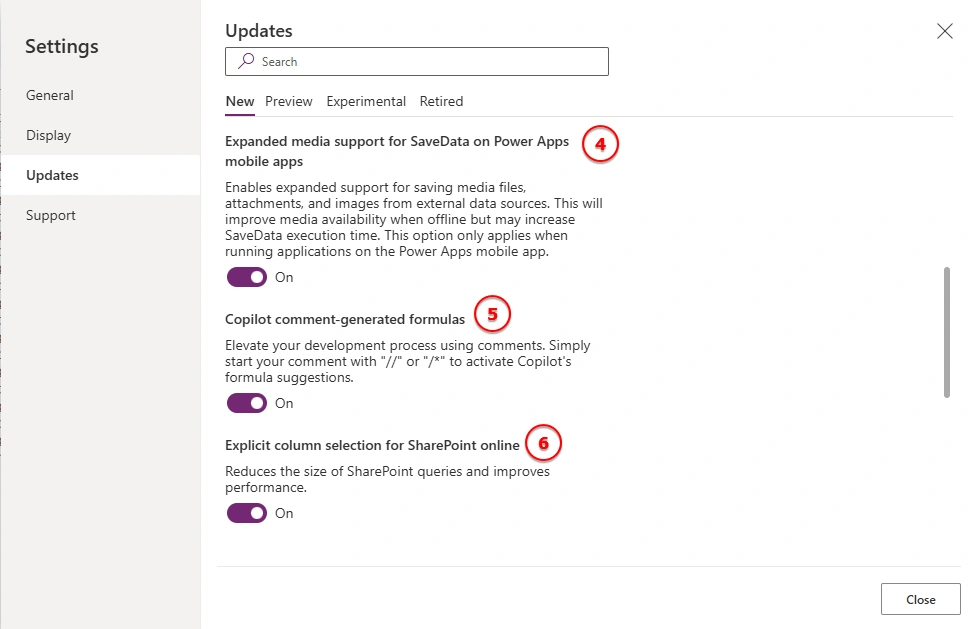
4. Expanded Media Support for SaveData
What is it?
SaveData() and LoadData() allow supported Canvas apps to store and retrieve local collections for offline use.
Example: A field technician records an inspection while working without an internet connection.
Save the inspection data:
SaveData(
    colInspections,
    "InspectionCache"
)
Load the saved data:
LoadData(
    colInspections,
    "InspectionCache",
    true
)
Benefits: Helps users access cached data without continuous internet connectivity.
Note: Offline changes do not automatically synchronize with SharePoint. Implement a separate synchronization process, and test media support on the intended device and player.
5. Copilot Comment-Generated Formulas
What is it?
Copilot can help generate Power Fx formulas from natural-language instructions in supported authoring experiences.
Example: You want to display pending invoices, sorted by creation date.
Describe the requirement:
// Show pending invoices, newest first
Copilot may suggest a formula similar to:
SortByColumns(
    Filter(
        InvoiceDetails,
        Status.Value = "Pending"
    ),
    "Created",
    SortOrder.Descending
)
Use the formula in the gallery's Items property after verifying the column names and data types.
Benefits: Speeds up formula development and helps beginners learn Power Fx.
Note: Always review generated formulas for errors, delegation limitations, and incorrect column references.
6. Explicit Column Selection for SharePoint Online
What is it?
Explicit column selection helps Power Apps retrieve the columns needed by the application in supported scenarios.
Example: Your SharePoint list contains 40 columns, but your invoice gallery only needs invoice number, vendor name, and status.
You can specify the required columns:
ShowColumns(
    InvoiceDetails,
    InvoiceNumber,
    VendorName,
    Status
)
The column identifiers must match the names exposed by your data source and Power Fx version.
Benefits: Can reduce unnecessary data retrieval and improve performance.
Note: This does not guarantee that only these columns will be requested in every situation. Test the app's actual data usage and performance.
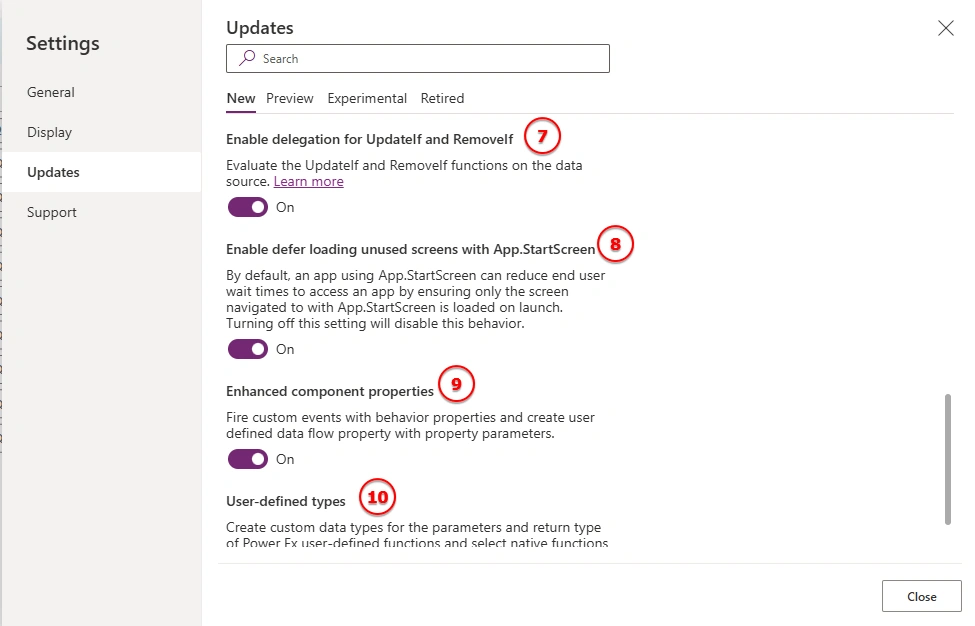
7. Enable Delegation for UpdateIf and RemoveIf
What is it?
Delegation allows supported operations to be processed by the data source rather than relying entirely on records retrieved into the app.
Example: You want to remove closed tasks from a SharePoint list.
RemoveIf(
    Tasks,
    Status.Value = "Closed"
)
You can also update pending tasks:
UpdateIf(
    Tasks,
    Status.Value = "Pending",
    {Status: {Value: "In Progress"}}
)
Benefits: Can help manage larger data sets and reduce limitations associated with local processing.
Note: Enabling this setting does not guarantee full delegation for every data source or condition. Verify support and test with records exceeding the configured data row limit. Test bulk changes carefully before production use.
8. Defer Loading Unused Screens with App.StartScreen
What is it?
App.StartScreen determines which screen opens when the application starts. Deferring unused screens can reduce startup work in supported scenarios.
Example: An application has separate home screens for administrators and regular users.
If(
    User().Email in AdminEmailList.Email,
    scrAdmin,
    scrHome
)
Here, AdminEmailList represents a data source containing authorized administrator email addresses.
Benefits: Supports role-specific navigation and can improve startup performance.
Note: Screen selection is not a security mechanism. Protect sensitive data through appropriate data-source permissions and authorization.
9. Enhanced Component Properties
What is it?
Components let developers create reusable interface elements. Enhanced component properties support more advanced interactions and reusable behavior where available.
Example: Create an approval card component used across several invoice screens. Configure an approval event property so the screen can define what happens when the user approves an invoice.
The approval action could execute:
Patch(
    InvoiceDetails,
    GalleryInvoices.Selected,
    {Status: {Value: "Approved"}}
)
The component triggers the configured behavior when its approval action occurs.
Benefits: Reduces duplicate controls, standardizes interactions, and simplifies maintenance.
Note: Configure event and function-like properties according to the property types supported in your component editor.
10. User-Defined Types
What is it?
User-defined types allow developers to define reusable data structures for supported Power Fx functions and records.
Example: An RFP Evaluation application works with vendor information, including name, contact email, proposal amount, and evaluation score.
A vendor record could look like this:
{
    VendorName: "ABC Technologies",
    ContactEmail: "[email protected]",
    ProposalAmount: 50000,
    EvaluationScore: 85
}
This provides a consistent structure for working with vendor information.
Benefits: Makes data structures more consistent and helps organize reusable business logic.
Note: Typed functions and user-defined types have specific syntax and availability requirements. Verify the supported declarations in your environment before implementation.
Conclusion
Power Apps Settings > Updates > New provides capabilities that can improve collaboration, interface design, formula reuse, offline support, and data handling.
Understanding these features helps developers choose the right capabilities for their business applications. Always test new settings in a development copy before applying them to production.
Power Apps Settings > Updates > New: Features


Join the conversation! Your thoughts help the community grow.