

Introduction
Every Power Automate flow starts with a trigger. A trigger tells the flow when it should begin running. Choosing the correct trigger helps ensure your automation runs at the right time and for the right reason.
Power Automate provides three main types of triggers:
🤖 Automated Trigger
⏰ Scheduled Trigger
👆 Instant Trigger
Let's explore each trigger with real-world examples.
1. Automated Trigger
An Automated Trigger starts a flow automatically when a specific event occurs. No user action is required.
Example 1: New Email Notification
Trigger
When a new email arrives (Outlook)
Flow
New Email Received
        ↓
Check Subject
        ↓
Save Attachment to SharePoint
        ↓
Send Teams Notification
Whenever an email with an attachment arrives, the flow automatically saves the attachment and notifies your team.
Example 2: SharePoint List
Trigger
When an item is created
Flow
New Employee Added
        ↓
Create Microsoft 365 Account
        ↓
Send Welcome Email
        ↓
Notify HR Team
No manual work is required after adding a new employee.
Best For
Email automation
Approval workflows
Document processing
Real-time notifications
2. Scheduled Trigger
A Scheduled Trigger runs the flow at a specific date, time, or recurring interval.
Example 1: Daily Report
Trigger
Every day at 8:00 AM
Flow
8:00 AM
     ↓
Collect Sales Data
     ↓
Create Excel Report
     ↓
Send Email to Manager
The report is generated automatically every morning.
Example 2: Weekly Reminder
Trigger
Every Monday at 9:00 AM
Flow
Monday 9 AM
      ↓
Check Pending Tasks
      ↓
Send Reminder Email
Employees receive a reminder every Monday.
Best For
Daily reports
Weekly reminders
Database backups
Data synchronization
Monthly maintenance
3. Instant Trigger
An Instant Trigger starts only when a user manually runs the flow.
Example 1: Power Apps Button
Trigger
Button clicked in Power Apps
Flow
User Clicks Button
        ↓
Generate PDF
        ↓
Save to SharePoint
        ↓
Email PDF
The flow runs only when the user clicks the button.
Example 2: SharePoint Selected Item
Trigger
For a selected item
Flow
Select Document
        ↓
Click "Request Approval"
        ↓
Start Approval
        ↓
Notify Approver
Users can start the approval only for the selected document.
Best For
User-requested approvals
Export reports
Generate invoices
Send notifications
On-demand processes
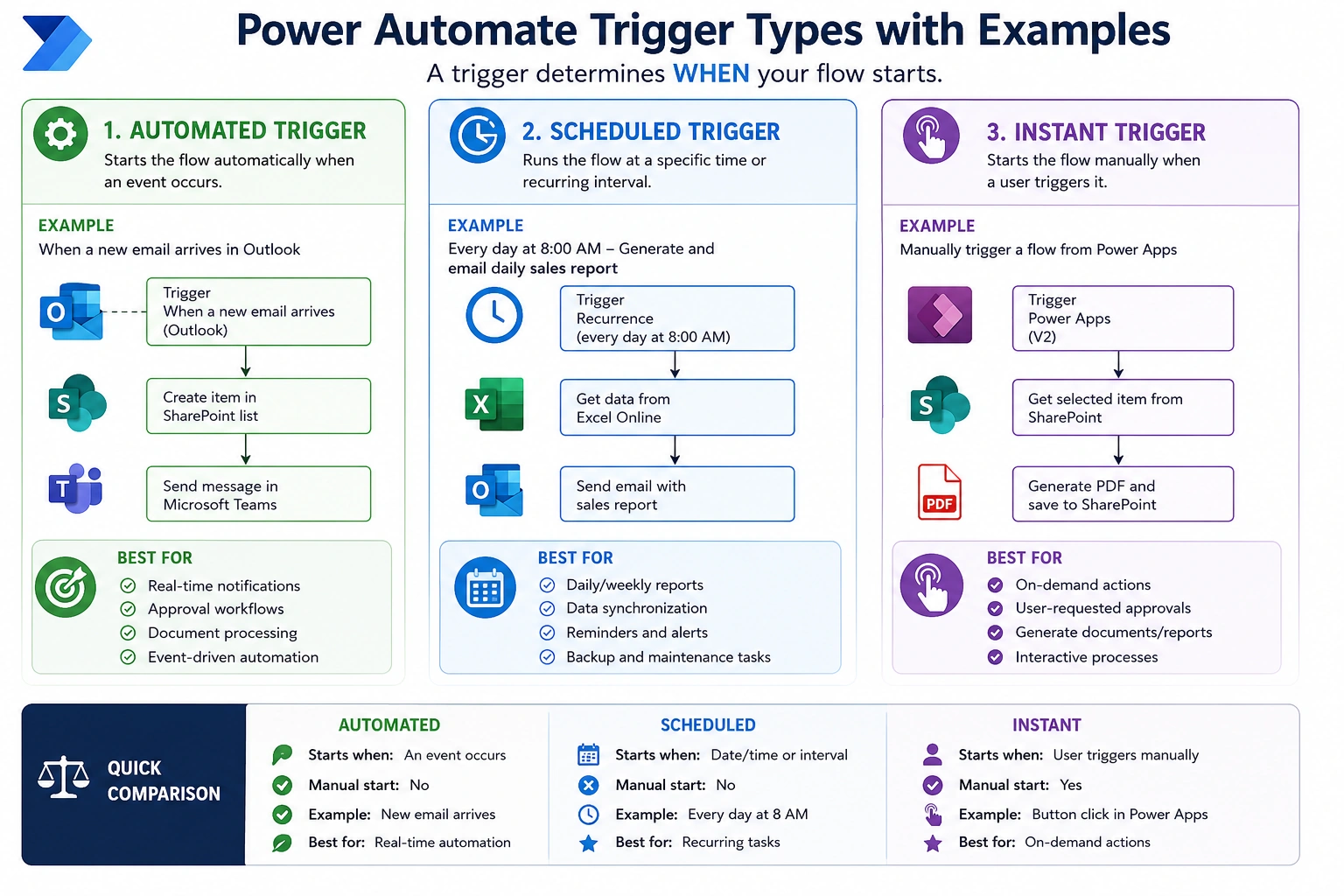
Comparison with Examples
| Trigger Type | Starts When | Example | Best For |
|---|---|---|---|
| Automated | An event occurs | New SharePoint item → Send approval email | Real-time automation |
| Scheduled | At a fixed time | Every day at 8 AM → Generate sales report | Recurring tasks |
| Instant | User clicks a button | Power Apps button → Create PDF invoice | On-demand actions |
Real-World Business Scenarios
| Business Requirement | Trigger Type | Example |
|---|---|---|
| Employee submits leave request | Automated | Start approval workflow automatically |
| Generate daily attendance report | Scheduled | Run every morning at 9 AM |
| User exports selected SharePoint document | Instant | Click Export button |
| New invoice received | Automated | Save invoice and notify finance |
| Weekly backup of files | Scheduled | Every Sunday night |
| Manager requests employee report | Instant | Click button in Power Apps |
When Should You Use Each Trigger?
Use Automated Trigger When:
Something happens automatically.
Immediate action is required.
No user interaction is needed.
Example: A customer submits a Microsoft Form, and an email confirmation is sent instantly.
Use Scheduled Trigger When:
The task repeats regularly.
Reports or backups are required.
Timing is important.
Example: Every Friday at 5 PM, send a weekly sales report to management.
Use Instant Trigger When:
A user decides when to run the flow.
Input is required before execution.
The action is performed only when requested.
Example: A manager clicks a button in Power Apps to generate a PDF employee report.
Summary
| Trigger | Description | Example |
|---|---|---|
| 🤖 Automated | Runs when an event happens | New email → Save attachment |
| ⏰ Scheduled | Runs on a defined schedule | Daily report at 8 AM |
| 👆 Instant | Runs when a user starts it | Button click → Generate PDF |
Conclusion
Choosing the right trigger is the foundation of every successful Power Automate flow:
Automated Triggers are ideal for event-driven automation.
Scheduled Triggers are best for recurring and time-based processes.
Instant Triggers are perfect for user-initiated tasks.
By understanding these trigger types and their real-world examples, you can build efficient, reliable, and scalable Power Automate solutions that fit your business needs.
Join the conversation! Your thoughts help the community grow.