

Power Fx in Power Pages is a low-code expression language used to dynamically set values in site components. however as it is in preview mode so it is not meant for production use.
Supported Components
| Component | Properties |
|---|---|
| Text | Text |
| Image | Image URL, Alt Text |
| Button | Button URL, Button text |
| Iframe | Iframe URL |
How to implement in Power Pages studio
Go to make.powerpages.microsoft.com
Select site or you can create site from blank.
Create new page in site.
1 - Text component
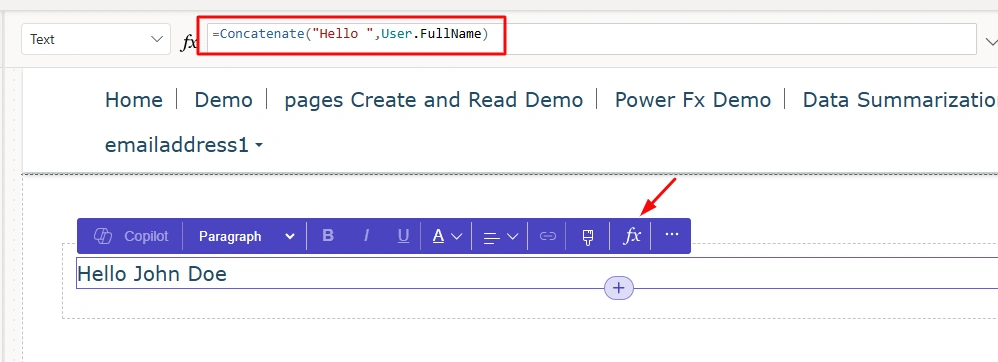
Add new section then add component from + button.
then click on fx icon.
on formular bar, i have write this for getting current logged in user name. (which refer to Contacts table (standard))
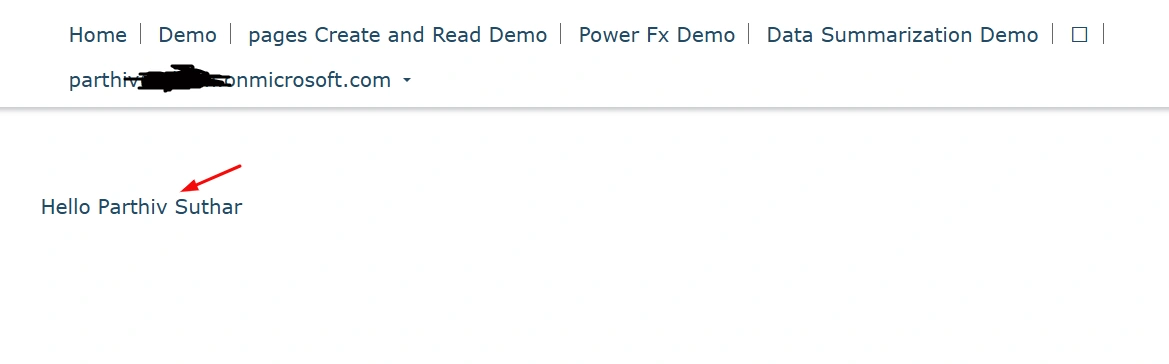
After sync changes and open preview of site.
It will only show name when you have logged in with username and password.
2 - Image Component
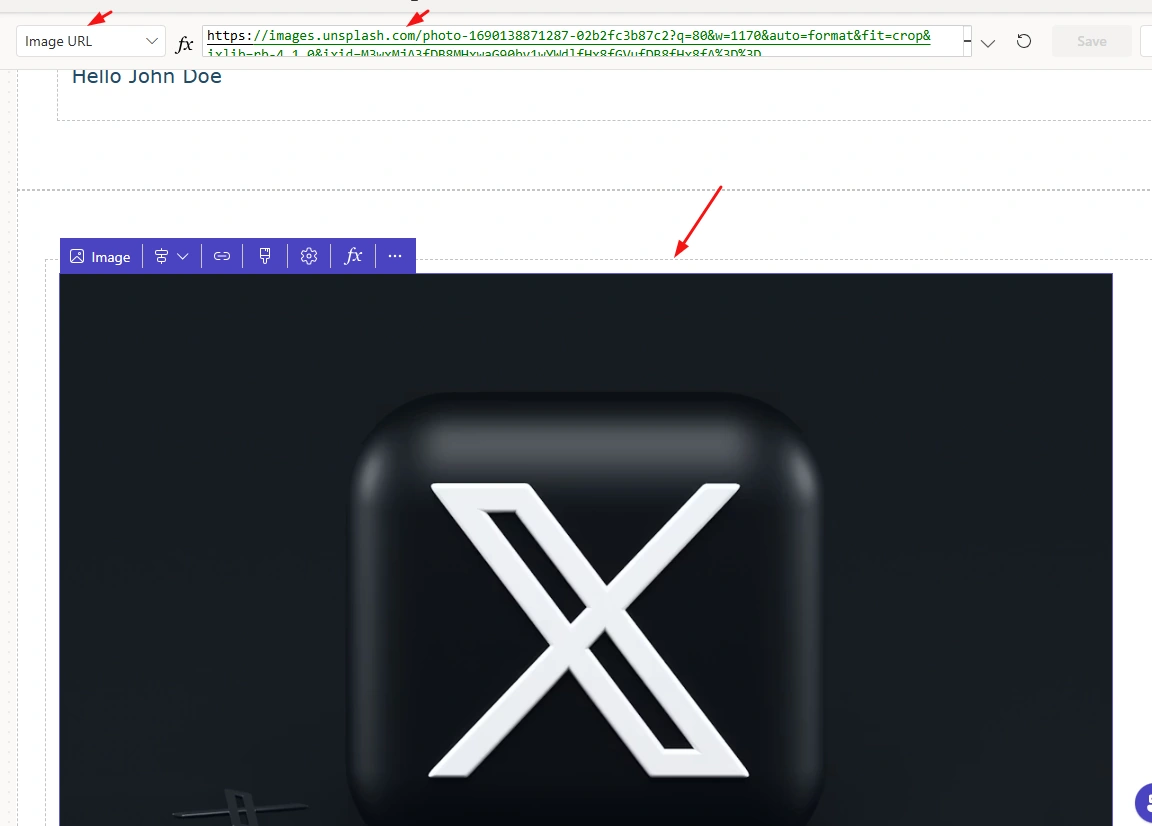
I have placed image component and put this image link in Image URL property.
There is another property named Alt text which you can enter alternative text without entering quotes ('').
3 - Button Component
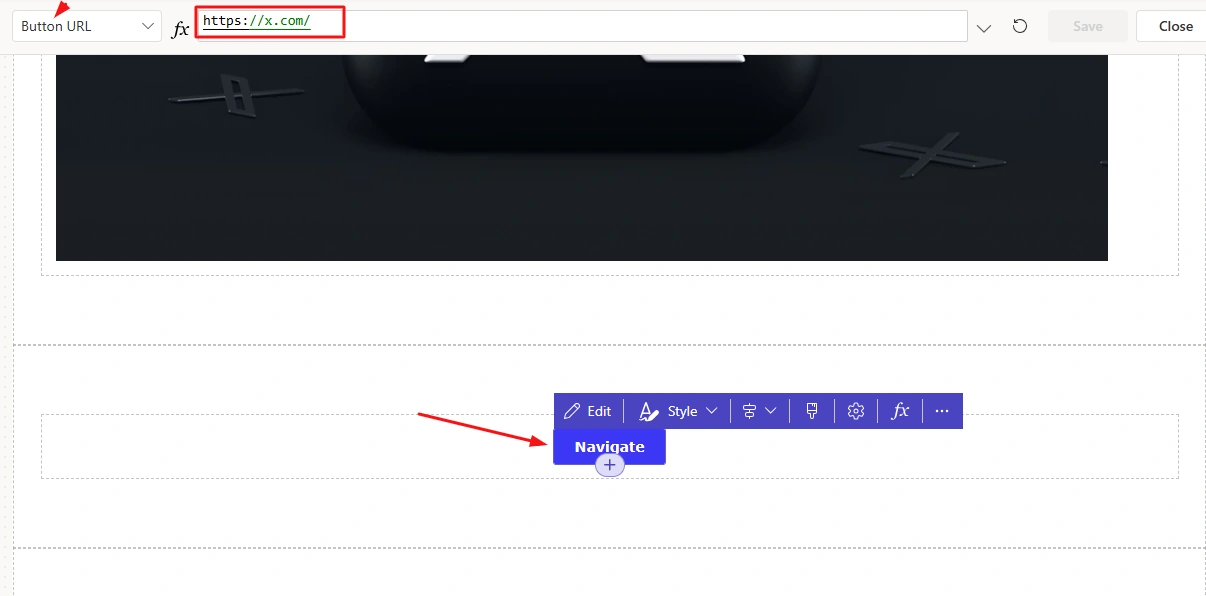
I have placed button component which have properties like Button URL and Button text.
I have put this link in this property.
4 - IFrame Component
It is used to embed external web resources like articles, videos etc.
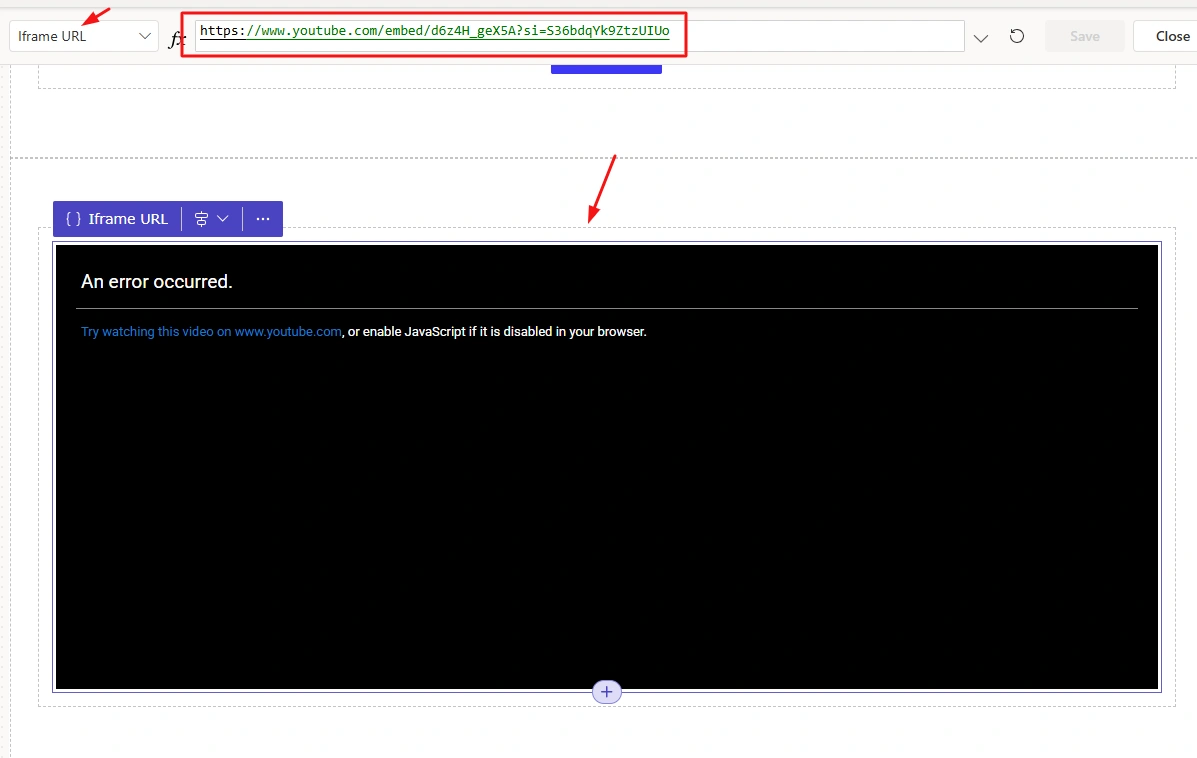
I have placed this video in Iframe component.
As it will not seen properly in studio page, It will display on site after sync changes and preview it.

Conclusion
In this article, we learned how Power Fx expressions can be used within Power Pages to create dynamic and data-driven experiences.
Join the conversation! Your thoughts help the community grow.