

As a Power Platform enthusiast, I often come across real-time automation needs where we have to deal with files, folders, printers, or even legacy apps on Windows. One such useful yet less-explored feature is the "Print Document (Workstation)" action in Power Automate Desktop (PAD).
If you're trying to automate printing documents like PDFs or Word files directly from your local machine without opening the app manually, this action can save you time and effort.
In this blog, let’s explore this action step-by-step with a simple example, potential use cases, and gotchas to be aware of.
What is the “Print Document (Workstation)” Action?
This action is available in Power Automate Desktop under System > Workstation actions. It lets you send any document directly to your default or specific printer from a given file path.
Yes, you don’t need to open the file or use third-party print tools—just set it and forget it.
Prerequisites
Before using this action, make sure
- Your machine has a printer installed (physical or virtual, like Microsoft Print to PDF).
- The file you want to print is accessible with a valid full path.
- File types supported include: .pdf, .docx, .txt, .xlsx, etc., based on your printer’s capabilities.
Step-by-Step: How to Use It in Power Automate Desktop
Let’s say we want to print a PDF document stored at C:\Users\Gowtham\Documents\Invoice.pdf.
Step 1. Open PAD and Create a New Flow.
Open Power Automate Desktop and create a new desktop flow (give it a name like AutoPrintPDF).
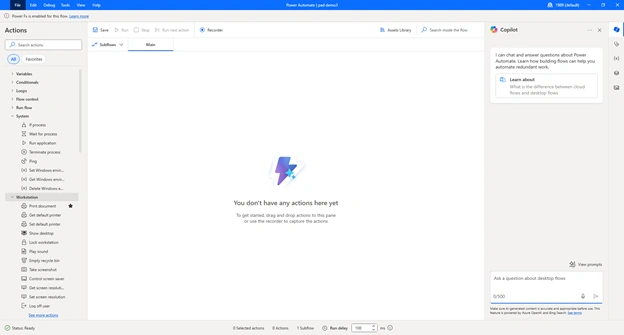
Step 2. Add the “Print Document” Action.
- Drag the “Print document (workstation)” action from the left panel.
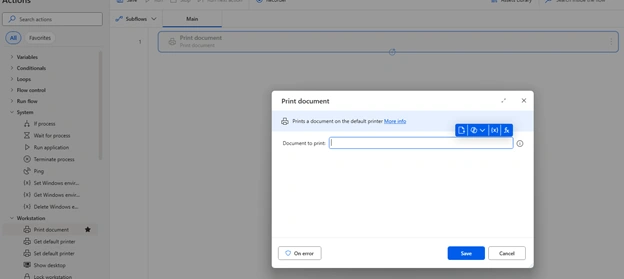
- Set the File path as: C:\Users\Gowtham\Documents\Invoice.pdf.
- Choose the printer (leave blank for the default one or specify like Microsoft Print to PDF).
- Set Wait for printing to complete to Yes for better control.
Step 3. Run the Flow.
Click “Run” and just like that, your document is printed automatically. Magic, right?
Real-Time Use Cases
- Finance Teams: Automate daily invoice or receipt printing.
- HR Departments: Auto-print offer letters or appointment forms.
- Retail Stores: Print barcodes or labels via thermal printers.
- Healthcare Clinics: Print prescriptions or patient forms.
Common Issues and Troubleshooting
| Problem | Solution |
|---|---|
| File not printing | Check the file path – it must be absolute. |
| Unsupported format | Make sure your printer supports the file type. |
| Flow fails silently | Set error handling or log message after the action. |
Pro Tips
- Combine this with Folder Monitoring to print files as soon as they arrive.
- Use Input Variables to dynamically pass file paths.
- Add Conditional Checks to avoid duplicate prints.
Final Thoughts
Power Automate Desktop is not just about UI automation—it can also handle real-world operations like document printing. With just a simple action, you can integrate printing seamlessly into your workflows.
If you're managing repetitive print jobs, I strongly recommend giving this action a try. It’s one of those hidden gems that can bring real ROI with minimal effort.
Happy Automating!
Join the conversation! Your thoughts help the community grow.