

Introduction
In this article, we are going to explain how to use a refresh and reset in Windows 8 to easily reinstall our PC. This article is divided into two parts, the first one is refreshing our PC and the second is resetting our PC in Windows 8.
Refreshing our PC
When our PC becomes slow, then we wish we could format. The main problem is that we have too much data, spent hours customizing our Windows installation to meet our needs, as well as downloaded and installed applications. Then this is a good time to do a refresh of our PC, and when we do a refresh here is what will happen:
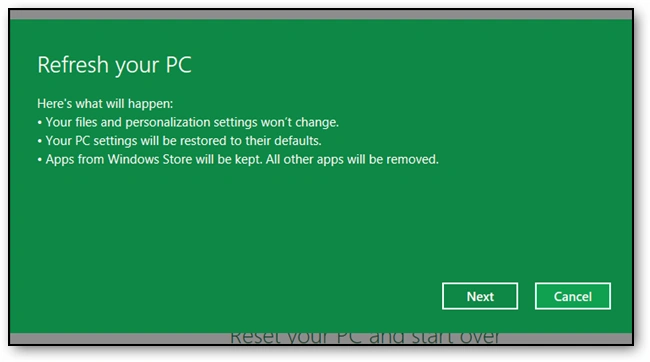
- Our files and data will not be removed or changed and our personal setting will not be changed.
- By default, our PC setting will be restored.
- Any applications that were not installed through the Windows Store will be removed, however, those that were installed through the Store will remain.
How to refresh our PC?
Step 1
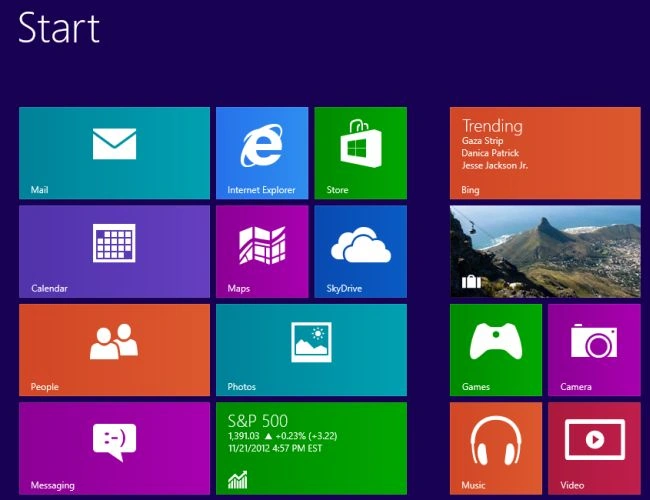
First of all, we have to move to the Start screen window of Windows 8.
Step 2
Then move the cursor on the bottom-right of the window screen and click the search box and search for "control panel" and open it.
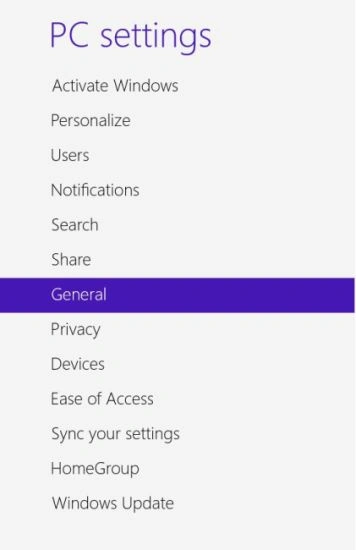
Once the control panel has opened scroll through the list on the left-hand side until we can select the "General" category.
Step 3
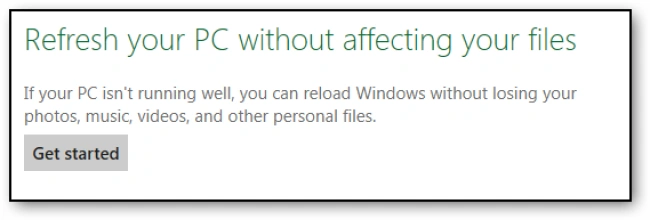
Navigate to the bottom of the settings on the right. From here we can refresh our PC. Click the "Get Started" button to initiate a Refresh.
Step 4
A banner will inform you of what will be changed and then click the "Next" button.
Step 5
After clicking the Next button, Windows will reboot your system.
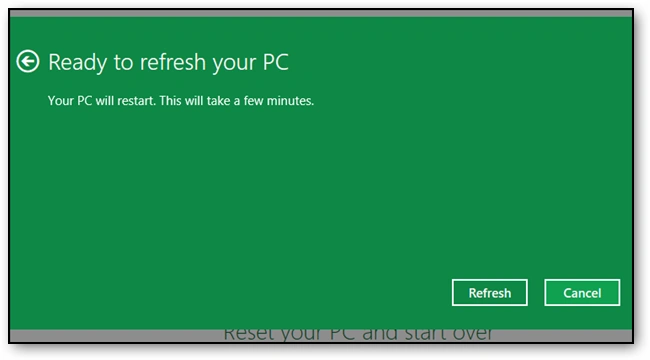
Step 6
When you ready you can click the "Refresh" button which will restart your PC.
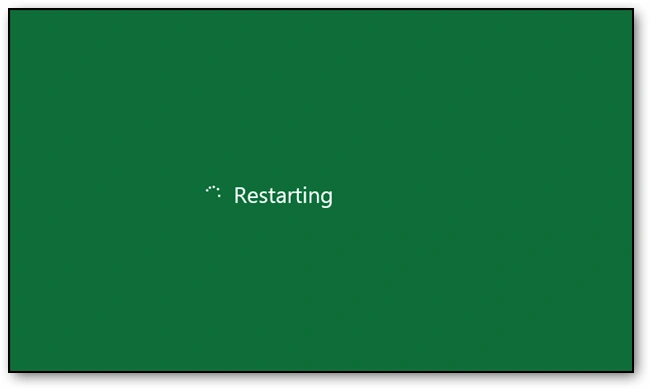
Step 7
When your PC has restarted it will start refreshing your system.
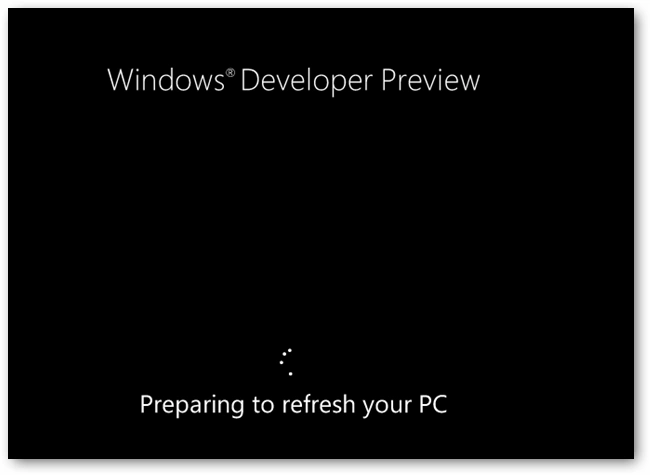
Step 8
Refresh your PC
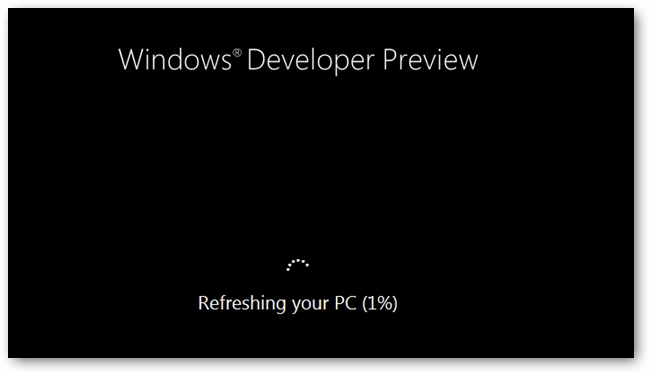
Resetting our PC
When you breathe new life into your machine using the "Reset" method, think of it as restoring it to the state that you received your PC in when you bought it from the shop. Here is what will happen to your current data and configuration:
- Any personal files will be deleted
- All configuration changes will be reset to defaults
How to reset our PC?
Step 1
First of all, we have to move to the Start screen window of Windows 8.
Step 2
Then move the cursor to the bottom-right of the window screen and click the search box and search for "control panel" and open it.
Once the control panel has opened scroll through the list on the left-hand side until we can select the "General" category.
Step 3
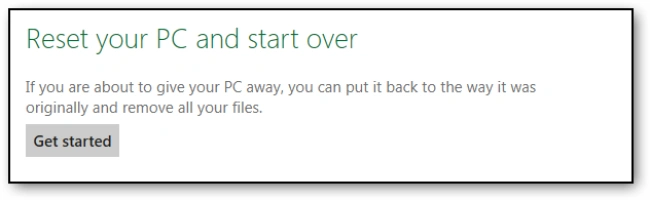
Navigate to the bottom of the settings on the right. From here we can reset our PC. Click the "Get Started" button to initiate a Reset.
Step 4
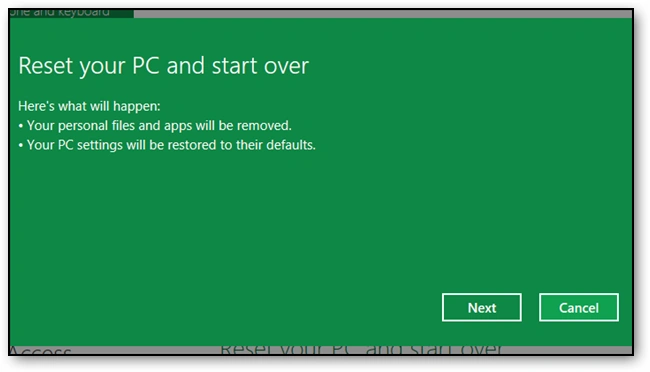
A banner will be displayed across the screen, explaining what will happen to our data and applications. Since we have already explained this you can just click the "Next" button to move on.
Step 5
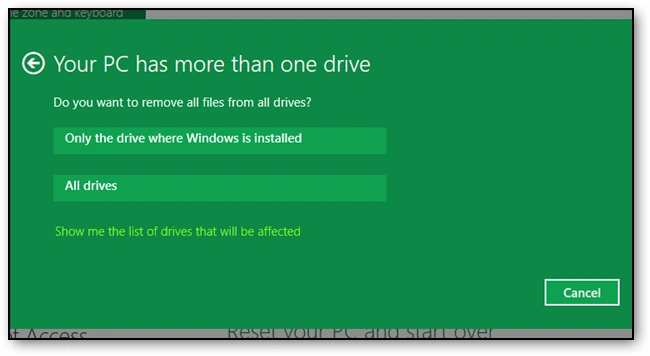
If we have more than one drive, we will be asked which drives we want to remove files from. We can choose either all drives or just the drive which Windows resides on.
Step 6
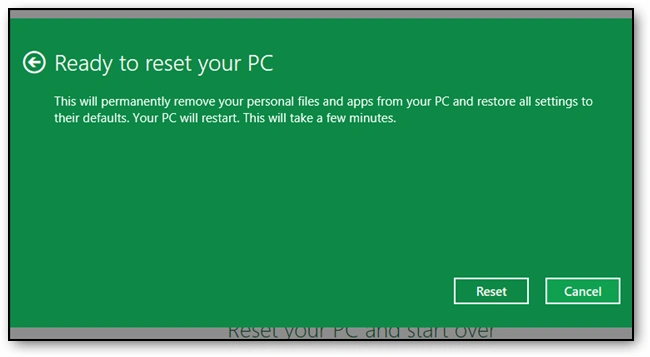
We will be prompted for confirmation that we want to reset your PC. Click the Reset button to get started.
Step 7
Your PC will then reboot.
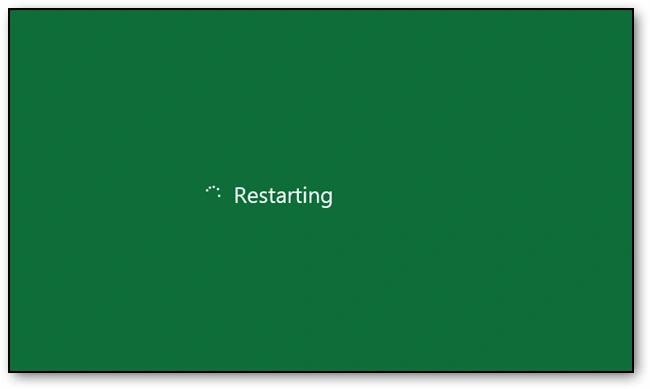
Step 8
Once it starts up again Windows will commence the Reset process.
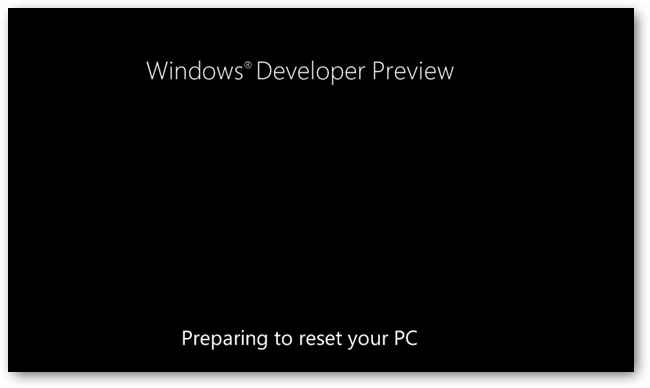
Step 9
Resetting your PC.
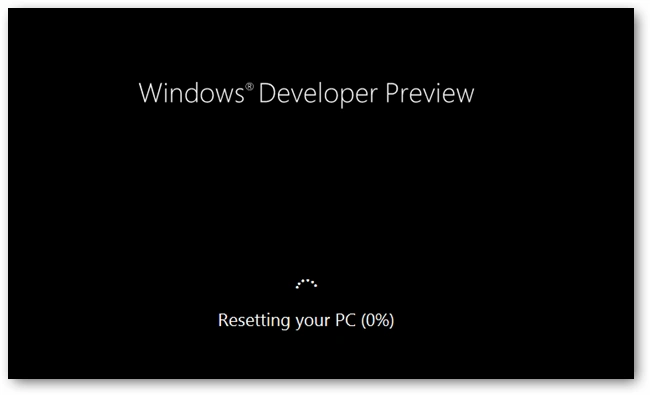
Once it has finished, your PC will reboot once more, this time once it restarts it will appear as you are booting the PC for the first time ever, it will load drivers and appear to be in a generalized state, where you have to create your user account, etc.
Summary
In this article, we learned about How to Use Refresh and Reset in Windows 8.
Aman SinghalPosted Jan 8, 2013, 7:11 AM
@Charlie if u use a release preview windows, then u need to product key otherwise u don't need any product key.
Charlie ScrimshawPosted Jan 8, 2013, 6:47 AM
Does resetting W8 remove a copy of W8? I'm asking because when you reset you've got to input the product key.
Aman SinghaleditedPosted Dec 19, 2012, 7:50 AMEdited Dec 19, 2012, 7:50 AM
thanx Manish
Manish SharmaPosted Dec 18, 2012, 10:42 PM
Nice explanation about Refresh and Reset in Windows 8
Manish SharmaPosted Dec 18, 2012, 10:42 PM
Nice explaination about Refresh and Reset in Windows 8