

Introduction
As we already know, Windows 8 comes with an advanced Metro Start Menu called Start Screen which was not present in previous versions of Windows like Windows 7 and Windows Vista. In Windows 7 we can easily open the Startup folder from the All Programs link but in Windows 8 for quick access to the Startup folder items, we have to manually pin the Startup folder either at the Taskbar or the Start Screen in Windows 8.
The Windows 8 Start Screen holds the following things:
- Audio and Video players.
- PC Settings.
- Shortcuts to system utilities.
- All the native and installed Metro apps.
- Desktop applications and more.
In this article, we will learn how to find the Windows 8 Startup folder so we can easily add and edit the Windows 8 startup items.
How to use a startup menu and folder in Windows 8
Step 1
First, of all, we have to move to the start window screen in Windows 8.
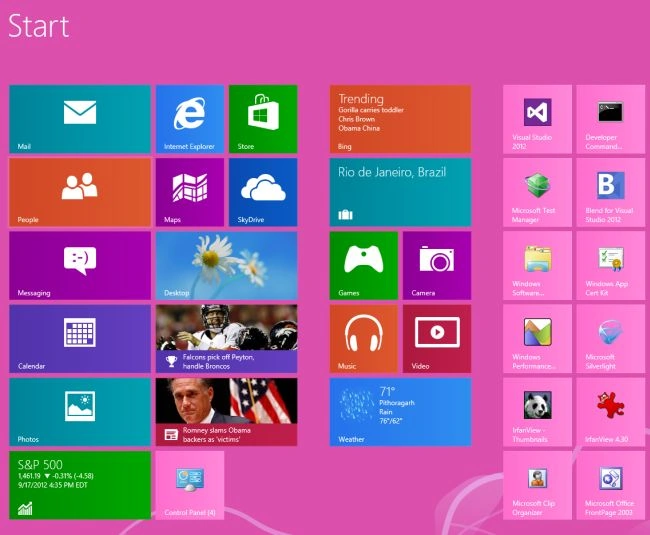
Step 2
Then for advanced Startup options move the cursor to the bottom-right of the window screen and click the search box which is helpful for searching in Windows 8.

Step 3
Then in the search box type "startup" and click on Apps from the right sidebar then click startup setting in the main window.
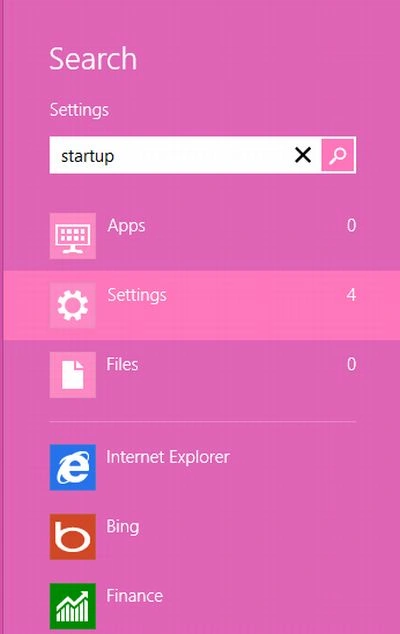
Step 4
Now bring up the Windows Run dialog box Windows + R hotkey combination and enter "%AppData%" in the Run dialog box.
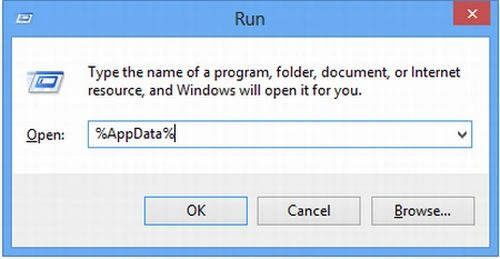
Step 5
It will open the Roaming profile folder letting you view the installed application folders and navigate through the Windows system folders.
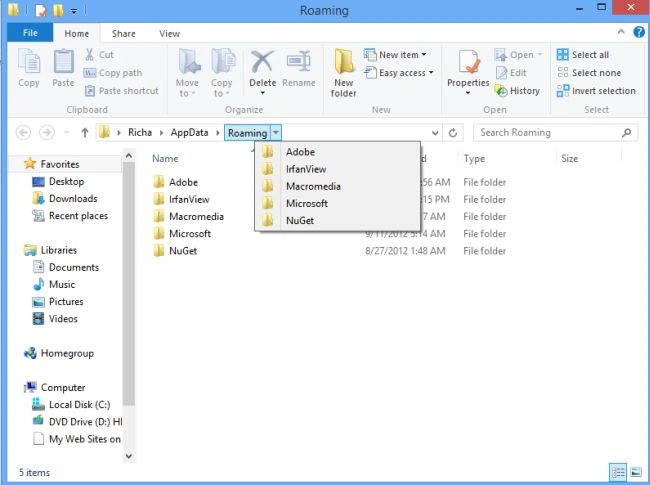
Step 6
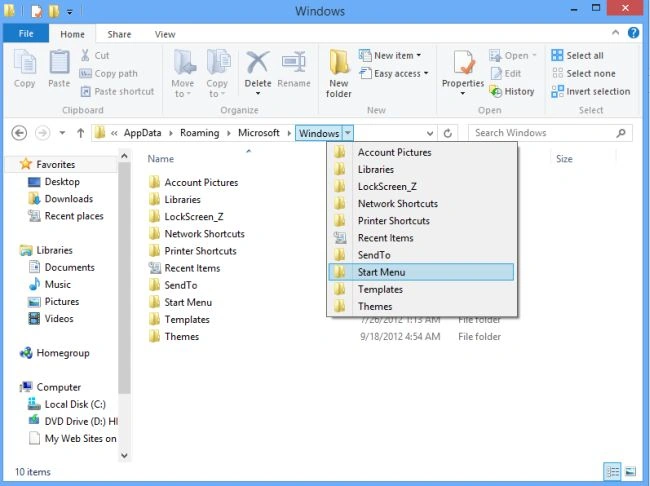
Then to see the startup menu we have to use the following path.
AppData\Roaming\Microsoft\Windows\Start Menu
Step 7
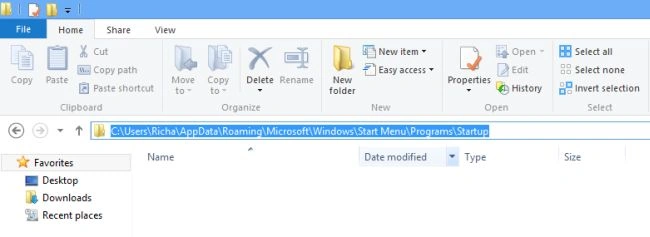
Then for quick navigation to the Startup folder open Windows Explorer and enter the following path in the address bar with your user profile folder name and then press Enter.
C:\Users\Richa\AppData\Roaming\Microsoft\Windows\Start Menu\Programs\Startup
This path will navigate you directly to the Windows 8 Startup folder as in the following.
Step 8
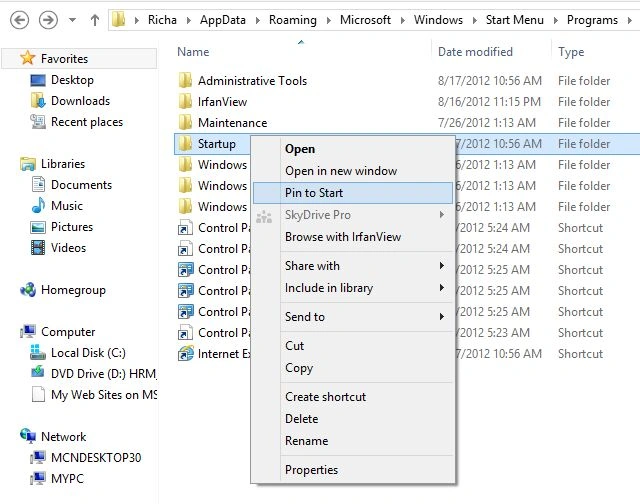
We can pin the startup folder on the Windows Start Screen in the following way.
Step 9
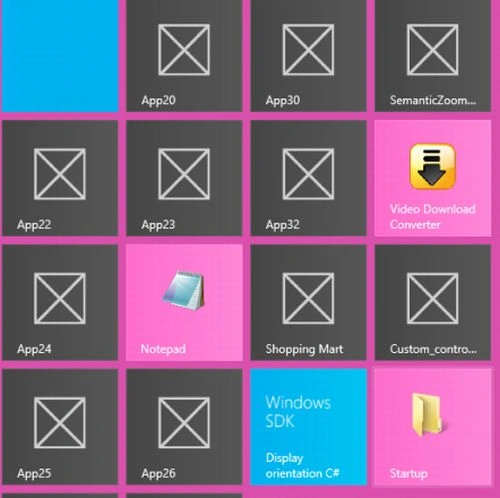
It will create a shortcut to the folder named startup to Start Screen.
Note
The Windows 8 Start Screen acts as a central dashboard for all the most frequently used apps and visited system locations.
Summary
In this article, we learned about How to Use Startup Menu and Folder in Windows 8.
Join the conversation! Your thoughts help the community grow.