

Introduction
In this article, we will learn how to use sweetalert2 in ReactJS Application.sweetalert2 to display an alert message.
Prerequisites
- Basic Knowledge of ReactJS
- Visual Studio Code
- Node and NPM installed
- Bootstrap
Create a React.js Project
To create a new ReactJS project, open the command prompt and enter the following command.
- npx create-reactp-reduxapp
Open this project in Visual Studio Code and install Bootstrap by using the following command.
- npm install bootstrap --save
Now, open the index.js file and add import Bootstrap.
- import 'bootstrap/dist/css/bootstrap.min.css';
Install sweetalert2
Now install sweetalert2 by using the following command.
- npm install --save sweetalert2 sweetalert2-react-content
Now go to src folder and add a new component.
- Sweetalertdemo.js
Now, open the Sweetalertdemo.js file and add the following code.
- import React, { Component } from "react";
- import Swal from "sweetalert2";
- export default class Sweetalertdemo extends Component {
- constructor() {
- super();
- this.HandleClick = this.HandleClick.bind(this);
- }
- HandleClick() {
- Swal.fire({
- title: 'Success',
- type: 'success',
- text: 'Your work has been saved.',
- });
- }
- HandleClick1() {
- Swal.fire({
- title: 'Are you sure?',
- text: 'User will have Admin Privileges',
- icon: 'warning',
- showCancelButton: true,
- confirmButtonColor: '#3085d6',
- cancelButtonColor: '#d33',
- confirmButtonText: 'Yes!'
- });
- }
- HandleClick12() {
- Swal.fire({
- icon: 'error',
- title: 'Oops...',
- text: 'Something went wrong!',
- footer: '<a href>Why do I have this issue?</a>'
- });
- }
- HandleClicktop() {
- Swal.fire({
- position: 'top-end',
- icon: 'success',
- title: 'Your work has been saved',
- showConfirmButton: false,
- timer: 1500
- });
- }
- HandleClickAutoclose() {
- let timerInterval
- Swal.fire({
- title: 'Auto close alert!',
- html: 'I will close in <b></b> milliseconds.',
- timer: 1000,
- timerProgressBar: true,
- onBeforeOpen: () => {
- Swal.showLoading()
- timerInterval = setInterval(() => {
- const content = Swal.getContent()
- if (content) {
- const b = content.querySelector('b')
- if (b) {
- b.textContent = Swal.getTimerLeft()
- }
- }
- }, 100)
- },
- onClose: () => {
- clearInterval(timerInterval)
- }
- }).then((result) => {
- if (result.dismiss === Swal.DismissReason.timer) {
- console.log('I was closed by the timer')
- }
- })
- }
- render() {
- return (
- <div>
- <div class="row" className="hdr">
- <div class="col-sm-12 btn btn-info">
- SweetAlert2 In React
- </div>
- </div>
- <div style={{ "paddingTop": "10px" }}>
- <button class="btn btn-info btn" onClick={this.HandleClick}>Success</button>
- <button class="btn btn-success btn" onClick={this.HandleClick1}>Confirm</button>
- <button class="btn btn-primary btn" onClick={this.HandleClick12}>Confirm Box</button>
- <button class="btn btn-primary btn" onClick={this.HandleClicktop}>Top Side</button>
- <button class="btn btn-primary btn" onClick={this.HandleClickAutoclose}>Auto Close</button>
- </div>
- </div>
- );
- }
- }
Open app.css file, add the following css.
- .btn
- {margin-right: 10px;margin-left: 10px}
Open the App.js file and add the following code.
- import React from 'react';
- import './App.css';
- import Sweetalertdemo from './Sweetalertdemo'
- function App() {
- return (
- <div className="App">
- <Sweetalertdemo/>
- </div>
- );
- }
- export default App;
Now, run the project by using 'npm start' command and check the result.

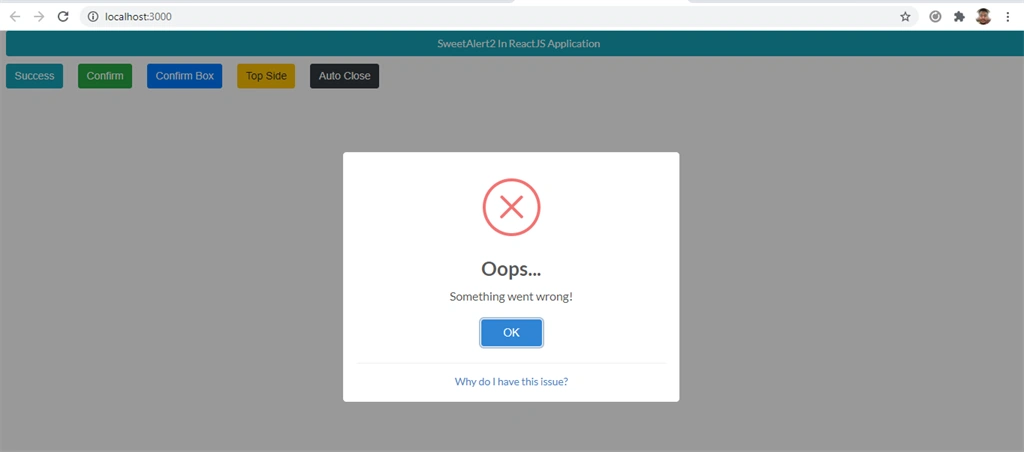
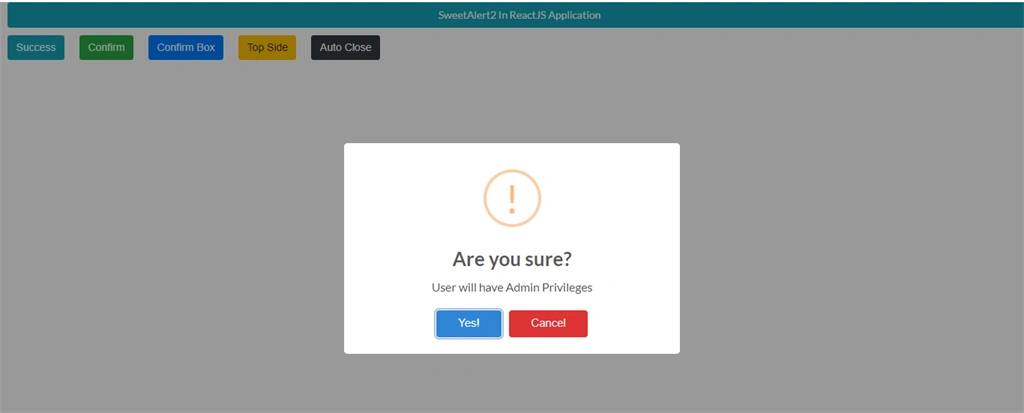
Summary
In this article, we learned how to use sweetalert2 in ReactJS applications.sweetalert2 to display an alert message.
Join the conversation! Your thoughts help the community grow.