

Licenses required
- Microsoft Teams Phone standard license
- Microsoft E5
- Microsoft Teams Phone Resource account license
Requirement for connecting Microsoft Teams phone system (Choose one out of the two options)
- Use Microsoft Phone
- Use a Telecom Provider that has a Teams plug-in (Operator Connect)
1. Acquire Phone Numbers
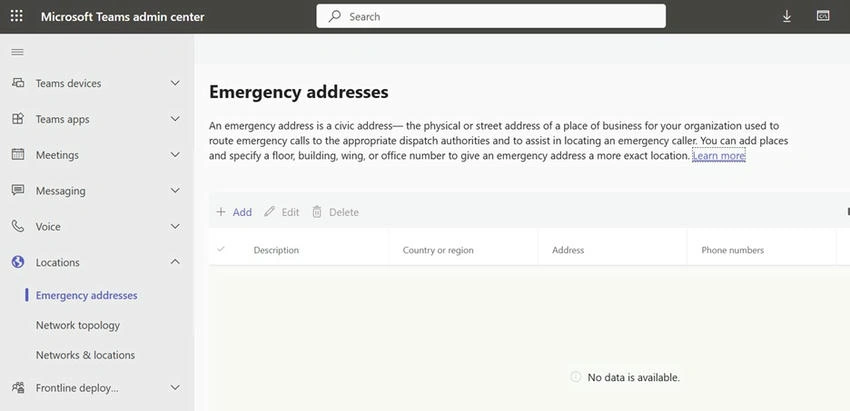
First, we need to add an Emergency Address to the tenant.
Go to the Operator Connect under Voice and check who is available to provide Operator Connect service.
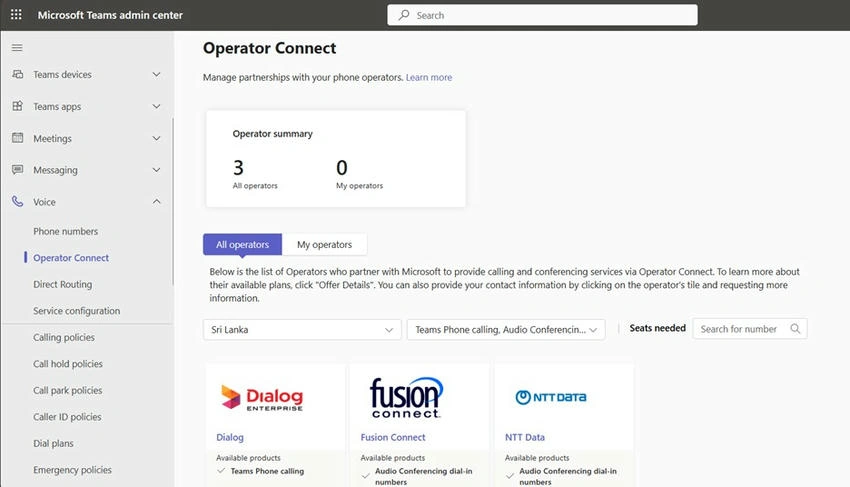
After registering with the operator, we can order numbers through that operator.
Then numbers will display under Phone numbers.
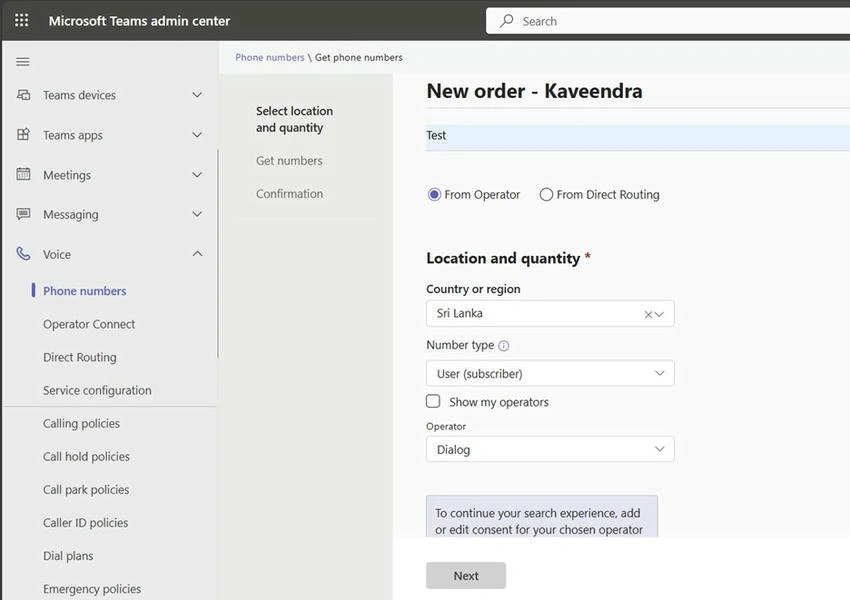
Or you can directly purchase numbers from Microsoft.
Here to purchase a number for a user, need to select User (subscriber)
Reference: Acquire phone numbers for your organization - Microsoft Teams | Microsoft Learn
| Number usage | Usage type and purpose | Number type supported |
|---|---|---|
| User | User (subscriber): These numbers are for users or devices in your organization. | Geographic (Toll) |
| Voice app | Call queue and Auto attendant Voice app service numbers are for assigning to resource accounts that support voice applications. | Geographic (Toll) Toll-free |
| Conference | Dedicated conference bridge. Conference service numbers are for assigning to conference bridges so that users can dial in to a Teams meeting. | Geographic (Toll) Toll-free |
We can add numbers directly from Microsoft, and can assign numbers by below methods.

Then the order is placed.
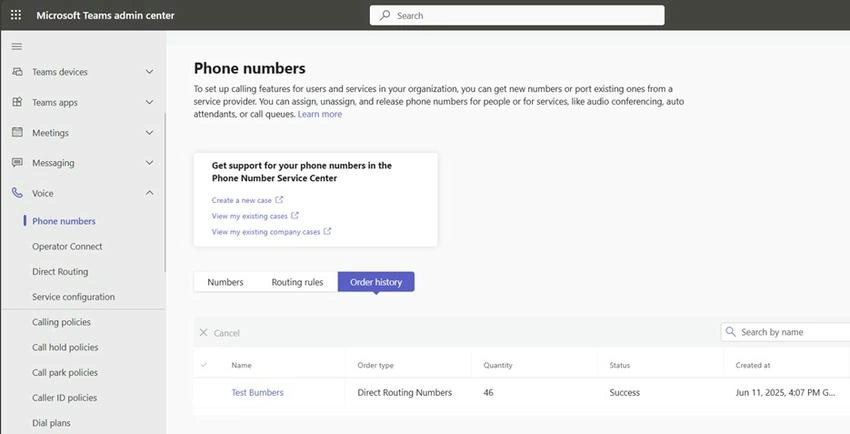
All the numbers will be displayed under Phone numbers.
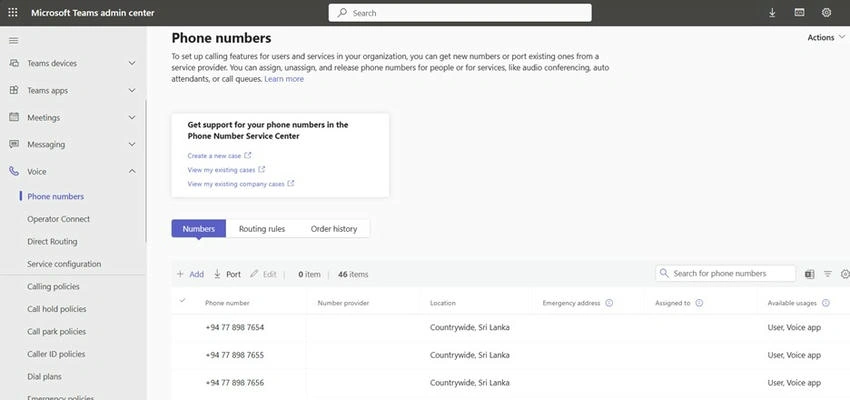
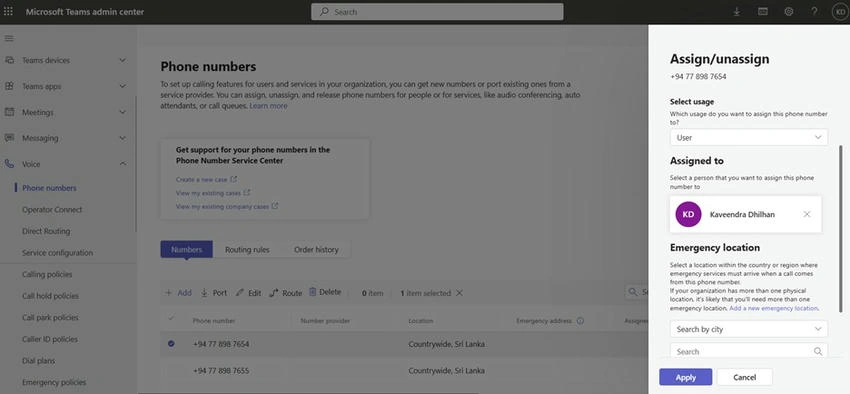
Assign a phone number to a user.
Go to phone numbers, edit and select the user category & assign a user.
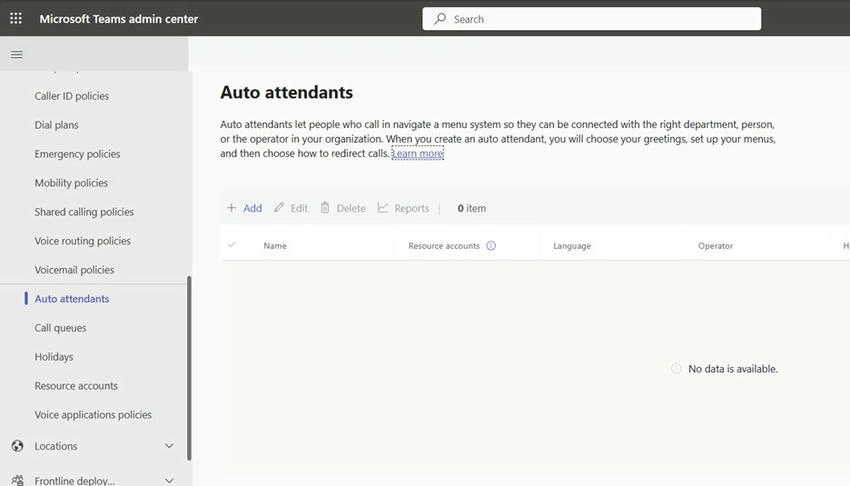
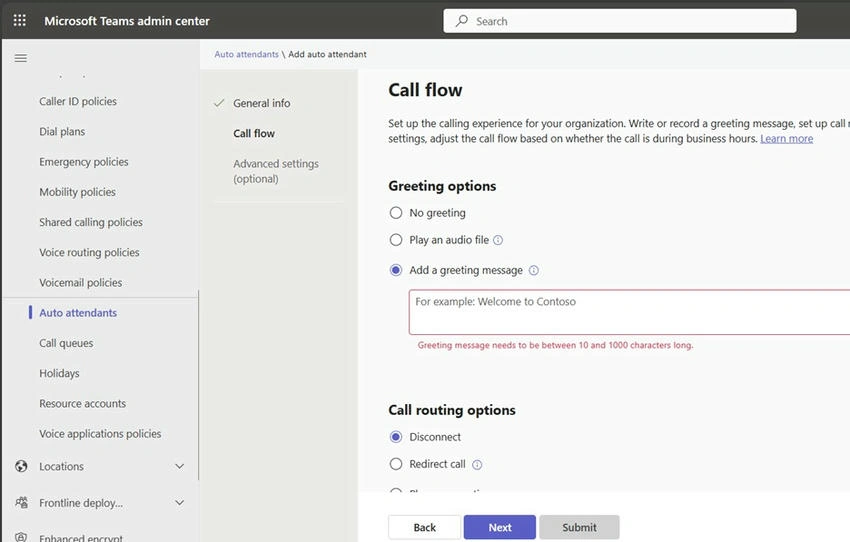
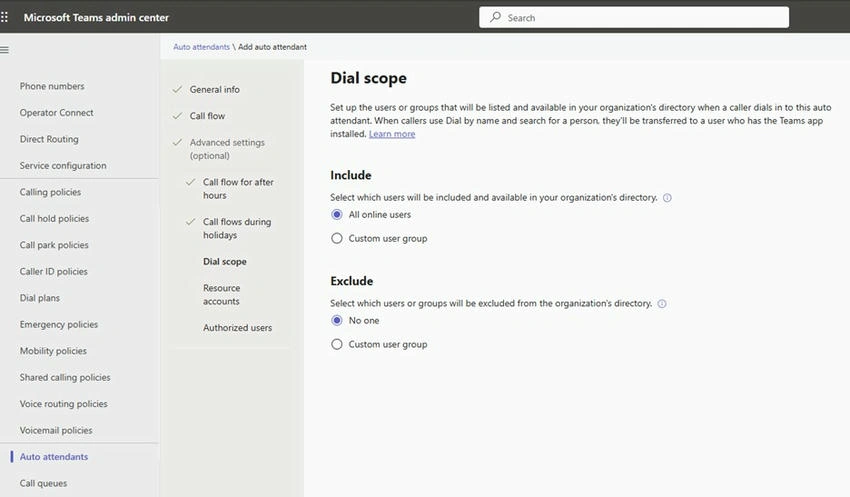
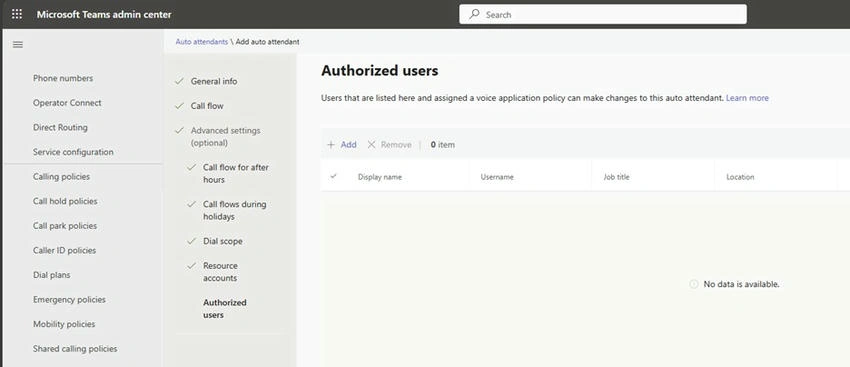
Auto Attendant
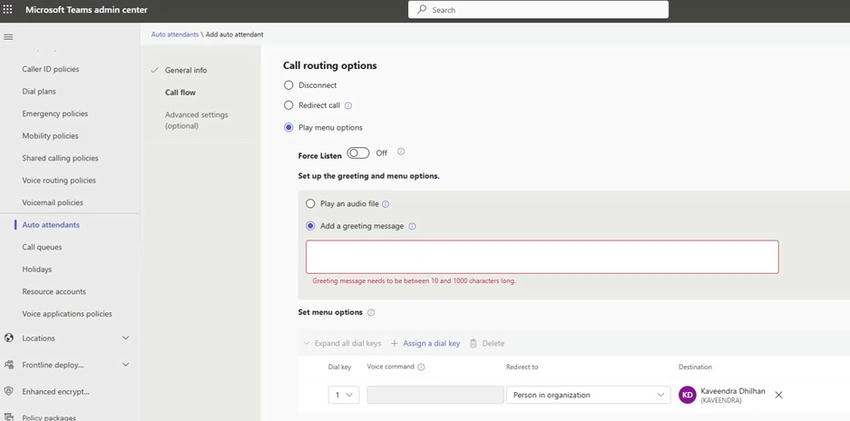
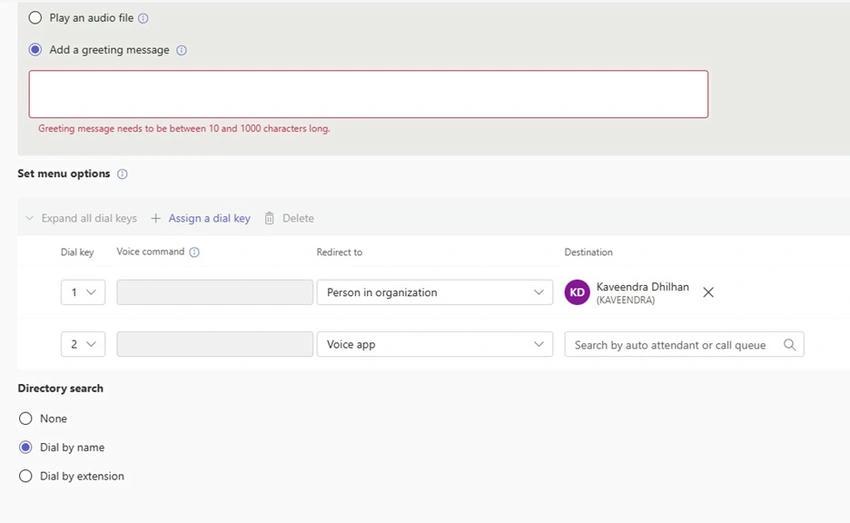
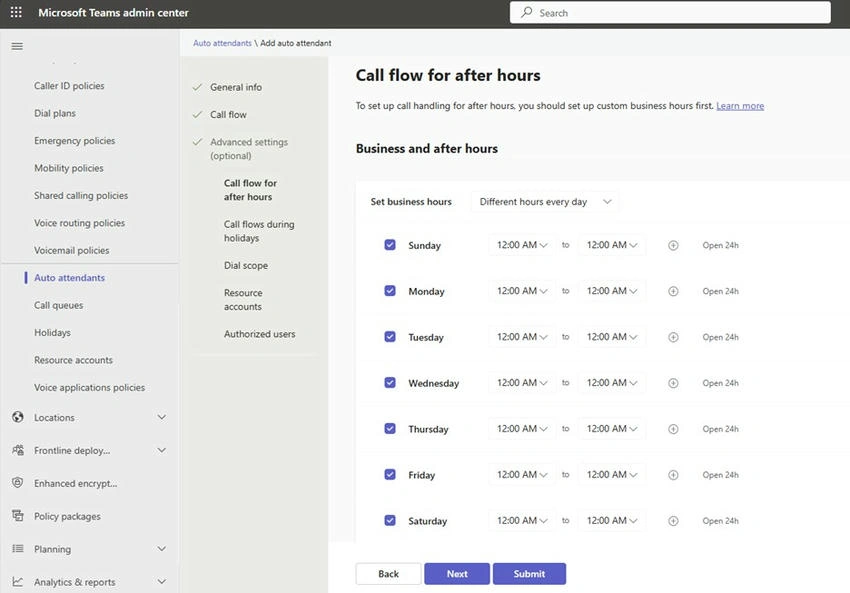
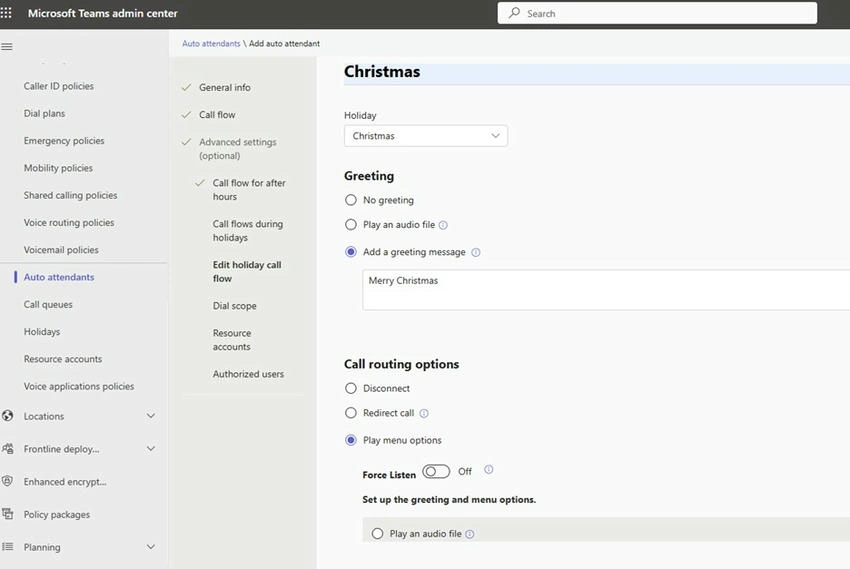
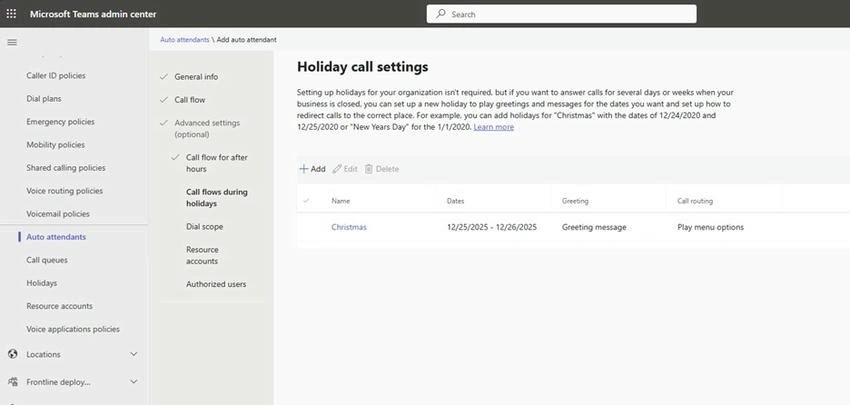
An auto attendant is a virtual receptionist that answers calls and routes them based on caller input or other criteria.
Key features
- Greet callers with customizable messages
- Provides menu options (press 1 for Sales, 2 for Support, etc.)
- Can route calls
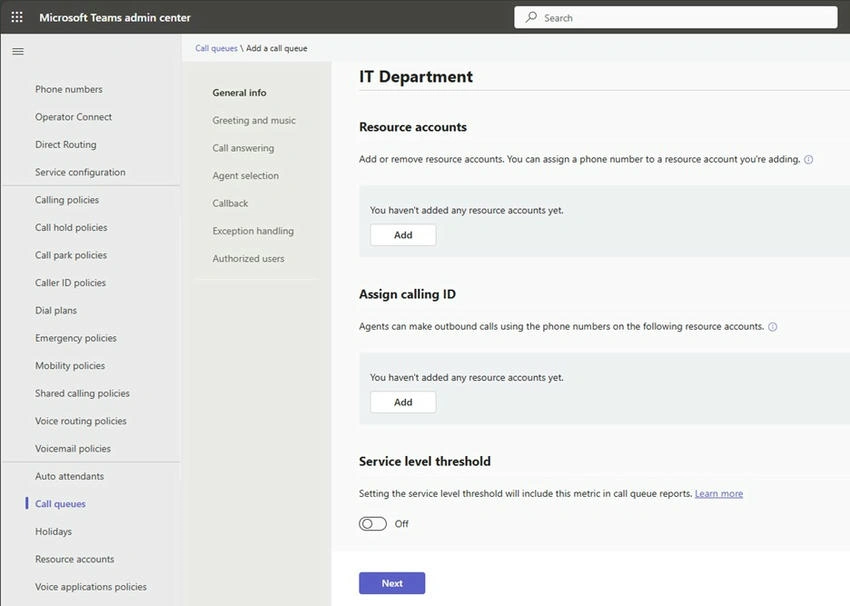
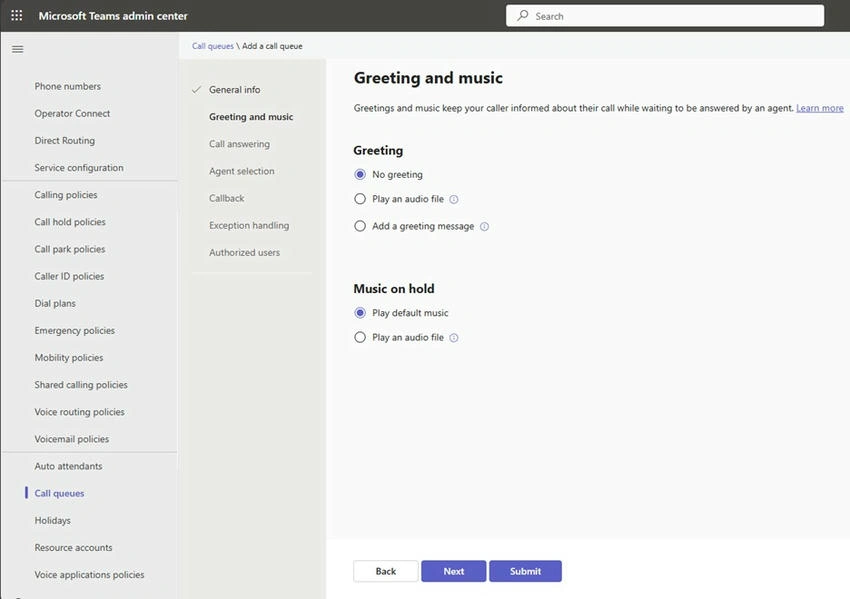
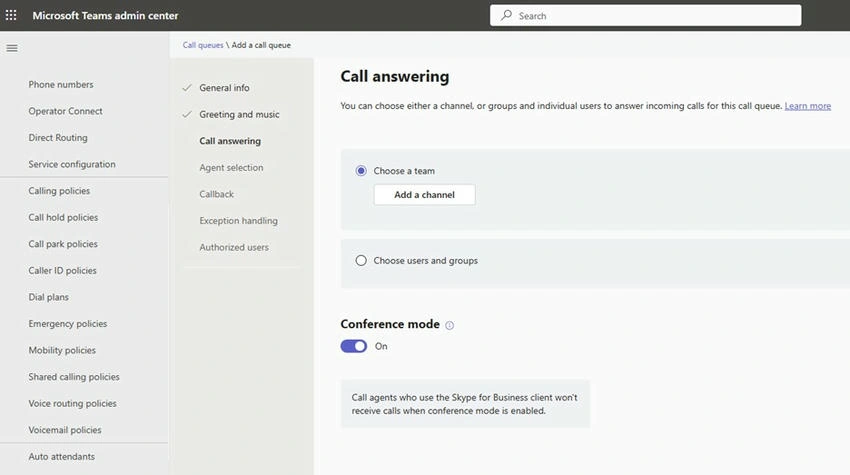
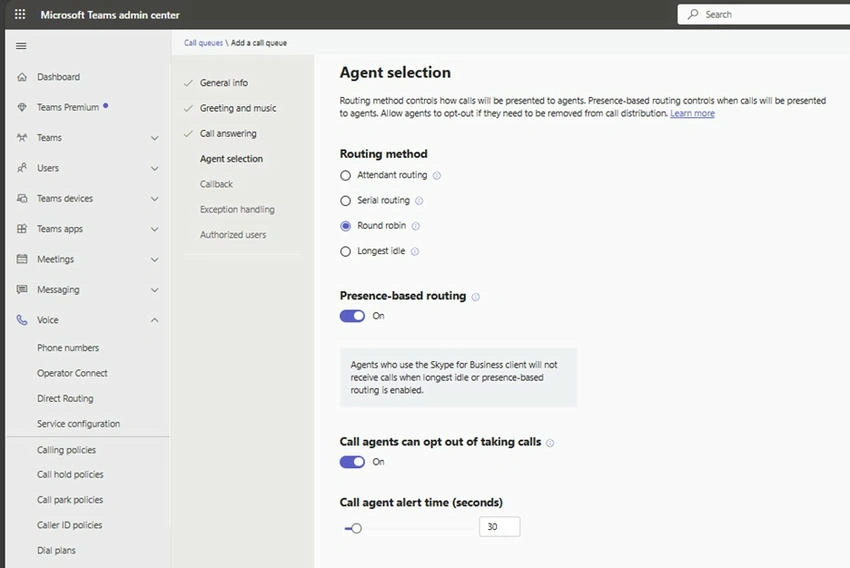
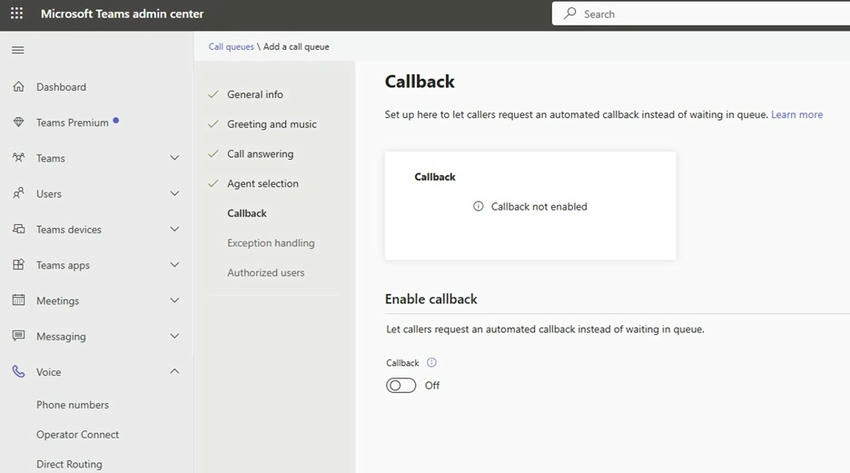
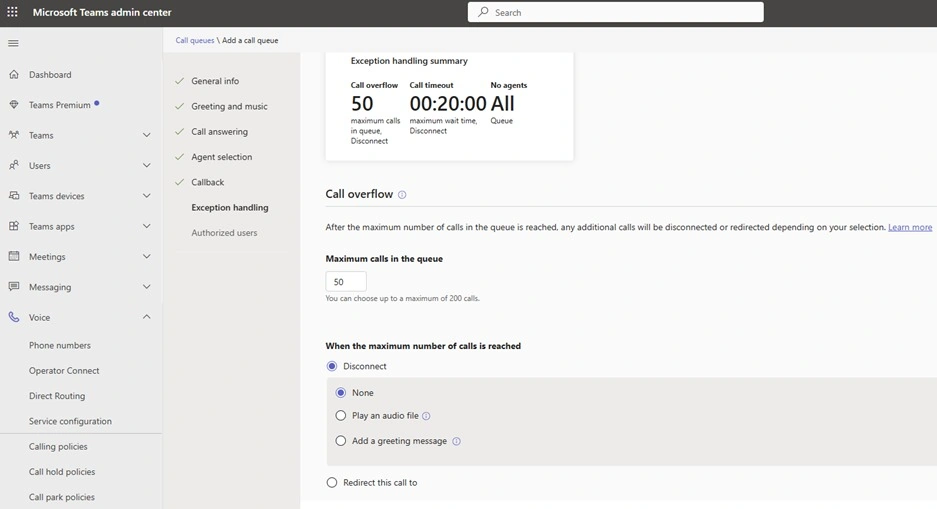
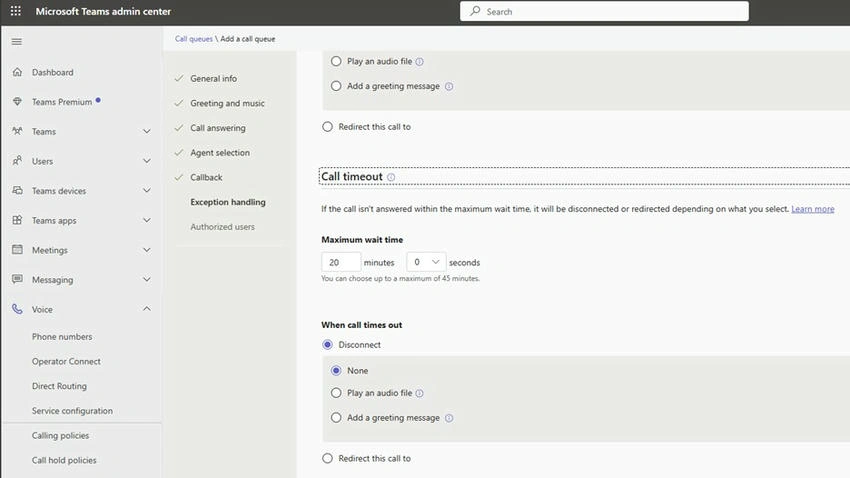
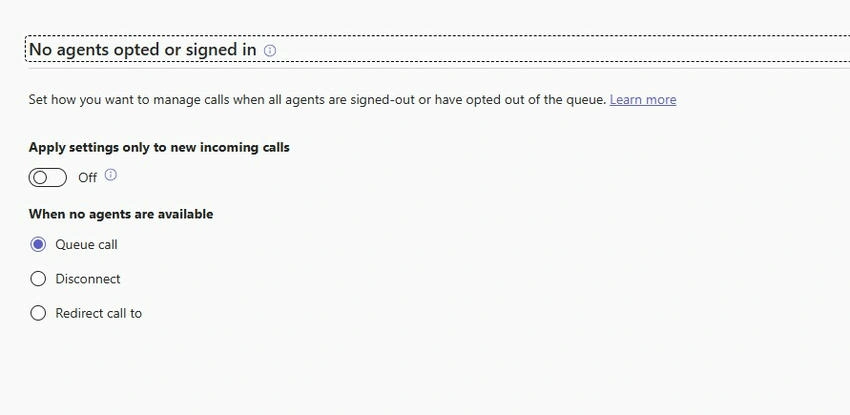
Call Queue
A call queue distributes incoming calls to a group of people (agents) according to specified rules.
Key features
- Places callers on hold with music or messages
- Distributes calls
2. Add Auto Attendant and Call Queue phone numbers
Go to Phone numbers --> Add number --> Select from number Type whether Auto Attendant or Call Queue
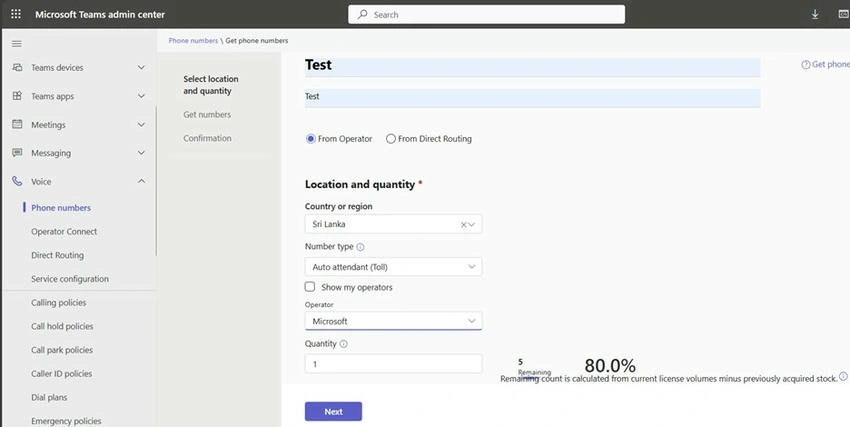
You can select from the operator whether from Microsoft or the Company.
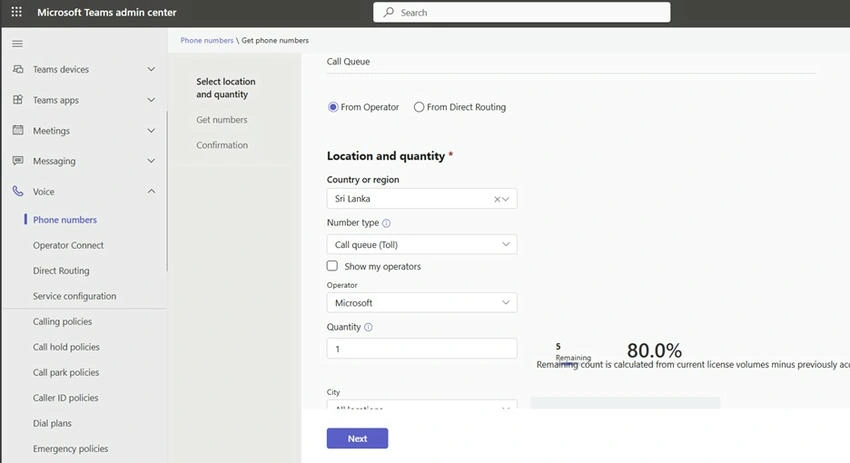
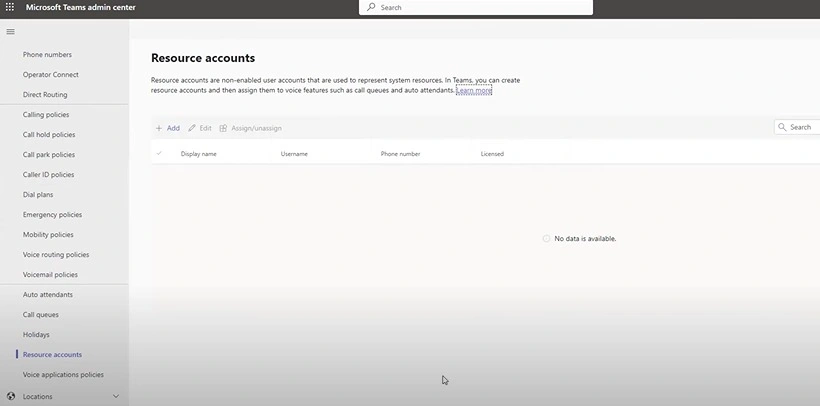
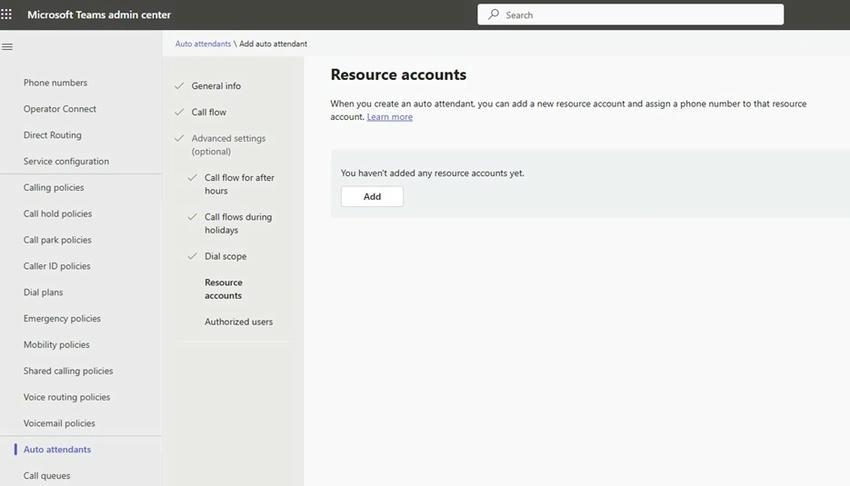
To assign acquired numbers of Auto Attendant or Call Queue, we need to create resource accounts first.
Resource accounts
Service principals that represent auto attendants and call queues in Entra.



Join the conversation! Your thoughts help the community grow.