

Introduction
Power Automate offers many useful actions, but Terminate is one of the most helpful for controlling flow execution. It allows us to stop a flow when a specific condition is met, prevent unnecessary actions, and simplify debugging. In this article, we will explore how to use Terminate with a practical example of preventing duplicate invoice records in SharePoint.
When working with Power Automate, we often use actions such as Get Items, Create Item, Update Item, Send an Email, and Start an Approval.
But there is one small action that can make flow development and troubleshooting much easier: Terminate.
The Terminate action is not just used to stop a flow. It can also help us debug flows, prevent unnecessary operations, and control how a flow execution ends.
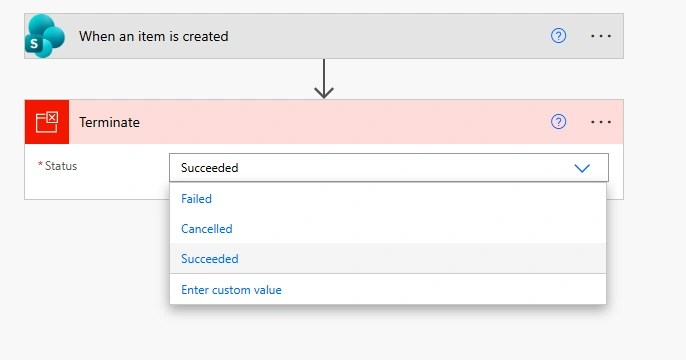
What Is the Terminate Action?
The Terminate action allows you to stop the execution of a cloud flow at a specific point.
When Power Automate reaches this action, it immediately stops processing the remaining actions in that flow.
You can configure three different statuses:
Succeeded: Ends the flow successfully.
Failed: Ends the flow with a failure status.
Cancelled: Ends the flow with a cancelled status.
Choosing the correct status is important because it helps identify whether the flow completed successfully or stopped due to an issue.
1. Using Terminate for Debugging
Suppose you are developing a flow that retrieves invoice records from a SharePoint list and processes them based on the environment.
Your flow contains the following actions:
Trigger – When an item is created.
Get Items – Retrieve existing invoice records.
Condition – Check whether the record already exists.
Create Item – Create a new record.
Update Item – Update the existing record.
Send Email – Notify the responsible user.
While developing the flow, you want to verify whether the Get Items action returns the correct records.
Instead of executing the entire flow, add a Terminate action immediately after Get Items.
Set the status to Succeeded.
Now, when you run the flow:
Get Items retrieves the records.
Terminate stops the flow.
The remaining actions are not executed.
You can open the flow run history and inspect the Get Items output.
This helps you validate your query without creating or updating unnecessary SharePoint records.
2. Using Terminate to Prevent Duplicate Records
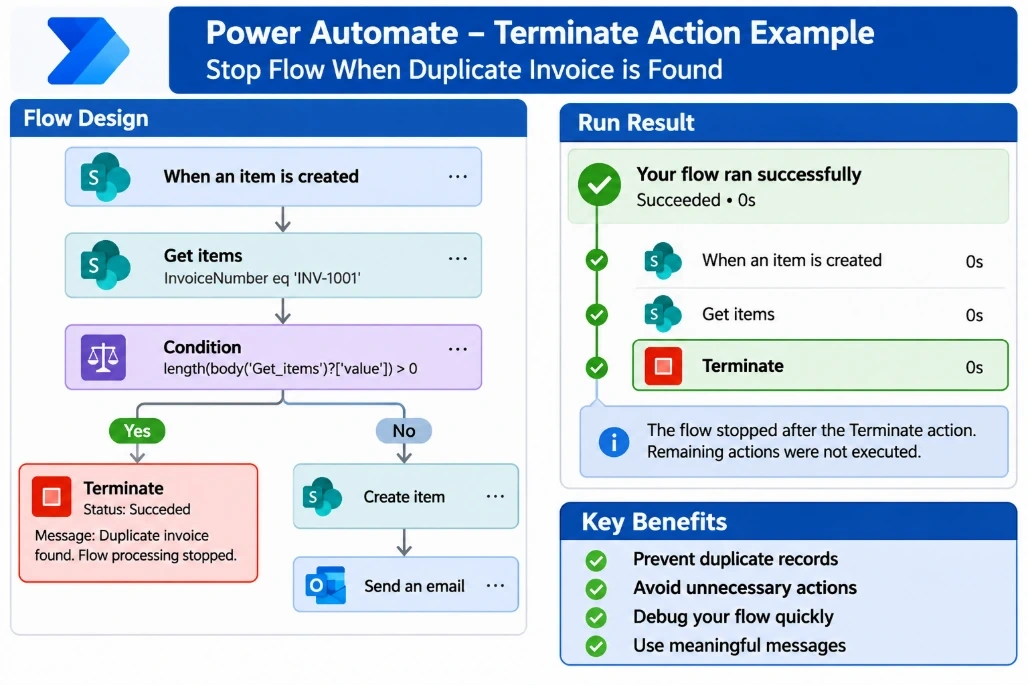
Consider an invoice processing flow where you want to prevent duplicate invoice records.
Before creating a new record, use Get Items to check whether the invoice number already exists.
Add a Condition to check the result:
Condition:
length(body('Get_items')?['value']) is greater than 0
If the condition is true, the invoice already exists.
Add a Terminate action in the Yes branch and configure its status as Succeeded.
If the condition is false, continue with Create Item.
This prevents duplicate records from being created.
Join the conversation! Your thoughts help the community grow.