

Introduction
SharePoint Lists are essential tools for organizing, tracking, and managing data within organizations. They enable teams to collaborate effectively by centralizing information and streamlining business processes.
One of the most useful features available in SharePoint Lists is "Alert Me", which helps users stay informed about changes made to list items. Whether new items are added, existing items are updated, or records are deleted, the Alert Me feature ensures that users receive timely notifications and remain up to date with important activities.
In this article, we'll explore how to configure alerts in SharePoint Lists, along with the benefits, limitations, and practical use cases of this feature.
Prerequisites
Before setting up alerts, ensure that you have access to your SharePoint site.
Sign in to SharePoint
Open the SharePoint site URL provided by your organization.
Enter your username and password.
Click Sign In to access the SharePoint environment.
What is the Alert Me Feature?
The Alert Me feature allows users to receive email notifications whenever changes occur within a SharePoint List. This helps users monitor important lists without needing to constantly check for updates manually.
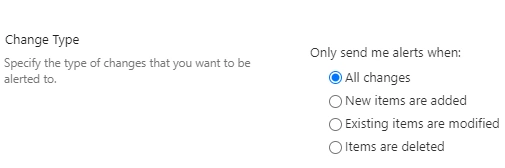
Users can configure alerts based on:
New items added
Existing items modified
Items deleted
All changes within the list
Alerts can be delivered immediately or grouped into daily or weekly summaries.
How to Set Up Alerts in SharePoint Lists
Step 1: Open the SharePoint List
Navigate to the SharePoint site and open the list for which you want to receive notifications.
Step 2: Access the Alert Me Option
Open the target SharePoint List.
Click the three dots (...) or the command bar menu.
Select Alert Me from the available options.

Step 3: Configure Alert Settings
In the Alert Settings page, specify the following details:
Alert Title
Provide a meaningful name for the alert to help identify it later.
Example:
"Project Requests - New Item Notifications"
Send Alerts To
Specify the users, groups, or email addresses that should receive notifications.
Delivery Method
Choose how alerts will be delivered:
Email
SMS/Text Message (if enabled by your organization)
Change Type
Select the events that should trigger notifications:
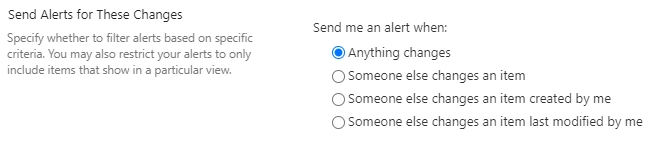
Send Alerts for These Changes
Define which changes should generate alerts, such as:
Alert Frequency
Choose how often notifications should be sent:
Immediate Notifications
Receive an email as soon as a change occurs.
Daily Summary
Receive a consolidated summary once per day.
Weekly Summary
Receive a consolidated summary once per week.
Step 4: Create the Alert
After configuring the settings:
Click OK or Create Alert.
SharePoint confirms that the alert has been successfully created.
Notifications will begin according to the selected criteria.
Benefits of Using Alert Me
1. Real-Time Notifications
Users are immediately informed when important changes occur, enabling quicker responses and decision-making.
2. Improved Collaboration
Team members remain aware of updates made by others, promoting transparency and collaboration.
3. Flexible Customization
Alert settings can be tailored to individual needs, ensuring users receive only relevant notifications.
4. Increased Productivity
Automated notifications eliminate the need to manually monitor lists, allowing users to focus on their work.
5. Better Tracking and Monitoring
Critical business processes can be monitored efficiently by receiving alerts whenever specific changes occur.
Common Use Cases
Project Management
Receive notifications when project tasks are assigned, updated, or completed.
Issue Tracking
Monitor issue logs and receive alerts when new incidents are reported or existing issues are updated.
Approval Workflows
Stay informed when requests, approvals, or submissions require attention.
Document Management
Track updates to document-related lists and ensure stakeholders are notified of changes.
Inventory Management
Receive alerts when inventory records are modified or new stock entries are added.
Limitations of the Alert Me Feature
1. High Volume of Notifications
Lists with frequent updates can generate a large number of alerts, potentially overwhelming users.
2. Email Inbox Clutter
Excessive notifications may make it difficult to prioritize important messages.
3. Notification Delays
Depending on SharePoint and email server configurations, some alerts may experience minor delivery delays.
4. Limited Advanced Filtering
The built-in Alert Me feature offers basic filtering capabilities and may not satisfy complex notification requirements.
Best Practices
Use Daily or Weekly Summaries for highly active lists.
Create alerts only for business-critical lists.
Periodically review and remove unnecessary alerts.
Use descriptive alert titles for easier management.
Consider using Power Automate for advanced notification scenarios and customized alert workflows.
Conclusion
The Alert Me feature in SharePoint Lists is a simple yet powerful tool for keeping users informed about important changes. By configuring alerts appropriately, organizations can improve collaboration, enhance visibility into business processes, and increase productivity.
While users should be mindful of potential notification overload, proper configuration and alert management can make Alert Me an effective solution for monitoring SharePoint List activities and ensuring timely action on critical updates.
Join the conversation! Your thoughts help the community grow.