

Introduction
The Respond to a PowerApp or flow action returns a value from Power Automate to Power Apps. It can be used to send a success or failure status after a flow completes its processing.
Example: Return Success or Failed Status
Suppose you have a flow that creates an item in a SharePoint list. You want to return Success if the operation completes successfully or Failed if an error occurs.
Step 1: Initialize a Variable
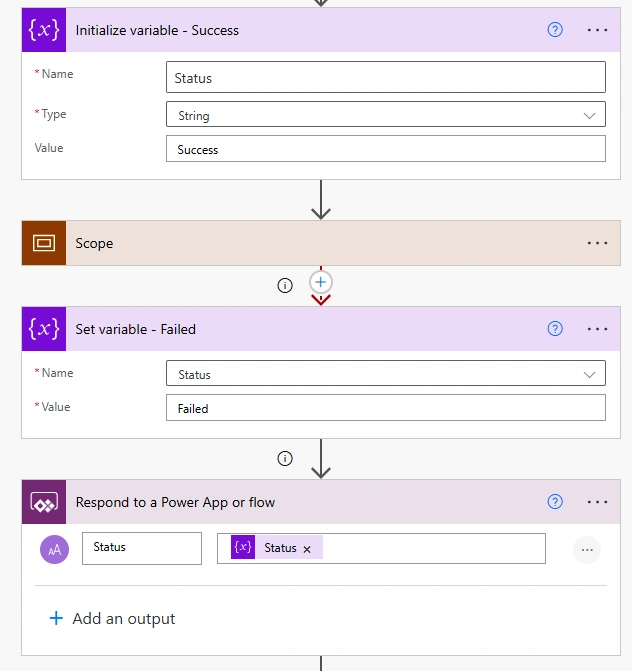
Add the Initialize variable action before the processing steps.
Name:
StatusType: String
Value:
Success
Step 2: Add a Scope
Add a Scope action and place the required processing actions inside it, such as creating an item in SharePoint.
The scope groups the actions that you want to monitor for success or failure.
Step 3: Set the Failure Status
Add a Set variable action after the Scope.
Name:
StatusValue:
Failed
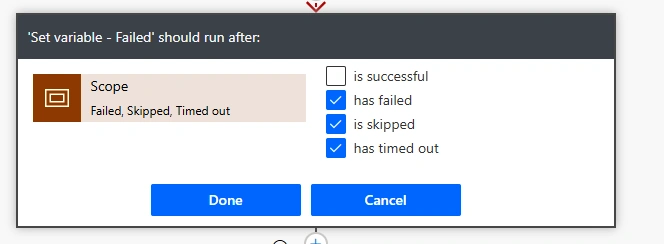
Open the action's Configure run after settings and select has failed, has timed out, and any other failure conditions you want to handle for the Scope.
This ensures that the status changes to Failed when the processing scope fails.
Step 4: Respond to Power Apps
Add the Respond to a PowerApp or flow action.
Output type: Text
Output name:
StatusValue: Select the
Statusvariable.
The flow now returns the final status to Power Apps.
Example Result
Scenario | Returned status |
|---|---|
SharePoint item created successfully | Success |
SharePoint action fails | Failed |
Step 5: Use the Response in Power Apps
Call the flow from a button's OnSelect property:
Set(
    varResponse,
    MyFlow.Run()
);

If(
    varResponse.status = "Success",
    Notify(
        "Process completed successfully.",
        NotificationType.Success
    ),
    Notify(
        "Process failed.",
        NotificationType.Error
    )
)
Replace MyFlow with your actual flow name. The returned property name may vary based on the output configured in the flow.
PowerApps Flow Process
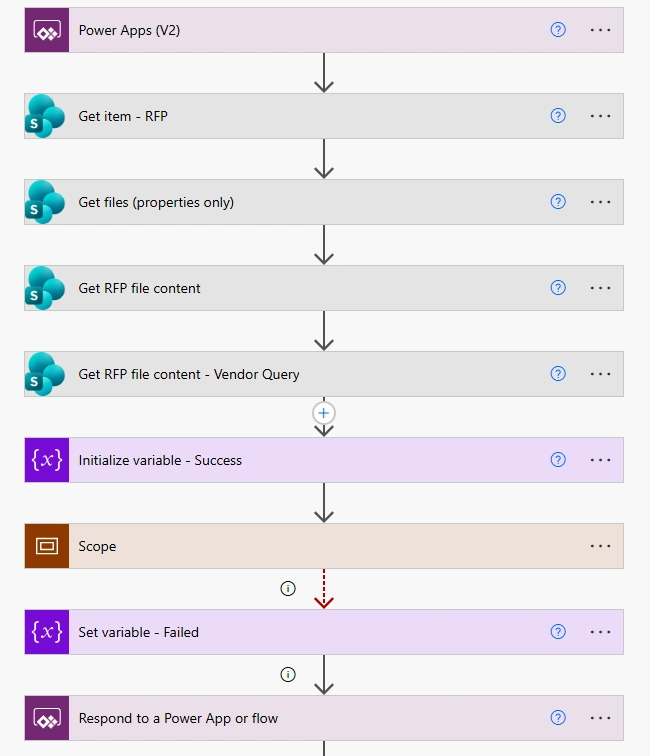
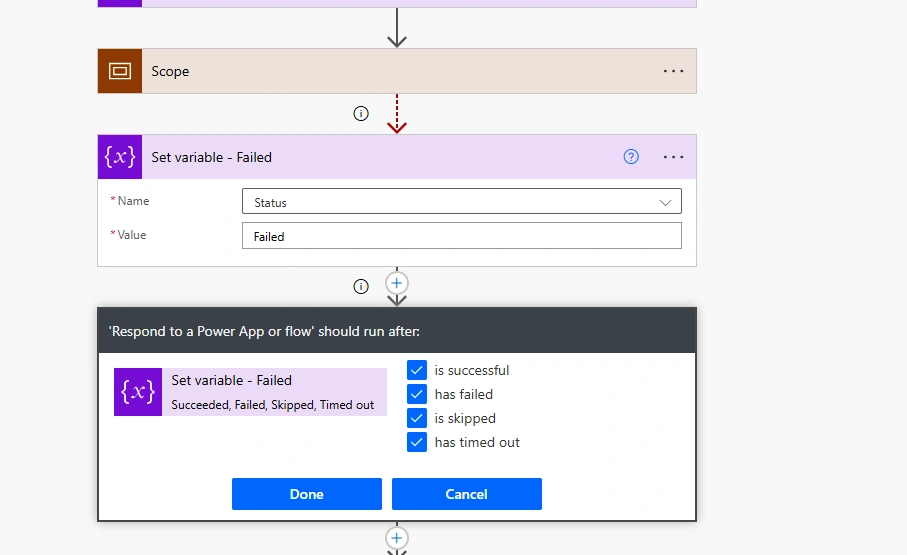
Configure Setting for Set Variable - Failed
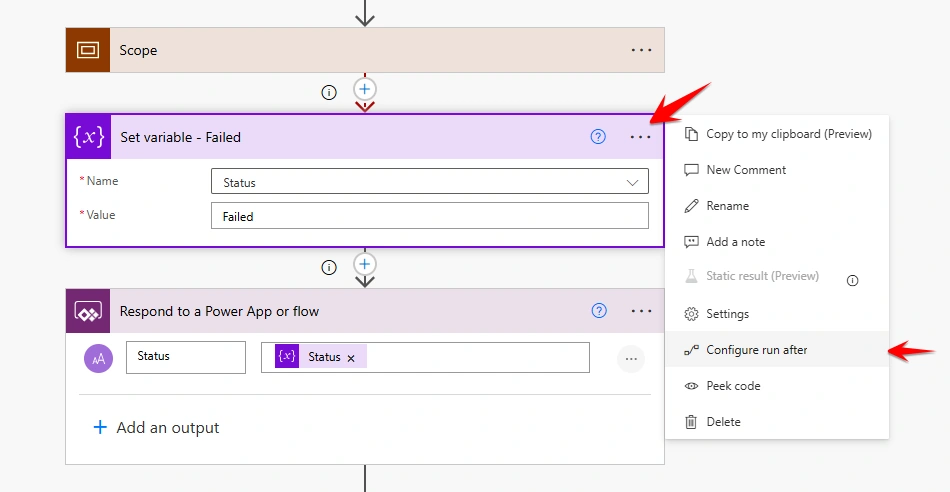
Checked all value except Is Successfully for Set variable - Failed configure value
Configure Setting for Respond to a PowerApp or flow
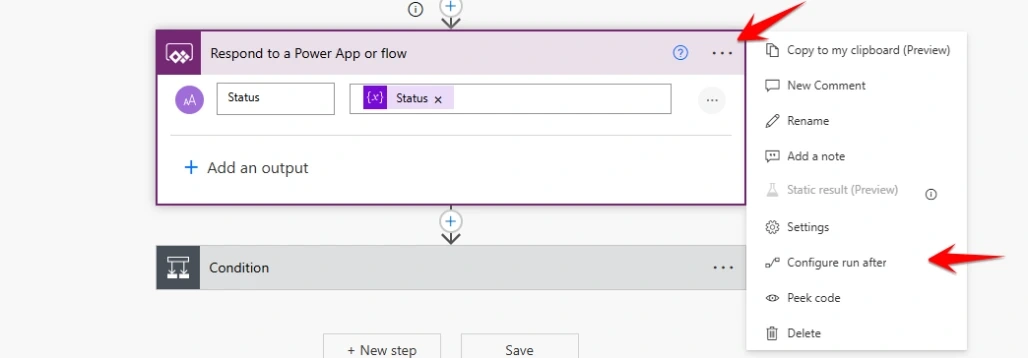
Checked all value for Respond to a PowerApp or flow
Conclusion
The Respond to a PowerApp or flow action allows Power Apps to receive the final status of a flow. By using a variable, Scope, and Configure run after, you can return Success or Failed and display the appropriate message to the user.
Join the conversation! Your thoughts help the community grow.