

Introduction
Power Apps is a powerful tool that allows users to create custom applications with ease. One of the key features of Power Apps is its ability to integrate with SharePoint lists, enabling dynamic data management and manipulation. In this article, we will explore how to use the Sort function in Power Apps to sort data dynamically based on column values from a SharePoint list. We will cover the features, advantages, disadvantages, and step-by-step instructions to achieve this.
Features
The Sort function in Power Apps allows you to sort data in a gallery or table based on specified column values. Here are some key features.
- Dynamic Sorting: Sort data based on user-selected columns.
- Multiple Columns: Sort by multiple columns in ascending or descending order.
- Integration: Seamlessly integrates with SharePoint lists and other data sources.
- Flexibility: Customize sorting logic using formulas.
Advantages and Disadvantages
Advantages
- Improved Data Management: Easily organize and view data in a meaningful way.
- User-Friendly: Provides a better user experience by allowing users to sort data as needed.
- Efficiency: Reduces the time and effort required to find specific information.
Disadvantages
- Complexity: May require some learning curve for beginners.
- Performance: Sorting large datasets can impact performance.
- Dependency: Relies on proper configuration of SharePoint lists and Power Apps.
Steps to Use the Sort Function with SharePoint List
Follow these steps to create a Power App that sorts data dynamically based on column values from a SharePoint list.
- Login to Power Apps.
- Go to https://make.powerapps.com and log in with your credentials.
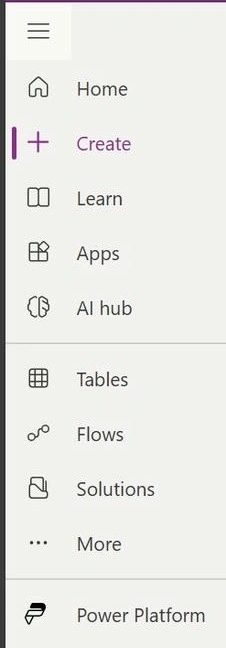
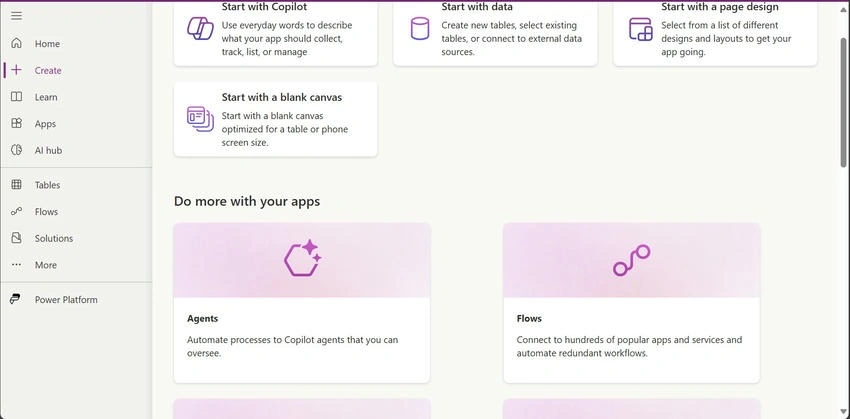
- Create a New App.

- Click on "Create" and select the desired type of app (Canvas, Mobile, or Responsive).
- Give your app a name and click "Create".
- Insert a Gallery.
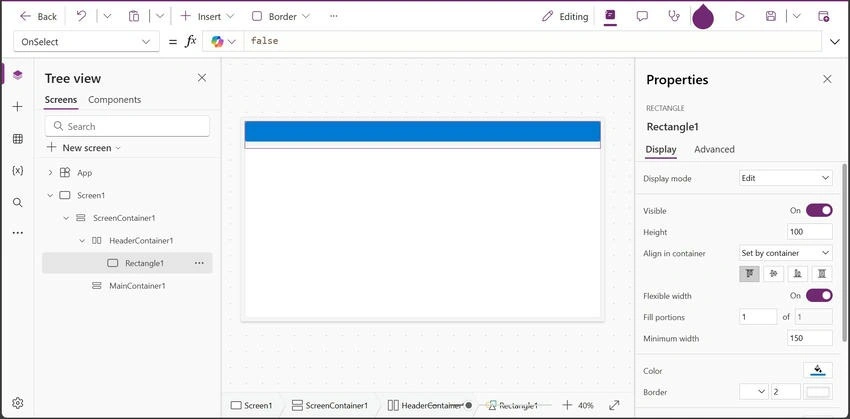
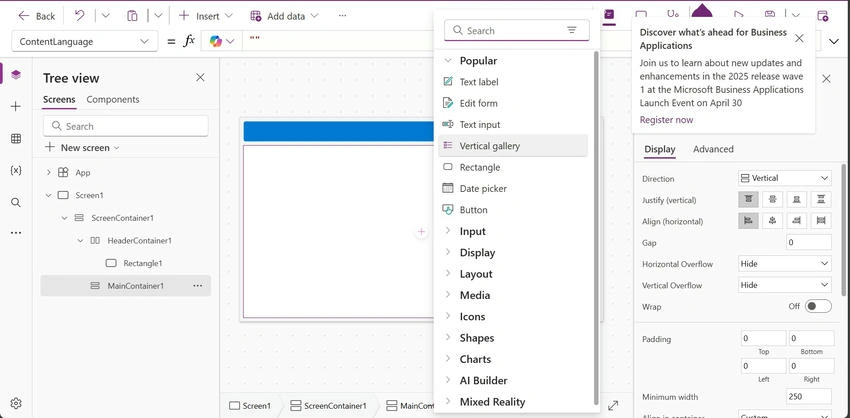
- In the app designer, insert a gallery control by clicking on "Insert" "Gallery".



- Connect the gallery to your SharePoint list by selecting the list from the data sources.
- Configure the Gallery.
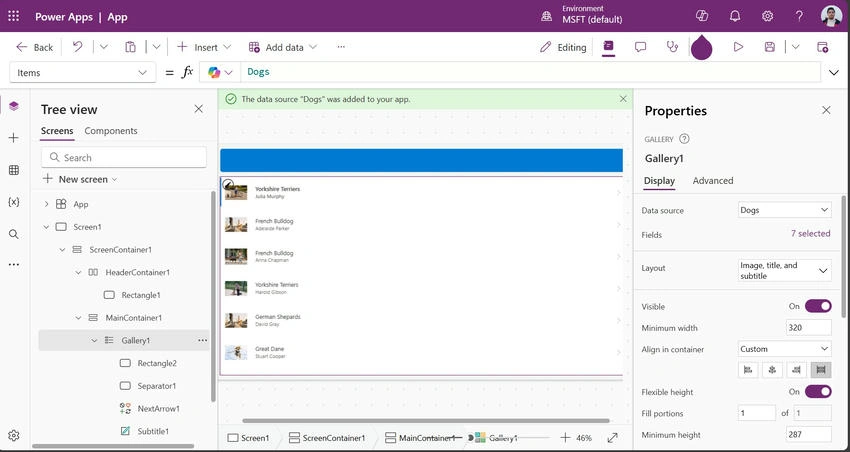
- Open the "Items" property of the gallery.
- Use the Sort function to sort the data dynamically. For example,
Sort(SharePointList, ColumnName, SortOrder.Ascending)
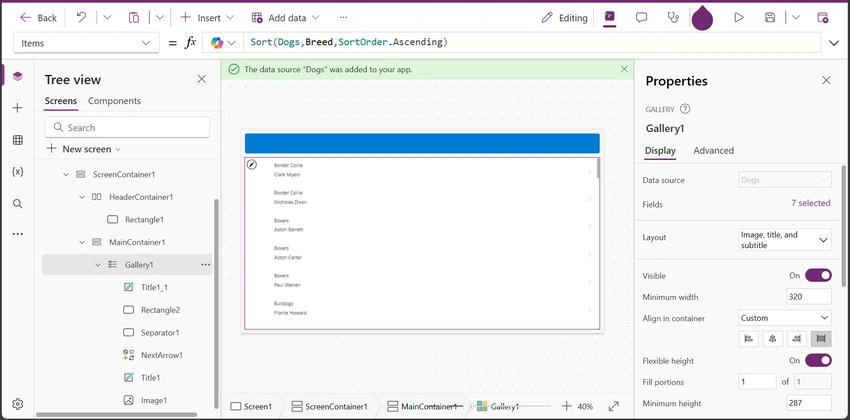
- Replace SharePointList with the name of your SharePoint list, ColumnName with the column you want to sort by, and SortOrder with either Ascending or Descending. For my case,e this is the formula Sort(Dogs, Owner, SortOrder.Ascending)

- With Sort(Dogs,Owner,SortOrder.Descending)
- Test and Publish.
- Test the app to ensure the sorting functionality works as expected.
- Once satisfied, publish the app for users to access.
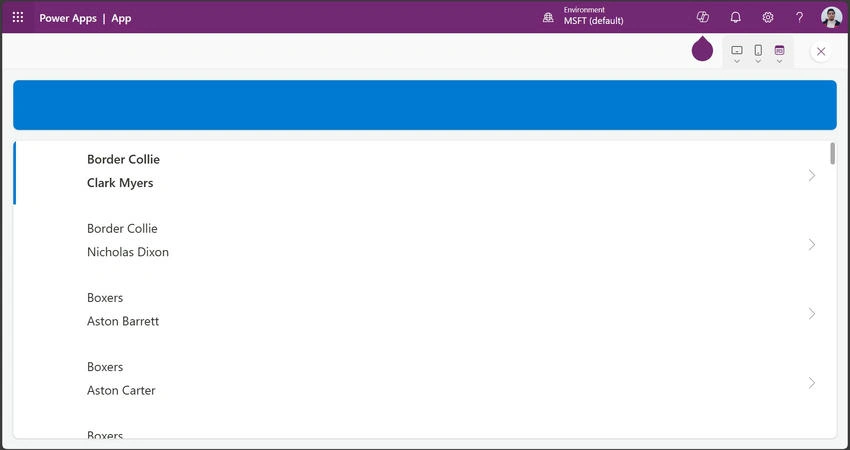
Conclusion
Using the Sort function in Power Apps with dynamic column values from a SharePoint list enhances data management and user experience. By following the steps outlined in this article, you can create a custom app that allows users to sort data dynamically, making it easier to find and organize information. While there are some complexities and potential performance impacts, the benefits of improved data management and user experience make it a valuable feature in Power Apps.
Join the conversation! Your thoughts help the community grow.