

Create a New Hold Item in the Hold List
We can create a SharePoint hold, which is to be used to associate content held for review.
- Use Internet Explorer to navigate to your web application
- Open Site Settings by clicking "Site Actions | Site Settings".
- Click the Hold link located in the Hold and eDiscovery section.

- Click the Add new item
- Enter the title of Blue Yonder Litigation Case, a description value, and select a manager for the hold.
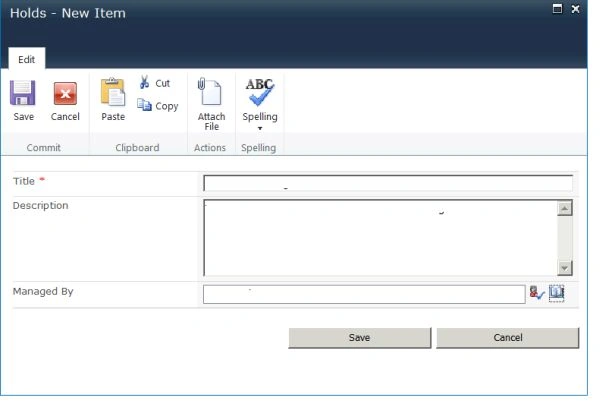
- Click the Save button to save the new hold.
Define an eDiscovery Search and Assign the Results to the Hold
- Use Internet Explorer to navigate to your site.
- Open Site Settings by clicking "Site Actions | Site Settings".
- Click the Discover and hold content link located in the Hold and eDiscovery section. This opens the Search and Add to Hold page.
- The site collection's top-level site is pre-populated. Enter the search term Mysite.

- Click the Preview Results button and verify that the results contain Mysite.
- Close the Preview page.
- Scroll to the Relevant Hold section in the Search and Add to hold page.
- Select from the drop down box in the Select the hold to apply drop-down box.
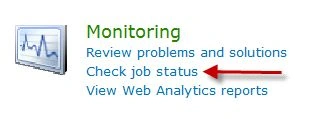
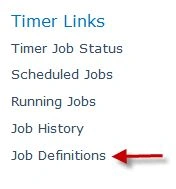
- Click the Add Results to hold button to associate the eDiscovery search. The results will not be added to the hold until the ___

- Click the OK button on the Operation Completed Successfully page.
- Click the Cancel button to exit the Search and Add to Hold page.
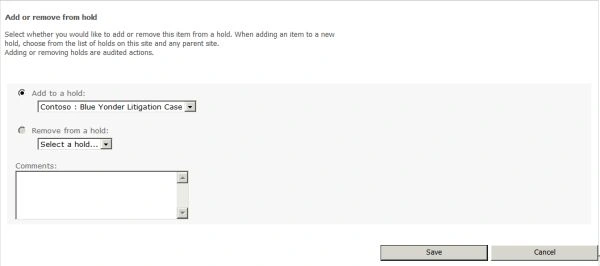
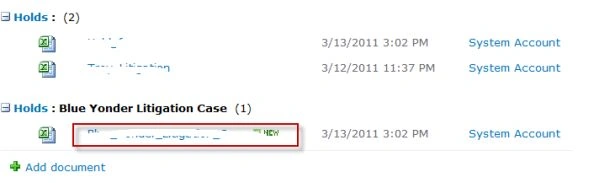
Manually Add Content to a Hold


Sumit DeshmukhPosted Sep 4, 2015, 7:56 AM
Great article ...Thanks you for Sharing