

Here are the steps,
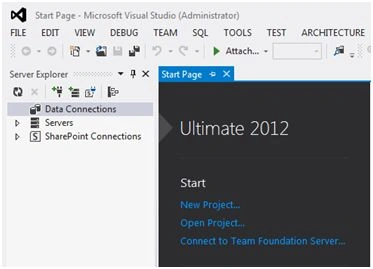
Step 1: Go to Visual Studio and click new project as sin the following figure 1,
Step 2: Then select MVC 4 Web Application as in the following figure 2,

Step 3:
Now write the project name and click on OK button then one new window will open. In this new window there will be option of selecting Project template as Empty, Basic, Internet Application, Mobile Application and Web API. Choose any one of these project template, then select View engine as your choice as in the following figure 3,

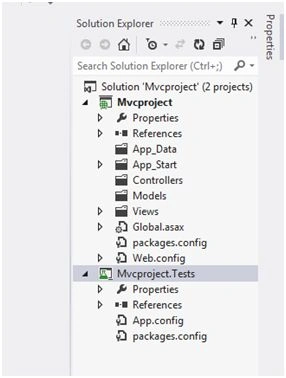
Now click on OK button and your Solution Explorer will be like following figure 4,
Step 4: Now go to Views folder, click with right mouse button and select Add, then View as in the following figure 5,

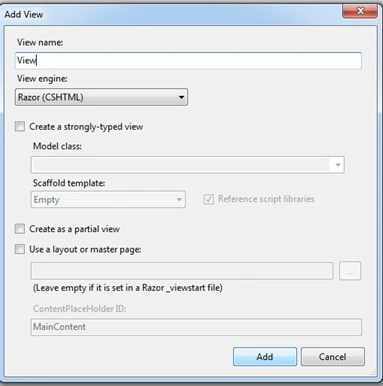
Step 5: Now new window will appear as figure 6. In this write View Name and click on Add Button .
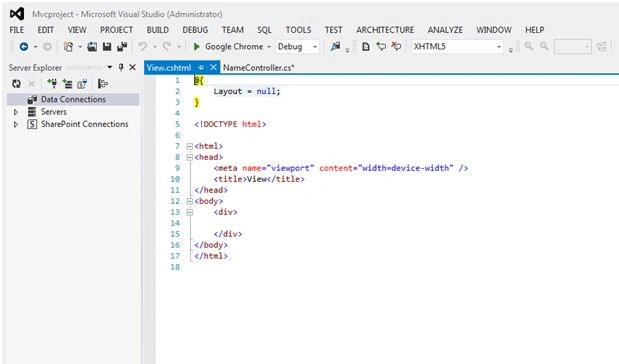
Step 6: Now View page will appear as in the following figure 7. Now write the code which is required for View page.
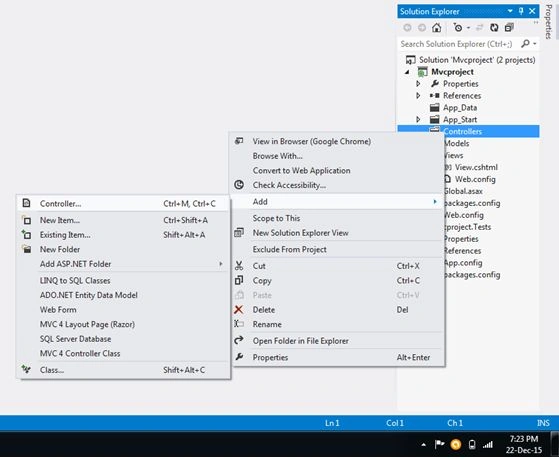
Step 7: Now go to Controller folder and click with right mouse button and select Add then controller as in the following figure 8,
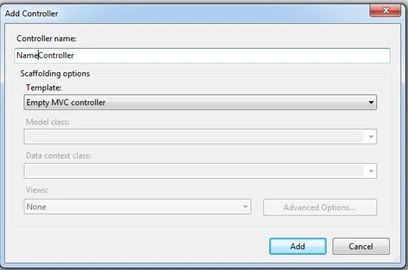
Step 8: Now new window will open as in the following Figure 9 then write the Controller Name and click on button Add.
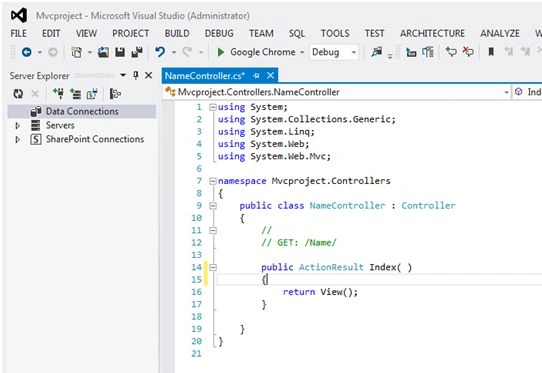
Step 9: Now Controller page will appear as in following figure 10. Now write the code which is required for project.
Now run the application and check.
Step 2: Then select MVC 4 Web Application as in the following figure 2,
Step 3:
Now write the project name and click on OK button then one new window will open. In this new window there will be option of selecting Project template as Empty, Basic, Internet Application, Mobile Application and Web API. Choose any one of these project template, then select View engine as your choice as in the following figure 3,
Now click on OK button and your Solution Explorer will be like following figure 4,
Step 4: Now go to Views folder, click with right mouse button and select Add, then View as in the following figure 5,
Step 5: Now new window will appear as figure 6. In this write View Name and click on Add Button .
Step 6: Now View page will appear as in the following figure 7. Now write the code which is required for View page.
Step 7: Now go to Controller folder and click with right mouse button and select Add then controller as in the following figure 8,
Step 8: Now new window will open as in the following Figure 9 then write the Controller Name and click on button Add.
Step 9: Now Controller page will appear as in following figure 10. Now write the code which is required for project.
Now run the application and check.
SubashPosted Aug 22, 2016, 12:52 AM
Good Share
Santhakumar MunuswamyPosted Dec 25, 2015, 3:21 PM
Thanks for nice article
Omid NasriPosted Dec 25, 2015, 11:24 AM
Thanks.
Sridhar SharmaPosted Dec 25, 2015, 10:25 AM
Nice Share
Sibeesh VenuPosted Dec 25, 2015, 10:14 AM
Nice Share
Gowtham KPosted Dec 25, 2015, 10:14 AM
Nice, Thanks for sharing
Ankur MistryPosted Dec 25, 2015, 10:12 AM
Nice share
Mukesh KumarPosted Dec 25, 2015, 2:13 AM
Good One