

In this example, I want to execute my own custom task which will write some text into the event viewer as "My Custom Task is executed" & this custom task has to be executed after the TFS build succeeds To proceed we have to handle the below step.
- Create a class library to handle "Custom Task"
- Create "TFS Build Agent"
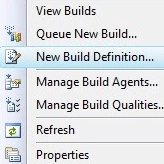
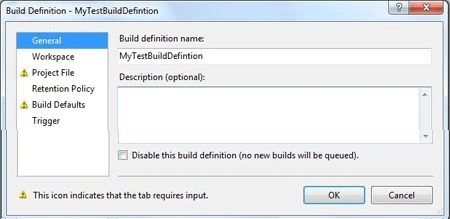
- Create "New Build definition"
- Run TFS build
Step 1. Custom task
Writes text into event viewer after TFS build succeeds. This is to be implemented in the Class Library.
- First, create a Class Library & name it "MySample".
- Add a class called MyTask and add a flowing reference to the library.
using Microsoft.Build.Framework; using Microsoft.Build.Utilities; using System.Diagnostics; - Now inherit the class "TASK" as shown below
public class MyTask : Task
{
    public override bool Execute()
    {
        EventLog log = new EventLog();
        log.Source = "Application";
        log.WriteEntry("Step 2 Executed");
        return true;
    }
}
Note. In the above code, we are overriding the execute method & implementing our own implementation.
Now compile it and as usual, it will generate MySample.dll
Step 2. Create a TFS Build Agent
Before working on a TFS build definition we need to have a TFS build agent. Let's follow the below steps to create a build agent.
- Connect to the TFS Server from Team Explorer.
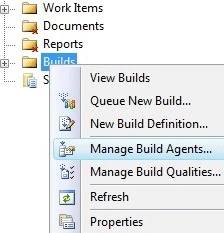
- Right-click on the Build folder & select "Manage Build Agent".
- Now click on the "New" button in the build agent window & provide the below necessary information.
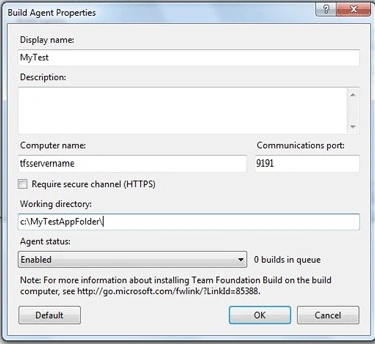
- Display name: Name of your choice.
- Computer name: TFS Server name.
- Communications port: TFS server port.
- Working directory: TFS build will create build files at this location. To provide the path of the TFS server's physical path
- Agent status: Enabled
Now click the "OK" button.
Join the conversation! Your thoughts help the community grow.