
So Whats HLSL?
The High Level Shader Language or High Level Shading Language (HLSL) is a
proprietary shading language developed by Microsoft for use with the Microsoft
Direct3D API. It is analogous to the GLSL shading language used with the OpenGL
standard. It is the same as the NVIDIA Cg shading language, as it was developed
alongside it.
HLSL programs come in three forms, vertex shaders, geometry shaders, and pixel
(or fragment) shaders. A vertex shader is executed for each vertex that is
submitted by the application, and is primarily responsible for transforming the
vertex from object space to view space, generating texture coordinates, and
calculating lighting coefficients such as the vertex's tangent, binormal and
normal vectors. When a group of vertices (normally 3, to form a triangle) come
through the vertex shader, their output position is interpolated to form pixels
within its area; this process is known as rasterisation. Each of these pixels
comes through the pixel shader, whereby the resultant screen colour is
calculated.
HLSL can be directly imported in XNA because of the built-in content importer
written for HLSL.
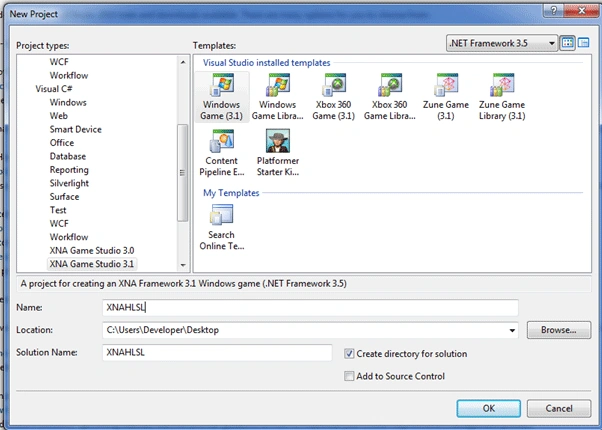
Now lets create a project and show you how to load HLSL and use it
Add Effect Folder and import our Effect file in the same path of Game.cs.And
change its properties as seen below:
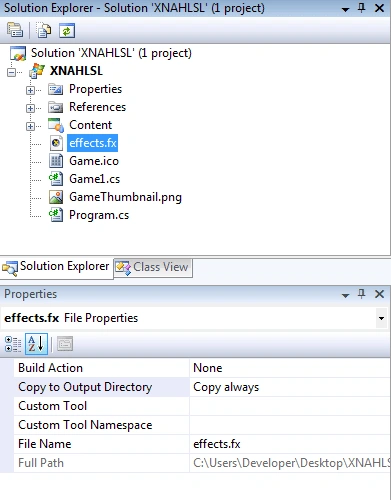
This way we will be reading it from Debug folder.
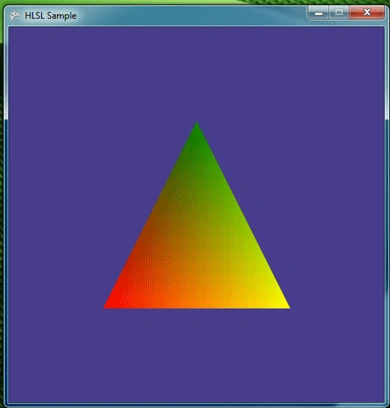
The effect file is looking like this:
struct VertextoPixel
{
float4 Position : POSITION;
float4 Color : COLOR0;
float LightingFactor: TEXCOORD0;
float2 TextureCoords: TEXCOORD1;
};
struct PixeltoScene
{
float4 Color : COLOR0;
};
float4x4 xView;
float4x4 xProjection;
float4x4 xWorld;
float3 xLightDirection;
float xAmbient;
bool xEnableLighting;
bool xShowNormals;
VertexToPixel TransformVS( float4 inPos : POSITION, float4 inColor: COLOR)
{
VertexToPixel Output = (VertexToPixel)0;
Output.Position = inPos;
Output.Color = inColor;
return Output;
}
PixelToScene TransformPS(VertexToPixel PSIn)
{
PixelToScene Output = (PixelToScene)0;
Output.Color = PSIn.Color;
return Output;
}
technique Transform
{
pass Pass0
{
VertexShader = compile vs_2_0 TransformVS();
PixelShader = compile ps_2_0 TransformPS();
}
}
Now as we added the effect file in XNA lets see how we can use it
Add these variables:
SpriteBatch
spriteBatch;
GraphicsDeviceManager
graphics;
GraphicsDevice
device;
Effect
effect;
VertexPositionColor[]
vertices;
We will be using XNA as a device in this sample.And we are creating Effect class
to work with the effect file we imported.
Update your Initialize function as seen below:
protected
override void
Initialize(
{
base.Initialize();
XNA_Set_Device();
Set_Vertices();
}
Update your XNA_Set_Device function as seen below:
private
void XNA_Set_Device()
{
device = graphics.GraphicsDevice;

Join the conversation! Your thoughts help the community grow.