

Introduction

In my previous article, I explained canvas elements, compatibility of browsers and drawing lines. Now in this article we learn about the use of the arc method, quadratic and bezier curves and creating various shapes and so on.
Arc
In HTML5 Canvas, we can draw an arc using the "arc()" method. The arc() method requires the following six parameters:
-
First, we need the "x" position of the center of the circle.
-
Second, we need the "y" position of the center of the circle.
-
Third, we need the "radius" of the circle.
-
Fourth, we need the "starting angle" of the circle.
-
Fifth, we need an "ending angle" of the circle.
-
And sixth we need the drawing direction of the arc, "false=clockwise" and "true=anti-clockwise..
Now, we know what we need for the arc() method. It now looks like "arc(x, y, radius, startAngle, endAngle, anticlockwise)". We can use the "lineWidth", "lineCap" and "strokeStyle" properties to style an arc.

Example
- <body>
- <form id="form1" runat="server">
- <div>
- <!-- Draw a Canvas -->
- <canvas id="drawCanvas" width="600" height="500"></canvas>
- <script>
- var drawCanvas = document.getElementById('drawCanvas');
- var ctx = drawCanvas.getContext('2d');
- ctx.beginPath();
- ctx.arc(300, 200, 100, -1.2, Math.PI * 0.4 , true);
- ctx.lineWidth = 15;
- ctx.strokeStyle = 'blue';
- ctx.stroke();
- </script>
- </div>
- </form>
- </body>
Output:

Bezier Path
Creating arc's is really fun but they have their limitations. And, if you want to create anything more complex then we need to use two other curves:
-
Quadratic Curve
-
Bezier Curve
To create a bezier path we need to use control points that define where and how to draw the curves. The Quadratic Curve method has one control point whereas the bezier curve method has two control points. Now let's check out these two methods.
Quadratic Curve
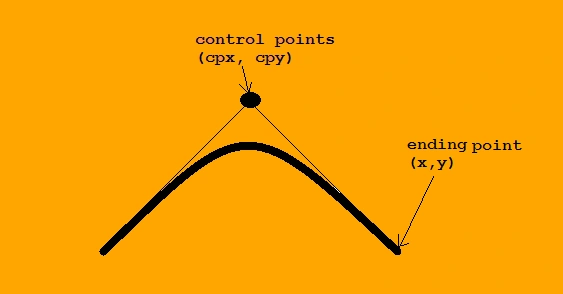
In HTML5 Canvas, we can create a quadratic curve using the "quadraticCurveTo()" method. To draw a quadratic curve, we need four main parameters:
-
x position of the control point (cpx)
-
y position of the control point (cpy)
-
x position of the end of the path (x)
-
y position of the end of the path (y)
Now it looks like "quadraticCurveTo(cpx, cpy, x, y)" and to style a quadratic curve we can use "lineWidth", "lineCap" and "strokeStyle" properties.
Example
- <body>
- <form id="form1" runat="server">
- <div>
- <!-- Draw a Canvas -->
- <canvas id="drawCanvas" width="600" height="500"></canvas>
- <script>
- var drawCanvas = document.getElementById('drawCanvas');
- var ctx = drawCanvas.getContext('2d');
- ctx.beginPath();
- ctx.moveTo(150,160);
- // ctx.quadraticCurveTo(cpx, cpy, x, y);
- ctx.quadraticCurveTo(280, 0, 400, 160);
- ctx.lineWidth = 15;
- ctx.strokeStyle = '#00f';
- ctx.stroke();
- </script>
- </div>
- </form>
- </body>
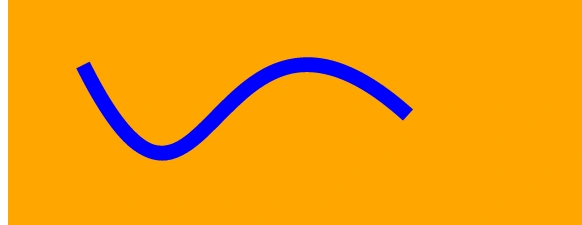
Output

Bezier Curve
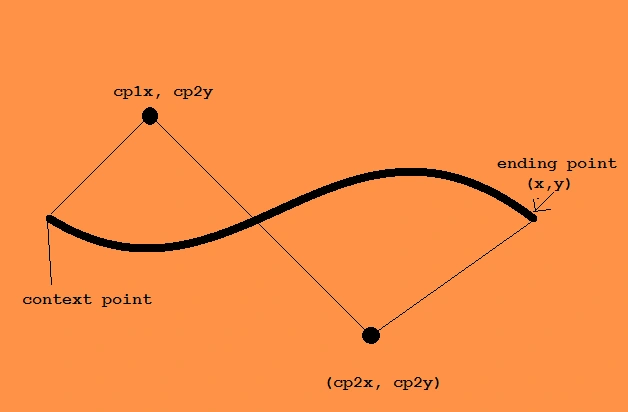
In HTML5 Canvas, we can create a bezier curve using the "bezierCurveTo()" method. It allows the creation of more complex curves than a quadratic curve. Bezier curves have a context point, two control points, and an ending point. Now to draw a bezier curve, we need six main parameters:
-
First, we need the x position of the first control point. (cp1x)
-
Second, we need the y position of the first control point. (cp1y)
-
Third, we need the x position of the second control point. (cp2x)
-
Forth, we need the y position of the second control point. (cp2y)
-
Fifth, we need the x position of the ending path. (x)
-
Sixth, we need the y position of the ending path. (y)
Now we have our bezier curve method that looks like quadraticCurveTo(cp1x, cp1y, cp2x, cp2y, x, y) and to style a bezier curve we can use lineWidth, lineCap and strokeStyle properties.
Example
- <body>
- <form id="form1" runat="server">
- <div>
- <!-- Draw a Canvas -->
- <canvas id="drawCanvas" width="600" height="500"></canvas>
- <script>
- var drawCanvas = document.getElementById('drawCanvas');
- var ctx = drawCanvas.getContext('2d');
- ctx.beginPath();
- ctx.moveTo(75,150);
- // ctx.bezierCurveTo(cp1x, cp1y, cp2x, cp2y, x, y);
- ctx.bezierCurveTo(200, 400, 200, 20, 400, 200);
- ctx.lineWidth = 15;
- ctx.strokeStyle = '#00f';
- ctx.stroke();
- </script>
- </div>
- </form>
- </body>
- </html>


Join the conversation! Your thoughts help the community grow.