

Introduction
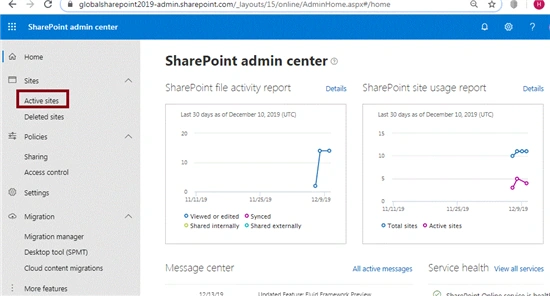
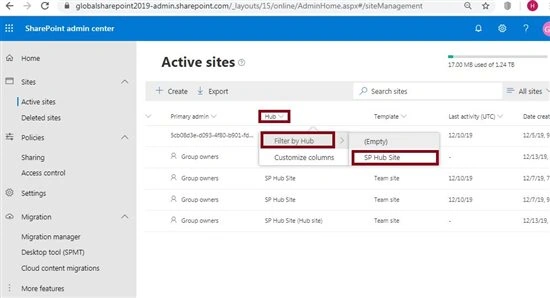
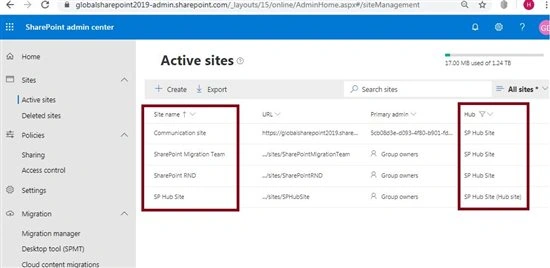
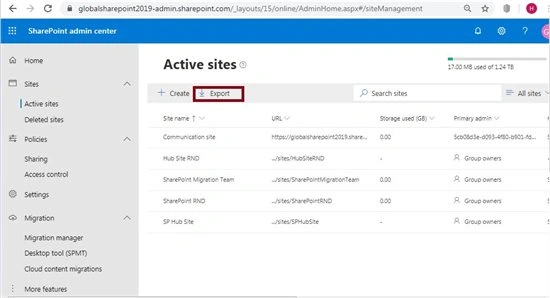
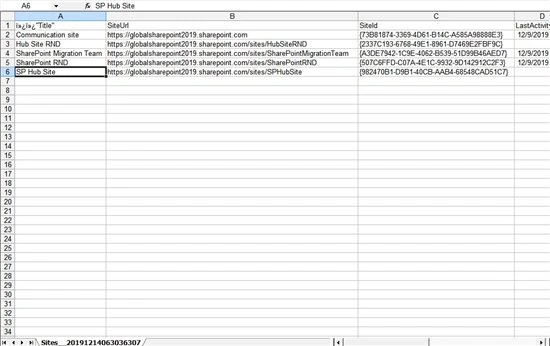
Often times, as a SharePoint online administrator we must generate a report of all hub sites and their associated sites or all associated sites for a particular hub site. Dealing with this manually is very time consuming and there is no straight screen using which can generate this. Here in this article, we will see how we can get all hub sites and their all associated sites for a particular hub site using PnP Powershell. Also, we will see how we can generate this report using a SharePoint online admin center URL.
PnP PowerShell script to get all sites connected to a hub site
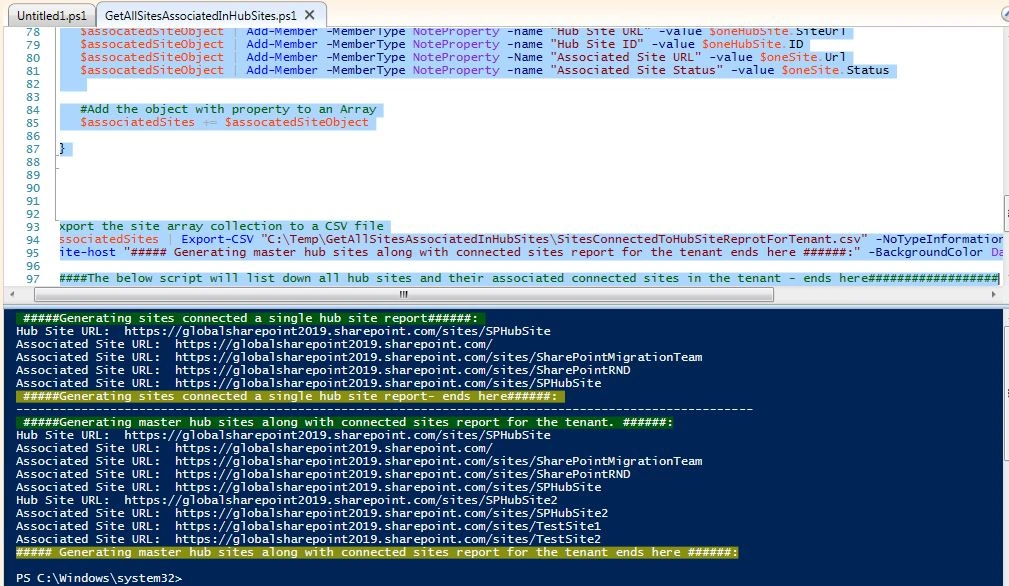
Using the below PnP PowerShell code, we can get the noted types of reports:
- Get all associated or connected sites to a particular hub site.
- Get a master report for all sites and their hub sites from the SharePoint online tenant.
- CLS
- #############################################################################################################################################################
- #Description: Using this script we can generate all associated sites for a partuclar hub site and also all hub sites and their associated sites from a tenant.
- #Created By: Habibur Rahaman
- #Date: 12-22-2019
- #############################################################################################################################################################
- ###################variables section###################################
- $userName = "[email protected] - <Your User name>"
- $passWord = "YourPassWord"
- $siteURL="https://globalsharepoint2019-admin.sharepoint.com/ <Your sharepoint admin url>"
- ###################variables section ends here###################################
- $encPassWord = convertto-securestring -String $passWord -AsPlainText -Force
- $cred = new-object -typename System.Management.Automation.PSCredential -argumentlist $userName, $encPassWord
- Connect-PnPOnline -Url $siteURL -Credentials $cred
- #Getting the hub site id for which we want to generate the report - those are connected to this hub site.
- $hubSiteURL="https://globalsharepoint2019.sharepoint.com/sites/SPHubSite"
- $hubSite = Get-PnPTenantSite $hubSiteURL
- $hubSiteId = $hubSite.HubSiteId
- write-host " #####Generating sites connected a single hub site report######: " -BackgroundColor DarkGreen
- write-host "Hub Site URL: " $hubSiteURL
- $associatedSites = @()
- #Get all sites associated to the hub site(in the above hub site)
- $sitesTenant = Get-PnPTenantSite -Detailed
- $sitesTenant | select url | % {$oneSite = Get-PnPTenantSite $_.url
- if($oneSite.hubsiteid -eq $hubSiteId)
- {
- write-host "Associated Site URL: " $oneSite.url
- $assocatedSiteObject = New-Object PSObject
- $assocatedSiteObject | Add-Member -MemberType NoteProperty -name "Hub Site URL" -value $hubSiteURL
- $assocatedSiteObject | Add-Member -MemberType NoteProperty -name "Hub Site ID" -value $hubSiteId
- $assocatedSiteObject | Add-Member -MemberType NoteProperty -Name "Associated Site URL" -value $oneSite.Url
- $assocatedSiteObject | Add-Member -MemberType NoteProperty -name "Associated Site Status" -value $oneSite.Status
- #Add the object with property to an Array
- $associatedSites += $assocatedSiteObject
- }
- }
- #Export the site array collection to a CSV file
- $associatedSites | Export-CSV "C:\Temp\GetAllSitesAssociatedInHubSites\SitesConnectedToSingleHubSiteReprot.csv" -NoTypeInformation
- write-host " #####Generating sites connected a single hub site report- ends here######: " -BackgroundColor DarkYellow
- ######The below script will list down all hub sites and their associated connected sites in the tenant.##################
- write-host "------------------------------------------------------------------------------------------------------"
- write-host " #####Generating master hub sites along with connected sites report for the tenant. ######:" -BackgroundColor DarkGreen
- $hubSites=Get-PnPHubSite
- $associatedSites = @()
- foreach($oneHubSite in $hubSites)
- {
- $test=$oneHubSite;
- write-host "Hub Site URL: " $oneHubSite.SiteUrl
- $hubSite = Get-PnPTenantSite $oneHubSite.SiteUrl;
- $hubSiteId = $hubSite.HubSiteId
- #Get all sites associated to the hub site(in the above hub site)
- $sitesTenant = Get-PnPTenantSite -Detailed
- $sitesTenant | select url | % {$oneSite = Get-PnPTenantSite $_.url
- if($oneSite.hubsiteid -eq $hubSiteId)
- {
- write-host "Associated Site URL: " $oneSite.url
- $assocatedSiteObject = New-Object PSObject
- $assocatedSiteObject | Add-Member -MemberType NoteProperty -name "Hub Site URL" -value $oneHubSite.SiteUrl
- $assocatedSiteObject | Add-Member -MemberType NoteProperty -name "Hub Site ID" -value $oneHubSite.ID
- $assocatedSiteObject | Add-Member -MemberType NoteProperty -Name "Associated Site URL" -value $oneSite.Url
- $assocatedSiteObject | Add-Member -MemberType NoteProperty -name "Associated Site Status" -value $oneSite.Status
- #Add the object with property to an Array
- $associatedSites += $assocatedSiteObject
- }
- }
- }
- #Export the site array collection to a CSV file
- $associatedSites | Export-CSV "C:\Temp\GetAllSitesAssociatedInHubSites\SitesConnectedToHubSiteReprotForTenant.csv" -NoTypeInformation
- write-host "##### Generating master hub sites along with connected sites report for the tenant ends here ######:" -BackgroundColor DarkYellow
- ######The below script will list down all hub sites and their associated connected sites in the tenant - ends here##################


Join the conversation! Your thoughts help the community grow.