

In my previous article, IFrame execution, using Selenium Webdriver - Part One, I have explained the usage/advantages of frame and the execution of iframe, using Selenium Webdriver, I have covered one scenario of iframe with Selenium. Before reading this article, I suggest you refer to or read my previous article, IFrame Execution Using Selenium WebDriver - Part One
In this article, I will cover two different scenarios with an iframe inside another iframe, which are nested iframes.
Scenario 2
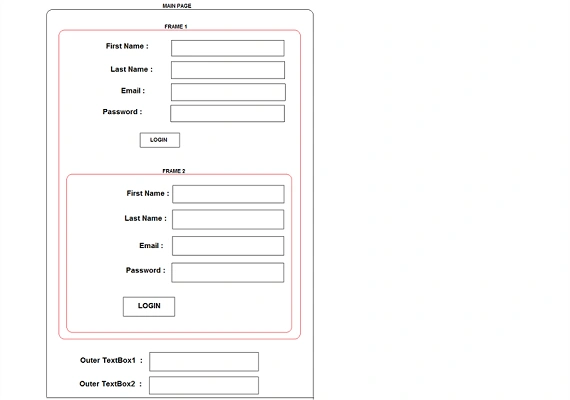
From the image given above, we have taken two different frames, which are within an iframe1. We have used another iframe i.e. iframe2. Whenever we want to automate normal controls without any containers like div or an iframe on a Webpage, it will be easy to automate just by using their control properties. Whenever we have controls within an iframe and this iframe is available in another iframe, it will be difficult to identify & automate an iframe and its controls.
In this scenario, we will identify the first frame i.e iframe1 by using its properties like Id="Frame1" or name="Frame1". Once the frame1 is identified, we will switch into the frame1. Subsequently, we will identify each control with the properties like
Scenario 2
From the image given above, we have taken two different frames, which are within an iframe1. We have used another iframe i.e. iframe2. Whenever we want to automate normal controls without any containers like div or an iframe on a Webpage, it will be easy to automate just by using their control properties. Whenever we have controls within an iframe and this iframe is available in another iframe, it will be difficult to identify & automate an iframe and its controls.
In this scenario, we will identify the first frame i.e iframe1 by using its properties like Id="Frame1" or name="Frame1". Once the frame1 is identified, we will switch into the frame1. Subsequently, we will identify each control with the properties like
- For FirstName field of iframe1, we have control properties like id="Fname1" or name="Fname1"
- For LastName field of iframe1, we have control properties like id="Lname1" or name="Lname1"
- For Password field of iframe1, we have control properties like id="Password1" or name="Password1"
- For Email field of iframe1, we have control properties like id="Email1" or name="Email1"
- For Login button of iframe1, we have control properties like id="Login1" or name="Login1"
Once these controls are identified with their control properties, then we can automate each of them, using Selenium. Once all the controls of iframe1 are automated, we will identify the iframe2 with their control properties like id="Frame2" or name="Frame2". Once iframe2 is identified, we will switch into iframe2 and perform automation on the controls, which are available in iframe2.
Example
Example
- For FirstName field of iframe2, we have control properties like id="Fname2" or name="Fname2"
- For LastName field of iframe2, we have control properties like id="Lname2" or name="Lname2"
- For Password field of iframe2, we have control properties like id="Password2" or name="Password2"
- For Email field of iframe2, we have control properties like id="Email2" or name="Email2"
- For Login button of iframe2, we have control properties like id="Login2" or name="Login2"
Once these controls are identified with their control properties, then we can automate each of them, using Selenium Webdriver. Once all the controls of iframe2 are automated, we will switch out of iframe2 and iframe1, so that we can automate the other controls, which are available outside the frames i.e iframe1 & iframe2.
- To automating outer Textbox1 and outer Textbox2, we can identify with its control properties like
- To Outer Textbox1 we have id="outerTxt1" and name="outerTxt1"
Similarly for Outer Textbox2, we have id="outerTxt2" and name="outerTxt2".
HTML for the diagram given above is given below.
HTML for the diagram given above is given below.
- <html>
- <head>
- <title>IFRAME EXAMPLE 2</title>
- </head>
- <body>
- <iframe src="D:/IFrameExamples/FirstFrame1.html" height="300" id="Frame1" name="Frame1" width="300" scrolling="no" frameborder="0" style=border:solid;color:red " >
- </iframe><br><br>
- //From the above iframe we are calling src of FirstFrame1 , all the controls available in the FirstFrame1.html will be binding to iframe1.
- Outer TextBox1 :<input type="text " id="outerTxt1 " name="outerTxt1 "><br><br>
- Outer TextBox2 :<input type="text " id="outerTxt2 " name="outerTxt2 ">
- //Here OuterTextbox1 and OuterTextbox2 will be available out of frame1 and frame2
- </body>
- </html>
FirstFrame1.html
- <html>
- <head>
- <title>FirstFrame1.html</title>
- </head>
- <body> First Name : <input type='"text" id="Fname1" name="Fname1"><br><br>
- Last Name : <input type=' "text" id="Lname1" name="Lname1"><br><br> Email : <input type='"text" id="Email1" name="Email1"><br><br>
- Password : <input type=' "text" id="Password1" name="Password1"><br><br> <input type='"text" id="Login1" name="Login1" value="Login"><br><br>
- <iframe src="D:/IFrameExamples/SecondFrame2.Html" id="Frame2" name="Frame2" height ="100" width="100" scrolling="no" frameborder="0" style=border:solid;color:red;>
- </iframe>
- //From the above frame that is Frame2 we are calling src of SecondFrame2.html , the controls available in SecondFrame2.html will be binding
- inside the iframe2.
- </body>
- </html>
SecondFrame2.Html
- <html>
- <head>
- <title>SecondFrame2.Html</title>
- </head>
- <body> First Name : <input type='"text" id="Fname2" name="Fname2"><br><br>
- Last Name : <input type=' "text" id="Lname2" name="Lname2"><br><br> Email : <input type='"text" id="Email2" name="Email2"><br><br>
- Password : <input type=' "text" id="Password2" name="Password2"><br><br> <input type='"text" id="Login2" name="Login2" value="Login"><br><br>
- </body>
- </html>
The code for the execution of IFrame, using Selenium Webdriver is given below.
- Using System;
- Using Mbunit.Framework;
- Uing Microsoft.VisualStudio.TestTools.UnitTesting;
- Using System.Threading;
- Using OpenQA.Selenium;
- Using OpenQA.Selenium.Chrome;
- Namespace SecondScenarioTesting {
- [TestClass]
- Public class SecondScenarioTesting {
- [TestMethod] // [Testclass] & [TestMethod] is used to perform unit testing of selenium code.
- Public void ScenarioSecondTests() {
- Iwebdriver driver = new ChromeDriver("D:/ChromeDriver"); // Here we need to pass the chrome driver path which is available in your local machine.
- //driver variable holds the information related to the browser.
- driver.Navigate().GoToUrl("D:/IframeExamples/IFrameExample2"); // Here we need to pass the Url which we want to test the application.
- //The above code will open the Url in chrome browser.
- driver.Manage().Window.Maximize(); // By default the browser will not be fully maximized , we need to maximize it by using this code.
- IwebElement FrameElement = driver.FindElement(By.Name("Frame1")); // Inorder to identify the first frame ie. iframe1 we can identify it by using its name property.
- // Once frame is identified , the 'FrameElement' holds all the information related to iframe1.
- driver.SwitchTo().Frame(FrameElement); // we can switch into iframe1 by passing FrameElement to Frame() method.
- IWebElement Fname = driver.FindElement(By.Id("Fname1")); // To identify first control within an iframe1 that is FirstName , we can identify it using either by id or name property.
- //'Fname ' hold all the information related to FirstName textbox field.
- Fname.SendKeys("Khaja"); // Using this line of code we can enter the given value to the textbox.
- Thread.Sleep(2000); // Used to wait for the specified time.
- IWebElement Lname = driver.FindElement(By.Id("Lname1")); // To identify lastname of iframe1 , we can identify it using its id or name property.
- //Lname holds information related LastName textbox.
- Lname.SendKeys("Moizuddin"); // This is used for entering the given value to lastname textbox.
- Thread.Sleep(2000); // wait time.
- IWebElement Email = driver.FindElement(By.Name("Email1")); // To identify email of iframe1 , we can identify it using id or name property of email field.
- Email.SendKeys("[email protected]"); // It is used to enter the given value into email textbox.
- Thread.Sleep(2000); // wait for given time.
- IWebElement Password = driver.FindElement(By.Name("Password1")); // Password can be identified using id or name property.
- Password.SendKeys("Password12345"); // It is used to enter the given value into email textbox.
- Thread.Sleep(2000); // wait for specified time.
- IWebElement LoginClick = driver.FindElement(By.Id("Login1")); // Login field we can identify by using id or name property.
- LoginClick.Click(); // Click() method is used for clicking the given button. that is Login.
- IwebElement SFrameElement = driver.FindElement(By.Name("Frame2")); // It is used for identifying iframe2 by using its properties like id or name.
- driver.SwitchTo().Frame(SFrameElement); //Once iframe2 is identified we can switch into iframe2 by passing SFrameElement to Frame() method.
- IWebElement SFname = driver.FindElement(By.Id("Fname2")); // FirstName textbox of iframe2 can be identified using id or name property.
- 'SFname'
- holds all the information related to FirstName textbox of iframe2.
- SFname.SendKeys("Khaja"); // It is used for entering the given value to FirstName textbox.
- Thread.Sleep(2000); //wait for specified time.
- IWebElement SLname = driver.FindElement(By.Id("Lname2")); // FirstName textbox of iframe2 can be identified using id or name property.
- 'SLname'
- holds all the information related to LastName textbox of iframe2.
- SLname.SendKeys("Moizuddin"); // It is used for entering the given value to LastName textbox.
- Thread.Sleep(2000);
- IWebElement SEmail = driver.FindElement(By.Name("Email2")); // Email textbox of iframe2 can be identified using id or name property.
- SEmail.SendKeys("[email protected]"); // It is used for entering the given value to LastName textbox.
- Thread.Sleep(2000);
- IWebElement SPassword = driver.FindElement(By.Name("Password2")); //Password textbox of iframe2 can be identified using id or name property.
- SPassword.SendKeys("Password12345"); // It is used for entering the given value to LastName textbox.
- Thread.Sleep(2000);
- IWebElement SLoginClick = driver.FindElement(By.Id("Login2")); //Login textbox of iframe2 can be identified using id or name property.
- SLoginClick.Click(); // It is used to click the login button.
- driver.SwitchTo().DefaultContent(); // It is used to come out of frame2
- driver.SwitchTo().DefaultContent(); //It is used to come out of iframe1.
- // Once focus is on the main webpage we can execute the below textboxes ie. OuterTextbox1 , OuterTextbox2
- IWebElement outerTextbox1 = driver.FindElement(By.Name("outerTxt1")); // OuterTextbox1 can be identified using id or name property.
- outerTextbox1.SendKeys("[email protected]"); // It is used for entering the given value to OuterTextbox1 field.
- Thread.Sleep(2000);
- IWebElement outerTextbox2 = driver.FindElement(By.Name("outerTxt2")); // OuterTextbox2 can be identified using id or name property.
- outerTextbox2.SendKeys("Password12345"); // It is used for entering the given value to OuterTextbox2 field.
- Thread.Sleep(2000);
Scenario 3
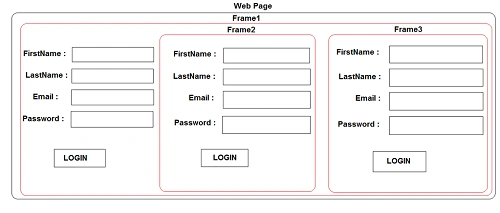
From the scenario given above, within an iframe1, we have two iframes i.e. iframe2 and iframe3 . In order to execute this scenario, first we will find the iframe1 with its control properties like Id="Frame1" or name="Frame1". Once the iframe1 is identified, we will switch into an iframe1 and we will automate the other controls available inside the iframe1 like
From the scenario given above, within an iframe1, we have two iframes i.e. iframe2 and iframe3 . In order to execute this scenario, first we will find the iframe1 with its control properties like Id="Frame1" or name="Frame1". Once the iframe1 is identified, we will switch into an iframe1 and we will automate the other controls available inside the iframe1 like
- For FirstName field of iframe1, we have control properties like id="Fname1" or name="Fname1".
- For LastName field of iframe1, we have control properties like id="Lname1" or name="Lname1".
- For Password field of iframe1, we have control properties like id="Password1" or name="Password1".
- For Email field of iframe1, we have control properties like id="Email1" or name="Email1".
- For Login button of iframe1, we have control properties like id="Login1" or name="Login1".
Once all the controls are identified and automated then we will identify the iframe 2 with its control properties like Id="Frame2" or name="Frame2".
After finding the iframe2 we will switch into the iframe2 and identify each and every control with their properties like.
After finding the iframe2 we will switch into the iframe2 and identify each and every control with their properties like.
- For FirstName field of iframe2, we have control properties like id="Fname2" or name="Fname2".
- For LastName field of iframe2, we have control properties like id="Lname2" or name="Lname2".
- For Password field of iframe2, we have control properties like id="Password2" or name="Password2".
- For Email field of iframe2, we have control properties like id="Email2" or name="Email2".
- For Login button of iframe2, we have control properties like id="Login2" or name="Login2".
Once all the controls are identified and automated within the iframe2, we will switch out of iframe2, then we will identify the iframe 3 with its control properties like Id="Frame3" or name="Frame3". Once iframe3 is identified then we will switch in to iframe3 by identifying its controls with their control properties like.
- For FirstName field of iframe3, we have control properties like id="Fname3" or name="Fname3"
- For LastName field of iframe3, we have control properties like id="Lname3" or name="Lname3"
- For Password field of iframe3, we have control properties like id="Password3" or name="Password3"
- For Email field of iframe3 we, have control properties like id="Email3" or name="Email3"
- For Login button of iframe3, we have control properties like id="Login3" or name="Login3".
Once all the controls of iframe3 are automated, we will switch out of iframe3 and then iframe1.
HTML from the diagram given above is given below.
HTML from the diagram given above is given below.
- <html>
- <head>
- <title>IFRAME EXAMPLE 3</title>
- </head>
- <body>
- <iframe src="D:/IFrameExamples/FirstFrame1.html" height="400" width="400" id="Frame1" name="Frame1" scrolling="no" frameborder="0" style=border:solid; color:red; ">
- <iframe>
- //From the above frame we used src of FirstName1.html , all the controls from FirstFrame1.html will be binding to iframe1.
- </body>
- </html>
FirstFrame1.html
- <html>
- <head>
- <title>FirstFrame1.html</title>
- </head>
- <body> FirstName :<input type="text" id="Fname1" Name="Fname1"><br><br> LastName :<input type="text" id="Lname1" Name="Lname1"><br><br> Email :<input type="text" id="Email1" Name="Email1"><br><br> Password :<input type="password" id="Password1" Name="Password1"><br><br> <input type="button" value="Login" id="Login1" name="Login1"> <iframe src="D:/IFrameExamples/SecondFrame2.html" height="80" id="Frame2" name="Frame2" width="80" scrolling="no" frameborder="0" style=border:solid; color:red; ">
- </iframe>
- //Here from the above frame we have used src of SecondFrame2.html , all the controls available in SecondFrame2.html will be binding to
- iframe2.
- <iframe src="D:/IFrameExamples/ThirdFrame3.html " height="80 " id="Frame3 " name="Frame3 " width="80 " scrolling="no " frameborder="0 " style=border:solid; color:red;"> </iframe> //Here from the above frame we have used src of ThirdFrame3.html , all the controls available in ThirdFrame3.html will be binding to iframe3. </body>
- </html>
SecondFrame2.html
- <html>
- <head>
- <title> SecondFrame2.html </title>
- </head>
- <body> FirstName :<input type="text" id="Fname2" Name="Fname2"><br><br> LastName :<input type="text" id="Lname2" Name="Lname2"><br><br> Email :<input type="text" id="Email2" Name="Email2"><br><br> Password :<input type="password" id="Password2" Name="Password2"><br><br> <input type="button" value="Login" id="Login2" name="Login2"> </body>
- </html>
ThirdFrame3.html
- <html>
- <head>
- <title> ThirdFrame3.html </title>
- </head>
- <body> FirstName :<input type="text" id="Fname3" Name="Fname3"><br><br> LastName :<input type="text" id="Lname3" Name="Lname3"><br><br> Email :<input type="text" id="Email3" Name="Email3"><br><br> Password :<input type="password" id="Password3" Name="Password3"><br><br> <input type="button" value="Login" id="Login3" name="Login3"> </body>
- </html>
The code for the execution of IFrame is given below, using Selenium Webdriver.
- Using System;
- Using Mbunit.Framework;
- Uing Microsoft.VisualStudio.TestTools.UnitTesting;
- Using System.Threading;
- Using OpenQA.Selenium;
- Using OpenQA.Selenium.Chrome;
- Namespace ThirdScenarioTesting {
- [TestClass]
- Public class ThirdScenarioTesting {
- [TestMethod]
- Public void ScenarioThirdTests() {
- Iwebdriver driver = new ChromeDriver("D:/ChromeDriver"); // here need to provide the chrome driver path.
- driver.Navigate().GoToUrl("D:/IframeExamples/IFrameExample3"); // we need to provide the Url of the application which we want to test.
- driver.Manage().Window.Maximize(); // This line of code is used for maximizing the browser.
- IwebElement FrameElement = driver.FindElement(By.Name("Frame1")); // For identifying the first frame we need to identify with id or name property.
- driver.SwitchTo().Frame(FrameElement); // Once frame is identified we can switch into frame1.
- IWebElement Fname = driver.FindElement(By.Id("Fname1")); // FirstName of iframe1 can be identified with either id or name property.
- Fname.SendKeys("Khaja");
- / Used to enter the given value to textbox field.
- Thread.Sleep(2000); // wait for specified time.
- IWebElement Lname = driver.FindElement(By.Id("Lname1")); // LastName of iframe1 can be identified with either id or name property.
- Lname.SendKeys("Moizuddin"); //Used to enter the given value to lastname textbox field.
- Thread.Sleep(2000);
- IWebElement Email = driver.FindElement(By.Id("Email1")); // email of iframe1 can be identified with either id or name property.
- Email.SendKeys("[email protected]"); //Used to enter the given value to email textbox field.
- Thread.Sleep(2000);
- IWebElement Password = driver.FindElement(By.Id("Password1")); // password of iframe1 can be identified with either id or name property.
- Password.SendKeys("Password12345"); //Used to enter the given value to password textbox field.
- Thread.Sleep(2000);
- IWebElement Loginclick = driver.FindElement(By.Id("Login1")); // login of iframe1 can be identified with either id or name property.
- Loginclick.Click(); // It is used for clicking the login button.
- Thread.Sleep(2000);
- IwebElement FrameElement2 = driver.FindElement(By.Name("Frame2")); // For identifying the second frame we need to identify with id or name property.
- driver.SwitchTo().Frame(FrameElement2); // Once frame is identified we can switch into frame2.
- IWebElement SFname = driver.FindElement(By.Id("Fname2")); // FirstName of iframe2 can be identified with either id or name property.
- SFname.SendKeys("Khaja");
- / Used to enter the given value to textbox field.
- Thread.Sleep(2000);
- IWebElement SLname = driver.FindElement(By.Id("Lname2")); // LastName of iframe2 can be identified with either id or name property.
- SLname.SendKeys("Moizuddin"); //Used to enter the given value to lastname textbox field.
- Thread.Sleep(2000);
- IWebElement SEmail = driver.FindElement(By.Id("Email2")); // email of iframe2 can be identified with either id or name property.
- SEmail.SendKeys("[email protected]"); //Used to enter the given value to email textbox field.
- Thread.Sleep(2000);
- IWebElement SPassword = driver.FindElement(By.Id("Password2")); // password of iframe2 can be identified with either id or name property.
- SPassword.SendKeys("Password12345"); //Used to enter the given value to password textbox field.
- Thread.Sleep(2000);
- IWebElement SLoginclick = driver.FindElement(By.Id("Login1")); // login of iframe2 can be identified with either id or name property.
- SLoginclick.Click(); // It is used for clicking the login button.
- Thread.Sleep(2000);
- driver.SwitchTo().DefaultContent(); // This code is used to come out of the present executing iframe2.
- IwebElement FrameElement3 = driver.FindElement(By.Name("Frame3")); // For identifying the third frame we need to identify with id or name property.
- driver.SwitchTo().Frame(FrameElement3); // Once frame is identified we can switch into frame3.
- IWebElement TFname = driver.FindElement(By.Id("Fname3")); // FirstName of iframe3 can be identified with either id or name property.
- TFname.SendKeys("Khaja"); //Used to enter the given value to textbox field.
- Thread.Sleep(2000);
- IWebElement TLname = driver.FindElement(By.Id("Lname3")); // LastName of iframe3 can be identified with either id or name property.
- TLname.SendKeys("Moizuddin"); //Used to enter the given value to lastname textbox field.
- Thread.Sleep(2000);
- IWebElement TEmail = driver.FindElement(By.Id("Email3")); // email of iframe3 can be identified with either id or name property.
- TEmail.SendKeys("[email protected]"); //Used to enter the given value to email textbox field.
- Thread.Sleep(2000);
- IWebElement TPassword = driver.FindElement(By.Id("Password3")); // password of iframe3 can be identified with either id or name property.
- TPassword.SendKeys("Password12345"); //Used to enter the given value to password textbox field.
- Thread.Sleep(2000);
- IWebElement TLoginclick = driver.FindElement(By.Id("Login3")); // login of iframe3 can be identified with either id or name property.
- TLoginclick.Click(); // It is used for clicking the login button.
- Thread.Sleep(2000);
- driver.SwitchTo().DefaultContent(); // This code is used to come out of the present executing frame3.
- driver.SwitchTo().DefaultContent(); // Now the focus is in IFrame 1 ,this code is used to come out of Frame1.
- driver.Quit(); // It is used to close the browser which is being automated / executed.
- }
- }
- }
Please provide me the feedback for my article. If I missed anything, please let me know in the comment given below.
I hope, it helps.
Join the conversation! Your thoughts help the community grow.