

Introduction
Computer Vision API is one of the most powerful image analysis APIs provided by Microsoft Azure, that contains a highly trained model to process an image and returns valuable information about that image.
This API can analyze an image by either uploading the image or from the image URL. The image can be processed and analyzed for several different aspects and we can choose visual features also that we are interested to analyze.
To start with Computer Vision API, we must have a valid subscription key. If we have Azure subscription, then we can log in and generate a subscription. We can also get the trial subscription key from here.
If we have Azure subscription and want to generate subscription key, first, we need to login into Azure Portal and create an Azure Resource for Computer Vision API.
Click on "Create a resource", then select "AI + Machine Learning", and select "Computer Vision".
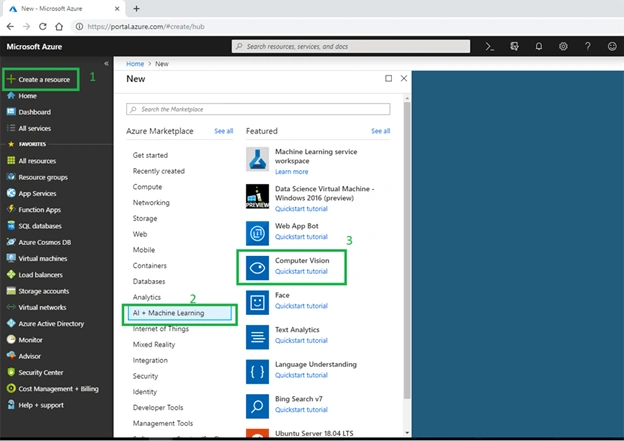
When we click on "Computer Vision", it will open the following screen. We need to fill up some basic information about New Computer Vision API.
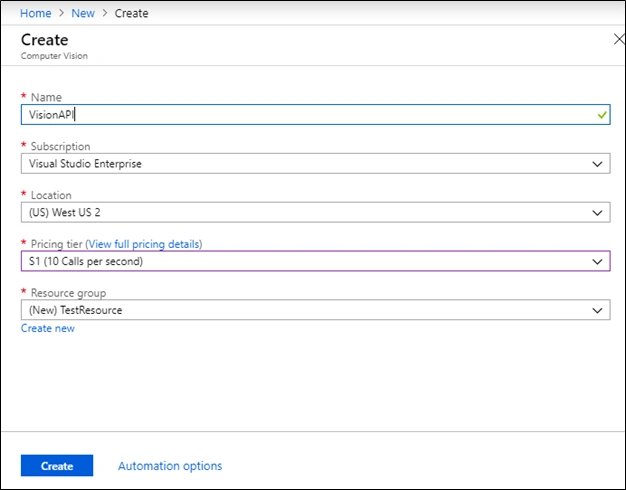
- Name: Name of the Vision API
- Subscription: Here, we need to select the Azure subscription that we are using for Computer Vision API.
- Location: This is the location of the resource group. Here, we need to select the nearest location of our customer to avoid latency in response.
- Pricing tier: We need to select a pricing tier based on our requirement.
- Resource Group: We can create a new resource group or select an existing one.
On click of "Create" button, our Vision API can be deployed on Azure portal and we can access this API from the dashboard.
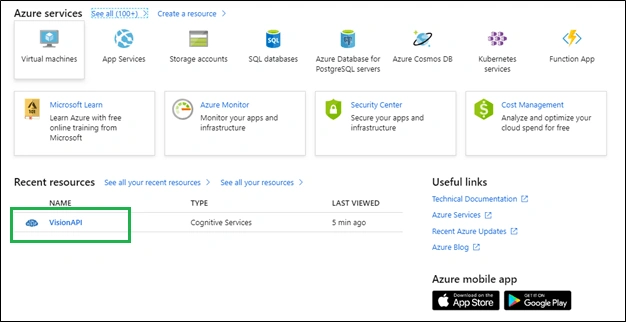
We can view subscription details and endpoint from "Overview" tab and we can view key details from the "Keys" tab. Here, we have an option to regenerate the keys.
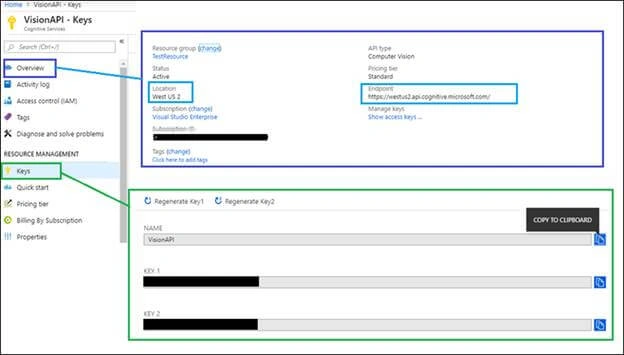
The endpoint is based on the location that we choose at the time of creating a resource. If we are using free trial subscription, the default endpoint is from West US. In endpoint, we need to define the version that we want to use.
This is all about the configuration of our Computer Vision API on Azure Portal. The next step is to consume the analysis service from our C# code and analyze the image.
I am using the following endpoint to demonstrate the example.
Request URL
- https://westus2.api.cognitive.microsoft.com/vision/v2.0/analyze?[visualFeatures][&details][&language]
There are some prerequisites for image.
- Image must be in the format: JPEG, PNG, GIF, BMP
- Image size must be less than 4MB
- Image dimensions should be at least 50x50
Request Parameter
This service accepts three optional parameters.
VisualFeatures
It is a string type parameter and indicates what visual features we are using. Based on the selected feature, this service will return the value. We can also pass multiple values to this parameter in a comma-separated manner.
Following are valid feature types -
- Adult: It is used to detect a pornographic image and detect sexually suggestive content.
- Brands: It is used to detect various brands within an image but it is only available in English.
- Categories: It categorizes the image content according to a taxonomy defined in the documentation.
- Color: It determines the color within the image.
- Description: It is used to describe the image in a complete sentence in supported languages.
- Faces: It is used to detect faces within an image. It also returns coordinates, gender, and age if faces are detected.
- ImageType: It is used to detect if an image is a clipart or line drawing.
- Objects: It is used to detect various objects within an image. The object names are available in English only.
- Tags: It returns the tags related to the uploaded image.
Details
It is a string type parameter and returns domain-specific details. We can also pass multiple values to this parameter and values should be comma-separated.
Following are valid feature types
- Celebrities: It is used to detect celebrities within the image.
- Landmarks: It is used to detect landmarks within the image.
Language
It is a string type parameter and indicates the language to return value. The default value of this parameter is "en". Following are supported languages
- en - English, Default
- es - Spanish
- ja - Japanese
- pt - Portuguese
- zh - Simplified Chinese
Request headers
We must set the following header while requesting the service.
- Content-Type
Media type of the body that sent to the API. There are three kinds of a content type that can be selected. If we are sending an image URL, the content type should be "application/json". If we are sending byte data of the image, the content type should be "application/octet-stream" or "multipart/form-data".
- Ocp-Apim-Subscription-Key
Subscription key that provides access to the Computer Vision API.
Request body
Request body is either raw image binary or image URL. Request must pass as POST method.
Response
The API returns status code 200, when request is successfully executed and API returns JSON that contains the information about the image. When the API returns status code 400, it means there is a problem with our request. The Possible errors are invalid image URL, invalid image format, image size is too large, not supported format, not supported language and bad argument.
When API returns status code 415, it indicates unsupported media type provided with the request. When API returns status code 500, it indicates there is internal server error and possible reasons are server fail to process, timeout and internal server error.
Example
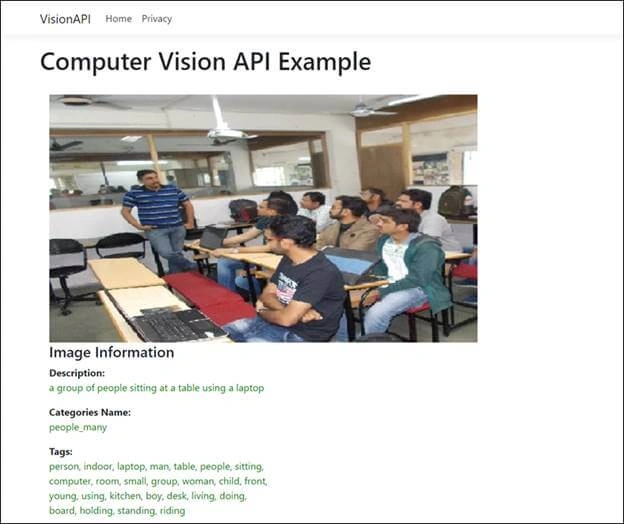
In the following example code, I have made a call to Computer Vision API using HttpClient and passed image bytes into the request body. If API returns a successful status code, then I will deserialize it into an appropriate model and return the request.
- public class AnalyzeImageService
- {
- public async Task<AnalyzeObjectModel> MakeRequest(string imageFilePath, string subscriptionKey, string endPoint)
- {
- AnalyzeObjectModel responeData = new AnalyzeObjectModel();
- try
- {
- HttpClient client = new HttpClient();
- // Request headers.
- client.DefaultRequestHeaders.Add(
- "Ocp-Apim-Subscription-Key", subscriptionKey);
- // Request parameters.
- string requestParameters = "visualFeatures=Categories,Description,Objects,Tags";
- // Assemble the URI for the REST API Call.
- string uri = endPoint + "analyze" + "?" + requestParameters;
- HttpResponseMessage response;
- // Request body. Posts a locally stored JPEG image.
- byte[] byteData = GetImageAsByteArray(imageFilePath);
- using (ByteArrayContent content = new ByteArrayContent(byteData))
- {
- // In this example, I have uses content type "application/octet-stream".
- // Alternatively, you can use are "application/json or multipart/form-data".
- content.Headers.ContentType =
- new MediaTypeHeaderValue("application/octet-stream");
- // Make the REST API call and wating for response.
- response = await client.PostAsync(uri, content);
- }
- // Get and read the JSON response.
- string result = await response.Content.ReadAsStringAsync();
- //Do further process if response successfully.
- if (response.IsSuccessStatusCode)
- {
- if (response.StatusCode == System.Net.HttpStatusCode.OK)
- {
- responeData = JsonConvert.DeserializeObject<AnalyzeObjectModel>(result);
- }
- }
- }
- catch (Exception e)
- {
- Console.WriteLine("\n" + e.Message);
- }
- return responeData;
- }
- internal static byte[] GetImageAsByteArray(string imageFilePath)
- {
- using (FileStream fileStream =
- new FileStream(imageFilePath, FileMode.Open, FileAccess.Read))
- {
- BinaryReader binaryReader = new BinaryReader(fileStream, System.Text.Encoding.UTF8);
- return binaryReader.ReadBytes((int)fileStream.Length);
- }
- }
- }
JSON
- {
- "categories": [
- {
- "name": "people_many",
- "score": 0.92578125
- }
- ],
- "tags": [
- {
- "name": "person",
- "confidence": 0.9990049004554749
- },
- {
- "name": "indoor",
- "confidence": 0.9931796789169312
- },
- {
- "name": "clothing",
- "confidence": 0.9565780162811279
- },
- {
- "name": "computer",
- "confidence": 0.9460503458976746
- },
- {
- "name": "floor",
- "confidence": 0.9100943207740784
- },
- {
- "name": "laptop",
- "confidence": 0.8889466524124146
- },
- {
- "name": "furniture",
- "confidence": 0.7828801870346069
- },
- {
- "name": "chair",
- "confidence": 0.7779731750488281
- },
- {
- "name": "table",
- "confidence": 0.7184659242630005
- },
- {
- "name": "working",
- "confidence": 0.7051602005958557
- },
- {
- "name": "man",
- "confidence": 0.6698439121246338
- },
- {
- "name": "people",
- "confidence": 0.6486355662345886
- },
- {
- "name": "desk",
- "confidence": 0.611915647983551
- },
- {
- "name": "office building",
- "confidence": 0.5795468688011169
- },
- {
- "name": "whiteboard",
- "confidence": 0.5002871155738831
- }
- ],
- "description": {
- "tags": [
- "person",
- "indoor",
- "laptop",
- "man",
- "table",
- "people",
- "sitting",
- "computer",
- "room",
- "small",
- "group",
- "woman",
- "child",
- "front",
- "young",
- "using",
- "kitchen",
- "boy",
- "desk",
- "living",
- "doing",
- "board",
- "holding",
- "standing",
- "riding"
- ],
- "captions": [
- {
- "text": "a group of people sitting at a table using a laptop",
- "confidence": 0.8144636347294436
- }
- ]
- },
- "objects": [
- {
- "rectangle": {
- "x": 1120,
- "y": 453,
- "w": 154,
- "h": 186
- },
- "object": "person",
- "confidence": 0.54
- },
- {
- "rectangle": {
- "x": 1386,
- "y": 439,
- "w": 155,
- "h": 173
- },
- "object": "person",
- "confidence": 0.524
- },
- {
- "rectangle": {
- "x": 365,
- "y": 349,
- "w": 347,
- "h": 514
- },
- "object": "person",
- "confidence": 0.713
- },
- {
- "rectangle": {
- "x": 1198,
- "y": 485,
- "w": 297,
- "h": 279
- },
- "object": "person",
- "confidence": 0.609
- },
- {
- "rectangle": {
- "x": 1807,
- "y": 439,
- "w": 376,
- "h": 378
- },
- "object": "person",
- "confidence": 0.546
- },
- {
- "rectangle": {
- "x": 1381,
- "y": 512,
- "w": 390,
- "h": 602
- },
- "object": "person",
- "confidence": 0.638
- },
- {
- "rectangle": {
- "x": 1873,
- "y": 435,
- "w": 561,
- "h": 672
- },
- "object": "person",
- "confidence": 0.801
- },
- {
- "rectangle": {
- "x": 816,
- "y": 574,
- "w": 532,
- "h": 590
- },
- "object": "person",
- "confidence": 0.525
- }
- ],
- "requestId": "e1963238-cb4e-4ab1-924a-84b4545f9101",
- "metadata": {
- "width": 2442,
- "height": 1166,
- "format": "Jpeg"
- }
- }
Summary
A Computer Vision API analyzes the image and returns information about that image. It also provides features like categorizing the content of image, accent color, faces within image, objects and tags detection, etc. This article is very useful for beginners to Azure Cognitive Services API. Azure provides this kinds of service at a very cheap rate. You can check the pricing here.
You can view and download source code from GitHub.
Romilton FernandoPosted Jul 23, 2022, 3:26 AM
Thanks. Can we have read the pdf file using azure. Can you share the sample?
Laxmidhar SahooPosted May 8, 2019, 12:22 AM
Sir Thanks for good article