

Image Copy and paste is the classic way to exchange copied images between apps, or within an app, and almost all the apps can support clipboard operations to some degree.
Reading this article, you can learn how to perform Copy and paste Images using clipboard in Universal Windows Apps development with XAML and Visual C#.
The following important tools are required for developing UWP,
- Windows 10 (Recommended)
- Microsoft Visual Studio 2017
Step 1
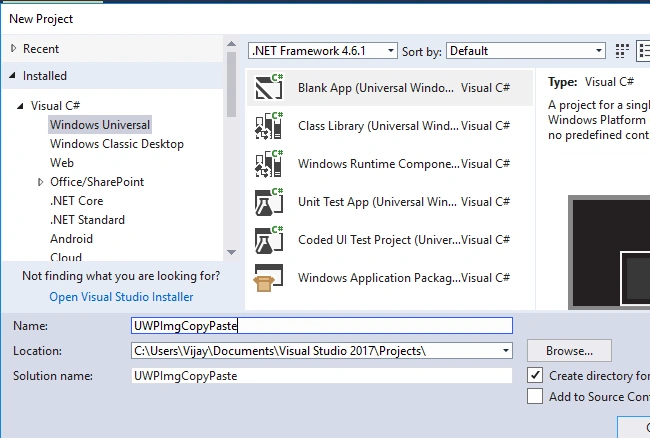
Open Visual studio 2017 -> Start -> New Project-> Select Windows Universal (under Visual C#)-> Blank App(Universal Windows) -> Give the Suitable Name for your App (UWPImgCopyPaste)->OK.
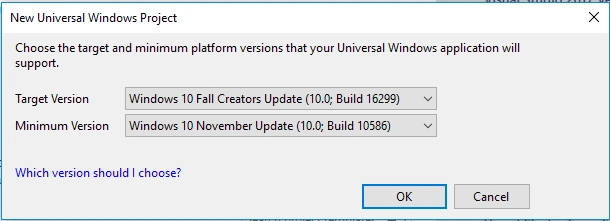
After Choosing the Target and minimum platform version for your Windows Universal Application will support and the Project creates App.xaml and MainPage.xaml.
Step 2
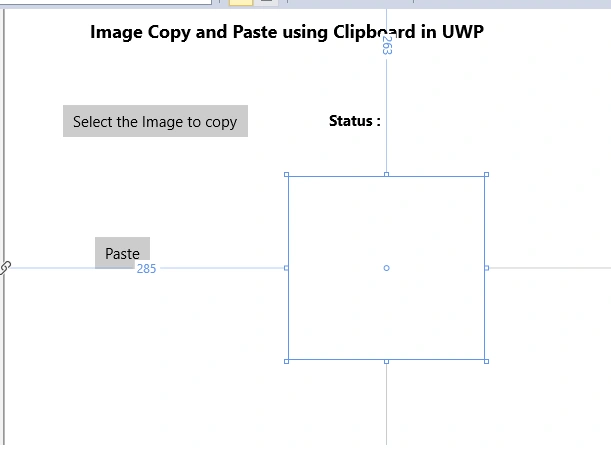
Add the following controls in design window for performing Image copy and paste activity,
Add the TextBox, TextBlock, Image and Button Controls and change the Name and Text Property
Step 3
Now add the following namespaces and code in the Mainpage.xaml.cs
- using Windows.ApplicationModel.DataTransfer;
- using Windows.Storage.Pickers;
- using Windows.Storage.Streams;
- using Windows.UI.Xaml.Media.Imaging;
- private async void BtnSelect_Click(object sender, RoutedEventArgs e) {
- var imagePicker = new FileOpenPicker {
- ViewMode = PickerViewMode.Thumbnail,
- SuggestedStartLocation = PickerLocationId.PicturesLibrary,
- FileTypeFilter = {
- ".jpg",
- ".png",
- ".bmp",
- ".gif",
- ".tif"
- }
- };
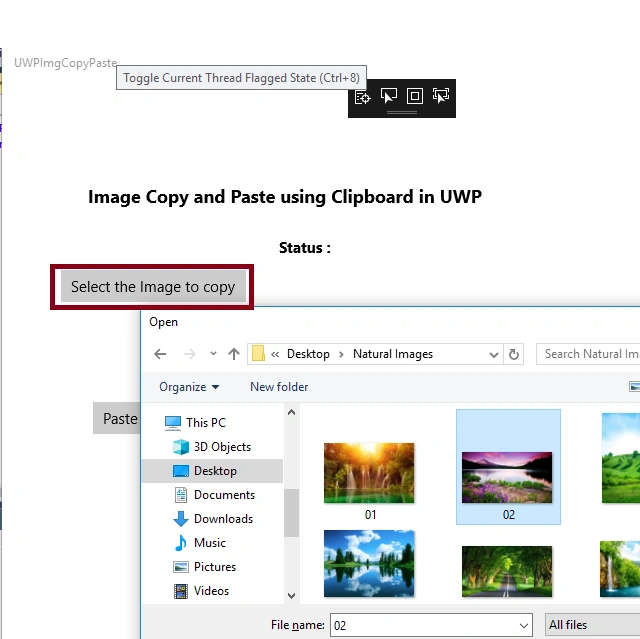
- var imageFile = await imagePicker.PickSingleFileAsync();
- if (imageFile != null) {
- var dataPackage = new DataPackage();
- dataPackage.SetBitmap(RandomAccessStreamReference.CreateFromFile(imageFile));
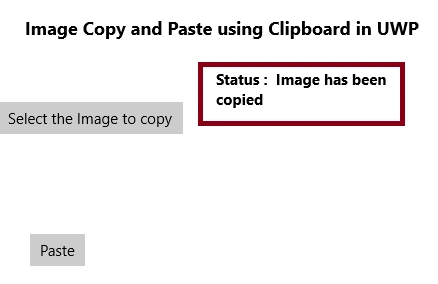
- tblStatus.Text = "Status : Image has been copied";
- Windows.ApplicationModel.DataTransfer.Clipboard.SetContent(dataPackage);
- } else {
- tblStatus.Text = "No image was selected.";
- }
- }
- private async void BtnPaste_Click(object sender, RoutedEventArgs e) {
- var dataPackageView = Windows.ApplicationModel.DataTransfer.Clipboard.GetContent();
- if (dataPackageView.Contains(StandardDataFormats.Bitmap)) {
- IRandomAccessStreamReference imageReceived = null;
- imageReceived = await dataPackageView.GetBitmapAsync();
- if (imageReceived != null) {
- using(var imageStream = await imageReceived.OpenReadAsync()) {
- var bitmapImage = new BitmapImage();
- bitmapImage.SetSource(imageStream);
- ImgPaste.Source = bitmapImage;
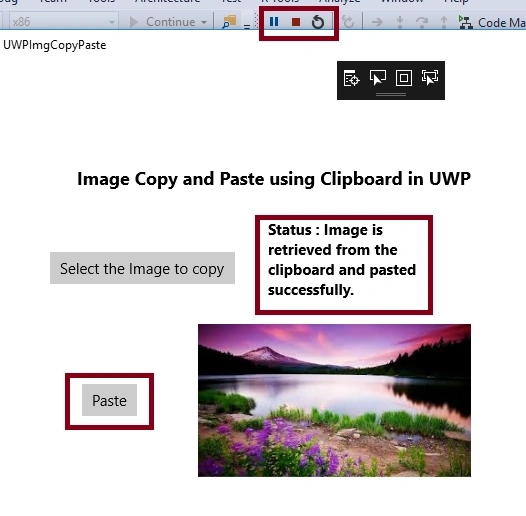
- tblStatus.Text = "Status : Image is retrieved from the clipboard and pasted successfully.";
- }
- }
- } else {
- tblStatus.Text = "Status : Bitmap format is not available in clipboard";
- }
- }
Dmitry MironovPosted Jan 9, 2021, 10:07 AM
Thank you! finally, I found a solution!!!
Nilesh PatilPosted Oct 30, 2017, 8:52 AM
Nice article sir.........