

Introduction
In this article I will explain how to use an image within text using Photoshop.
Step 1
Open Adobe Photoshop CS5.1.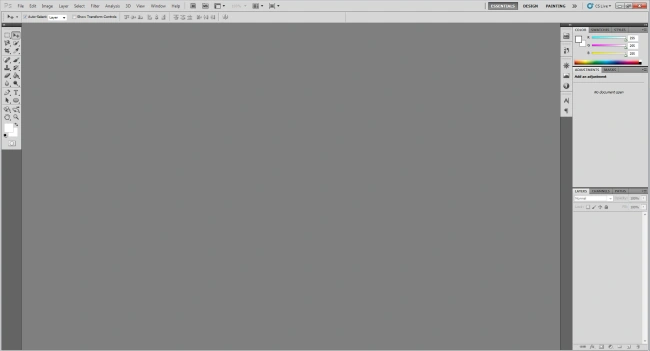
Step 2
Use "Ctrl+o" to open an imageto be placed inside text.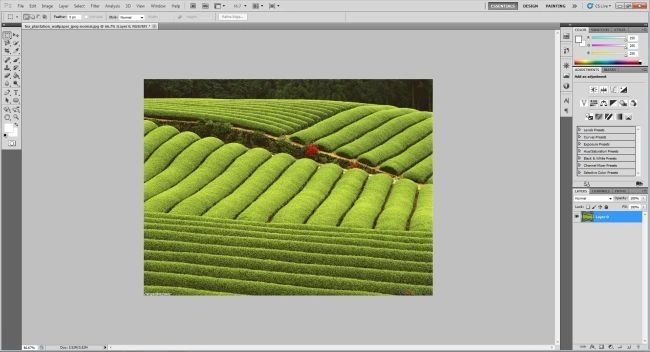
Step 3
Select this image layer in the layer palette. Do that by right-clicking on it and selecting "Duplicate Layer..." from the pop-up window.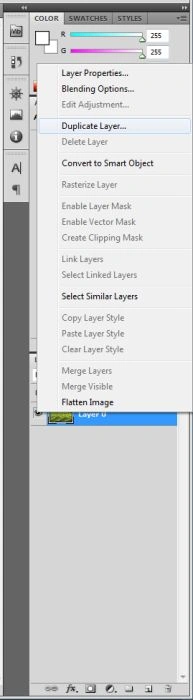
Duplicate layer in the layer palette: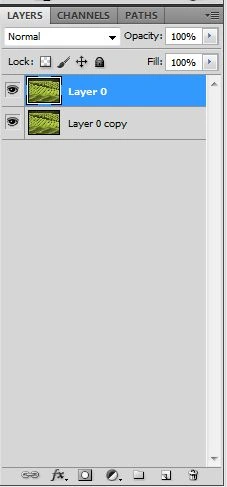
Step 4
Now take a new blank layer between those image layers and fill it with the color white: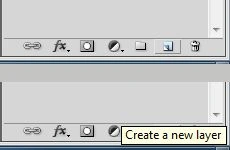
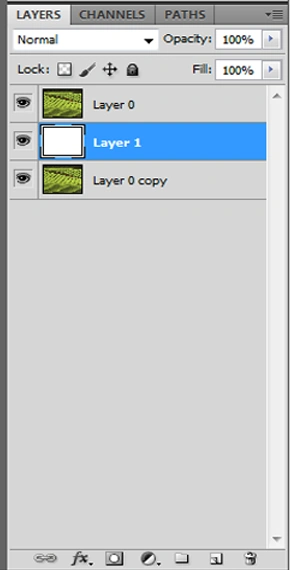
Step 5
Select the first layer in the layer palette: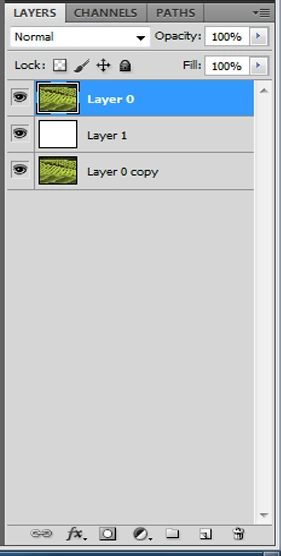
Step 6
Select white as your for ground color and select type tool 
Step 7
Select your font size and style:
Step 8
Type your text: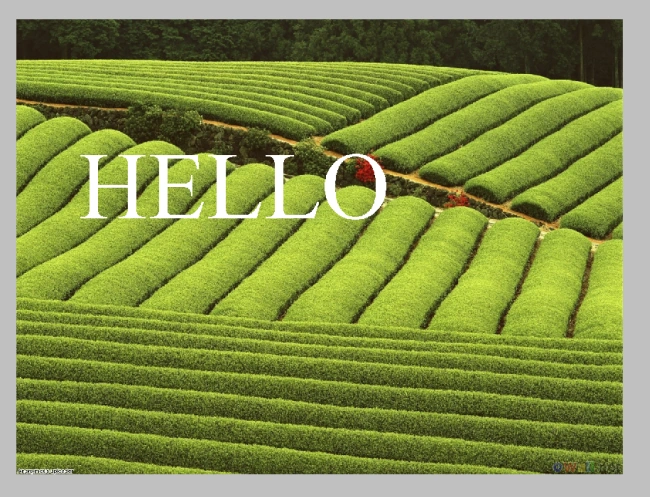
Step 9
Resize and reposition your text using the Free Transform command ("Ctrl+t"):
Step 10
Drag the text layer to below the first image layer (Layer 0) in the layer palette: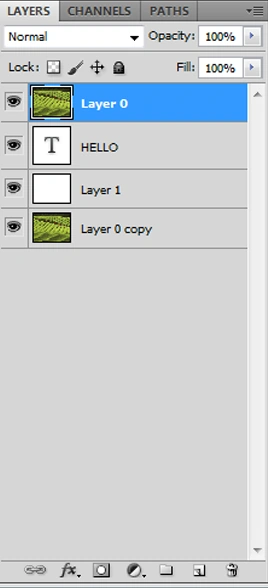
Step 11
Right-click on the first image layer and select "Create Clipping Mask" from the pop-up window: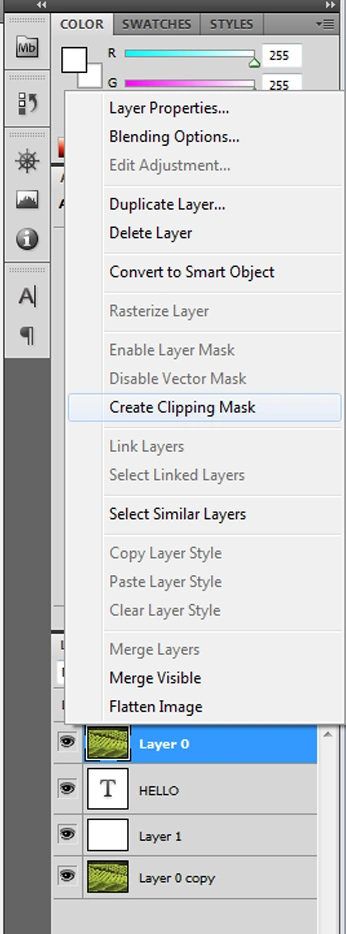
Finale Output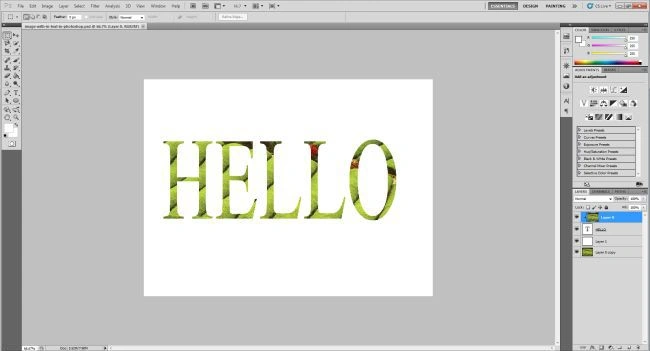
Vithal WadjePosted Sep 27, 2014, 11:50 AM
super