

Introduction
In this article, we are going to describe how to upload your image into a frame, and image selection with the help of a FileDailog. File choosers provide a GUI for navigating the file system and then either choose a file or directory from a list or enter the name of a file or directory. To display a file chooser, you usually use the JFileDailog API to show a modal dialog containing the file chooser. Another way to present a file chooser is to add an instance of JFileDailog to a container.
Note
If you want to start an unsigned Java™ Web application as a distributed form then you should use the services of JNLP instead of jFileChooser. The services FileOpenService and FileSaveService not only provide support for choosing files in a restricted environment but also take care of actually opening and saving them. An example of using these services is in JWSFileChooserDemo. Documentation for using the JNLP API can be found in the Java Web Start lesson.
FileDailog Class API Description
Constructor Details
- FileDialog(Dialog parent)
This constructor is used to create a file dialog for loading a file. Here parent is the owner of the dialog - FileDialog(Dialog parent, String title)
This constructor is used to create a file dialog window with the specified title for loading a file. Here parent is the owner of the dialog and the second argument title is the title of the dialog; a null value will be accepted without causing a NullPointerException to be thrown. - FileDialog(Dialog parent, String title, int m)
This constructor is used to create a file dialog window with the specified title for loading or saving a file. Here the parent is the owner of the dialog and the second argument title is the title of the dialog. And the third is the mode of the dialog; either FileDialog.LOAD or FileDialog.SAVE.
Some Useful Methods
- void addNotify()
Creates the file dialog's peer. - String getDirectory()
Gets the directory of this file dialog. - String getFile()
Gets the selected file of this file dialog. - FilenameFilter getFilenameFilter()
Determines this file dialog's filename filter. - File[] getFiles()
Returns files that the user selects. - int getMode()
Indicates whether this file dialog box is for loading from a file or for saving to a file. - boolean isMultipleMode()
Returns whether the file dialog allows the multiple file selection. - protected String paramString()
Returns a string representing the state of this FileDialog window. - void setDirectory(String dir)
Sets the directory of this file dialog window to be the specified directory. - void setFile(String file)
Sets the selected file for this file dialog window to be the specified file. - void setFilenameFilter(FilenameFilter filter)
Sets the filename filter for this file dialog window to the specified filter. - void setMode(int mode)
Sets the mode of the file dialog. - void setMultipleMode(boolean enable)
Enables or disables multiple file selection for the file dialog.
Example
- import java.awt.*;
- import java.awt.event.*;
- import java.awt.image.*;
- import javax.swing.*;
- import java.awt.Frame;
- import java.awt.event.WindowAdapter;
- import java.awt.event.WindowEvent;
- class imageLoad extends Canvas
- {
- Image img;
- public imageLoad(Image img)
- {
- this.img = img;
- }
- public void paint(Graphics g)
- {
- if (img != null)
- {
- g.drawImage(img, 100, 400, 400, this);
- }
- }
- public void setImage(Image img)
- {
- this.img = img;
- }
- }
- public class ImagesLoading implements ActionListener
- {
- JFrame fr = new JFrame("Image loading program Using awt");
- Label Label1 = new Label("Choose your image");
- Button Button1 = new Button("select");
- Image Image1;
- imageLoad Canvas1;
- FileDialog fd = new FileDialog(fr, "Open", FileDialog.LOAD);
- void initialize()
- {
- fr.setSize(500, 500);
- fr.setLocation(200, 200);
- fr.setBackground(Color.lightGray);
- fr.setLayout(new FlowLayout());
- fr.add(Label1);
- fr.add(Button1);
- fr.setDefaultCloseOperation(JFrame.EXIT_ON_CLOSE);
- Button1.addActionListener(this);
- Canvas1 = new imageLoad(null);
- Canvas1.setSize(1000, 1000);
- fr.add(Canvas1);
- fr.show();
- }
- void imageload()
- {
- fd.show();
- if (fd.getFile() == null)
- {
- Label1.setText("You have not select");
- } else
- {
- String d = (fd.getDirectory() + fd.getFile());
- Toolkit toolkit = Toolkit.getDefaultToolkit();
- Image1 = toolkit.getImage(d);
- Canvas1.setImage(Image1);
- Canvas1.repaint();
- }
- }
- public void windowClosing(WindowEvent e)
- {
- System.exit(0);
- }
- public void windowActivated(WindowEvent e)
- {
- }
- public void windowClosed(WindowEvent e)
- {
- }
- public void windowDeactivated(WindowEvent e)
- {
- }
- public void windowDeiconified(WindowEvent e)
- {
- }
- public void windowIconified(WindowEvent e)
- {
- }
- public void windowOpened(WindowEvent e)
- {
- }
- public void actionPerformed(ActionEvent event)
- {
- Button b = (Button) event.getSource();
- if (b == Button1)
- {
- imageload();
- }
- }
- public static void main(String args[])
- {
- ImagesLoading a = new ImagesLoading();
- a.initialize();
- }
- }
cmd output
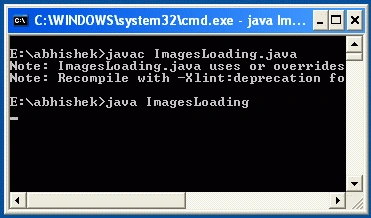
Initial Output
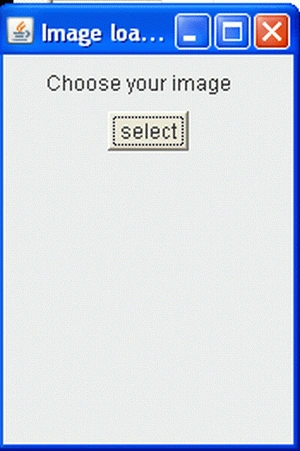
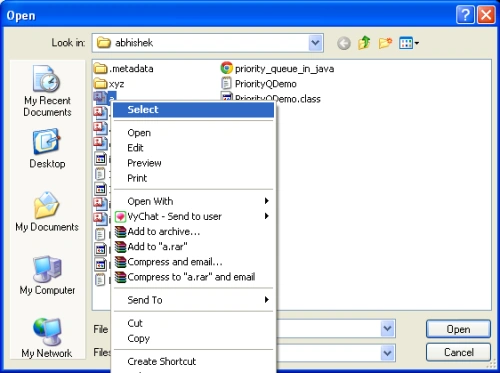
When you click on the select button the following window will appear.
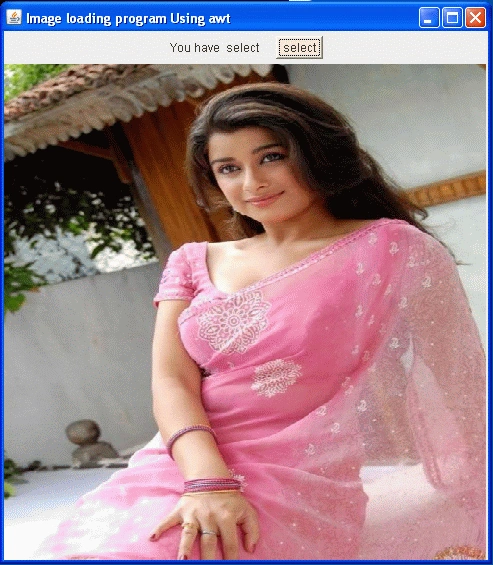
After browsing a selected image the following will be shown:
Resources
Comments
Join the conversation! Your thoughts help the community grow.