

Introduction:
This article discusses the construction of an image viewer user control that may
be used to display images from a directory containing a collection of image
files. The control displays the previous and next images in the file along with
the current image. The current image may be opened from the user control into
the default image application on the user's machine based upon that machine's
file associations. Image thumbnails are used to supply the previous, current,
and next images from the directory. As shown in the demonstration, the user
control could be added to an application where you might need to allow users to
preview or visually scan images prior to opening them up for viewing or edit.
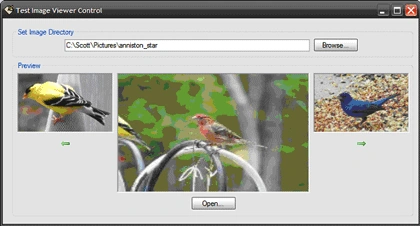
Figure 1: Image Viewer User Control Loaded
into a Test Application
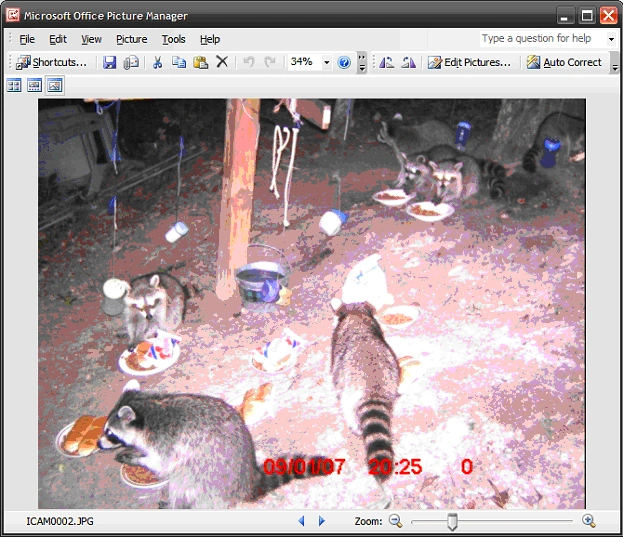
Figure 2: Opening an Image into the Default Image Application (Microsoft Office
Picture Manager shown)
Getting Started:
In order to get started, unzip the included project and open the solution in the
Visual Studio 2008 environment. There are two project contained in the solution.
ImageViewerVB is the first project and it is control library project containing
a single user control. The second project (TestImageViewerVB) is a test
application which displays a single form used to contain the user control.
In the solution explorer, you should note these files:
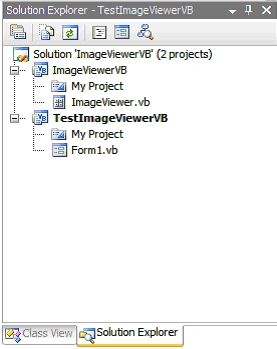
Figure 3: Solution Explorer
The Image Viewer User Control (ImageViewerVB.vb).
The Image Viewer user control contains everything necessary to browse to the
image folder and to view the current, next, and previous images. The control
itself contains a text box and browse button used to open a folder browser
dialog box; when the user navigates to the desired folder and selects it, the
path the folder will be shown in the textbox control and the browse button click
event handler will trigger the collection of all of the image files contained in
the selected folder and will start up the display of the images. The control
contains three picture boxes used to display the previous, current, and next
images. The previous and next images are accompanied by two buttons used to move
backwards and forwards through the image collection. The paths to each of the
image files are contained in an array list and an integer value with class scope
is used to maintain the current position within that array list.
If you'd care to open the code view up in the IDE you will see that the code
file begins with the following using statements; most included are per the
default configuration but System.IO was added to support the directory
operations used within the
code:
Imports
System.IO
Imports
System.Collections
Following the imports, the class is defined
and a constructor added as are a collection of local member variables used to
maintain the folder path, the image file paths (in an array list), the image
list position, and the images themselves (previous, current, and next). I'm not
doing anything in the constructor here but you want to; for example, you might
want to point the folder browser dialog to a default folder location.
Public Class ImageViewer
' private member variables
Private mFolder As String
Private mImageList As ArrayList
Private mImagePosition As Integer
Private mPreviousImage As Image
Private mCurrentImage As Image
Private mNextImage As
Image
''' <summary>
''' Default Constructor
''' </summary>
''' <remarks></remarks>
Public Sub New()
' This call is required by the Windows Form Designer.
InitializeComponent()
' Add any initialization after the InitializeComponent() call.
End Sub
Next up is the user control's load
event handler; this demonstration does not do anything in the load event but you
may wish to use this handler to do something here.
''' <summary>
''' Default load event handler
''' </summary>
''' <param name="sender"></param>
''' <param name="e"></param>
''' <remarks></remarks>
Private Sub ImageViewer_Load(ByVal sender As System.Object, ByVal e As
System.EventArgs) Handles MyBase.Load
' do nothing
End Sub
The next section of the code is the
browse button click event handler. In this section of the code, the handler
opens the folder browser dialog box which the user may then use to set the path
to the image folder. Once the folder has been set, the handler loops through
that folder and locates all bitmap, jpeg, and gif files; the file paths any
image files found are added to an array list (bitmaps, gifs, and jpegs). Once
the array list is populated with the files paths, the click event handler wraps
up but setting the list index position to zero and then it calls the SetImages
method which sets up the current, previous, and next images into the appropriate
picture box. The code is annotated and should be easy enough to follow:
''' <summary>
''' Open the folder browse dialog and load
''' the initial images
''' </summary>
''' <remarks></remarks>
Private Sub btnBrowse_Click(ByVal sender As System.Object, ByVal e As System.EventArgs) Handles btnBrowse.Click
' Label the folder browser dialog
Me.folderBrowserDialog1.Description = "Select the image directory."
' disable create folder feature of folder browser
Me.folderBrowserDialog1.ShowNewFolderButton = False
' display the folder browser
Dim result As DialogResult = folderBrowserDialog1.ShowDialog()
If result = DialogResult.OK Then
' on okay, set the image folder to the
' folder browser's selected path
mFolder = folderBrowserDialog1.SelectedPath
If (Not String.IsNullOrEmpty(mFolder)) Then
txtImageDirectory.Text = mFolder
Else
' exit if the user cancels
Return
End If
' initialize the image arraylist
mImageList = New ArrayList()
' loop through the image directory
' and find all of the image files
' add the found files to the image
' list - add other image types if
' necessary
Dim Dir As New DirectoryInfo(mFolder)
Dim f As FileInfo
For Each f In Dir.GetFiles("*.*")
Select Case (f.Extension.ToUpper())
Case ".JPG"
mImageList.Add(f.FullName)
Case ".BMP"
mImageList.Add(f.FullName)
Case ".GIF"
mImageList.Add(f.FullName)
Case Else
' skip file
End Select
Next
' set the starting position to 0
' and call the set images method
' to load the pictures
mImagePosition = 0
SetImages()
End If
End Sub
The next bit of code is the SetImages function; this function is used to set the
images for each of the picture boxes (previous, current, and next image). This
code creates thumbnails the images stored as file paths in the images array list
and then sets the picture boxes to display the thumbnails rather than the full
images. The code is written to respond differently when hitting the limits of
the array list used to store the file paths to the actual images; at the limits,
the previous or next images will be blanked.
Further, the code clears out the images once they picture boxes are set, and
garbage collection is called to clean it up each time the function is called. I
found that, without garbage collection, the control would through an out of
memory exception when scanning through large numbers of images in one setting.
Again, this code is annotated and should be easy enough to follow:
''' <summary>
''' This function is used to set the previous,
''' current, and next images into the
''' correct picture boxes
''' </summary>
''' <remarks></remarks>
Private Sub SetImages()
' clear any existing images
' memory will be an issue if
' cycling through a large
' number of images
mPreviousImage = Nothing
mNextImage = Nothing
mCurrentImage = Nothing
' set the previous image
Join the conversation! Your thoughts help the community grow.