

Introduction
Android is one of the most popular operating systems for mobile. Google maps are used to find out the shortest path between the source and destination. I will show you how to implement google maps in your android application using android studio. Android is the kernel-based operating system. It allows the user to modify the GUI components and source code.
Requirements
- Android studio
- Little bit XML and JAVA Knowledge.
- Android emulator (or) android mobile
- Stable internet connection
- Download link (android studio)
Steps should be followed
Carefully follow my steps to implement google maps in your android application using android studio.
Step 1
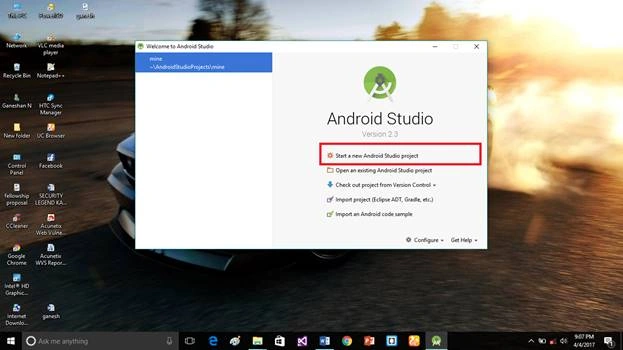
Open the android studio to start the new project.
 Step 2
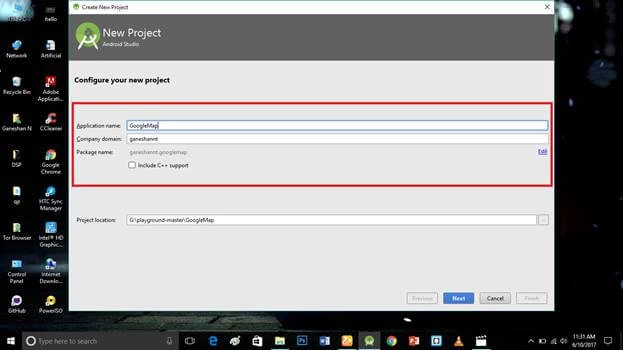
Put the application name and company domain. If u wish to use c++ for coding the project, mark the Include c++ support then click next.
 Step 3
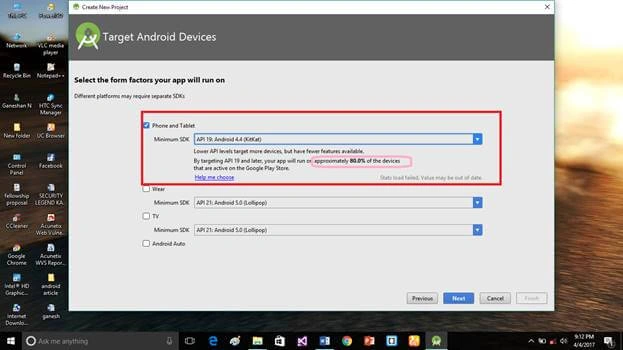
Select the android minimum SDK. After you chose the minimum SDK it will show the approximate percentage of people who use that sdk then click next.
 Step 4
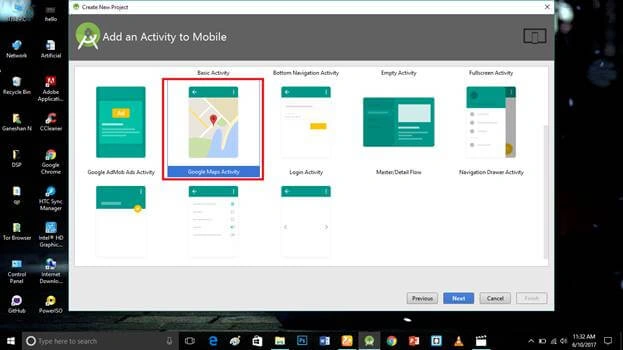
Choose the basic activity then click next.
 Step 5
Put the activity name and layout name. Android studio basically takes the java class name as what you provide for the activity name and click finish.
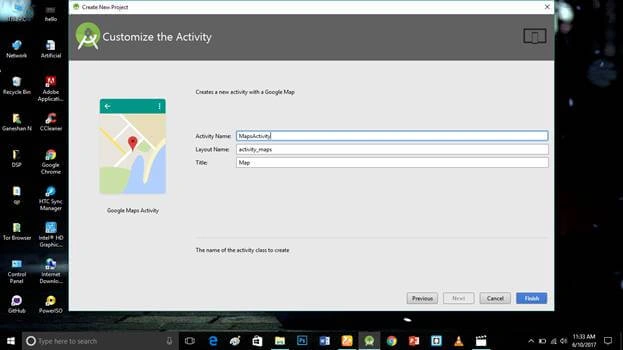 Step 6
Go to the google developer console and sign in through your Gmail id. Create a new project and put your app name as the project name.
Link: https://console.developers.google.com
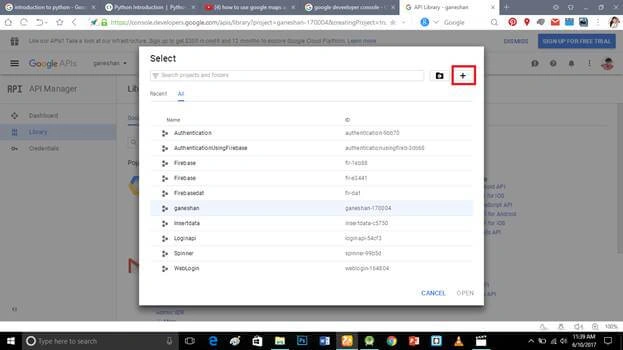 Step 7
The notification bar indicates the project creation and click the project.
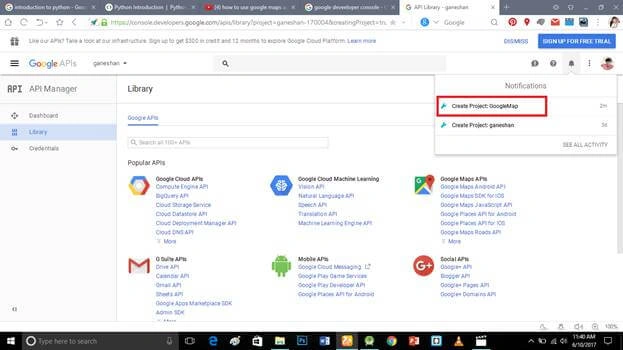 Step 8
Click the API manager part and go to credentials.
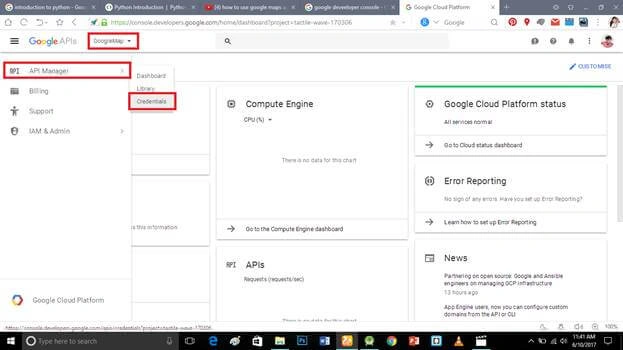 Step 9
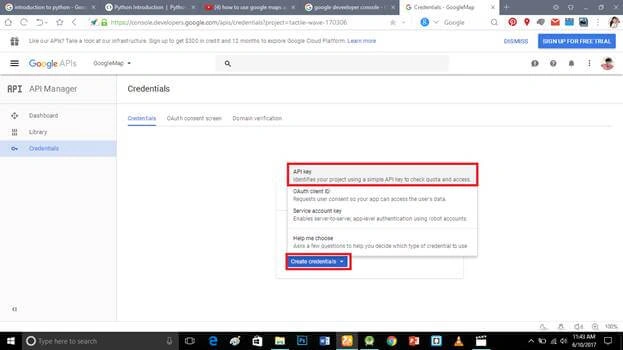
Create credentials and click the API key option.
 Step 10
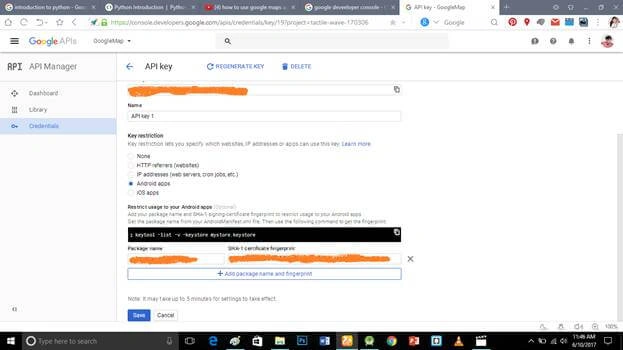
API key generated after restricting the API key for your app through the app package name and SHA-1 value. Put your app package name and SHA-1 value and click save.
 Step 11
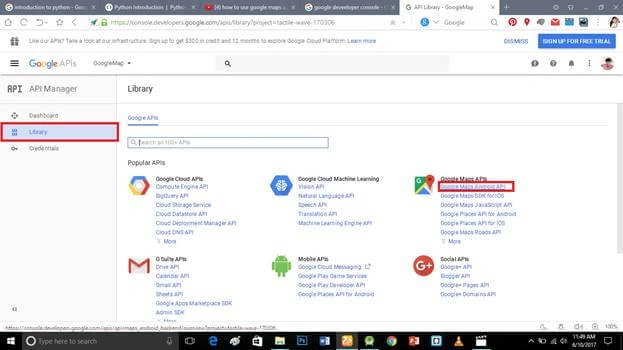
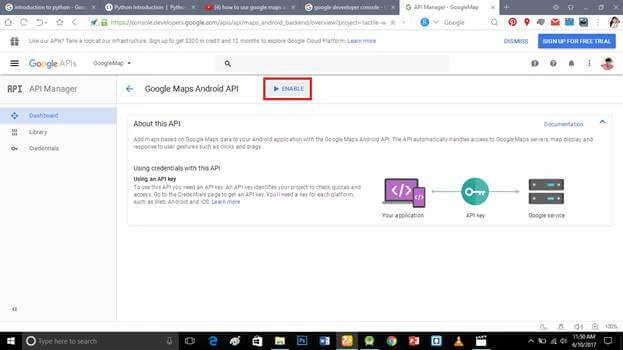
Enable the google map android API and click enable option.
 Step 12
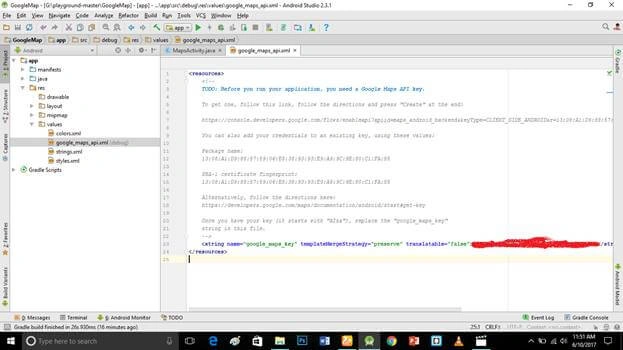
Paste your API key into the google_map_api.xml file.
 Step 13
AndroidManifest.xml was automatically updated after you pasted your API key.
 Step 14
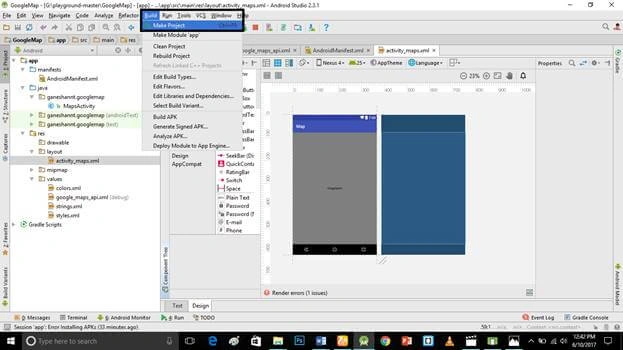
Click the make project option and run it.
 Deliverables
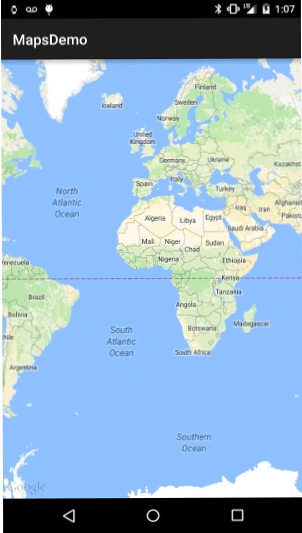
Here google maps in your android application are successfully created and executed.
Don’t forget to like and follow me. If you have any doubts just comment below.
Join the conversation! Your thoughts help the community grow.