A tile begins as a default tile, which is defined in your application manifest file for a primary tile, and you can send programmatically to display notifications on your tile. A local notification means that the notification is sent from the app’s code, rather than being pushed or pulled from a web server.
Let’s see the steps to send local primary tile notification in Windows 10 universal app using adaptive tile templates.
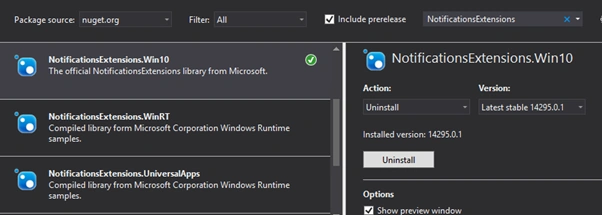
Firstly, we need to install NotificationsExtensions.Win10 NuGet package like the following screen. It will generate tile payloads via objects instead of creating raw XML.
Then add the following namespace to access the notification classes.
- using Windows.UI.Notifications;
- using NotificationsExtensions.Tiles;
Next create three string for tile from, subject and body.
- string from = "Suresh";
- string subject = "Tile Notification";
- string body = "Tile notification sample for windows 10";
Next Create notification content. In windows 10 we can create custom visual layout for tile notification. Write the following code to create the content for tile notification.
Here I create one method to create the content.
- public void createContent()
- {
- TileContent conetn = new TileContent()
- {
- Visual = new TileVisual()
- {
- TileSmall = new TileBinding()
- {
- Content = new TileBindingContentAdaptive()
- {
- Children ={
- new TileText()
- {
- Text = from,
- Style=TileTextStyle.CaptionSubtle
- },
- new TileText()
- {
- Text = subject,
- Style = TileTextStyle.Subtitle
- },
- new TileText()
- {
- Text = body,
- Style = TileTextStyle.Body
- }
- }
- }
- },
- TileMedium = new TileBinding()
- {
- Content = new TileBindingContentAdaptive()
- {
- Children ={
- new TileText()
- {
- Text = from
- },
- new TileText()
- {
- Text = subject,
- Style = TileTextStyle.CaptionSubtle
- },
- new TileText()
- {
- Text = body,
- Style = TileTextStyle.CaptionSubtle
- }
- }
- }
- },
-
- TileWide = new TileBinding()
- {
- Content = new TileBindingContentAdaptive()
- {
- Children =
- {
- new TileText()
- {
- Text = from,
- Style = TileTextStyle.Subtitle
- },
- new TileText()
- {
- Text = subject,
- Style = TileTextStyle.CaptionSubtle
- },
- new TileText()
- {
- Text = body,
- Style = TileTextStyle.CaptionSubtle
- }
- }
- }
- }
- }
- };
-
- var notification = new TileNotification(conetn.GetXml());
- TileUpdateManager.CreateTileUpdaterForApplication().Update(notification);
- }
We need to define the small large and medium size tile notification, you can set your font style also. Once you created your notification content you need to create the tile notification using TileNotification method by passing the notification content.
Finally you need to send the notification by using TileUpdateManager.
Optional features - Set an expiration time for tile notification
- Clear tile notifications
Set an expiration time for tile notification
By default local tile notifications do not expire for that we can set time to remove the notification by using the following code.
- notification.ExpirationTime = DateTimeOffset.UtcNow.AddMinutes(5);
When the user interacts with the application we need to clear all the notifications from the tile; for that write the following code.
- TileUpdateManager.CreateTileUpdaterForApplication().Clear();

Now run the app and check the output like the following image.
Read more articles on Windows 10:


Saf SiedPosted Jun 15, 2020, 3:40 PM
In Visual Studio, where in a UWP project are you adding your code?
Delpin Susai RajPosted Aug 28, 2016, 6:23 AM
Nice
Liêm NguyễnPosted May 28, 2016, 11:41 PM
Thank you so much!
Amit DavePosted May 3, 2016, 10:35 AM
Keep up the Good work!
Sonu ChaudharyPosted May 2, 2016, 6:05 AM
Thanks for sharing
NitinPosted May 1, 2016, 1:46 PM
Good one
Kuppurasu NagarajPosted Apr 30, 2016, 2:20 PM
Nice Sharing..
Rahul Kumar SaxenaPosted Apr 30, 2016, 1:40 AM
Good Work
Thiruppathi RPosted Apr 29, 2016, 10:06 PM
Super...