

Introduction
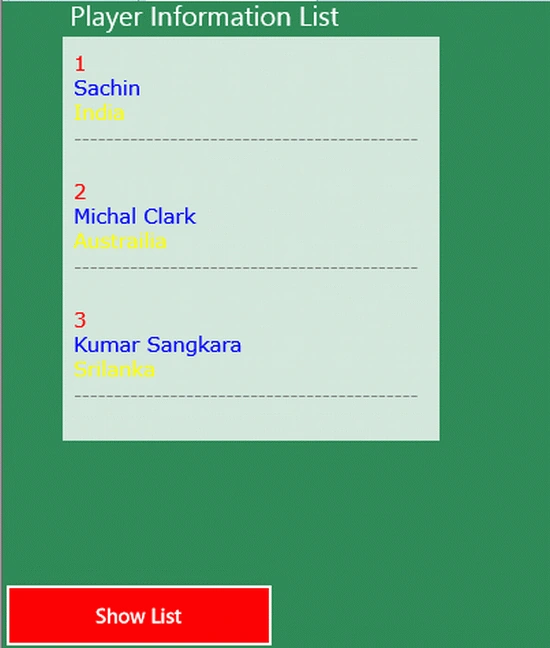
In this article we will use a List Box, one of the controls in XAML pages. With the help of this control we will implement a list of player information. This list contain multiple player information like Player Name, and their country.
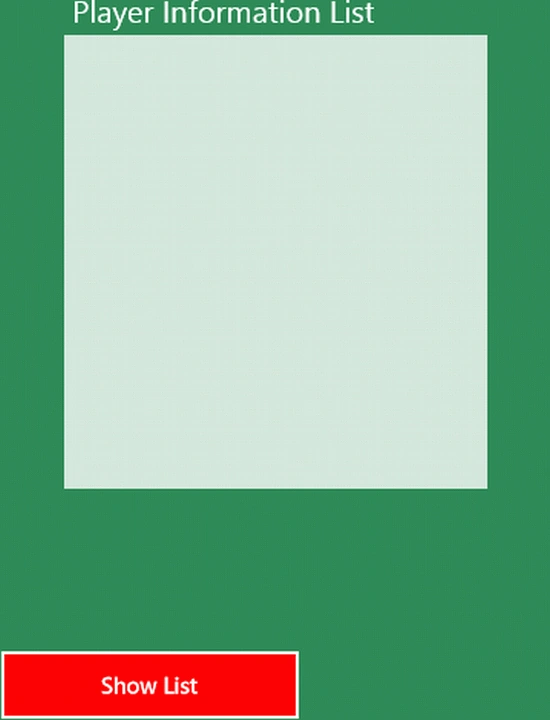
To implement it we will use a List Box to show the information and bind the data on it from the code behind file on a button click. The data will be stored on a List object which contains a class of one type of object and this object has the three fields player name, player number, and team name.
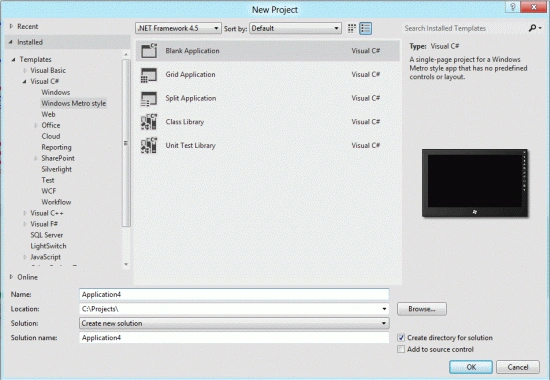
Step 1 : First of all you will create a new Metro Style Application. Let us see the description with images of how you will create it.
- Open Visual Studio 2011
- File -> New -> Project
- Choose Template -> Visual C# -> Metro Style Application
- Rename this Application
Step 2 : In the Solution Explorer there are two files that we will primarily work with; BlankPage.xaml and BlankPage.xaml.cs files.
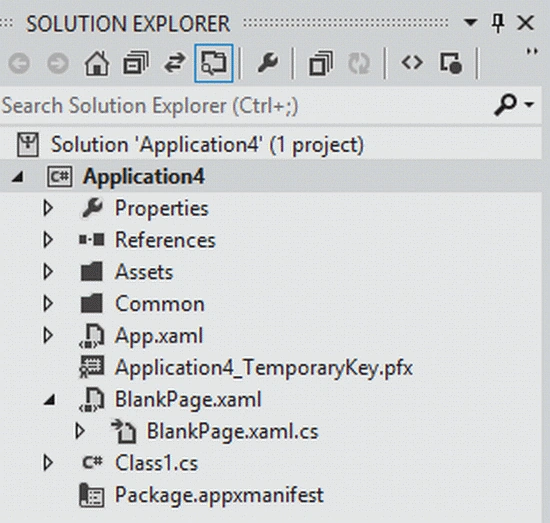
Step 3 : The BlankPage.xaml file is as in the following code:
Code :
<Page
x:Class="Application4.BlankPage"
xmlns="http://schemas.microsoft.com/winfx/2006/xaml/presentation"
xmlns:x="http://schemas.microsoft.com/winfx/2006/xaml"
xmlns:local="using:Application4"
xmlns:d="http://schemas.microsoft.com/expression/blend/2008"
xmlns:mc="http://schemas.openxmlformats.org/markup-compatibility/2006"
mc:Ignorable="d">
<Grid x:Name="LayoutRoot" Background="SeaGreen">
<TextBlock Text=" Player Information List" FontSize="20"></TextBlock>
<ListBox x:Name="personListBox" Height="300" HorizontalAlignment="Left" Margin="42,24,0,0" VerticalAlignment="Top" Width="280" >
<ListBox.ItemTemplate>
<DataTemplate>
<StackPanel >
<TextBlock FontFamily="Verdana" Text="{Binding Player_No}" Margin="0,0,5,0" Foreground="Red"></TextBlock>
<TextBlock FontFamily="Verdana" Text="{Binding Player_Name}" Margin="0,0,5,0" Foreground="Blue"></TextBlock>
<TextBlock FontFamily="Verdana" Text="{Binding Team_name}" Margin="0,0,5,0" Foreground="Yellow"></TextBlock>
<TextBlock Text="-------------------------------------------" Margin="0,0,5,0" Foreground="Gray"></TextBlock>
</StackPanel>
</DataTemplate>
</ListBox.ItemTemplate>
</ListBox>
<Button Height="50" Width="200" Content="Show List" Click="Button_Click_1" Background="Red"></Button>
</Grid>
</Page>
Step 4 : Add a class to the project; the Class1 code for the class is given below:
Code :
using System;
using System.Collections.Generic;
using System.Linq;
using System.Text;
Join the conversation! Your thoughts help the community grow.