

Today, I am going to create localization in a Xamarin.Forms app. Whenever I create a Xamarin.Forms app, I want to change the current language and that time, I get stuck in the app. After doing some research, I have got a solution to the problem. So, in this blog, I am going to implement the localization in the Xamarin.forms app.
Implementation
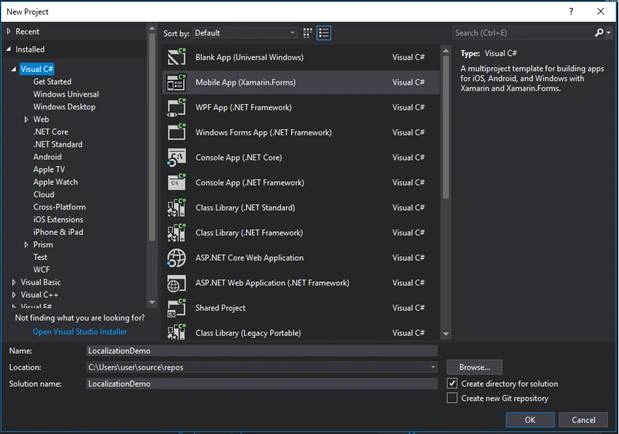
First, we have to create a project with a name LocalizationDemo.
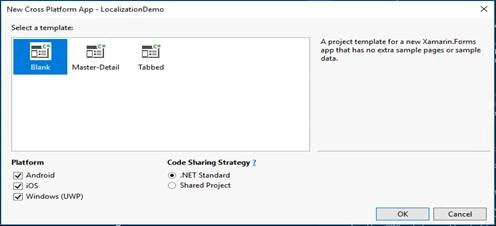
Now, a window appears. Here, you have to select a blank template. Then, choose a platform like Android or iOS and a code-sharing strategy like .NET Standard. Then, hit Enter.
In PCL Project, we can create a folder with the name Localization.
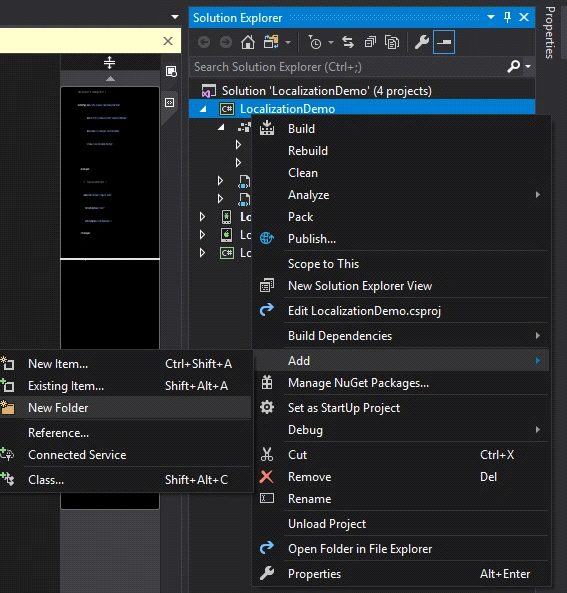
Now, in the Localization folder, we can create a Class with a name CultureChangedMessage and LocalizedResources.
CultureChangedMessage.cs
- public class CultureChangedMessage
- {
- public CultureInfo NewCultureInfo { get; private set; }
- public CultureChangedMessage(string lngName)
- : this(new CultureInfo(lngName))
- { }
- public CultureChangedMessage(CultureInfo newCultureInfo)
- {
- NewCultureInfo = newCultureInfo;
- }
- }
CultureInfo
LocalizedResources.cs
- public class LocalizedResources : INotifyPropertyChanged
- {
- const string DEFAULT_LANGUAGE = "en";
- readonly ResourceManager ResourceManager;
- CultureInfo CurrentCultureInfo;
- public string this[string key]
- {
- get
- {
- return ResourceManager.GetString(key, CurrentCultureInfo);
- }
- }
- public LocalizedResources(Type resource, string language = null)
- : this(resource, new CultureInfo(language ?? DEFAULT_LANGUAGE))
- { }
- public LocalizedResources(Type resource, CultureInfo cultureInfo)
- {
- CurrentCultureInfo = cultureInfo;
- ResourceManager = new ResourceManager(resource);
- MessagingCenter.Subscribe<object, CultureChangedMessage>(this,
- string.Empty, OnCultureChanged);
- }
- private void OnCultureChanged(object s, CultureChangedMessage ccm)
- {
- CurrentCultureInfo = ccm.NewCultureInfo;
- PropertyChanged?.Invoke(this, new PropertyChangedEventArgs("Item"));
- }
- public event PropertyChangedEventHandler PropertyChanged;
- }
ResourceManager:provides convenient access to culture-specific resources at run time.
Now, we can create a Resources folder and in this folder, we can add .resx
- LocalizationDemoResources.fr.resx for (fr = French)
- Add String Name and Value
PickLng = Choisir votre langue
Settings = Paramètres
Welcome = Bienvenue! Bonjour!
- LocalizationDemoResources.nl.resx for (nl = Dutch)
- Add String Name and Value
PickLng = Selecteer uw taal:
Settings = Instellingen
Welcome = Welkom! Hallo! - LocalizationDemoResources.resx for (English)
- Add String Name and Value
PickLng = Choose your language:
Settings = Settings
Welcome = Welcome! Hello!
Now, we can set the default Language in App.cs
- public static string CurrentLanguage = "EN";
Now, create a ViewModels folder and add the ViewModel Classes - MainPageViewModel, SettingsViewModel, ViewModelBase.
ViewModelBase.cs
- public class ViewModelBase : INotifyPropertyChanged
- {
- public LocalizedResources Resources
- {
- get;
- private set;
- }
- public ViewModelBase()
- {
- Resources = new LocalizedResources(typeof(LocalizationDemoResources), App.CurrentLanguage);
- }
- public void OnPropertyChanged([CallerMemberName]string property = null)
- {
- PropertyChanged?.Invoke(this, new PropertyChangedEventArgs(property));
- }
- public event PropertyChangedEventHandler PropertyChanged;
- }
MainPageViewModel.cs
- public class MainPageViewModel : ViewModelBase
- { }
- SettingsViewModel.cs
- public List Languages { get; set; } = new List()
- {
- "EN",
- "NL",
- "FR"
- };
- private string _SelectedLanguage;
- public string SelectedLanguage
- {
- get { return _SelectedLanguage; }
- set
- {
- _SelectedLanguage = value;
- SetLanguage();
- }
- }
- public SettingsViewModel()
- {
- _SelectedLanguage = App.CurrentLanguage;
- }
- private void SetLanguage()
- {
- App.CurrentLanguage = SelectedLanguage;
- MessagingCenter.Send<object, CultureChangedMessage>(this,
- string.Empty, new CultureChangedMessage(SelectedLanguage));
- }

Now, change the MainPage design and bind it with MainPageViewModel.cs.
The last step is adding the SettingsPage and setting a design that binds with SettingsViewModel.cs.
Rajesh JhaPosted Dec 25, 2018, 3:49 AM
Awesome!!!!!
Michael O'flahertyPosted Nov 19, 2018, 8:34 AM
I use the Microsoft Multilingual Toolkit with Xamarin Forms. Works great. https://developer.microsoft.com/en-us/windows/develop/multilingual-app-toolkit