

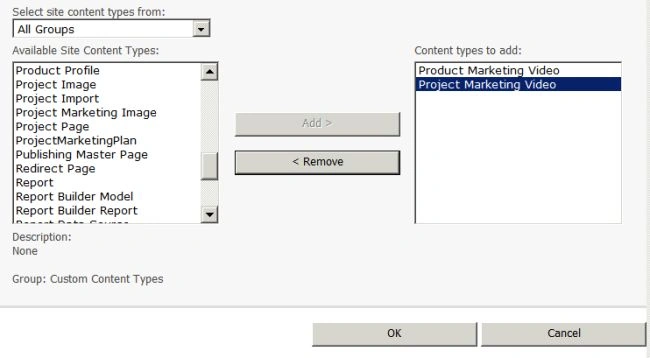
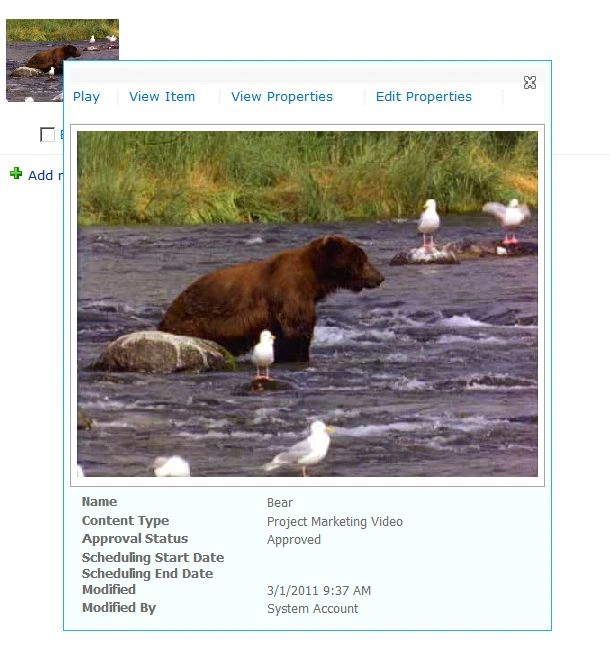
We can create a new video library to support marketing videos. Viewers need to search and filter the images to find the best image for their needs.
You create two content types: one supporting projects and another supports products.
Create Custom Media Content Types
- Open the your site
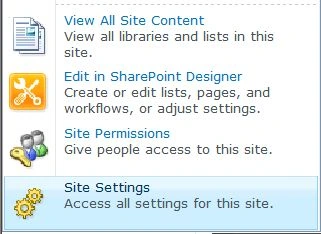
- From the Site Actions control, select Site Settings.
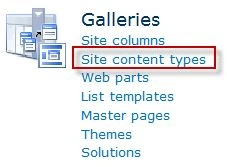
- In the Galleries section, click Site content types links.
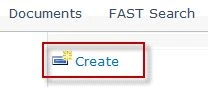
- Click the Create link to create a new content type.
- In the Name text box, enter Product Marketing Videos.
Select Digital Asset Content Types in the Select parent content type from the drop-down.
- Select Video as the Parent Content Type.

- Click OK.
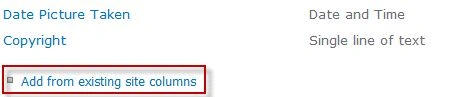
- Click Add from Existing Site Columns link.
- Add Product Category from the Available columns list box to the Columns to add list box.
- Click OK.
- From the Site Actions control, select Site Settings.
- In the Galleries section, click Site content types links.
- Click the Create link to create a new Content Type.
- Enter Project Marketing Video in the Name text box.
- Select Digital Asset Content Types in the Select parent content type from the drop-down.
- Select Video as the Parent Content Type.
- Click OK.
- Click the Add from Existing Site Columns link.
- Add Project from the Available columns list box to the Columns to add list box.
- Click OK.
Create and Configure an Assets Library
Here we can create two new content types based off the existing video content type. You then add the content types to the new Assets library.
Yasser ZaidPosted Nov 24, 2012, 3:31 PM
It's not clear to me
Destin JoyPosted Jun 20, 2012, 11:48 PM
Thank you Jean
Jean PaulPosted Jun 20, 2012, 11:05 PM
That's a cool feature. Thank for sharing Destin!