

Introduction
In this article, I am going to demonstrate how to implement Firebase Invites on Android. Firebase Invites is a solution for app referrals and sharing via email or SMS.
Firebase
Firebase is a back-end tool offered by Google for mobile and web applications. It offers Analytics, Cloud Messaging, Real-time Database, Storage, Remote Configuration, Notification, Crash Reporting, API’s, Multiple Authentication types, Hosting, Dynamic Links, and Invites. Google Firebase helps to develop the application rapidly.
Requirements
- Android Studio.
- Google Account.
Creating a Project
Open Android Studio and create a new project.
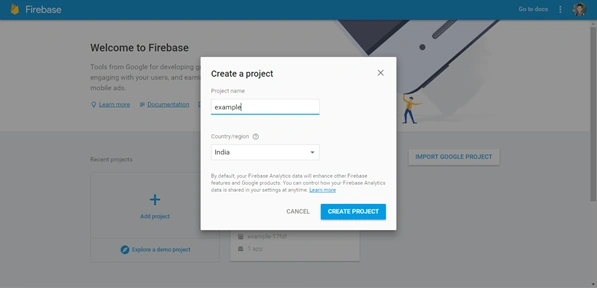
Login to Google Firebase and create a new project in the console.
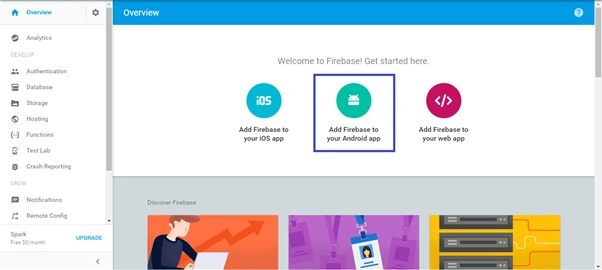
After creating the project, select “Add Firebase to your Android app” in the Firebase Overview page.
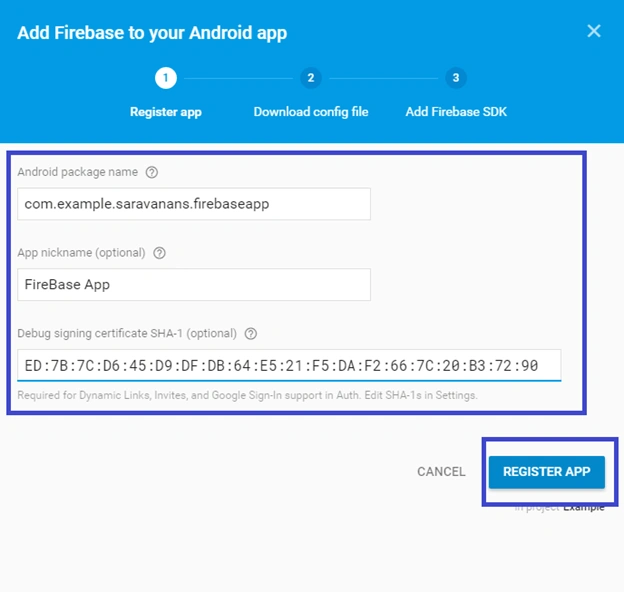
After adding an application, give your Android application a package name, App nickname, debug signing certificate SHA-1, and hit the "REGISTER APP" button.
Now, download the Google-Services.json file and add it in the app folder of your application.
Adding Dependencies
We need to add dependencies for Google Services and Firebase Invites.
Add the dependencies plug-in to App Gradle for Google Firebase Invites.
- compile 'com.google.firebase:firebase-invites:10.0.1'
Add Gradle plug-in (build.gradle(app)) at the end of the code.
- apply plugin: 'com.google.gms.google-services'
- classpath 'com.google.gms:google-services:3.0.0'
Creating Layout
Now, go to the activity_main.xml and paste the below code.
- <?xml version="1.0" encoding="utf-8"?>
- <LinearLayout xmlns:android="http://schemas.android.com/apk/res/android"
- xmlns:tools="http://schemas.android.com/tools"
- android:id="@+id/activity_main"
- android:layout_width="match_parent"
- android:layout_height="match_parent"
- android:orientation="vertical"
- tools:context="io.github.saravanan_selvaraju.firebaseinvites.MainActivity">
- <TextView
- android:layout_width="match_parent"
- android:layout_height="wrap_content"
- android:gravity="center"
- android:text="@string/msg_txt"
- android:textSize="28dp"
- android:padding="10dp"
- android:layout_margin="10dp"/>
- <LinearLayout
- android:layout_width="match_parent"
- android:layout_height="wrap_content"
- android:orientation="vertical"
- android:layout_gravity="center"
- android:layout_margin="15dp"
- android:padding="15dp">
- <Button
- android:layout_width="match_parent"
- android:layout_height="wrap_content"
- android:id="@+id/invie_btn"
- android:background="@color/colorPrimary"
- android:text="@string/invite_txt"
- android:textColor="@android:color/white"
- android:textStyle="bold"/>
- </LinearLayout>
- </LinearLayout>
Creating Activity
Write the below code inside “button onclick listener()” method for sending invitations.
- private void onInviteClicked() {
- Intent intent = new AppInviteInvitation.IntentBuilder(getString(R.string.invitation_title))
- .setMessage(getString(R.string.invitation_message))
- .build();
- startActivityForResult(intent, REQUEST_INVITE);
- }
- <resources>
- <string name="invitation_title">Firebase Invite</string>
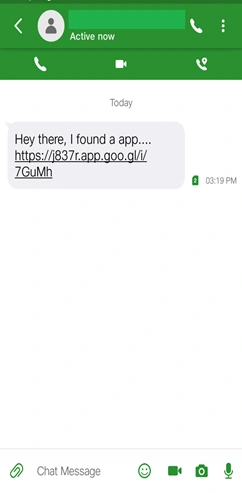
- <string name="invitation_message">Hey there, I found a app....</string>
- </resources>
- protected void onActivityResult(int requestCode, int resultCode, Intent data) {
- super.onActivityResult(requestCode, resultCode, data);
- Log.d(TAG, "onActivityResult: requestCode=" + requestCode + ", resultCode=" + resultCode);
- if (requestCode == REQUEST_INVITE) {
- if (resultCode == RESULT_OK) {
- String[] ids = AppInviteInvitation.getInvitationIds(resultCode, data);
- for (String id : ids) {
- Log.d(TAG, "onActivityResult: sent invitation " + id);
- }
- } else {
- }
- }
- }
- package io.github.saravanan_selvaraju.firebaseinvites;
- import android.content.Intent;
- import android.net.Uri;
- import android.support.annotation.NonNull;
- import android.support.v7.app.AppCompatActivity;
- import android.os.Bundle;
- import android.util.Log;
- import android.view.View;
- import android.widget.Button;
- import com.google.android.gms.appinvite.AppInvite;
- import com.google.android.gms.appinvite.AppInviteInvitation;
- import com.google.android.gms.common.ConnectionResult;
- import com.google.android.gms.common.api.GoogleApiClient;
- public class MainActivity extends AppCompatActivity {
- private static final int REQUEST_INVITE = 100;
- private static final String TAG = MainActivity.class.getSimpleName();
- private Button Invite_btn;
- @Override
- protected void onCreate(Bundle savedInstanceState) {
- super.onCreate(savedInstanceState);
- setContentView(R.layout.activity_main);
- Invite_btn = (Button) findViewById(R.id.invie_btn);
- Invite_btn.setOnClickListener(new View.OnClickListener() {
- @Override
- public void onClick(View view) {
- onInviteClicked();
- }
- });
- }
- private void onInviteClicked() {
- Intent intent = new AppInviteInvitation.IntentBuilder(getString(R.string.invitation_title)).setMessage(getString(R.string.invitation_message)).build();
- startActivityForResult(intent, REQUEST_INVITE);
- }
- @Override
- protected void onActivityResult(int requestCode, int resultCode, Intent data) {
- super.onActivityResult(requestCode, resultCode, data);
- Log.d(TAG, "onActivityResult: requestCode=" + requestCode + ", resultCode=" + resultCode);
- if (requestCode == REQUEST_INVITE) {
- if (resultCode == RESULT_OK) {
- String[] ids = AppInviteInvitation.getInvitationIds(resultCode, data);
- for (String id: ids) {
- Log.d(TAG, "onActivityResult: sent invitation " + id);
- }
- } else {}
- }
- }
- }
Adding Permission
- uses-permission android:name="android.permission.INTERNET"/>

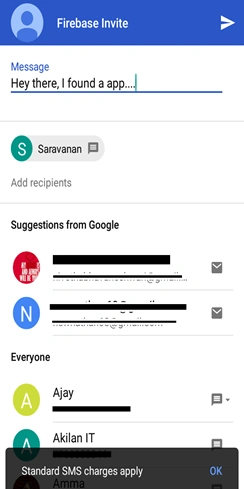
Summary
In this article, we discussed what Google Firebase is, and how to use Firebase Invites in Android applications.
Gokhul VarmanPosted Aug 9, 2017, 4:10 PM
Nice..da...good and informative article