

Visual Studio Lightswitch is a Microsoft tool, which is used for to build business applications. If you want to browse a file in your LightSwitch application then follow these steps.
Step by step solution
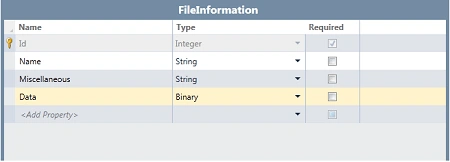
Step 1 : Open Visual Studio LightSwitch->Create new table (like as FileInformation).
Step 2 : Right click on screens->Add screens.

Step 3 : Select editable grid screen->Select screen data (FileInformation)->Ok.

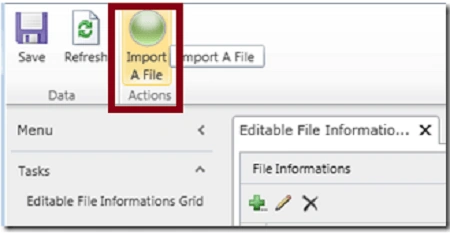
Step 4 : Now click on add in screen commandbar->Select new button.

Step 5 : Write method name (ImportFile)->Ok.

Step 6 : Right click on ImportAFile button->Edit execute code->Write the below code.

Code :
using System;
using
System.Collections.Generic;
using System.IO;
using
System.IO.IsolatedStorage;
using
System.Linq;
using
LightSwitchApplication.UserCode;
using
Microsoft.LightSwitch;
using
Microsoft.LightSwitch.Framework.Client;
using
Microsoft.LightSwitch.Presentation;
using
Microsoft.LightSwitch.Presentation.Extensions;
using
Microsoft.LightSwitch.Threading;
namespace
LightSwitchApplication
{
public partial
class
EditableFileInformationsGrid
{
partial void
ImportAFile_Execute()
{
Dispatchers.Main.BeginInvoke(()
=>
{
SelectFileWindow
selectFileWindow = new
SelectFileWindow();
selectFileWindow.Closed += new
EventHandler(selectFileWindow_Closed);
selectFileWindow.Show();
});
}
void selectFileWindow_Closed(object
sender, EventArgs e)
{
SelectFileWindow
selectFileWindow = (SelectFileWindow)sender;
if (selectFileWindow.DialogResult ==
true && (selectFileWindow.DocumentStream !=
null))
{
byte[] fileData =
new byte[selectFileWindow.DocumentStream.Length];
using (StreamReader
streamReader = new
StreamReader(selectFileWindow.DocumentStream))
{
for (int
i = 0; i < selectFileWindow.DocumentStream.Length; i++)
{
fileData[i] = (byte)selectFileWindow.DocumentStream.ReadByte();
}
}
FileInformation
fileInformation = this.DataWorkspace.ApplicationData.FileInformations.AddN();
fileInformation.Name = selectFileWindow.SafeFileName;
fileInformation.Miscellaneous =
"Size of file in bytes: " + fileData.Length
fileInformation.Data = fileData;
selectFileWindow.DocumentStream.Close();
selectFileWindow.DocumentStream.Dispose();
}
}
}
}
Step 7 : Go to file view in solution explorer.

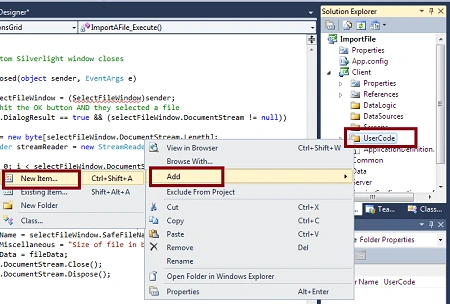
Step 8 : Expand client->Right click on user code->Add->New item.
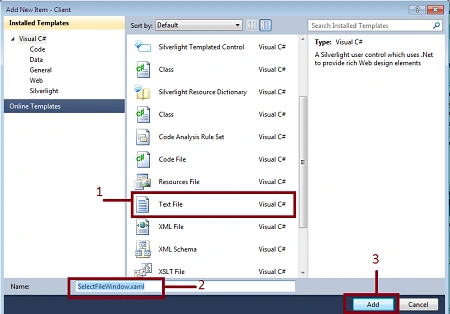
Step 9 : Select text file->Write name (SelectFileWindow.xaml)->Add->Write the below code.

Jaganathan BantheswaranPosted Jan 9, 2012, 2:57 AM
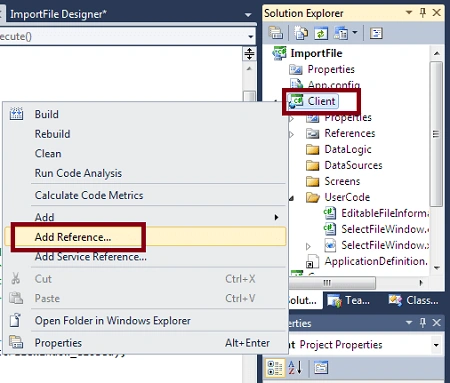
See the XAML part of your application.... where you have imported the namespace for control.ChildWindow? Can we place a control out of the UserControl ? Wont you get any error in this application?