

This article describes how to import data from Excel in Light Switch using Visual Studio 2012.
The Excel Importer Extension allows us to add "Import From Excel" functionality in LightSwitch.
You can download the Excel Importer Extension from: Download the Excel Import Extension.
Procedure for importing data from Excel in LightSwitch 2012
Step 1
We need to first create the two Excel documents (Emp and Item) to be saved in the Document directory.
Emp Excel Document
Item Excel Document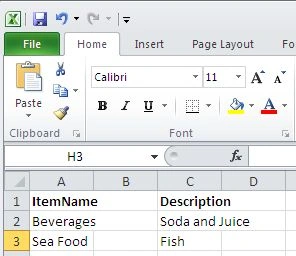
Document Directory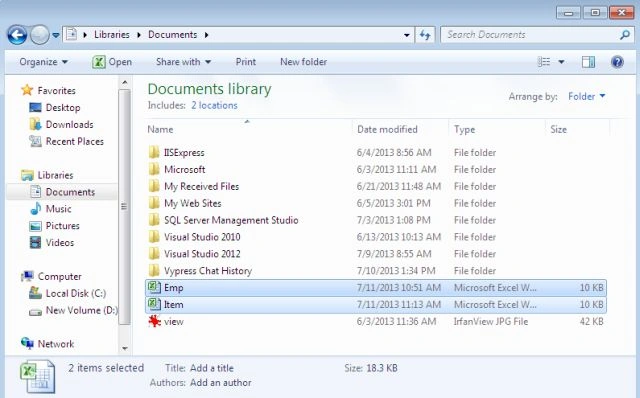
Step 2
In the LightSwitch Application, open the Solution Explorer.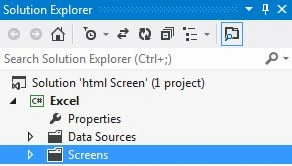
Step 3
Right-click or double click on the properties window.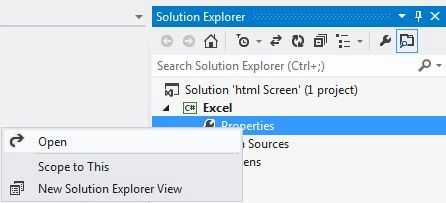
Step 4
Choose the Extension tab. Mark the "Excel Importer" checkbox as checked in order to use it in the project.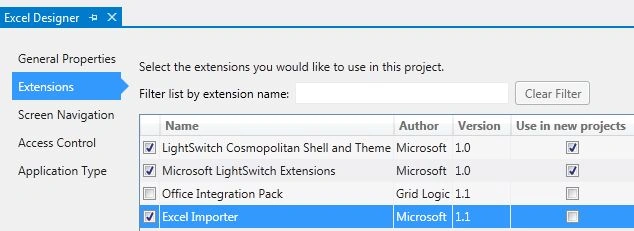
Step 5
Go to the Solution Explorer and right-click on the data source and choose "Add table".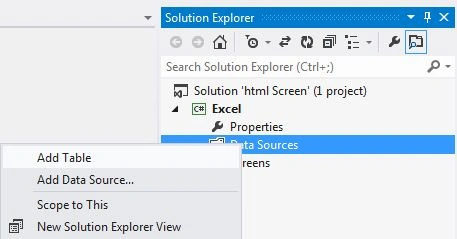
In this way we are able to add two tables (Emp and Item).
Emp Table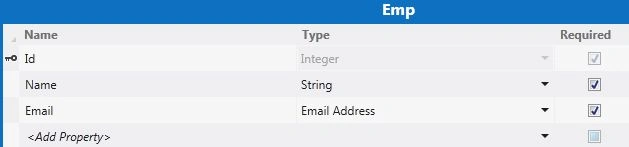
Item Table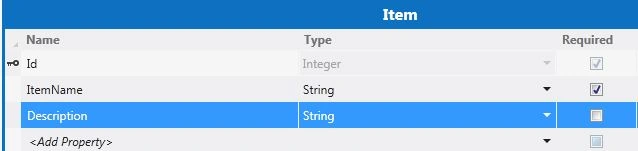
Step 6
Select the "Relationship" button from the menu bar.
The Add New Relationship dialog box appears. Establish the relationship between the "Item" and "Emp" tables.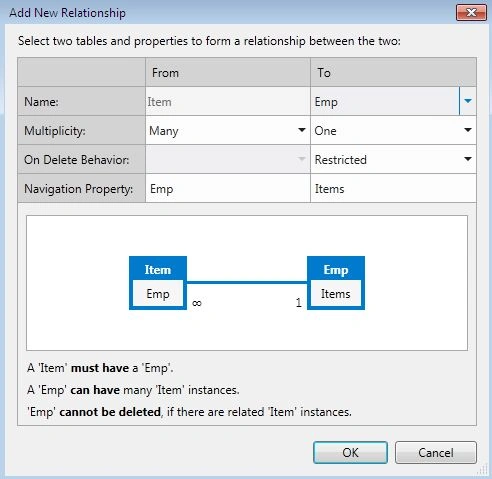
Step 7
Go to the Solution Explorer, right-click on the screen and choose the "Add Screen" option.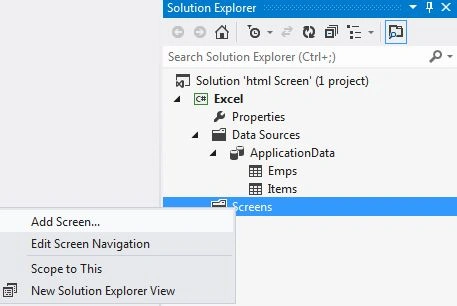
The New Screen Designer appears. Select an Editable Grid Screen template and under Screen Data choose "Emp".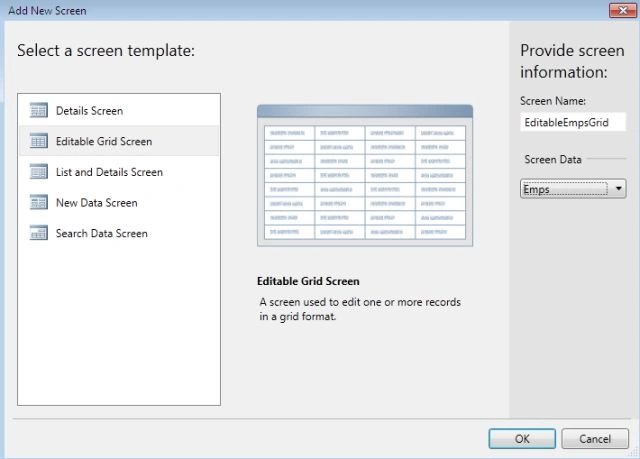
Step 8
The Screen Designer appears. Under the Screen Designer, right-click on "Screen Command Bar" and choose "Add Button".
The Add Button dialog box appears. Choose the "New Method" radio button and provide the name "Import From Excel" and click the "OK" button.
Step 9
Double-click on the "Import From Excel" button and provide the following code:
using System;
using System.Linq;
using System.IO;
using System.IO.IsolatedStorage;
using System.Collections.Generic;
using Microsoft.LightSwitch;
using Microsoft.LightSwitch.Framework.Client;
using Microsoft.LightSwitch.Presentation;
using Microsoft.LightSwitch.Presentation.Extensions;
namespace LightSwitchApplication
{
public partial class EditableEmpsGrid
{
partial void ImportFromExcel_Execute()
{
// Write your code here.
ExcelImporter.Importer.ImportFromExcel(this.Emps);
}
}
}
Step 10
Add one more "Editable Data Grid" Screen and under Screen Data choose "Item".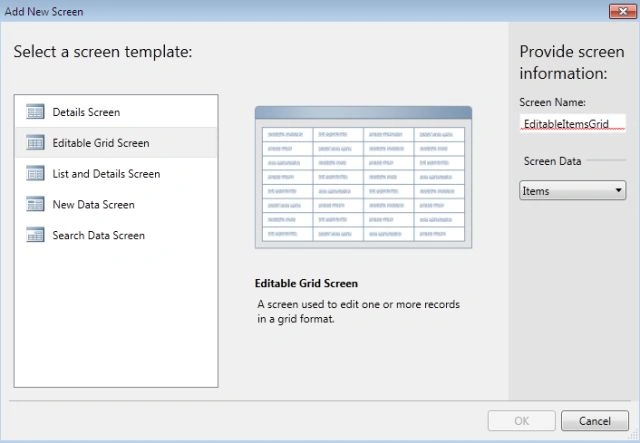
Perform the similar task of adding a button and choose "New Method" and provide the name "Import From Excel" and click the "OK" button.
Once again double-click on the "Import From Excel" button and provide the following code:
using System;
using System.Linq;
using System.IO;
using System.IO.IsolatedStorage;
using System.Collections.Generic;
using Microsoft.LightSwitch;
using Microsoft.LightSwitch.Framework.Client;
using Microsoft.LightSwitch.Presentation;
using Microsoft.LightSwitch.Presentation.Extensions;
namespace LightSwitchApplication
{
public partial class EditableItemsGrid
{
partial void ImportFromExcel_Execute()
{
// Write your code here.
ExcelImporter.Importer.ImportFromExcel(this.Items);
}
}
}
Step 11
Press F5 to run the application. Notice that the "Editable Emp Grid" screen should appear.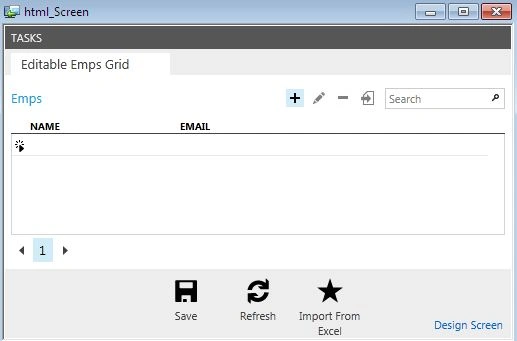
Click on the "Import to Excel" button.
The Open Dialog Box will appear from which you can choose the file that you want to import. Select the "Emp" Excel document and click "OK".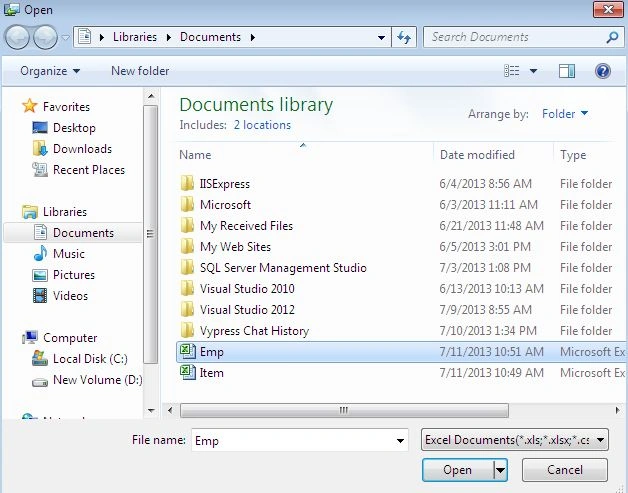
Step 12
The Map Column dialog box will appear that allows you to map columns in the Excel document to fields on your LightSwitch table.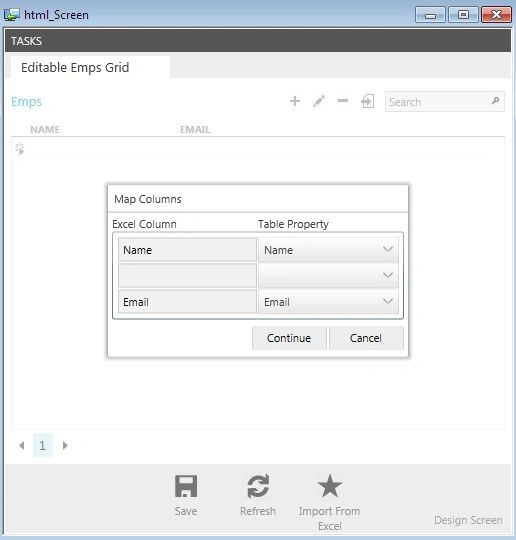
Click on the "Continue" button and the data appears in the "Editable Emp Grid" Screen. Click on the "Save" button and close the screen.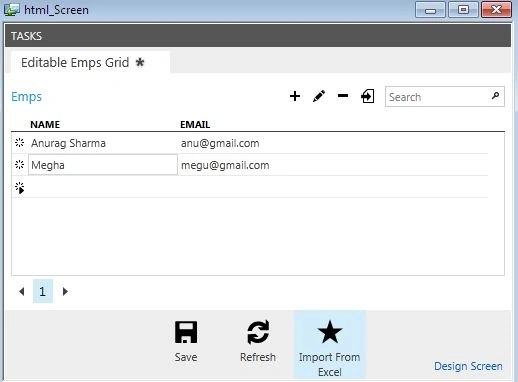
Step 13
Now open the "Editable Item Grid" screen by clicking on the "Task" button.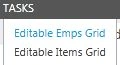
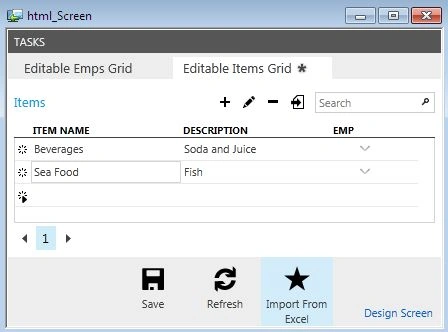
Click on the "Import From Excel" button and select the Item Excel sheet from the document.
Step 14
The Map Column dialog box will appear again.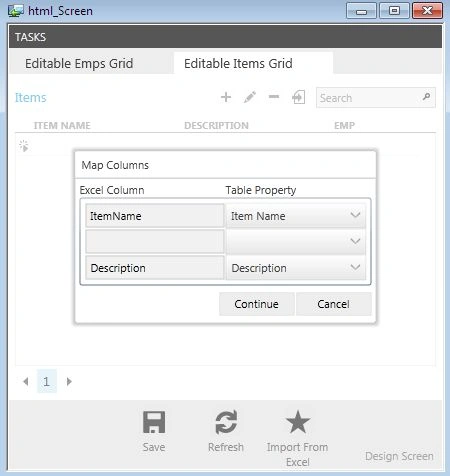
Click on the "Continue" button.
Join the conversation! Your thoughts help the community grow.