

Introduction
We can easily import Excel data into a QlikView application using a chart, list box and table box.
Step 1: Open the QlikView application, then go to:
"File" -> "New"
Then the following window will be opened: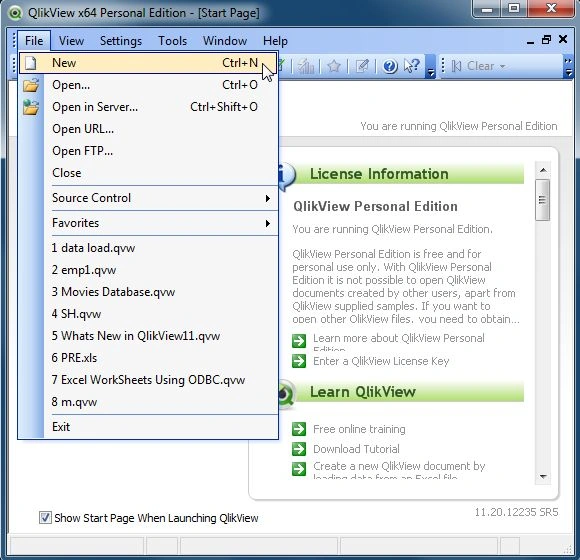
Step 2: Now open the window of Edit Script using:
"File" -> "Edit Script"
Then the following window will be opened:
Step 3: The next step is to simply click on "Table Files" and open our Excel file.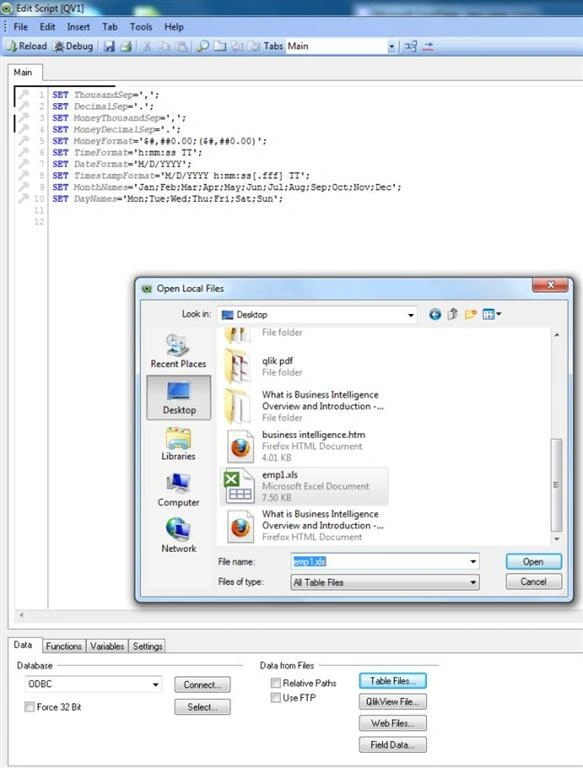
Step 4: After opening the Excel file, this window will be opened; click on the "Next" button.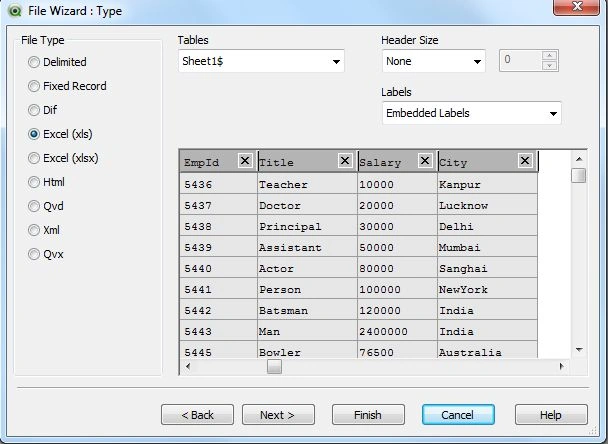
Step 5: After clicking on the "Next" button this window will be opened; click on the "Next" button.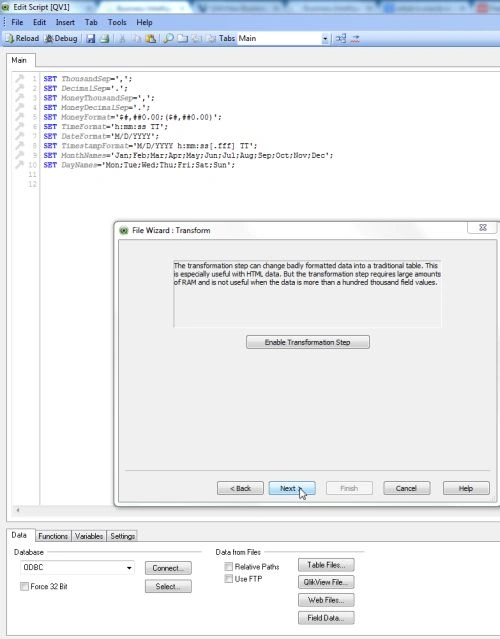
Step 6: After clicking on the "Next" button, the File Wizard Options window will be opened; simply click on the "Clause" button.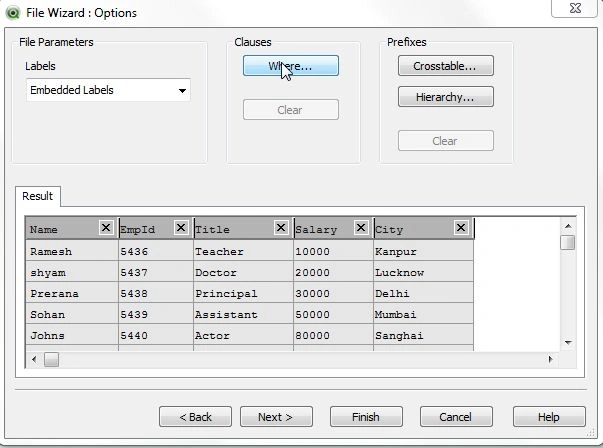
Step 7: Where Clause window: In this window we select the field and 0p/Func and constant and click on the "Cancel" button-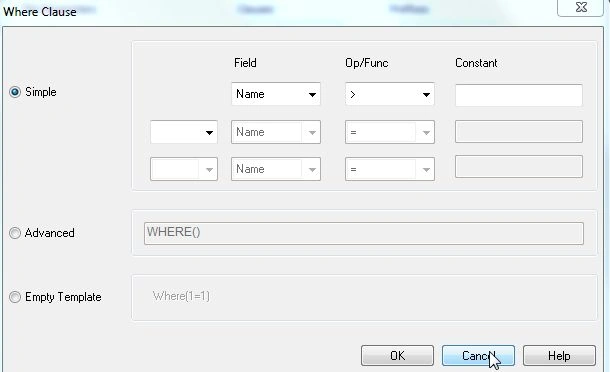
Step 8: Code of Edit Script: this window shows the code and reloads it.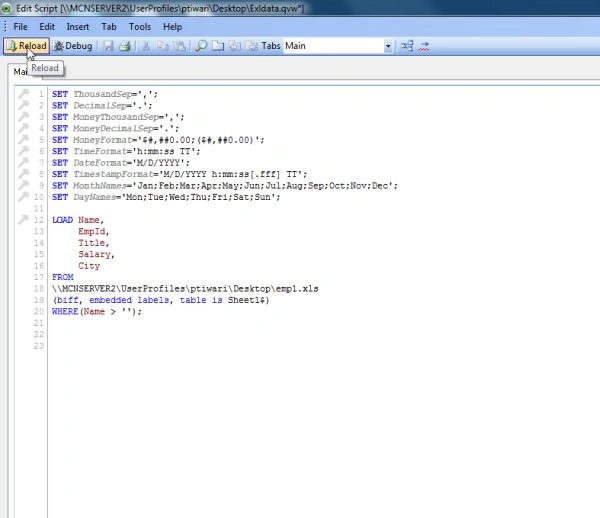
Step 9: Sheet Property Window: After reloading the edit script the next step is to select the field.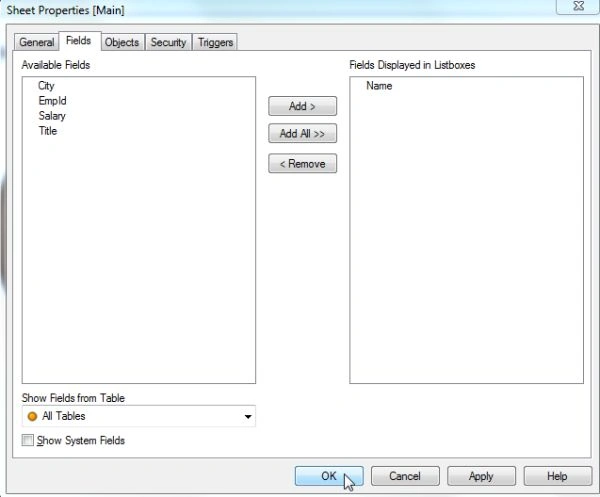
Step 10: Main Window: It is the main window that displays the selected field.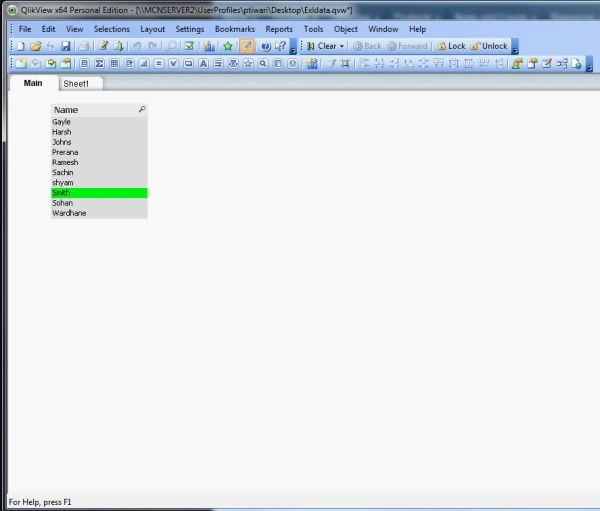
Step 11: Add a new sheet and create a List Box: The next step is to create a new sheet and in this sheet create a list box.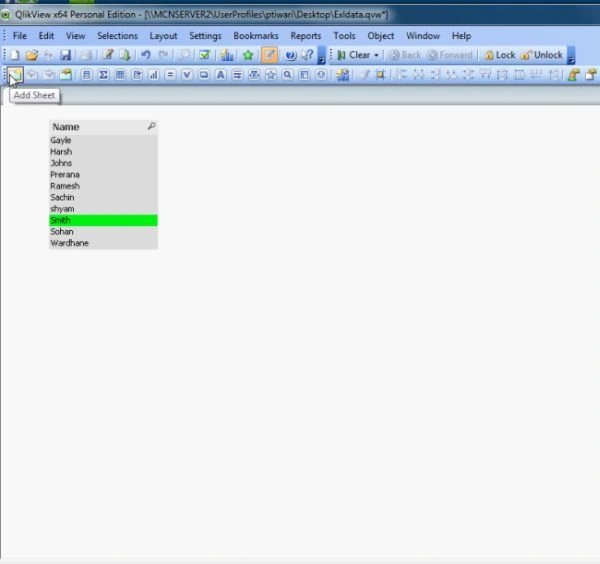
Then create a list box in the new sheet.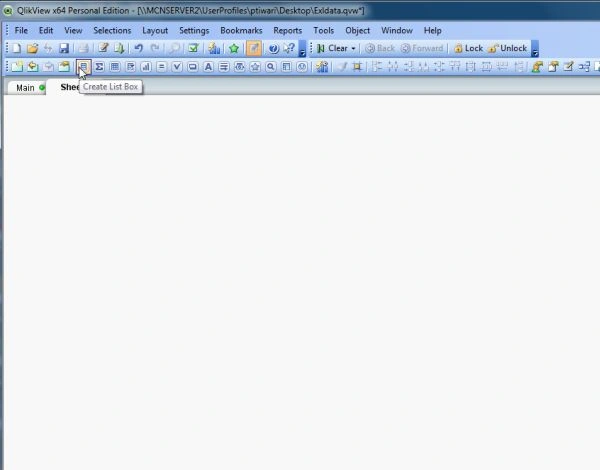
Step 12: New List Box Window and select Field: In this window we select the field for the list box.
Step 13: Create a table box: It is the main window that displays the selected field and creates a table box.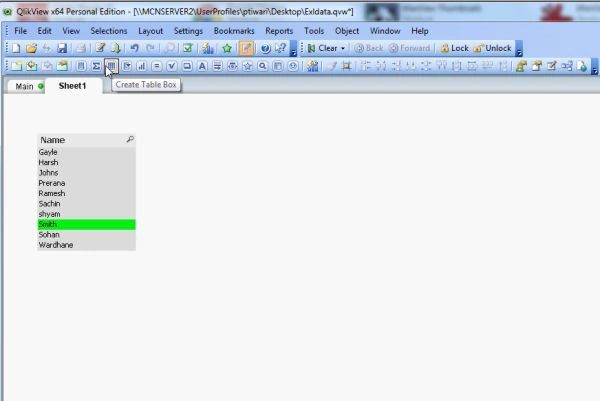
Step 14: New Table Box Window and selected Field: In this window we select the field for the table box in the General tab and then click on the "Number" tab.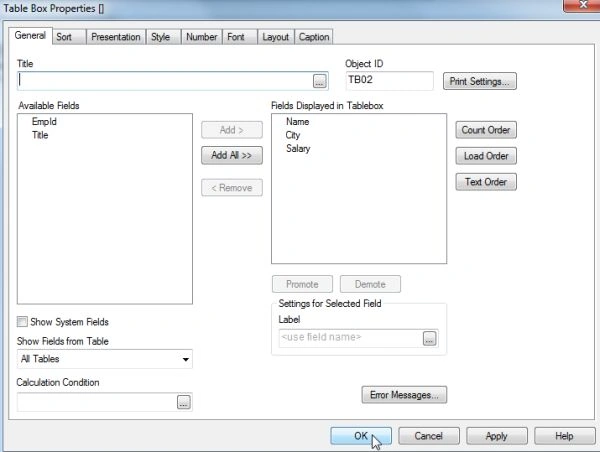
Step 15: In Number Tab: In the number tab, we select these properties and click on the "Apply" button.
Step 16: Select a chart: If we want to select a chart, then right-click in some whitespace in the Sheet1 window.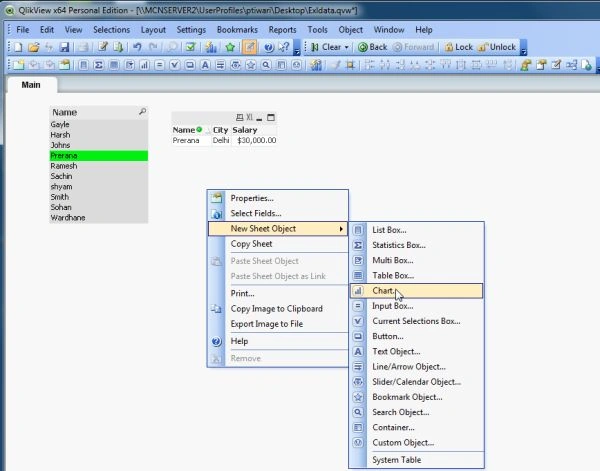
Step 17: In General Window: In this we select the chart type and define the window title then click on the "Next" button-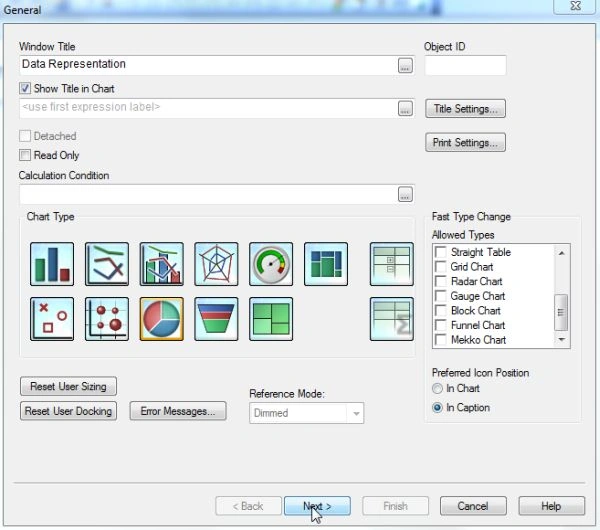
Step 18: In Dimension Window: In this we select the field then click on the "Next" button.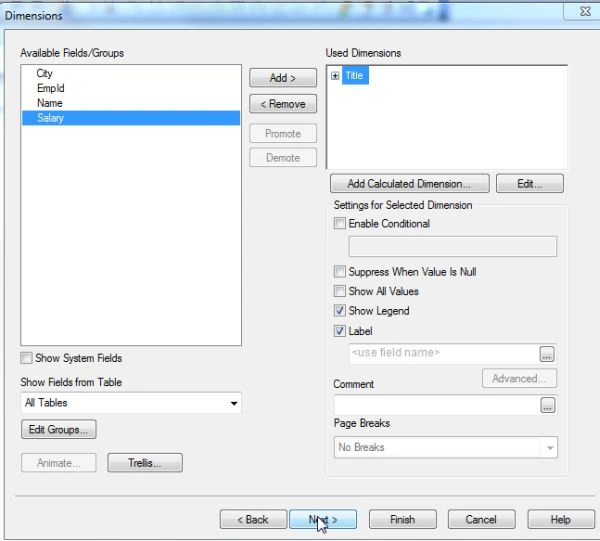
Step 19: In Edit Expression Window: In this we select the field and paste it, then click on the "OK" button.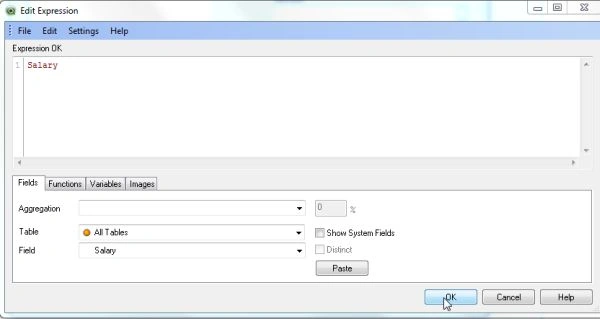
Step 20: In Expression Window: In this window normally we just click on the "Finish" button.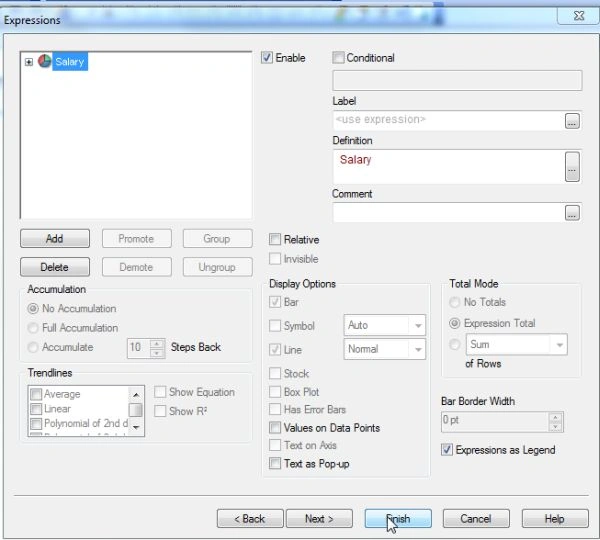
Step 21: This is the last and main window.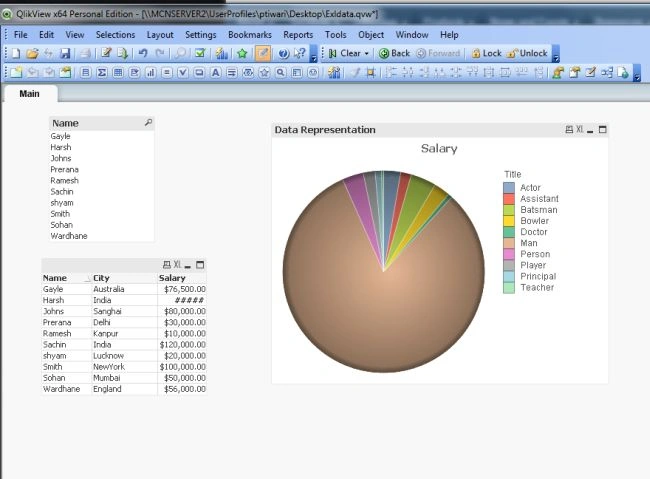
Summary
This article described how to import our Excel data into a QlikView application.
RinkiPosted Aug 20, 2017, 12:39 AM
Excellent post. Pls Explain "Override Locked Field" property.
mohammed aalaPosted Sep 29, 2016, 9:31 AM
Hi Prerana, can u plz send me the excel files being used in this example. Kindly mail it to my mail id [email protected]. Thanks
Pradeep SahooPosted May 18, 2016, 1:02 PM
Good share..........